Understanding Ice Cream Calc’s Recipe Calculations
1. Introduction
Every recipe in Ice Cream Calc generates hundreds of calculated data properties that help you understand and optimize your ice cream formulations. These calculations power automatic balancing, giving you deep insights into your recipe’s characteristics.
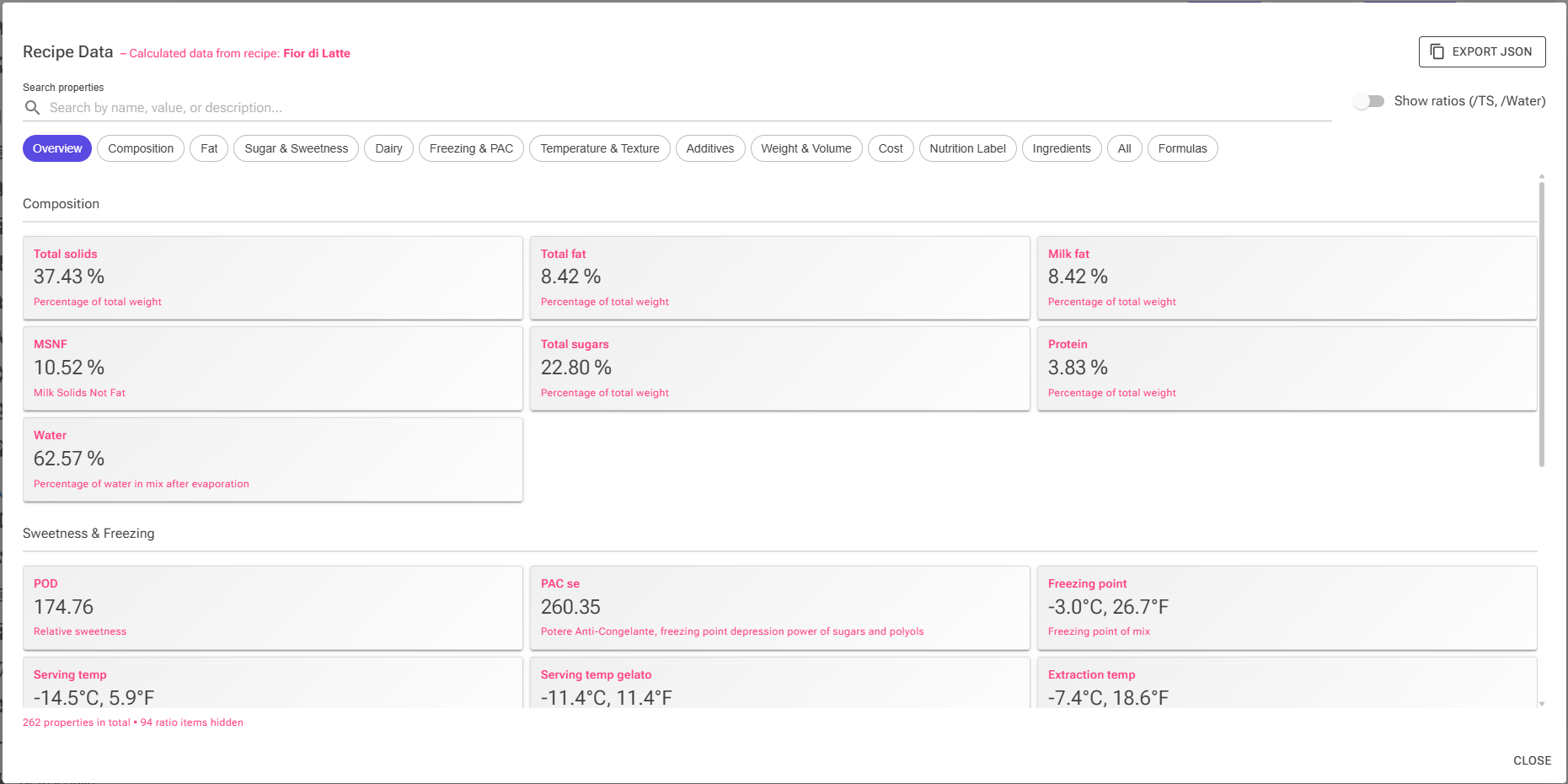
The Recipe Data dialog, opened with the Data button in the Recipe Editor, provides a centralized place to explore all calculated properties from your current recipe. Whether you’re looking for specific values like PAC or POD, or creating custom calculations with formulas, the Recipe Data dialog is your window into the recipe calculation engine.
When to use the Recipe Data dialog:
- Exploring available data properties for formula creation
- Understanding what values are being calculated
- Checking specific ice cream science metrics (freezing points, serving temperatures)
- Verifying nutritional calculations
- Creating and testing custom formulas
2. Understanding Calculated Data
What is a Data Item?
A data item is a single calculated property from your recipe. Each data item contains:
- Property Key: The technical name (e.g., “PAC se”, “Butter fat”, “Total Cost”)
- Display Value: Human-readable value with units (e.g., “185.23”, “8.5 %”, “12.450” – costs carry no currency sign)
- Numeric Value: Raw number for calculations (e.g., 185.23, 8.5, 12.45)
- Description: What the property represents
How Calculations Work
Ice Cream Calc uses a three-base calculation system to handle different types of ingredients correctly:
1. Mix Base – Ice Cream Science
- Uses only regular mix ingredients (no inclusions, no infusions), after evaporation
- Calculates: PAC, POD, HF, freezing curves, serving temperatures
- Also calculates the composition percentages (fat, sugars, solids, protein…) and the plain nutrition items such as Energy/100g
- Why: Ice cream science properties depend on the base mix, not chocolate chips or cookie pieces
2. Nutrition Base – The Finished Product
- Uses the cooked mix after evaporation, plus inclusions, without infusions
- Calculates: the nutrition label values (the
lblitems in section 3) - Used by the nutrition label page, the Nutrition card in the editor, and the nutrition shown on recipe cards, the showcase and reports
- Why: a nutrition label describes what the customer eats – the chocolate chips are eaten, the strained vanilla pod is not
3. Cost Base – All Ingredients
- Includes regular ingredients + inclusions + infusions
- Each row’s weight is multiplied by its Scale (waste) factor, so you pay for what you have to buy, not just what ends up in the mix
- Calculates: Total cost, cost per liter, cost per kg
- Why: Even strained ingredients (infusions) cost money
Understanding Add-Ins
Ice Cream Calc handles two types of add-ins differently. To flag an ingredient, select its row in the Recipe Editor and use the I (Inclusion) or F (Infusion) button beside the weight slider.
Inclusions (Physical add-ins like chocolate chips):
- Flagged with the I button
- Included in volume and weight calculations, and in the nutrition base
- Example: 100g chocolate chips adds to final ice cream volume
Infusions (Strained ingredients like vanilla beans):
- Flagged with the F button
- NOT included in final volume/weight or nutrition (they’re strained out)
- Still included in cost calculations
Ingredients added after cooking are not add-ins: they stay part of the mix. Flag them with the E button (Exclude from evaporation) so evaporation is applied only to the cooked portion. An ingredient can carry only one of the I, F and E flags. See Recipe Weights, Scaling & Evaporation.
3. Categories of Calculated Properties
The Recipe Data dialog automatically organizes properties into logical categories, one chip per category. Here’s a comprehensive guide to all calculated properties:
Understanding Property Suffixes
Many properties come in three variants to help you analyze composition from different perspectives:
- [Property] – Percentage of total weight (e.g., “Total fat” = 8.5%)
- Most common view for recipe formulation
- What you see on nutrition labels
- [Property]/Water – Percentage of water phase only (e.g., “Total fat/Water” = 14.2%)
- Critical for understanding solute concentrations
- Affects freezing point depression and ice crystal formation
- Example: Lactose/Water shows risk of crystallization (max ~9%)
- [Property]/TS – Percentage of total solids (e.g., “Total fat/TS” = 68.0%)
- Shows dry matter composition independent of water content
- Essential for comparing recipes with different evaporation levels
- Example: Two recipes with 8% and 10% fat might both have 68% fat/TS
- Particularly useful when adjusting total weight while maintaining balance
Why /TS matters: When you change evaporation or total weight, the regular percentages change but /TS ratios stay constant if the solid balance is maintained. This helps you understand whether changes affect true composition or just dilution.

Basic Weight and Volume Properties
Weight Properties:
- Weight: Total weight of mix ingredients (excludes add-ins), in grams
- Final weight: Weight after evaporation, in grams
- Final water: Water content after evaporation, in grams
- Evaporation: Amount of evaporated water, in grams
- Evaporation %: The recipe’s evaporation setting – the share of the cooked ingredients’ weight lost as water
- Effective Evaporation %: The same loss as a share of the whole mix weight. It is lower than Evaporation % when some ingredients are excluded from evaporation (E button), because those are not cooked
Volume Properties:
- Mix volume: Volume of liquid mix before churning (final weight divided by the mix density), in liters
- Ice cream volume: Final volume including overrun and inclusions (using each inclusion’s displacement), in liters
- Ice Cream Weight per Liter: Density including inclusions, in g/L
Water Properties:
- Water: Percentage of water in mix after evaporation
Ice Cream Science Properties
PAC (Freezing Point Depression):
PAC is the single most important property for ice cream formulation because it directly controls:
- How hard or soft your ice cream will be at serving temperature
- The percentage of water that freezes vs remains liquid
- The scoopability and mouthfeel
- The melting rate and texture perception
Unlike other properties that affect quality or cost, PAC fundamentally determines whether your ice cream is even usable – too low PAC creates rock-hard ice cream that’s impossible to scoop, while too high PAC creates a soft, slushy texture that melts immediately.
How PAC connects to balancing:
PAC doesn’t work alone – it’s used to calculate the freezing curve, which shows how much water is frozen at each temperature. From this curve, the system calculates your Serving Temperature (the temperature where the target percentage of water is frozen – typically 75% for hard-scoop ice cream, 69% for gelato).
This is why modern balancing targets Serving Temperature rather than PAC directly:
- Serving temp is what you actually experience when scooping
- It accounts for PAC, HF (hardening factor), salt, and MSNF minerals
- Target: typically -13°C to -16°C for hard-scoop ice cream
- You balance to achieve your desired serving temp, which automatically adjusts PAC accordingly
The workflow: Adjust ingredients → PAC changes → Freezing curve recalculates → Serving temp updates → Check if serving temp is in your target range.
- PAC se: The primary freezing point depression factor, measured per 100g mix
- Determines how much ice forms vs remains liquid at serving temperature
- Higher PAC = softer ice cream (more unfrozen water)
- Dominated by sugars and salt – small molecules have highest effect
- Name origin: “Potere Anti-Congelante” (Italian: anti-freezing power)
- PAC normalized: PAC relative to water content
- Accounts for different water levels due to total solids content
- More accurate predictor of actual freezing behavior
- PACtot: Total PAC including salt contribution
- Salt has extremely high PAC value (~585 vs 100 for sucrose)
- Even small amounts of salt significantly affect freezing
- Used in freezing curve calculations
- PACtot normalized: Total PAC normalized to water
- Most accurate metric for predicting texture
- Accounts for both sugar/salt levels AND water content
For the science behind these figures, see Freezing Point Depression (how PAC becomes a freezing point) and How PAC and POD Are Calculated (where an ingredient's PAC and POD come from).
Sweetness:
POD (Potere Dolcificante – “Sweetening Power”) measures relative sweetness compared to sucrose (baseline = 100).
By using different sugars we can balance both sweetness and hardness independently.
Since PAC and POD don’t correlate perfectly, you can adjust texture without changing sweetness. For example, replacing sucrose (PAC 100, POD 100) with glucose (PAC 190, POD 77) makes ice cream softer but less sweet – then add a touch of fructose (POD 170) to restore sweetness without affecting texture much. This is why professional formulations typically use 2-3 different sugar types for independent control.
- POD: Potere Dolcificante – relative sweetness vs sucrose (100 = sucrose baseline)
- Different sugars have dramatically different sweetness
- Fructose ≈170, Glucose ≈77, Lactose ≈16
- Essential for sugar substitution while maintaining sweetness
- Lower POD recipes taste less sweet despite same sugar percentage
- Perceived sweetness (Premium): Sweetness as the mouth is likely to perceive it at room temperature, on the same scale as POD
- Built from the individual sugars (see Sugar Composition), using each sugar’s measured sweetness at the mix’s own concentration
- Sugar mixtures add up to less than their parts at high concentration, which POD does not account for
- Sugar without a recorded composition counts as sucrose
- Compare it with POD to see how far the simple POD sum is from the sweetness you are likely to taste
Hardening Factor:
HF or Hardening Factor measures how much an ingredient makes ice cream firmer/harder at serving temperature. It’s essentially a “negative PAC” – while PAC softens ice cream, HF hardens it. Mainly from cocoa solids, cocoa butter, and nut fats.
Freezing Point:
- Freezing point: Initial freezing temperature of the mix (°C and °F)
- Pure water freezes at 0°C, ice cream mix at -2°C to -4°C typically
- Lower freezing point = more scoopable (but also slower to freeze)
- Affected by PAC, salt, and MSNF minerals
Temperature Data:
- Serving temp: Optimal scooping temperature for hard-scoop ice cream
- Calculated at your Ice Cream (FW%) setting, 75% frozen water by default (see Settings)
- Balance between scoopability and melting rate
- Typically -13°C to -16°C
- Too cold = difficult to scoop, too warm = melts too fast
- Serving temp gelato: Optimal temperature for paddle/spatula-style gelato
- Calculated at your Gelato (FW%) setting, 69% frozen water by default (softer than hard-scoop)
- Typically -10°C to -13°C
- Warmer serving = smoother mouthfeel, more immediate flavor release
- Extraction temp: Temperature for safe extraction from batch freezer
- Calculated at your Extraction (FW%) setting, 55% frozen water by default
- Mix is firm enough to hold shape but soft enough to extract
- Typically -8°C to -11°C
- FW08 through FW16: Frozen water percentage at specific storage temperatures
- FW13 and FW16 most commonly referenced (home freezer range)
- Higher frozen water % = harder texture at that temperature
- Affected by PAC, HF, and salt content
- Example: FW13 = 65% means 65% of water is frozen at -13°C
Coldness Perception:
- Coldness: Sensory perception of cold intensity (50 = typical benchmark)
- Combines ice crystal content, fat level, and serving temperature
- Higher values = more intensely cold sensation
- Affected by: frozen water %, fat content, overrun, serving temp
- Not the same as temperature – accounts for thermal buffering from fat
- Coldness Gelato: Same metric calibrated for gelato serving temperature
User Settings (Display Only)
These show your current settings that affect calculations:
- % Serving temp: Frozen water % used for serving temp calculation (typically 75%)
- % Gelato serving temp: Frozen water % for gelato (typically 69%)
- % Extraction FW: Frozen water % for extraction temp (typically 55%)
- Overrun: The recipe’s own overrun when you have set one in the Recipe Editor’s weight summary bar; otherwise your Default Overrun from Settings
- Density: Mix density in g/mL
Fat Properties
Fats are critical for ice cream texture, mouthfeel, and flavor delivery. Each fat property has three views: percentage of total weight, percentage of water phase, and percentage of total solids.
Total Fat Classification:
- Total fat (and /Water, /TS): All lipids in the recipe
- Target range: 10-16% for premium ice cream, 6-10% for standard
- Provides creaminess, slows melting, carries fat-soluble flavors
- Too high (>18%): buttery texture, coats palate
- Too low (<6%): icy, lacks richness
Fat Source Breakdown:
- Milk fat (and /Water, /TS): Fat from dairy sources (cream, milk, butter)
- Traditional ice cream uses 100% milk fat (10-16% total)
- Complex fatty acid profile gives characteristic dairy flavor
- Crystallization behavior affects texture development during aging
- Cacao fat (and /Water, /TS): Cocoa butter from chocolate
- Sharp melting point at body temperature (33-34°C)
- Contributes to HF – makes ice cream firmer
- Different crystal forms affect texture (tempering matters)
- Other fat (and /Water, /TS): Non-dairy, non-cocoa fats
- Calculated: Total fat – Milk fat – Cacao fat
- Includes: nut oils, egg yolk fat, vegetable oils
- Each has unique melting profile affecting mouthfeel
Fatty Acid Composition:
- Saturated fat (and /Water, /TS): Saturated fatty acids
- Solid at room temperature
- Higher in milk fat (~65%) and cocoa butter (~60%)
- Affects firmness and scoopability
- Unsaturated fat (and /Water, /TS): Mono- and polyunsaturated fatty acids
- Liquid at room temperature
- Higher in vegetable oils and nut fats
- More prone to oxidation (rancidity) during storage
- Trans fat (and /Water, /TS): Trans fatty acids
- Naturally occurring (small amounts in dairy) or industrial
- Usually near zero in modern ice cream
Fat Ratios:
- Butter fat: Duplicate of Milk fat percentage (traditional terminology)
- Saturated/Unsaturated: Ratio showing fat saturation level
- Milk fat: ~180% (65% saturated / 35% unsaturated)
- Olive oil: ~15% (mostly unsaturated)
- Higher ratio = firmer at serving temperature
- Fat/Protein: Critical ratio for emulsion stability and texture
- Typical ice cream: 2.5-4.0 (10% fat / 3.5% protein)
- Too high: risk of butter formation during churning
- Too low: excessive protein network, can be chewy
- Protein stabilizes fat globules and air cells
- Emulsifiers/Fat: Emulsifier effectiveness (should be 0.2-0.5% of fat)
- Mono-diglycerides reduce fat globule size
- Improves air incorporation and distribution
- Too much: dry texture from over-destabilization
- Too little: large fat globules, poor overrun
Sugar Properties
Sugars are the primary tool for controlling freezing point and sweetness. All sugar properties come in three variants: /Weight, /Water, and /TS.
Sugar Classification:
- Total sugars (and /Water, /TS): All mono- and disaccharides
- Includes: sucrose, glucose, fructose, lactose, maltose
- Target range: 12-20% for balanced ice cream
- Lower limit: ice cream too icy/hard
- Upper limit: too sweet, may not freeze firm enough
- Primary contributor to PAC
- Added sugars (and /Water, /TS): Sugars added during processing
- Excludes natural sugars like lactose from milk
- Required on US nutrition labels since 2020
- Calculated: Total sugars – Lactose (from dairy)
- Sugar (and /Water, /TS): Total sugars excluding lactose
- Useful for tracking “added sweetness” separately from dairy sugars
- Lactose contributes to PAC but minimal sweetness (POD ≈16)
- Example: 15% Total sugars with 5% lactose = 10% Sugar
- Lactose (and /Water, /TS): Milk sugar specifically
- Natural sugar from dairy ingredients
- Weak sweetness (POD = 16 vs 100 for sucrose)
- Normal PAC contribution (100, same as sucrose)
- CRITICAL: Lactose/Water > 9% = crystallization risk (sandy texture)
- Typical ice cream: 4-6% lactose
- Polyols (and /Water, /TS): Sugar alcohols
- Maltitol, sorbitol, erythritol, xylitol, isomalt
- Lower PAC than equivalent sugars (softer at same sweetness)
- Variable sweetness (POD 25-90 depending on type)
- May cause digestive issues at high levels
- Used in sugar-free/reduced-sugar formulations
Individual Sugars (Premium):
When your account has Premium access, the recipe also reports each sugar separately, built from the sugar composition recorded on the ingredients. All of these are percentages of the mix.
- Sucrose, Glucose, Fructose, Maltose, Galactose, Trehalose, Other sugars: The named sugars inside Total sugars
- Summed only over ingredients whose composition is complete and balanced
- Together with Lactose and Unassigned sugars they always add up to Total sugars
- Use them to see, for example, how much fructose a sorbet really carries, or to chart glucose against sucrose
- Unassigned sugars: Non-lactose sugar from ingredients without a recorded composition
- What the per-sugar values above cannot account for
- Zero when every sugar-bearing ingredient has a balanced composition
- Sugar composition coverage: Share of Total sugars covered by ingredients with a balanced composition, in percent
- 100% means the per-sugar values are complete
- Below 100%: open the ingredients that carry the unassigned sugar and fill in their Sugars tab
- Maltotriose, Higher order sugars: Longer glucose chains from glucose syrups and maltodextrins
- Part of carbohydrates but outside Total sugars
- Averaged over every ingredient that carries a value
- Contribute to PAC and POD at lower rates than the simple sugars
Sugar Concentration:
- Lactose concentration: Lactose in water phase specifically
- Most important metric for predicting lactose crystallization
- Maximum safe concentration: ~9% of water
- Formula: Lactose weight / (Water weight + Lactose weight) × 100 – the lactose share of the lactose solution, which is slightly lower than Lactose/Water
- Above 9%: risk of sandy texture after hardening/storage
- Solution: reduce dairy powders, use lactose-free dairy
Solids Properties
Understanding solids composition is fundamental to ice cream structure and texture.
Total Solids:
- Total solids (and /Water, /TS): All non-water, non-alcohol components
- Target range: 36-42% for premium ice cream
- Higher solids = richer mouthfeel, slower melting
- Too high (>44%): heavy, cloying, expensive
- Too low (<32%): watery, icy, poor body
- Formula: 100 – Water – Alcohol
- Other solids (and /Water, /TS): Unclassified dry matter
- Calculated: Total Solids – Fat – Sugars – Protein – Stabilizers – Salt
- Includes: ash (minerals), minor carbohydrates, fiber
- Usually 1-3% of total weight
- Higher in fruit purees (pectin, fiber) and dairy (minerals)
- Cocoa solids (and /Water, /TS): Dry cocoa particles from chocolate
- Strong chocolate flavor carrier
- Major contributor to HF (coefficient 1.8)
- Absorbs water, reducing available water for ice formation
- 70% chocolate typically has 31% cocoa solids
Milk Solids Classification:
- MSNF (and /Water, /TS): Milk Solids Not Fat
- Traditional ice cream balancing parameter
- Formula: Lactose + Protein + Milk Minerals
- Typical composition: ~54% lactose, ~36% protein, ~10% minerals
- Target range: 9-12% for standard ice cream
- Too high (>13%): sandy texture risk from lactose
- Too low (<8%): weak body, lacks dairy character
- Milk solids not fat (and /Water, /TS): Alternative name for MSNF
- Milk protein (and /Water, /TS): Protein from milk solids
- Estimated for the recipe as about 36% of MSNF, so only ingredients with milk solids contribute
- Useful when you want the dairy protein separately from egg, nut or plant protein
- Milk solids (and /Water, /TS): Total solids from milk
- Formula: MSNF + Milk Fat
- Represents complete milk contribution to dry matter
- Example: Whole milk has 12.5% milk solids (9.25% MSNF + 3.25% fat)
Non-Fat Solids:
- TSNF (and /Water, /TS): Total Solids Not Fat
- Formula: Total Solids – Total Fat
- Alternative balancing approach (instead of MSNF + fat separately)
- Includes sugars, proteins, stabilizers, minerals
- Typical range: 24-28%
- Total solids not fat (and /Water, /TS): Alternative name for TSNF
- TSNFS (and /Water, /TS): Total Solids Not Fat or Sugar
- Formula: Total Solids – Fat – Total Sugars
- The “structural” dry matter: proteins, stabilizers, minerals, fiber
- Critical for body and mouthfeel independent of fat and sugar
- Typical range: 8-12%
- Lower values: light, refreshing (sorbet-like)
- Higher values: heavy, rich (dense gelato-style)
Protein and Carbohydrates
Protein:
- Protein (and /Water, /TS): Total protein content
- Energy from Protein: Energy from protein in kcal per 100g
Carbohydrates:
- Carbohydrates (and /Water, /TS): Total carbohydrates (US definition – includes fiber)
- Carbohydrates (EU) (and /Water, /TS): EU definition (excludes fiber)
- Fiber (and /Water, /TS): Dietary fiber
- Other carbs (and /Water, /TS): Carbohydrates not classified as sugars or fiber
Nutrition Data
Energy:
- Calories/SS: Calories per serving size (kcal)
- Energy/100g: Energy per 100g (kcal)
- EnergyKj/100g: Energy per 100g (kJ)
- Energy from Protein: Protein contribution to energy
Other Nutrients:
- Cholesterol (and /Water, /TS): Cholesterol content
These items use the mix base (section 2): they leave inclusions out. For the values a nutrition label shows, use the label values below.
Nutrition Label Values
About 45 items whose names start with lbl hold exactly what the nutrition label prints, already rounded by each format’s rules. They use the nutrition base: the cooked mix after evaporation plus inclusions, without infusions.
- lblEU_…: EU label per 100 g – energy (kJ and kcal), fat, saturates, carbohydrate, sugars, fibre, protein, salt
- lblUS_…: US Nutrition Facts per 65 g serving – calories, fat, saturated and trans fat, cholesterol, sodium, carbohydrates, fiber, sugars, added sugars, protein, vitamin D, calcium, iron, potassium; the lblUS_DV… items hold the % Daily Values
- lblAU_…: Australian/New Zealand panel per serving, using the serving size from your Settings, plus sodium per 100 g
They sit under the Nutrition Label chip. Use them in recipe cards, reports and formulas when you need the same figures as the label. See Nutrition Labels.
Minerals and Additives
Minerals:
- Salt (and /Water, /TS): Total salt content
- Sodium (and /Water, /TS): Elemental sodium
- Calcium (and /Water, /TS): Calcium content
- Iron (and /Water, /TS): Iron content
- Potassium (and /Water, /TS): Potassium content
- Vitamin D (and /Water, /TS): Vitamin D content
Additives:
- Stabilizers (and /Water, /TS): Stabilizing agents (gums, starches)
- Emulsifiers (and /Water, /TS): Emulsifying agents (lecithin, mono-diglycerides)
Alcohol Properties
- Alcohol (and /Water, /TS): Alcohol content by weight
- Alcohol vol%: Alcohol volume percentage
Ninja Creami Specific
- Crumbly: Risk score for crumbly texture (0-100 scale)
- <70: Good texture expected
- 70-90: May need re-spin
- 90: Add liquid after first spin (score based on PAC, fat, sugar, and polyol levels)
Cost Properties
- Total Cost: Total recipe cost in your currency, using every ingredient (infusions included) times its Scale (waste) factor
- Cost per Liter: Cost efficiency per liter of ice cream
- Cost per Kg: Cost efficiency per kilogram of final product
Add-Ins Properties
Inclusions Summary:
- AddIns_Weight: Total weight of inclusions (physical add-ins), in grams
- AddIns_Density: Average density of inclusions, in g/mL
- AddIns_Volume: Total volume of inclusions, in mL
Individual Ingredient Data
For each ingredient in your recipe, the system creates weight and percentage properties:
Regular Ingredients (Prefix: I_):
- I_[IngredientName]: Weight in grams
- I_[IngredientName]_P: Percentage of final weight
Add-ins (Prefix: A_):
- A_[IngredientName]: Weight in grams (for inclusions and infusions)
- A_[IngredientName]_P: Percentage of total final weight including inclusions
Example: If your recipe has “Heavy Cream” and “Chocolate Chips” (as inclusion):
I_Heavy Cream: 500.00 gI_Heavy Cream_P: 33.33 %A_Chocolate Chips: 100.00 gA_Chocolate Chips_P: 6.25 %
4. Recipe Data Dialog Guide
The calculated data is shown in the Recipe Data dialog. It opens on top of the Recipe Editor, so you never leave your recipe, and it reads the recipe exactly as it is on screen, unsaved edits included.
Opening the Recipe Data Dialog
From the Recipe Editor:
- Open any recipe in the Recipe Editor
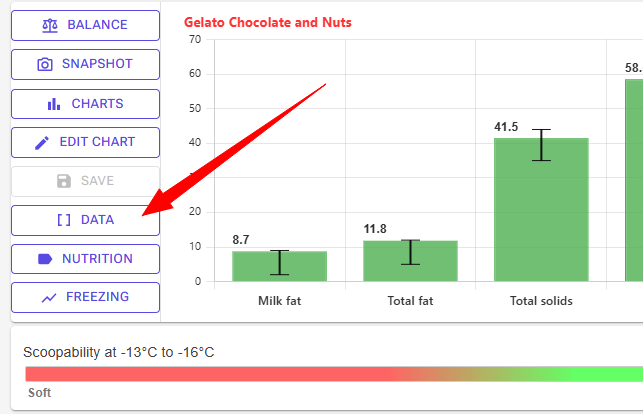
- Click the Data button beside the chart (desktop), or the data icon in the button row under the chart (mobile)
- The Recipe Data dialog opens with the current recipe’s calculated values
Dialog Layout
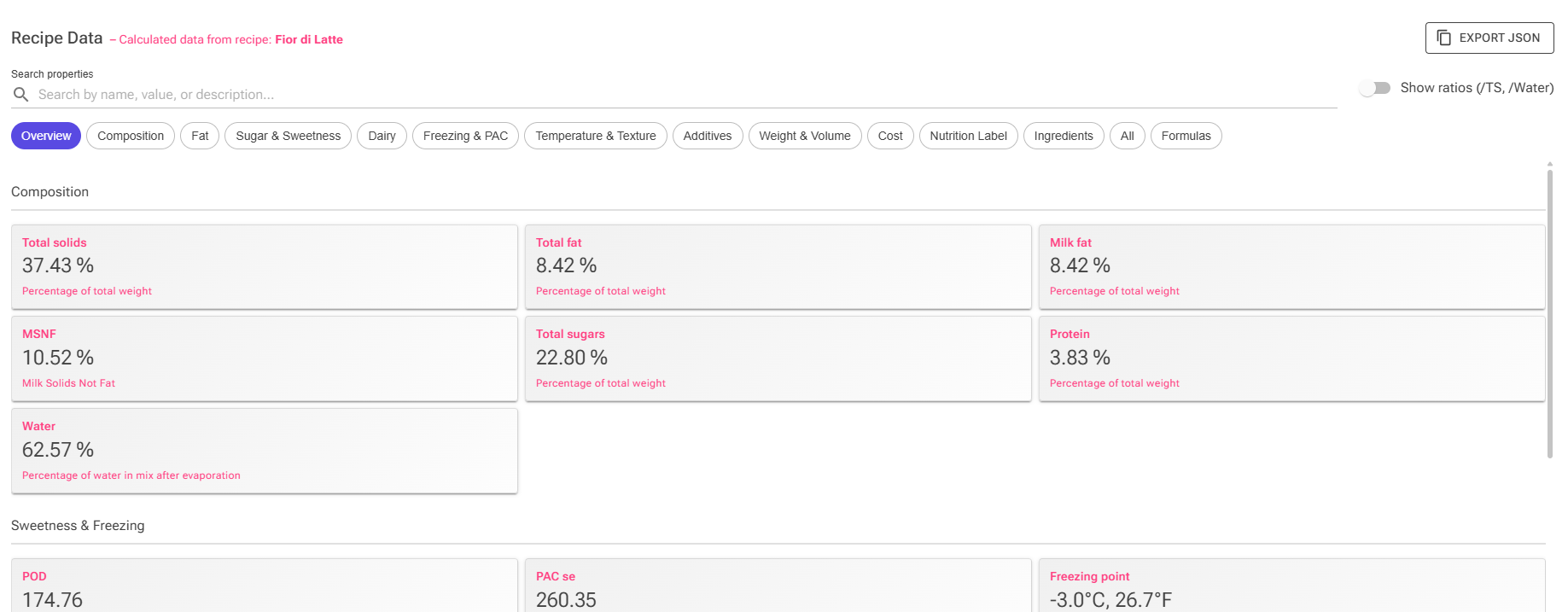
Header:
- The title “Recipe Data” followed by the recipe name
- Export JSON – copies every property (key, formatted value, numeric value, description, category) to your clipboard as JSON, handy for spreadsheets or support questions
Search and ratio toggle:
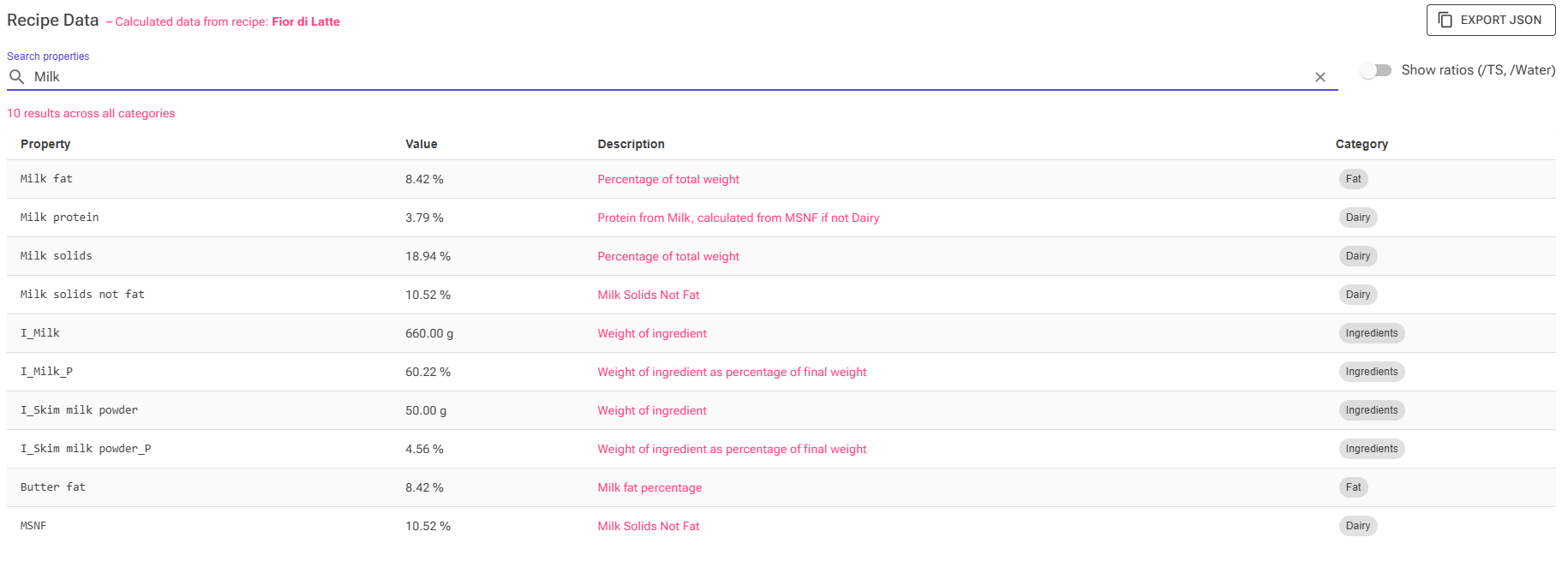
- Search properties: type to filter by property name, value, or description. While you type, the category chips are replaced by one flat list across all categories, ranked with exact name matches first, then names starting with your term, then names containing it, then matches in the value or description. The list shows a Category column so you can see where each hit lives.
- Show ratios (/TS, /Water): the dialog opens with the ratio variants hidden so the headline numbers are easy to read. Switch it on to see every /TS and /Water item. The footer tells you how many ratio items are hidden.
Category chips: a row of chips selects what the table shows. In order: Overview, then one chip per category present in the recipe – Composition, Fat, Sugar & Sweetness, Dairy, Freezing & PAC, Temperature & Texture, Additives, Weight & Volume, Cost, Custom Properties, Nutrition Label, Ingredients – then All, and for signed-in users Formulas.
Overview is where the dialog opens. It is a curated card view of the numbers you look at most, in four groups:
- Composition – Total solids, Total fat, Milk fat, MSNF, Total sugars, Protein, Water
- Sweetness & Freezing – POD, Perceived sweetness (Premium), PAC se, Freezing point, Serving temp, Serving temp gelato, Extraction temp
- Texture – Coldness, Creaminess, Body
- Volume & Cost – Mix volume, Ice cream volume, Density, Overrun, Cost per Kg, Cost per Liter
Data table (category chips and All): one row per property, sorted by key.
- Property: the technical key, in monospace (always visible)
- Value: formatted value with units (desktop; folded under the key on mobile)
- Description: what the property means (desktop; folded under the key on mobile)
Using Search and the Chips
Search examples:
- Search “fat” → finds all fat-related properties
- Search “8.5” → finds properties with that value
- Search “serving” → finds serving temperature properties
- Search “cost” → finds all cost-related properties
Browsing by category: clear the search box and click a chip. The Sugar & Sweetness chip, for example, holds Total sugars, Lactose, POD and, for Premium accounts, the individual sugars described in section 3.
Ratios: search respects the ratio toggle, so “Lactose/Water” only appears while Show ratios is on.
On a phone the dialog goes full screen, the search box and toggle stack vertically, and each table row shows the key with its value and description underneath.
5. Custom Formulas Feature
Custom formulas let you create your own calculated properties using existing recipe data. This is perfect for:
- Custom ratios (e.g., specific fat-to-protein targets)
- Percentage calculations
- Cost analysis
- Quality metrics
- Any mathematical combination of recipe properties
- Values that depend on a condition, with
IF

Creating Your First Formula
Step 1: Open the Formula Dialog
- Open the Recipe Data dialog and click the Formulas chip (the last chip; shown for signed-in users only)
- Click “Create Formula” (labelled Add on a phone)
- Formula editor dialog opens on top of the Recipe Data dialog
You can also create and manage formulas without opening a recipe, from the Tools page – see Managing Formulas from the Tools Page below.
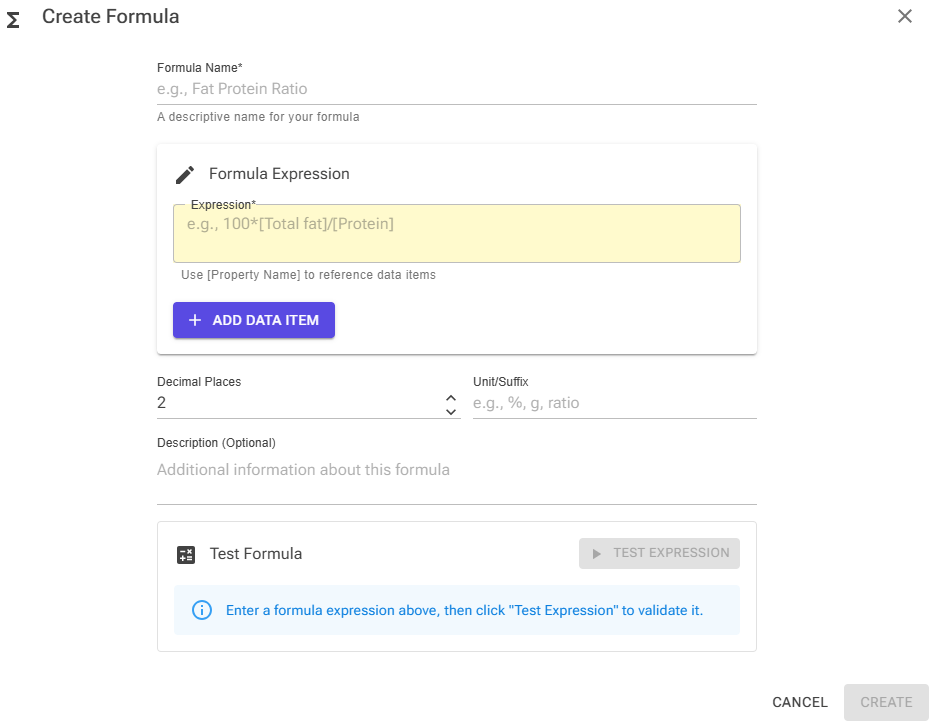
Step 2: Name Your Formula
- Enter a descriptive name (e.g., “Fat Protein Ratio”)
- Name must be unique (cannot conflict with existing properties)
- Name cannot duplicate existing data item names
Step 3: Build Your Expression
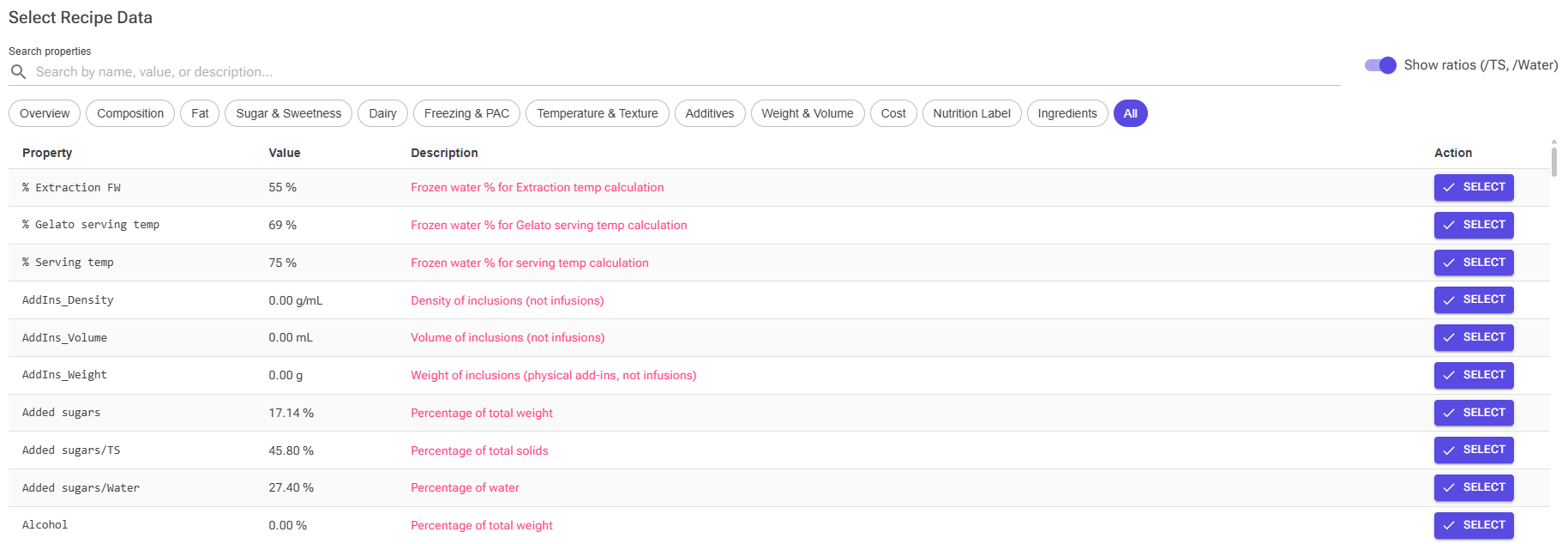
Click “Add Data Item” to select properties from your recipe:
- Opens the same Recipe Data dialog in picker mode, titled “Select Recipe Data”
- Starts on the All chip with ratios shown, so every key is available
- Search or browse the chips to find the property, then click Select on its row or card
- The property reference is inserted into your expression in square brackets
- Your other formulas are listed too (under All and in search), so a formula can build on another formula
Expression Syntax:
- Use
[Property Name]with square brackets to reference data - Use parentheses
( )to group calculations - Numbers use a dot as the decimal separator:
0.5 - Example:
100*[Total fat]/[Protein] - Example:
[PAC se]*1.5 + [POD]
You can use these operators and functions. Function names can be written in upper or lower case. The formula editor has the same list under Operators and functions, below the expression.
| Write | Meaning |
|---|---|
+ - * / |
Add, subtract, multiply, divide |
% |
Remainder after division: 7 % 3 is 1 |
^ |
Power: [Total fat]^2 |
< <= > >= |
Less than, at most, greater than, at least |
= (or ==), != (or <>) |
Equal, not equal |
and, or, not |
Combine conditions: [Total fat] > 8 and [Total fat] < 12 |
IF(condition, a, b) |
a when the condition is true, otherwise b |
MIN(a, b, …), MAX(a, b, …) |
Smallest or largest of the values |
ROUND(x, decimals) |
Round to a number of decimals (0 when left out); halves round away from zero |
ABS(x), FLOOR(x), CEIL(x) |
Absolute value, round down, round up |
SQRT(x), POW(x, y) |
Square root, x to the power of y |
LN(x), LOG10(x), EXP(x) |
Natural logarithm, base-10 logarithm, e to the power of x |
CLAMP(x, low, high) |
x, kept between low and high |
AND(a, b, …), OR(a, b, …) |
The same as and and or, written as functions |
Conditions are numbers. A comparison gives 1 when it is true and 0 when it is false, and any value other than 0 counts as true. Equal compares with a tiny tolerance, so 0.1 + 0.2 = 0.3 is true.
Order of calculation: ^ first, then *, / and %, then + and -, then comparisons, then not, and and or. Use parentheses whenever you are unsure.
IF only calculates the branch that applies. IF([Protein] > 0, [Total fat]/[Protein], 0) never gives a division-by-zero error, even when the recipe has no protein. For more than two cases, put an IF inside another IF.
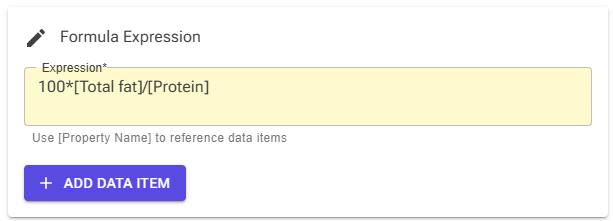
Step 4: Set Formatting Options
Decimal Places:
- Choose 0-4 decimal places
- Default: 2 decimals
- Example: 2 decimals shows “185.23”
Unit/Suffix:
- Optional suffix for the value
- Common suffixes: “%”, “g”, “ratio”, “°C”
- Example: “%” shows result as “85.5%”
Step 5: Add Description (Optional)
- Explain what your formula calculates
- Helps you remember the purpose later
- Shows in formula list and when hovering
Step 6: Test Your Formula
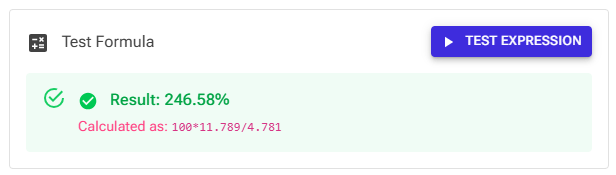
Click “Test Expression” to validate:
- Success: Shows calculated result with your formatting
- Error: Shows what went wrong (syntax error, division by zero – see Understanding Formula Errors below)
- Calculation preview: “Calculated as:” shows how values were substituted
A data item that the recipe does not have – for example an I_ item for an ingredient that is not in this recipe, or a misspelt name – counts as 0. It does not cause an error by itself, so check the “Calculated as” line if a result looks wrong.
Step 7: Save
- Click “Create” to save the formula (“Update” when you edit one)
- The editor first checks the expression’s syntax, independent of any recipe. A syntax error is shown under the expression and the formula is not saved until you fix it.
- Then it calculates the formula with the current recipe. If the expression uses a data item the recipe does not have, or the result cannot be calculated (for example division by zero), you get a warning instead of an error, and the button changes to “Save anyway”. Click it to save regardless – useful for a formula meant for other recipes. Changing the expression resets the warning.
- Formula appears in the Formulas list, in All and in search. Formulas have no category chip of their own.
- Formula automatically updates when recipe changes
Custom Properties chip: this chip is not for formulas. It holds your Custom Ingredient Properties – the up to ten extra ingredient values you can name in Settings. Each named property that has a value in the recipe appears there under the name you gave it, as a share of the mix like the other composition items.
Formula Examples
Example 1: Fat-to-Protein Ratio
Expression: 100*[Total fat]/[Protein]
Decimals: 2
Suffix: (leave empty or "ratio")
Description: Fat to protein ratio as percentage
Example 2: Custom Sweetness Target
Expression: [POD] - 180
Decimals: 1
Suffix: (deviation)
Description: How far POD is from my target of 180
Example 3: Cost per Serving
Expression: [Total Cost]/8
Decimals: 2
Suffix: $ per serving
Description: Cost divided by 8 servings
Example 4: Adjusted PAC for High Fat
Expression: [PAC se]*[Total fat]*0.1
Decimals: 2
Suffix: (empty)
Description: PAC weighted by fat content
Example 5: Temperature Difference
Expression: [Serving temp] - [Extraction temp]
Decimals: 1
Suffix: °C
Description: Temperature rise from extraction to serving
Example 6: Ratio That Is Safe for Every Recipe
Expression: IF([Protein] > 0, [Total fat]/[Protein], 0)
Decimals: 2
Suffix: (empty)
Description: Fat to protein ratio, 0 for recipes without protein
Example 7: Fat Level in Bands
Expression: IF([Total fat] < 8, 1, IF([Total fat] < 12, 2, 3))
Decimals: 0
Suffix: (empty)
Description: 1 = below 8 % fat, 2 = 8 to 12 %, 3 = 12 % or more
Example 8: Distance Outside a Target Range
Expression: [POD] - CLAMP([POD], 160, 200)
Decimals: 1
Suffix: (empty)
Description: 0 inside 160-200, otherwise how far POD is above or below the range
Editing and Managing Formulas
Edit Formula:
- Click the Edit icon (pencil) next to formula
- Make your changes in the dialog
- Test the updated expression
- Click “Update” to save
Delete Formula:
- Click the Delete icon (trash can) next to formula
- Confirm deletion in dialog
- Formula is permanently removed
Formula List Display:
Desktop View:
- Name, Expression, Current Value, Description, Actions columns
- All information visible at once
Mobile View:
- Name with the current value underneath, and the Edit and Delete icons
- Expression and description are hidden to fit the screen; open the formula to see them
Managing Formulas from the Tools Page
The Formulas card on the Tools page opens the same formula list without opening a recipe. Values are calculated from a built-in sample recipe (marked Sample); click Select recipe to calculate them from one of your own recipes instead, and Use sample recipe to switch back. You can create, edit and delete formulas there exactly as in the Recipe Data dialog. You need to be signed in.
Understanding Formula Errors
Errors when you save (shown under the name or the expression):
“Formula name is required” / “Formula expression is required”
- Fill in the empty field
“A formula with this name already exists”
- You already have a formula with this name
- Edit the existing formula or choose a new name
“Name conflicts with existing data item: …”
- Your formula name matches an existing property
- Choose a different, unique name
“Invalid expression: … (at position …)”
- The expression has a syntax error. The position counts characters from the start of the expression, so it points at the problem.
- “Unexpected ‘…’” – the quoted text is where the calculator got stuck. Example:
100x[Total fat](use*to multiply). - “Missing closing parenthesis ‘)’” or “Missing closing bracket ‘]’” – a
(or[is never closed. - “A value is missing at the end of the formula” – the expression ends with an operator, as in
[POD] +. - “Unknown name ‘…’” – a word that is not a function. Data items need square brackets:
[Total fat], notTotal fat. - “Unknown function ‘…’” – check the spelling against the list in Expression Syntax above.
- “IF takes 3 arguments, but 2 were given” (or another function) – separate the arguments with commas, and check that none is missing.
- “Comparisons cannot be chained” – write
[x] > 1 and [x] < 5instead of1 < [x] < 5.
Warnings when you save (the button changes to “Save anyway”):
- “Not in the current recipe: …” – the expression uses a data item this recipe does not have. Check the spelling, or save anyway if the formula is meant for recipes that do have it.
- “Cannot be calculated with the current recipe data: …” – followed by one of the calculation errors below.
Calculation errors (from Test Expression, the save warning, or an Error value in the list):
“Formula evaluation error: Division by zero”
- Your formula divides by a value that is zero in this recipe. The same goes for
%(“Remainder (%) by zero”). - Add protection with IF:
IF([Value B] > 0, [Value A]/[Value B], 0)
“Formula evaluation error: The result is not a valid number”
- The calculation has no finite numeric result, for example because it grows too large
Function errors, such as “SQRT of a negative number”, “LN of zero or a negative number”, “Power result is not a valid number” (a negative value to a fractional power) or “CLAMP low limit is greater than the high limit”
- A function received a value it cannot work with in this recipe. Guard it with IF, for example
IF([A] >= 0, SQRT([A]), 0).
“Data item ‘…’ has no valid value in the current recipe”
- The item exists but has no usable value, usually because the recipe is empty or has zero total weight
6. Using Data in Other Features
The recipe calculation system powers many other features in Ice Cream Calc:
Recipe Balancing
- Balancing algorithms use calculated properties as targets
- PAC, POD, and other values guide automatic adjustments
- Learn more about balancing →
Chart Targeting
- Charts use calculated data to show recipe positioning
- Properties like PAC and POD plotted on chart ranges
- Learn more about charts →
Editor Cards
The cards under the chart in the Recipe Editor show calculated data while you work. Which cards you see, and where, is up to you – see Editor Cards and Layout.
- Recipe Data card – tiles with the values you pick. Click Add to choose any data item, your custom formulas included. Double-click a tile to rename it and set a minimum and maximum: the tile turns green in range, red out of range, and stays yellow without a range. Drag tiles to reorder them; the reset button in the Add tile restores the default tiles.
- Data table card – the Overview values in a compact table, or the values you choose
- Nutrition card – the ingredient list, allergens and nutrition table, from the label values
- Cost card – each ingredient’s share of the cost, and the cost per batch, litre and serving
- Sugars card (Premium) – each sugar’s share of the weight, sweetness and softening
- Freezing Curve card – the freezing and hardness curves with the serving points
Recipe Cards
- Info chips pull from calculated data
- Nutrition facts use energy and macro calculations
- Custom formulas can appear on recipe cards
Reports
- HTML report templates get every calculated value of the recipe in a RecipeData table, one field per data item
- The
lblfields arrive as formatted text, ready to print - Learn more about reports →
Python Scripts
- Python Scripts (Premium) receive the recipe’s calculated values as
calculated_data - In the names, spaces become underscores,
/becomes_per_and%becomes_percent– for examplePAC_seorTotal_fat_per_TS
REST API
GET /api/recipes/{id}/calculatedreturns every calculated value of a recipe, with its display value, numeric value and description- Your custom formulas are not included
- Learn more about the REST API →
7. Tips & Best Practices
Finding Properties Efficiently
Use Search for Known Terms:
- Know you want fat data? Search “fat”
- Need temperature info? Search “temp”
- Looking for costs? Search “cost”
Use the Chips for Exploration:
- Not sure what’s available? Click through the category chips, or use All with Show ratios on for the complete list
- Categories group related properties logically
Look at Descriptions:
- Desktop view shows full descriptions; on a phone they sit under each key
- Helps understand what each property means
- Important for choosing formula data sources
Understanding Property Names
Properties with “/Water”:
- Shows value as percentage of water only
- Example: “Lactose/Water” = lactose in water phase
- Useful for concentration calculations
Properties with “/TS”:
- Shows value as percentage of total solids
- Example: “Protein/TS” = protein in solid phase
- Useful for composition analysis
Properties with Prefixes:
- “I_” = Individual ingredient (mix)
- “A_” = Add-in ingredient (inclusion/infusion)
- “_P” suffix = Percentage of total
Creating Effective Formulas
Start Simple:
- Test basic formulas first
- Build complexity gradually
- Verify each step works
Use Descriptive Names:
- “My Custom Ratio” is better than “Formula1”
- Future you will thank present you
- Easier to share formulas with others
Document Your Formulas:
- Use the description field
- Explain the logic behind complex calculations
- Note any assumptions or targets
Test with Different Recipes:
- Formulas should work across recipes
- Some formulas may fail if certain ingredients are zero
- Use IF to protect against division by zero
Organize by Purpose:
- Group related formulas conceptually
- Name formulas consistently
- Consider prefixes: “Cost: Per Serving”, “Ratio: Fat to Protein”
8. Troubleshooting
“No Recipe Available” Warning
Problem: The Recipe Data dialog shows a warning that no recipe is available
Causes:
- The dialog was opened from an old bookmark or link rather than from a recipe, and you have no recently edited recipe to fall back on
- Your ingredient library is empty, so not even a sample recipe can be built
Solutions:
- Close the dialog, open any recipe in the Recipe Editor and click Data there
- Create a new recipe if you don’t have any
Formula Evaluation Errors
Problem: Formula shows “Error” instead of a calculated value
Common Causes:
- The recipe has no usable values
- An empty recipe, or one with zero total weight, gives data items without a valid value
- Solution: Add ingredients, or calculate the formula from another recipe
- Division by zero
- Solution: Use IF so the division only happens when it can:
IF([B] > 0, [A]/[B], 0) - Solution: Check if denominator property can be zero
- Solution: Use IF so the division only happens when it can:
- Invalid mathematical syntax
- Solution: Check parentheses match
- Solution: Verify operators and function names are correct, and that function arguments are separated by commas
- Solution: Use Test Expression to get detailed error; the position in the message points at the problem
- Circular reference
- Formulas can reference other formulas: insert them with “Add Data Item” like any other data item
- Solution: A formula must not reference itself, directly or through another formula – such a loop cannot be calculated reliably
Problem: Formula shows 0 or an unexpected value, but no error
- A data item the recipe does not have – for example a misspelt name, or an
I_item for an ingredient that is not in this recipe – counts as 0 - Solution: Check the “Calculated as” line in Test Expression, and use “Add Data Item” to insert correct names
Debugging Steps:
- Click “Test Expression” to see detailed error
- Simplify formula to isolate problem
- Test individual property references
- Build formula back up piece by piece
Missing or Unexpected Values
Problem: Expected property not showing in list
Possible Reasons:
- Search filter too restrictive
- Clear search box and category filter
- Browse full unfiltered list
Problem: Property shows unexpected value
Check These Factors:
- Evaporation setting
- Affects final weight and concentrations
- Check evaporation percentage in recipe
- Add-ins configuration
- Inclusions vs infusions behave differently
- Verify the I, F and E buttons of each ingredient in the recipe editor
- User settings
- Overrun percentage affects volume calculations: the recipe’s own overrun if set, otherwise your default
- Serving temperature settings (FW%) affect temp calculations
- Check the Settings page for your current values
- Recent recipe changes
- Data updates when recipe is recalculated
- Edit recipe to trigger recalculation
9. Related Topics
- Recipe Balancing Guide – Automatic optimization using calculated data
- Charts Guide – Visualizing recipe properties on charts
- Recipe Editor Interface – Complete recipe editing features
- Editor Cards and Layout – The Recipe Data card and the other cards under the chart
- Recipe Weights, Scaling & Evaporation – Evaporation, overrun and add-in flags
- Nutrition Labels – The label values in use
- Sugar Composition – Individual sugars and perceived sweetness
- Ingredient Database – Understanding ingredient properties
10. Summary
The Recipe Data Calculation System is the computational heart of Ice Cream Calc, providing:
✅ Comprehensive calculations – Hundreds of properties covering ice cream science, nutrition, and costs
✅ Smart ingredient handling – Correctly processes regular ingredients, inclusions, and infusions
✅ Recipe Data dialog – Easy access to all calculated properties with an Overview, category chips, search and JSON export
✅ Custom formulas – Create your own calculations for specific needs
✅ Integration everywhere – Powers balancing, charts, recipe cards, and production features
Key Takeaways:
- Every recipe generates calculated data automatically
- Three-base system handles different ingredient types correctly
- The Recipe Data dialog is your window into recipe calculations
- Custom formulas extend functionality with your own metrics
- Calculated data powers all major Ice Cream Calc features
Next Steps:
- Open a recipe and explore the Recipe Data dialog
- Search for properties relevant to your needs
- Create your first custom formula
- Use calculated data with balancing and charts