What the Food Databases Are
National food agencies publish food composition databases: tables of measured nutrient values for generic foods such as milk, cream, egg yolk, fruit, nuts and sugars. Ice Cream Calculator holds a copy of twelve of them, from the US, Germany, Sweden, Denmark, France, the UK, Finland, Canada, Australia, Norway and Switzerland, and can also search USDA's branded products online. One search covers them all, and the food you pick is converted into an ice cream ingredient for your library.
Why use them?
- Comprehensive data: detailed breakdowns of nutrients that aren't always on product labels, such as water and ash.
- Reliable sources: measured and published by national food agencies.
- Sugar breakdown: many foods come with individual sugar types (sucrose, glucose, fructose, lactose), which are critical for ice cream calculations.
- Your own language: most sources also name each food in their own language, and you can search by either name.
- Free and fast: no cost, and the local sources are searched inside the app.
What Makes Ice Cream Ingredients Special?
Here's something critical to understand: standard nutrition data doesn't contain the specialized values needed for ice cream formulation.
A typical nutrition label shows:
- Total Fat
- Total Carbohydrates
- Total Sugars
- Protein
- Basic vitamins and minerals
But for ice cream, we need to know:
- PAC (Freezing Point Depression): Not on any label – must be calculated from sugar composition
- POD (Sweetness Power): Not on any label – must be calculated from sugar composition
- Individual sugar types: Rarely on labels (sucrose vs glucose vs lactose vs fructose)
- Milk Fat vs Total Fat: Labels only show "Total Fat" – dairy products need milk fat specifically
- MSNF (Milk Solids Not Fat): Critical for dairy but never on labels
- Cocoa Fat vs Total Fat: Chocolate products need this distinction
- Cocoa Solids: Affects texture and hardening in ice cream
This is why the Food Type selection is so important – it tells the Ice Cream Calculator how to transform basic nutrition data into the specialized ice cream properties you need.
⚠️ Key Concept: The food databases give us raw nutritional data. The Ice Cream Calculator uses your Food Type selection to calculate the ice cream-specific properties (PAC, POD, MSNF, etc.) that you won't find on any nutrition label.
The Sources
The table lists every source by the name the app shows. "Native names" is the second language each food is named in; you can search in it. The attribution is the source's own wording: it appears under the search results, in the details of each food, and in the Description / Notes of every ingredient you add from that source.
| Source | Country | Native names | Attribution |
|---|---|---|---|
| USDA Foundation, USDA SR Legacy | United States | – | USDA FoodData Central data are in the public domain (CC0 1.0). Source: U.S. Department of Agriculture, Agricultural Research Service. FoodData Central, 2025. fdc.nal.usda.gov. |
| BLS 4.0 | Germany | German | Source: Max Rubner-Institut (2025): Bundeslebensmittelschlüssel (BLS), Version 4.0. Licensed under CC BY 4.0; the Max Rubner-Institut must be named as publisher wherever the data is shown. https://blsdb.de/ |
| Livsmedelsverket | Sweden | Swedish | Source: Livsmedelsverket (Swedish Food Agency), Livsmedelsdatabasen (the Swedish food composition database), licensed under CC BY 4.0. Livsmedelsverket must be cited as the source. |
| FCDB (Frida) | Denmark | Danish | © The Danish Food Composition Database (http://fcdb.fooddata.dk), National Food Institute, Technical University of Denmark. Dataset published under CC BY 4.0 at https://doi.org/10.11583/DTU.32312844. |
| CIQUAL | France | French | Source: ANSES-CIQUAL French food composition table (https://ciqual.anses.fr/). Published as open data under the Etalab Licence Ouverte / Open Licence 2.0; ANSES must be named as the source. |
| CoFID | United Kingdom | – | Contains public sector information licensed under the Open Government Licence v3.0. Source: McCance and Widdowson's The Composition of Foods Integrated Dataset (CoFID), Public Health England. |
| Fineli | Finland | Finnish | Source: Fineli® – the Finnish food composition database, Finnish Institute for Health and Welfare (THL), licensed under CC BY 4.0; THL and Fineli must be named as the author. |
| Canadian Nutrient File | Canada | French | Source: Canadian Nutrient File, Health Canada, licensed under the Open Government Licence - Canada (https://open.canada.ca/en/open-government-licence-canada). |
| AFCD (FSANZ) | Australia | – | Source: Australian Food Composition Database, Food Standards Australia New Zealand (FSANZ), licensed under CC BY 4.0; "Food Standards Australia New Zealand" must be credited. |
| Matvaretabellen | Norway | Norwegian | Source: Matvaretabellen, Mattilsynet (the Norwegian Food Safety Authority), www.matvaretabellen.no, licensed under the Norwegian Licence for Open Government Data (NLOD) 2.0; cite as "Matvaretabellen <year>. Mattilsynet. www.matvaretabellen.no". |
| Swiss FCDB | Switzerland | German | Source: Swiss Food Composition Database, Federal Food Safety and Veterinary Office (FSVO), naehrwertdaten.ch; free to use, also commercially, subject to acknowledgment of the source. |
| USDA Branded, USDA Survey (FNDDS) – searched online only | United States | – | The same USDA FoodData Central attribution as above. |
What the sources report differs. Livsmedelsverket reports sucrose as its only individual sugar, and Matvaretabellen and Swiss FCDB report no individual sugars. CoFID, Matvaretabellen and Swiss FCDB report no ash. USDA Branded foods carry what is on the product label, which usually means no water, no individual sugars and no ash. Within every source, coverage also varies from food to food, which is what the Data column and the Score in the results show.
How It Works
Importing a food takes two steps:
- Search Food Databases – find the food you want.
- Food Reference Details – review the data, pick a food type and category, preview the ice cream values, and add the food to your library.
The food is converted only when you confirm, and the database itself never changes.
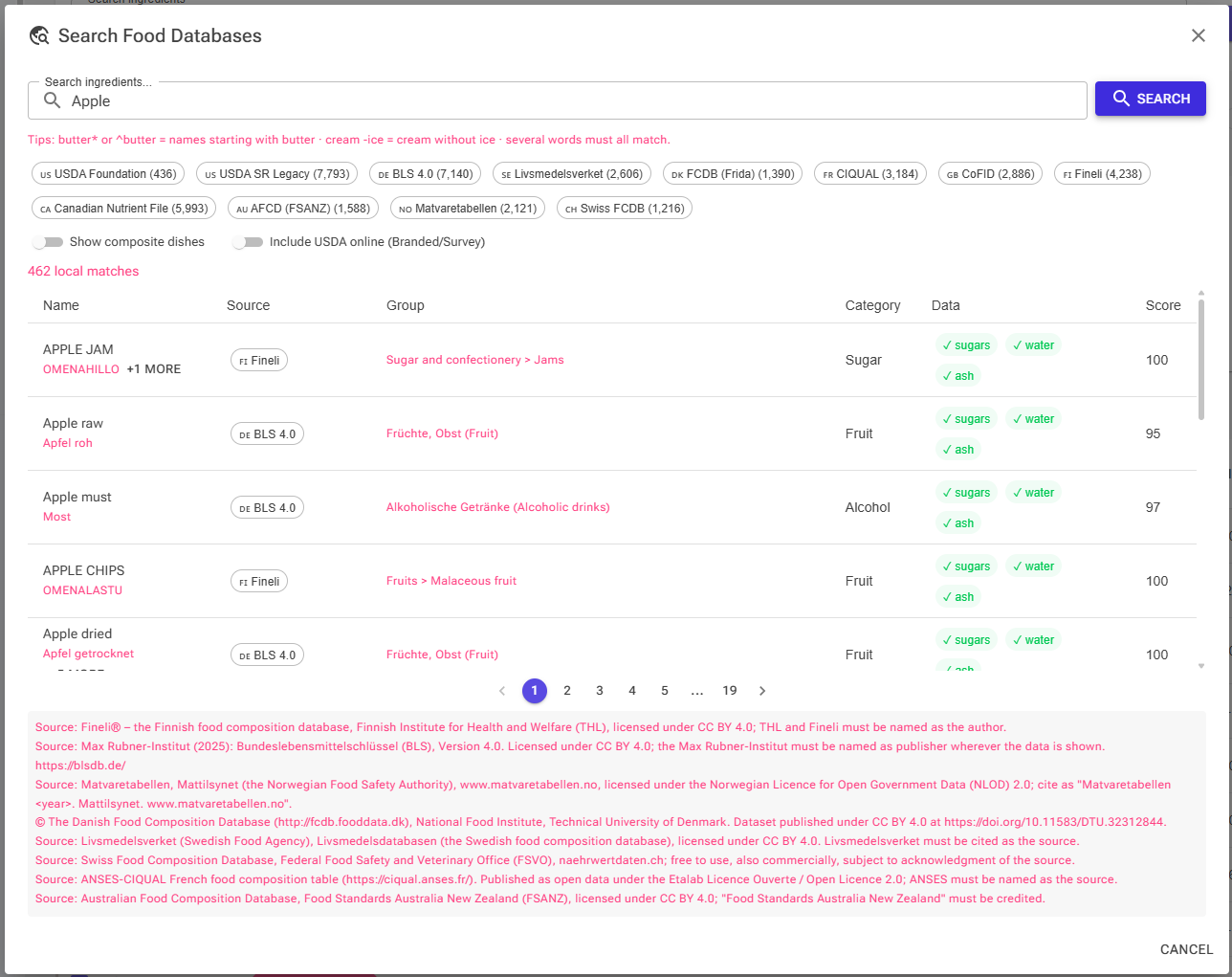
Opening the Search
The search has no menu entry of its own. You reach it from the places where you add ingredients:
- Ingredients page and Select Ingredient page: choose Add ingredient → Search Food DB. Whatever is in the page's search box becomes the search term, and the search runs as soon as the dialog opens. The food you add is saved as a new personal ingredient; from Select Ingredient it is also added to your recipe.
- The Suggestions card: when a search on those pages matches nothing in your list, the Suggestions card shows up to five foods from the local sources (for search terms of three or more characters, composite dishes left out). Import opens the details of that food; See more opens the full search with your term. The card never searches USDA online.
- The ingredient editor: the Food Database tile on the import card. Here the confirm button reads Use these values, and the values go into the ingredient you are editing (see Add to Library, or Use these values).
- Your Home page: add the Food DB Search shortcut with the pencil icon next to Shortcuts. It opens an empty search, and the food you add is saved to your library.
You need to be signed in to add a food. See How to add ingredients for when the food database is the right method.
Part 1: Searching

The Search Box
Type a food name and press Enter or click Search. The box is focused when the dialog opens, so you can start typing straight away.
- Every word must match, in any order, and a word also matches inside a longer word: milk finds buttermilk too.
- Accents and case don't matter: creme fraiche finds crème fraîche, and ss matches ß.
- English and native names are both searched, so you can type Vollmilch or a name in any other source language.
The tips line under the box lists the search rules:
| You type | You get |
|---|---|
heavy cream |
Foods whose names contain both words |
butter* or ^butter |
Foods whose English name starts with "butter" |
cream -ice |
Foods with "cream" but without "ice", which leaves out ice cream |
Ranking: results from all sources come in one list. An exact name match comes first, then names that start with your term, then names with a word that starts with it, then everything else. Within each of these, shorter (more generic) names come first, then foods with more complete data.
Sources and Switches
Under the search box is one chip per source, with its flag and the number of foods it holds.
- Source chips: with no chip selected, every source is searched. Click one or more chips to search only those sources; click again to deselect.
- Show composite dishes (off by default): composite dishes are finished foods rather than ingredients, such as prepared dishes, meals, desserts and ice cream, and in several sources biscuits, cakes and bars. They stay hidden unless you switch this on, and their Category column reads dish.
- Include USDA online (Branded/Survey) (off by default): also searches USDA Branded and USDA Survey (FNDDS) live, and adds up to 25 results from each to the first page, after the local results. The search rules above apply to the local sources; online results come from USDA's own search. If the online search fails, a warning says so and the local results are still shown. If the switch is greyed out, online search isn't available.
Chips and switches apply to the next search, so press Search again after changing them.
Reading the Results
Above the table you see how many local matches there are (and, with the online switch on, how many online matches USDA found). Click any row to open its details.
| Column | What it shows |
|---|---|
| Name | The English name, with the native name in grey below it. For online foods the grey line is the brand. |
| Source | Flag and source name. Online sources have a different colour. |
| Group | The food group the source itself uses. |
| Category | The ingredient category the app assigned to the food (for example Dairy or Fruit); dish for a composite dish; – when there is none. |
| Data | ✓ or – for sugars, water and ash. ✓ sugars means that at least one individual sugar is reported, not necessarily all of them. Online foods show "online, open for details". |
| Score | How complete the food's data is, from 0 to 100; – for online foods. |
The Score adds up what the source reports: water counts most (20 points), then fat, protein and total sugars (15 each) and a sugar breakdown (15, plus 5 when all six sugars are reported), then ash and salt (5 each), fibre (3) and energy (2). Composite dishes lose 30 points. The score measures how much was reported, not how accurate it is.
"+N more": foods with the same English name, usually the same food from other sources, are grouped. The one with the highest score is shown, and +N more opens the others beneath it (hide N more closes them again). This is the quickest way to compare sources for one food.
Under the table, the attribution of every source in the results is shown.
More Results and Cancelling
- Pages: local results come 25 per page. Use the page numbers below the table to move on.
- Cancel Search: while a search runs, the footer button reads Cancel Search. It stops the search and keeps the dialog open, so you can change your term and try again. When no search is running, Cancel closes the dialog.
Part 2: Food Reference Details
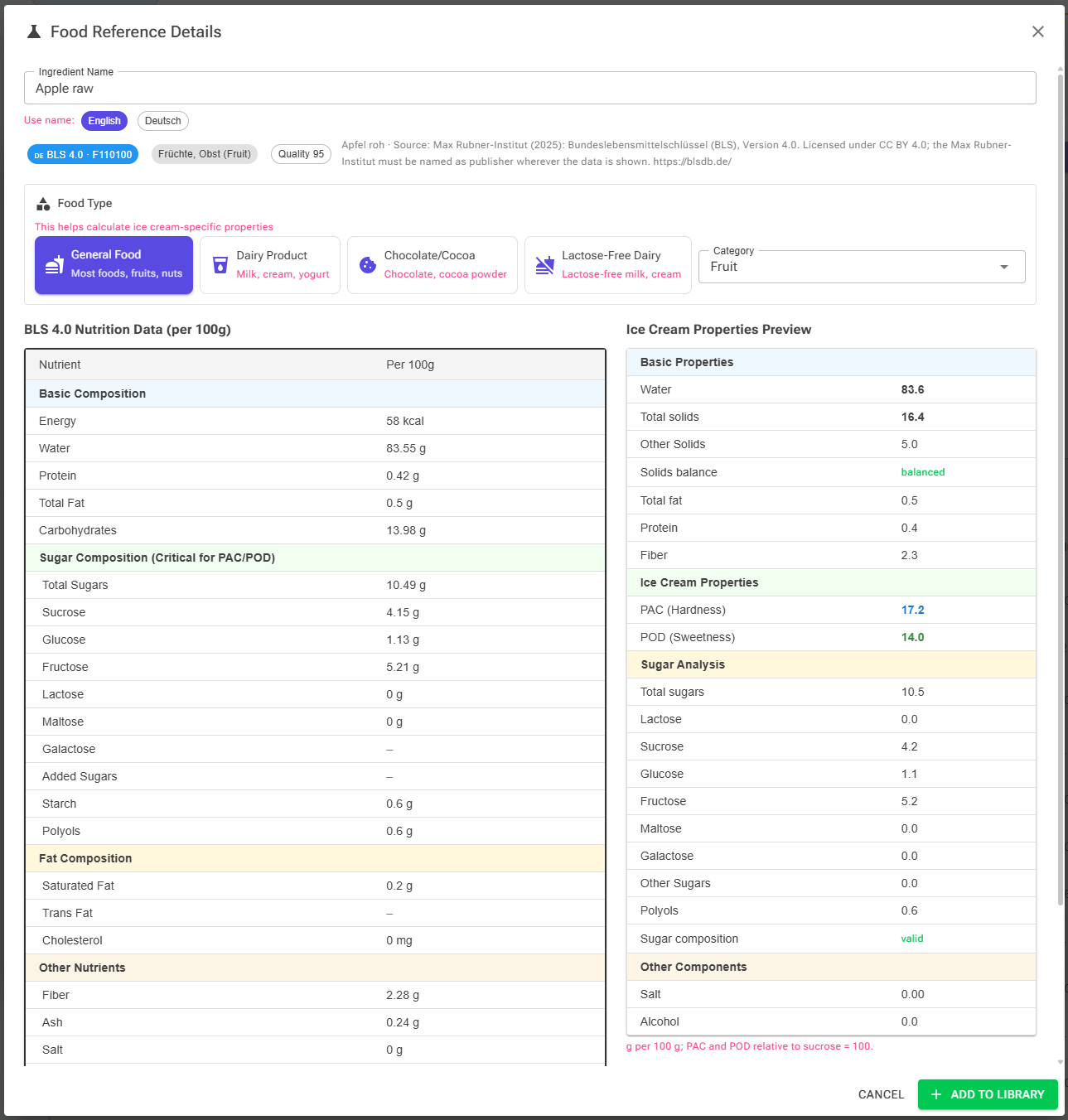
Clicking a result opens Food Reference Details, where you review the data, choose the food type and category, and preview the ice cream properties before you confirm. On a phone the two columns below are stacked: the source's data first, then the preview.
Name and Source
- Ingredient Name: prefilled with the English name, or with the native name when your search matched only the native name or the app's language is the source's language. Database names are long and technical, so rename it to something short and meaningful for your recipes (e.g. "Milk, whole, 3.25% milkfat, with added vitamin D" to "Whole Milk 3.25%"); consistent, short names make recipe display and formulas much easier.
- Use name: when the food has a native name, the English chip and a chip with the source language's own name (e.g. Deutsch) switch between the two names.
- Chips: the source and the food's id in that source, the brand (online branded foods), the source's food group, and Quality, the same score as in the results. After the chips come the native name and the source's attribution.

Food Type and Category
The food type is the most important decision on the page. It is how the Ice Cream Calculator bridges the database's nutrition data and ice cream-specific properties – without it, there's no way to know whether "fat" means milk fat, cocoa fat, or just generic fat, and no way to tell which sugars a food's total sugars are made of when the source gives no breakdown.
There are four options, each shown as a clickable card:
General Food
Used for: Most foods – fruits, nuts, vegetables, grains, sugar, cocoa powder used as a flavoring (not cocoa solids), spices, etc.
What gets calculated: Basic nutritional properties; PAC/POD from the reported sugars, or from Total Sugars treated as sucrose when there is no breakdown. Milk Fat and Cocoa Fat stay at 0, so all fat counts as other fat.
Dairy Product
Used for: Milk, cream, yogurt, cheese, butter, milk powder, etc.
What gets calculated:
- All fat is treated as Milk Fat (butter fat)
- Sugars the source doesn't attribute are treated as Lactose: all of Total Sugars when there is no breakdown, or the remainder when the breakdown has no lactose
- MSNF (Milk Solids Not Fat) is calculated from the protein, sugars and other solids
- PAC/POD uses the correct coefficients for lactose
Chocolate/Cocoa
Used for: Chocolate bars, cocoa powder used as a structural ingredient, chocolate chips, cocoa mass, etc.
What gets calculated:
- Fat is treated as Cocoa Fat (cocoa butter)
- Cocoa Solids are set to the Other Solids: the solids that are not fat, sugar, protein or salt
- Hardening Factor (HF) is calculated to account for chocolate's firming effect on ice cream texture
Lactose-Free Dairy
Used for: Lactose-free milk, cream, yogurt, etc. – dairy products treated with lactase enzyme.
What gets calculated:
- All fat is treated as Milk Fat
- When the source gives no sugar breakdown, Total Sugars is split 50/50 into glucose and galactose (the breakdown products of lactose)
- PAC/POD reflects the much higher sweetness and freezing-point depression of the converted sugars
- MSNF is calculated as for dairy
How the type is preselected
- A food whose English name says "lactose-free" gets Lactose-Free Dairy.
- Otherwise the category the food was filed under decides: Dairy gives Dairy Product, Chocolate gives Chocolate/Cocoa, and any other category gives General Food (so a chestnut cream filed under nuts is not treated as dairy).
- Foods with no category or the category Other, including online USDA foods, fall back to name rules: chocolate, cocoa or cacao gives Chocolate/Cocoa; plant-based milks and creams (soy, oat, almond, coconut and the like) give General Food; a dairy food group, a dairy name such as milk, cream, yogurt, cheese, whey or quark (ice cream excepted), or more than 0.5 g lactose gives Dairy Product; everything else gives General Food.
Important: Always verify the preselected type before adding the food to your library. The ice cream properties are calculated directly from this choice, so getting it wrong produces wrong PAC, POD, and MSNF values.
Category: after the last card is the Category picker. It starts at the category the food was filed under (Other when there is none, as for online USDA foods) and decides where the ingredient sits in your library. It doesn't change the calculation – the food type does – and changing one doesn't change the other.

Nutrition Data (Left Column)
The left column, headed with the source's name (e.g. "BLS 4.0 Nutrition Data (per 100g)"), shows the values per 100 g as the source reports them, in four sections:
- Basic Composition – Energy, Water, Protein, Total Fat, Carbohydrates
- Sugar Composition (Critical for PAC/POD) – Total Sugars, Sucrose, Glucose, Fructose, Lactose, Maltose, Galactose, Added Sugars, Starch, Polyols
- Fat Composition – Saturated Fat, Trans Fat, Cholesterol
- Other Nutrients – Fiber, Ash, Salt, Sodium, Alcohol, Calcium, Iron, Potassium, Vitamin D
A dash (–) means the source did not report the value; 0 means it reported zero or a trace. This matters: a missing value is not the same as a zero value, and the conversion handles them differently (see How Values Are Converted).
Sources publish carbohydrate in different ways, with or without fibre. The app stores it including fibre for every source, so all sources feed the same calculation.
Sugar Data Warning
If the source reports no sugar value at all, not even Total Sugars, but its carbohydrate minus fibre leaves room for sugars, a yellow warning appears in the sugar section:
"No sugar data reported but carbs suggest sugars may be present. PAC/POD may be inaccurate — consider adding sugar values manually after import."
The converted ingredient then has no sugars, so its PAC and POD count none. Look for the same food from another source first (+N more in the results); otherwise add the sugars after import (see Handle a food with missing sugar data).
Ice Cream Properties Preview (Right Column)
The right column is a live preview of the ingredient as it will be saved. It updates instantly when you change the food type, so you can see exactly what picking "Dairy" vs "General" does to your numbers.
- Basic Properties – Water, Total solids, Other Solids, Solids balance, Total fat, Protein, Fiber
- Ice Cream Properties – PAC (Hardness) and POD (Sweetness); plus MSNF and Milk fat for the dairy types; plus Cocoa Fat, Cocoa solids and Hardening Factor for chocolate
- Sugar Analysis – Total sugars and each sugar, Other Sugars, Polyols (when present), and Sugar composition: valid when the individual sugars add up to Total Sugars, incomplete when they are unknown
- Other Components – Salt, Alcohol
Values are in g per 100 g; PAC and POD are relative to sucrose = 100. Solids balance should read balanced. When the source's values add up to more than 100 g, a note under the preview says what the conversion adjusted to balance them (see Water, solids and the balance).
Tip: If the PAC or POD values look off, the usual causes are (a) the wrong food type, or (b) a missing or partial sugar breakdown. Check the Sugar Composition rows in the left column first, then try switching food types to see if the numbers make more sense.
Add to Library, or Use these values
- Add to Library (the green button) creates the ingredient with the name you entered and the values in the preview, as a new personal ingredient in your library. From Select Ingredient it is also added to your recipe.
- Use these values replaces it when you came from the ingredient editor. The values go into the ingredient you are editing. An ingredient you have already saved keeps its name, category, Description / Notes and allergens; a new, unsaved one also takes the name and category from the dialog. Save the ingredient in the editor to keep the values.
- Cancel takes you back to the search results so you can pick a different food (opened from the Suggestions card, it just closes the details).
A new ingredient's Description / Notes records where it came from ("Imported from …, id …"), any balance adjustment, and the source's attribution.
How Values Are Converted
Not reported is not zero
The databases distinguish between a value they did not report and a measured zero, and the conversion keeps that distinction where it matters most, in the sugars (below). For most other values an ingredient has no "unknown", so an unreported value counts as 0 there. Water is the exception: when it isn't reported, it is estimated (see below). This is why rows with ✓ water are worth preferring.
Sugars
- Individual sugars reported: they are stored as the ingredient's sugar composition. Sucrose, glucose, fructose, lactose, maltose and galactose are taken as reported, an unreported one as 0, trehalose as 0, and any remainder up to Total Sugars goes to Other Sugars, which counts as sucrose for PAC and POD. For the dairy types, the remainder becomes lactose when the source reports no lactose. If the reported sugars add up to more than Total Sugars, Total Sugars is raised to their sum. BLS reports all six sugars for almost every food.
- A partial breakdown: this is why ✓ sugars is not the whole story. A fruit from a source that reports only sucrose ends up with most of its sugar in Other Sugars, and so with too low a PAC. Check the Sugar Composition rows in the details.
- Only Total Sugars reported: the individual sugars stay unknown and the ingredient's sugar composition is incomplete. For PAC and POD, Total Sugars is assigned by food type: lactose for Dairy Product (the ingredient's Lactose is then set to Total Sugars), half glucose and half galactose for Lactose-Free Dairy, sucrose for General Food and Chocolate/Cocoa. That guess is not stored as the sugar composition, so the ingredient is honest about what it doesn't know.
- No sugar value at all: the ingredient has no sugars (see the Sugar Data Warning).
Water, Solids and the Balance
- Salt is taken as reported, or estimated from sodium (sodium × 2.54) when the source reports only sodium.
- Water reported: Total Solids is everything that isn't water or alcohol, and Other Solids takes whatever the fat, protein, sugars and salt don't account for (fibre, starch, minerals).
- Water not reported: Total Solids is estimated from protein, fat, carbohydrate and ash (1 g per 100 g when the source reports no ash), and water is the rest.
Some sources' values add up to more than 100 g, because each value is measured and rounded on its own (for example, water reported in whole grams), or because salt estimated from sodium overstates foods whose sodium isn't table salt. The conversion still returns a balanced ingredient. What gives way, in this order:
- Salt estimated from sodium is reduced.
- Water is lowered, so Total Solids rises to match the components.
- Only when fat, protein, sugars and salt alone exceed 100 g (pure fats, granulated sugar) are they scaled down proportionally, the individual sugars with them.
The note under the preview says what was changed, as a warning starting "Check this result." when the excess is more than 3 g, and the same note goes into a new ingredient's Description / Notes. The database row itself is never changed. So a food database import arrives balanced, and you don't need to fix its Total Solids in the editor.
Typical Workflows
Import a Basic Ingredient
- On the Ingredients page, type the food name (e.g. "heavy cream") and choose Add ingredient → Search Food DB.
- Look at the top rows. Prefer ✓ water and ✓ sugars and a high Score; use +N more to compare sources.
- Click the best result.
- Verify the preselected food type (Dairy Product for cream) and the Category.
- Review the Ice Cream Properties preview – PAC, POD and MSNF reasonable, Solids balance balanced?
- Rename the ingredient if needed.
- Click Add to Library.
Import a Specific Branded Product
- Switch on Include USDA online (Branded/Survey) and search the product or brand name.
- Online results follow the local ones, with the brand in grey under the name.
- Click the product and check that it's the right product and variant (the brand chip shows the brand).
- Pick the food type yourself: branded products have no category in the app, so the preselection comes from the name only, and Category starts at Other.
- Expect gaps: label data usually lacks water, individual sugars and ash, so water is estimated and PAC/POD rests on the food type.
- Click Add to Library.
Fill In the Ingredient You Are Editing
- In the ingredient editor, click the Food Database tile.
- Search and pick the food as usual.
- Check the food type and the preview, then click Use these values.
- Review the values in the editor and save the ingredient.
Handle a Food with Missing Sugar Data
- Search and pick your food as usual.
- If the yellow sugar warning appears, or the individual sugars in the Sugar Composition section are all dashes, check +N more for the same food from a source that reports them.
- If there is none, import the ingredient anyway.
- After import, open the ingredient's Sugars tab and enter the sugar breakdown (sucrose, glucose, fructose, etc.) based on the best data you have – manufacturer spec sheet, supplier documentation, or published food composition tables. Propose with AI (Premium) can draft the split for you. If the source reported no Total Sugars either, set Total Sugars on the Properties tab first.
- Click Adopt calculated PAC and POD on that tab to update the ingredient's PAC and POD from the split.
Tips and Best Practices
Pick a Complete Row
- The ranking puts the closest names first, not necessarily the best data. Use the Data column, the Score and +N more to choose.
- When the sugar split matters (fruit, syrups, honey), open the food and check the individual sugars in the table; ✓ sugars alone isn't enough.
- Use online USDA Branded only when you need a specific commercial product – data quality varies. USDA Survey (FNDDS) is aimed at dietary intake analysis and is usually less useful for formulation.
Always Verify the Food Type
- The preselection catches the common cases but isn't perfect
- Food type directly affects PAC, POD, MSNF, and Hardening Factor calculations – the most important ice cream numbers
- If you're unsure, watch the Ice Cream Properties preview change as you try different types
Review Before Saving
- The right-column preview is there precisely so you can catch problems before they land in your library
- If PAC or POD look implausible, pause and check the sugar data in the left column
- For complex ingredients (branded products, cookies, multi-ingredient mixes), consider importing only as a starting point and adjusting the values manually afterwards
Understand What's Calculated vs Guessed
- From the source: Water (when reported), Total Fat, Protein, Fiber, Total Sugars and the reported sugars
- Calculated well: PAC/POD when the individual sugar breakdown is reported
- Estimated: Water when it isn't reported, salt when only sodium is reported
- Guessed: PAC/POD when only Total Sugars is reported – the app assigns the total to a sugar type based on the food type. The guess is used for PAC/POD only; the ingredient's sugar composition is stored only from reported values
- Guessed: MSNF, Milk Fat, Cocoa Fat, Cocoa Solids – derived from the food type, not reported by the source
If accuracy matters for a particular ingredient, plan to verify and adjust the key values manually after import.
Related Articles
- How to add ingredients – choosing a method, and what matters for each type of ingredient
- Ingredients – edit and fine-tune imported ingredients
- Sugar Composition – what happens to the imported sugar split, and how to complete it
- Nutrition Label Import – the alternative when no database has the food you need
- AI Ingredient – estimating an ingredient from its name or description