What Is a Showcase?
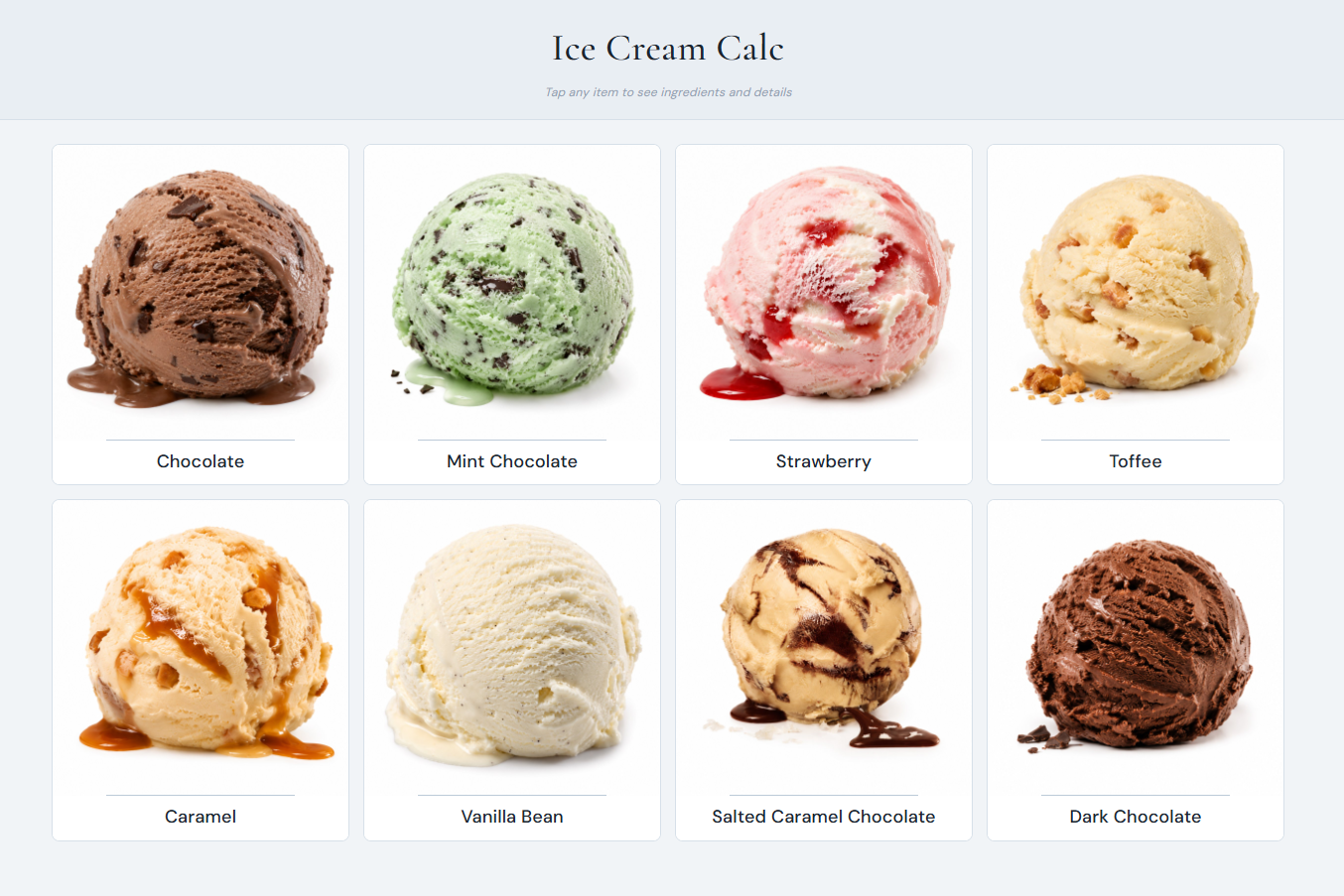
A Showcase is a full-screen menu of your products for customers. Each product appears as a card with its image, name and price. When a customer taps a card, a detail view opens with the description, the ingredient list, the allergens and the nutrition values per 100 g.
You can use a showcase in two ways:
- On your own tablet or screen, in customer mode, at a counter, a market stall or a fair.
- On the customer's phone, through a public link and its QR code, which you can print on packaging, menus or signs.
Open it from Tools › Showcase. You need to be signed in, but Showcase is not a Premium feature. Only two extras need Premium: the customer language of the public link and your own web domain (both described below).
Creating a Showcase
Your First Showcase
The first time you open the page, a showcase called "My showcase" is created for you, so you can start adding products straight away. You can have as many showcases as you like, for example one per shop, season or event.
- Switch between showcases with the drop-down list at the top of the page.
- Choose + New showcase in the same list to create another one.
- Click the pencil icon next to the list (Showcase settings) to rename a showcase and change how it looks.
Adding and Arranging Products
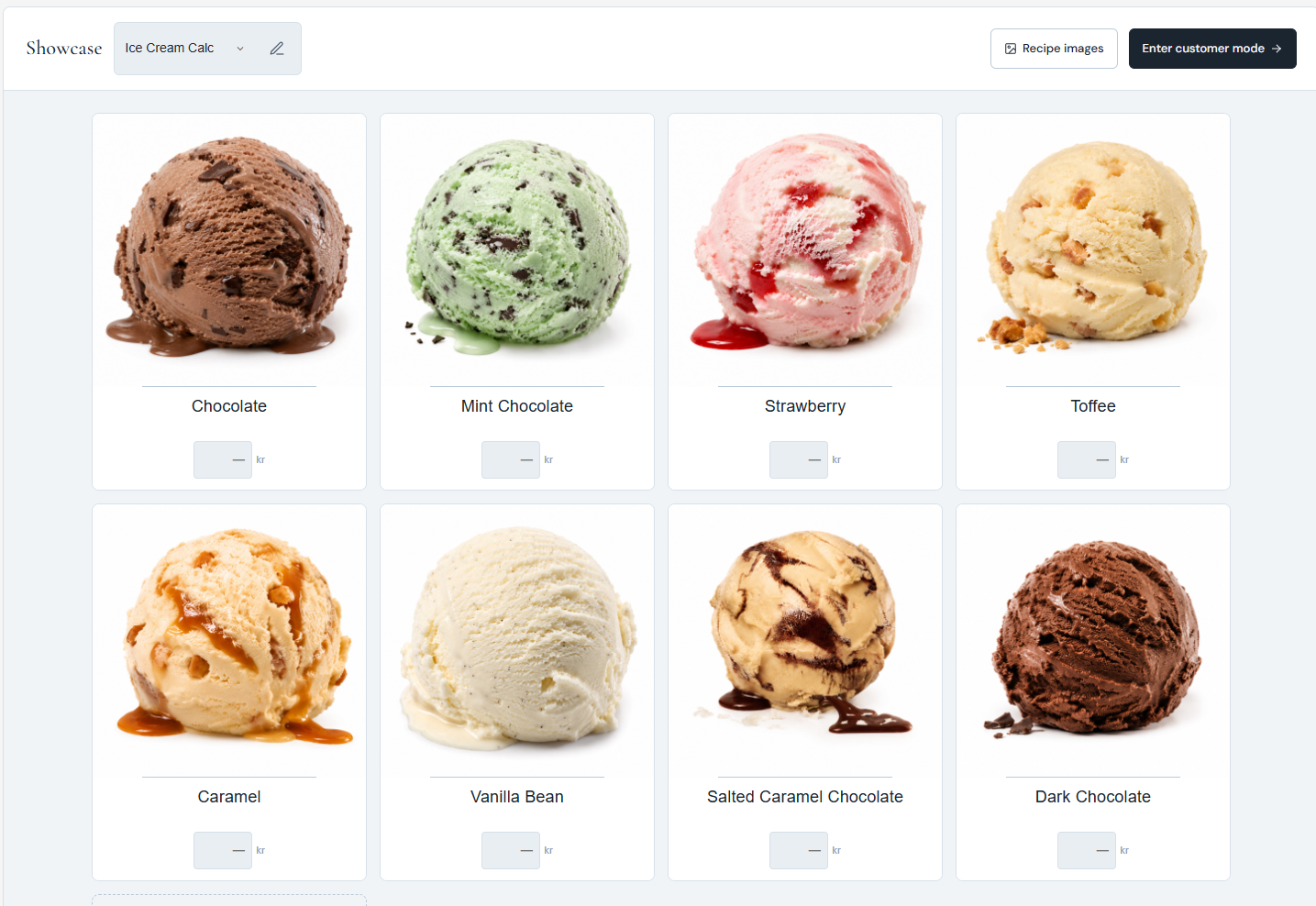
- Click the Add recipe tile.
- Pick a recipe in the list and click Add.
- Type the price in the field below the card. It is saved automatically. Leave it empty to show no price for that product.
Each card in edit mode has two small buttons in its corner:
- The eye icon hides the product in customer mode and on the public link, or shows it again. A hidden card stays in your showcase, grayed out, so you can bring it back when the flavor is available again.
- The X removes the product from the showcase at once. The recipe itself is not affected.
Drag the cards to change their order; customers see them in the same order. If you delete a recipe, it disappears from your showcases automatically.
Images and Descriptions
The showcase takes the image and description from the recipe itself. In edit mode, click a card's image (or Add image when it has none) or its name. This opens the recipe's Properties, where you can set:
- Card image – shown on the card, and in the detail view unless a detail image is set.
- Detail image – optional; replaces the card image in the detail view.
- Description – shown in the detail view. The Technical Notes tab is for you and your team and never appears in a showcase.
Press Save in the Properties dialog, and the card updates. The Recipe images button at the top of the page opens your recipe list.
The showcase always shows the recipe as it is saved. If you have unsaved changes in the Recipe Editor, save the recipe to see them in the showcase.
What the Detail View Shows
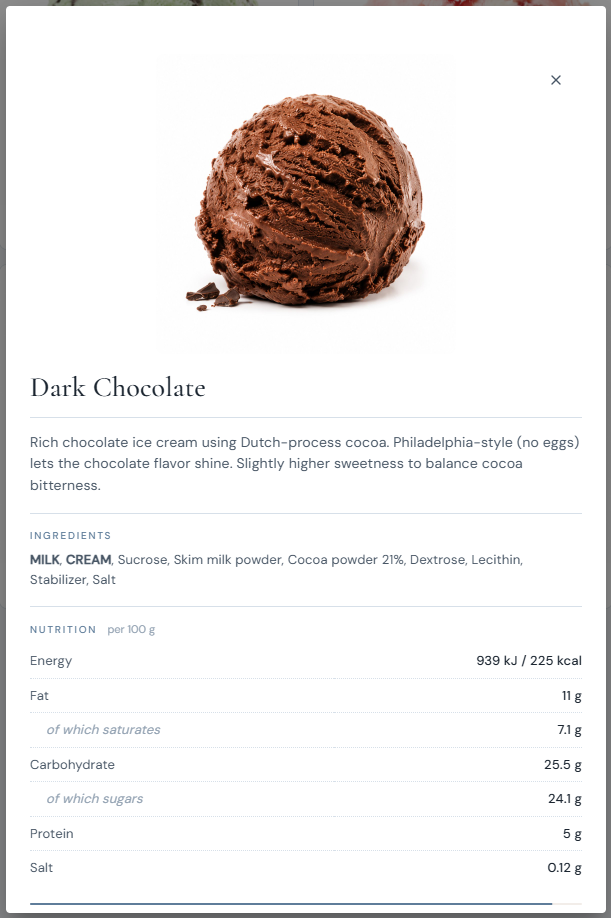
- The image, the name and the price (unless you hide prices in the detail view).
- The recipe's description.
- Ingredients – the same ingredient list as on your labels and the Recipe Label report, with allergens highlighted. For a professional ingredient declaration, see Professional Ingredient Lists.
- Allergens – what the product contains, and a "May contain" line for traces.
- Nutrition per 100 g: energy, fat, saturates, carbohydrate, sugars, protein and salt. The table is left out when there are no nutrition values to show.
Showcase Settings
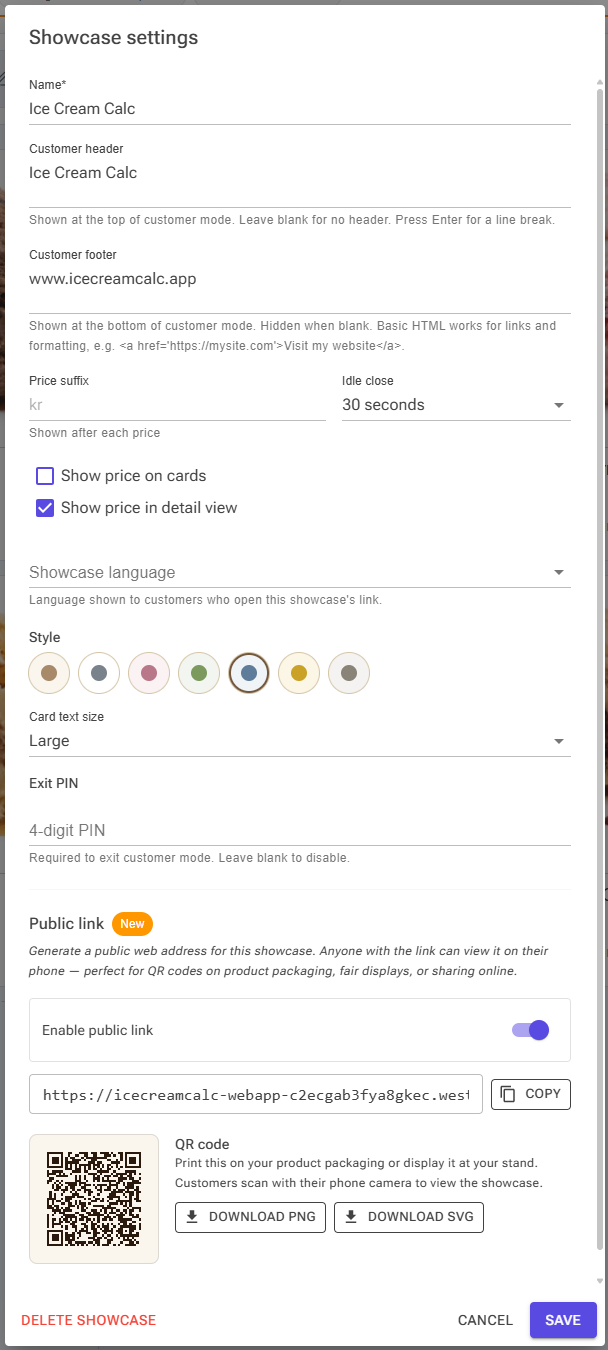
Click the pencil icon next to the showcase picker to open Showcase settings. Changes apply when you click Save, except the public link, which takes effect immediately (see below).
| Setting | What it does |
|---|---|
| Name | The name in your showcase list. Required. |
| Customer header | The heading at the top of customer mode, for example your shop name. Press Enter for a line break. Leave it blank for no header in customer mode; the public link then shows the showcase name instead. |
| Customer footer | A line at the bottom, for example opening hours or a link to your website. Hidden when blank. Basic HTML works for links and formatting, such as <a href='https://mysite.com'>Visit my website</a>; other HTML is removed. |
| Price suffix | The text after each price, such as €, SEK or kr. It always comes after the number. When left blank, prices show "kr". |
| Idle close | How long an open detail view stays open without any activity in customer mode: 15, 30 or 60 seconds, or Never. A thin progress bar shows the time left. The public link never closes the detail view by itself. |
| Show price on cards / Show price in detail view | Turn the prices on or off in each place. |
| Showcase language | Premium only. The language customers see when they open the public link (see Customer Language). |
| Style | The color theme: Cream, White, Rose, Sage, Slate, Honey or Stone. |
| Card text size | Small, Medium or Large. Large is easier to read from a distance. |
| Exit PIN | A 4-digit PIN needed to leave customer mode. Leave it blank for no PIN. To change or remove an existing PIN, click Change, then enter a new PIN or leave the field blank. |
When you save, the app remembers the look of this showcase (header, footer, price suffix, prices, idle close, language, style and text size) and uses it for the next showcase you create. The name and the PIN are not copied.
Delete showcase, at the bottom left of the dialog, removes the showcase after a confirmation. This cannot be undone, and its public link and QR codes stop working. Your recipes are not affected.
Customer Mode
Click Enter customer mode at the top right of the page. The showcase fills the screen, without the app's menus, and shows only the products that are not hidden. Customers tap a card to see its details and close the detail view with the X, or let it close by itself after the idle time.
To return to edit mode, tap the small lock button in the bottom-right corner. If the showcase has an Exit PIN, a keypad asks for it; a wrong PIN shows "Wrong PIN" and keeps the showcase in customer mode. Without a PIN, the lock button returns to edit mode at once.
Customer mode survives a page refresh, so a reload by a curious customer does not bring them back to the editor.
Note: The PIN stops customers from leaving the menu through the lock button. It does not lock the device itself. For a tablet left on a counter, also use your device's own app-pinning or guided-access feature.
The Public Link and QR Codes
The public link lets anyone open the showcase on their own phone, without an account. It is off until you turn it on.
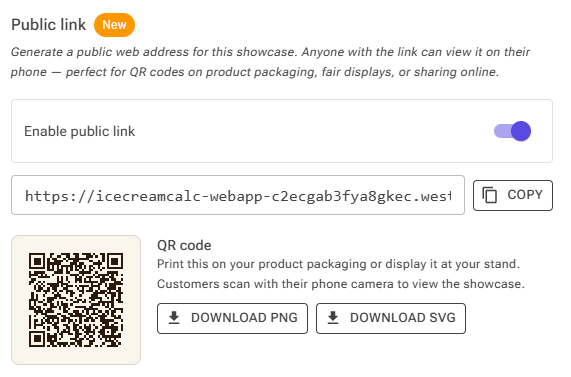
- Open Showcase settings and scroll to Public link.
- Turn on Enable public link. The web address appears straight away and works immediately; you do not need to click Save.
- Click Copy to copy the address, or use Download PNG or Download SVG to save the QR code. SVG scales to any size without blurring, which suits print.
The public page is made for phones. It shows the header (or the showcase name), the visible products and the footer, with the same detail view as customer mode. It has no PIN and no exit button, because there is nothing to exit to.
Regenerate link creates a new address. The old address and every QR code printed with it stop working, so only do this when you want to withdraw a link that has spread too far. Turning Enable public link off has the same effect on existing codes, and the app asks you to confirm both.
Someone who opens a disabled or old link sees "This showcase isn't available right now". The message does not reveal whether the showcase exists.
Customer Language (Premium)
With Premium, the Showcase language setting chooses the language of the public link. The page's own labels, such as "Ingredients", "Allergens" and the nutrition table, are shown in that language. Text you wrote yourself stays as you wrote it: the header, the footer, the recipe names and the descriptions.
The language applies only while you have Premium; otherwise the public link is shown in English. Customer mode on your own device uses the language of your app.
Your Own Web Domain
Businesses can have their public showcase links on their own web address instead of the app's. This is set up by support, because it needs changes to your domain's settings; contact support if you are interested. Once it is set, your Account page shows a Your showcase domain card.
Links and QR codes use your domain while you have Premium. If Premium ends, new links and QR codes use the app's address again, and codes you have already printed keep working.
Showcases for Sales Orders
When you deliver to a customer, you can give them a showcase of exactly what they ordered: a QR code on the box or delivery note that opens the ingredients, allergens and nutrition of each product. These order showcases are made from a sales order. For sales orders themselves, see Recipe Sets & Labels.
- On the Recipe Sets page, click View Orders.
- On the order's row, click the storefront icon (Showcases). A badge on the icon shows how many showcases the order already has.
- Click New showcase. The name starts as the order name, and all recipes in the order are ticked. Untick the ones that do not belong in this showcase, for example to make one showcase per box.
- Click Create. The public link is turned on automatically, and a dialog shows the address and the QR code with Copy, Download PNG and Download SVG.
The list of an order's showcases has four buttons per row: Showcase QR (the address and QR code again), Showcase settings, Open full editor (to set prices, hide products or reorder them) and Delete, which makes its QR code stop working.
Order showcases do not appear in the picker on the Showcase page, so they do not clutter your shop showcases. Open them through the order, with Open full editor.
Putting the QR Code in a Report
While you view a sales order on the Recipe Sets page, an Add showcase QR button appears next to the report buttons. Choose one of the order's showcases, or Create new from checked recipes. Report templates can then print the showcase's link and QR code; see HTML Reports for the fields.
Troubleshooting
Problem: Prices show "kr" but you use another currency.
Solution: Set the Price suffix in Showcase settings.
Problem: A product is missing in customer mode or on the public link.
Solution: It is probably hidden. In edit mode, a hidden card is grayed out; click its eye icon to show it again.
Problem: A recent change to a recipe does not show.
Solution: The showcase uses the saved recipe. Save the recipe in the Recipe Editor, then reload the showcase.
Problem: A product has no nutrition table.
Solution: The recipe has no nutrition values to show, for example because its ingredients have no nutrition data. Check the recipe's nutrition label.
Problem: A printed QR code shows "This showcase isn't available right now".
Solution: The public link has been turned off or regenerated, or the showcase was deleted. Turn the link back on, or print the new QR code.
Problem: You cannot find an order showcase on the Showcase page.
Solution: Order showcases are only listed under their sales order. Open the order's Showcases list and click Open full editor.
Related Articles
- Display Case – plan which flavors go in your cabinet and how firm they are
- Recipe Sets & Labels – recipe sets and sales orders
- Professional Ingredient Lists – the ingredient list and allergens customers see
- Nutrition Labels – the recipe's nutrition values
- HTML Reports – printing the showcase QR code in a report
- Account, Premium and Your Data – what Premium adds