Overview
Ice Cream Calc Web App includes a powerful sharing system that lets you share your recipes and charts in two ways: publicly with the community through the Explore page, or privately via secure links. Whether you want to showcase your latest creation, contribute to the ice cream community, or collaborate with specific colleagues, the sharing system makes it easy to distribute your work while maintaining full control over your content.
Two Types of Sharing
Ice Cream Calc offers two distinct ways to share your content:
Public Community Sharing
Share your recipes and charts with the entire Ice Cream Calc community:
- Discoverable – Your content appears in the Explore page where anyone can find it
- Community features – Users can rate your shared content with 1–5 stars
- Statistics tracking – View counts, downloads, and ratings
- Trending and popular lists – High-quality content gets featured
Private Link Sharing
Share specific content with selected people via a secure URL:
- Direct access only – Only people with the link can view your content
- No public listing – Content doesn’t appear in Explore or search results
- Perfect for collaboration – Share work-in-progress with colleagues or clients
- Revocable anytime – Disable the link whenever you want
Both sharing methods create snapshots and allow others to clone your content, but they serve different purposes and audiences.
Understanding Snapshots
Important Concept: When you share a recipe or chart, you’re creating a snapshot of that content at the moment of sharing.
What is a Snapshot?
A snapshot is a frozen copy of your recipe or chart at a specific point in time. This means:
- The shared version stays stable – Even if you modify your original recipe, the shared version remains unchanged
- Predictable content – Other users always see the same recipe you shared, ensuring consistency
- Quality control – You can test changes before updating your shared content
- Professional reliability – Critical for commercial users who depend on recipe consistency
Updating Shared Content
A recipe has one public share. When you share a recipe that is already shared, the app does not create a second share: it opens Edit Shared Recipe for the existing one. You can also open it from My Shares by clicking the recipe’s card or its Edit & Stats button.
Edit Shared Recipe shows the share’s photo, title and description, and its statistics: views, downloads, average rating, the number of ratings (the tile labelled Reviews), and the date you first shared it.
If you modify your original recipe after sharing, you have complete control over whether to update the shared version:
- Open Edit Shared Recipe – share the recipe again, or click its card in My Shares
- Change the title, description or photo if you wish
- Click Update Share – this republishes your saved recipe as it is right now
- Users who previously cloned your recipe must download again – Updates are not automatic. If someone cloned your recipe before you updated it, they’ll need to clone the updated version to get the latest changes
What Update Share refreshes:
- The ingredients and their weights
- The recipe’s settings, such as evaporation and overrun
- The recipe’s instructions
- The product image (the photo shown in the dialog)
- The chart – the chart currently selected for the recipe is published again and replaces the share's previous copy
- The category and tags – taken from the recipe's properties as they are now
- The title and description you entered in the dialog
Note: Until you click Update Share, changes to your original recipe – including adding or changing its product image – are not visible on the shared version. The snapshot only changes when you explicitly update it.
If you delete the original recipe, its public share stays online with the content it had when you last published it. Update Share then changes only the title and description; the chart, category and tags stay as they were.
Chart shares are snapshots too. Updating one (Edit & Stats → Update Chart) changes only its title and description; the chart’s data items and ranges stay as they were when you shared it.
This gives you full creative control while protecting your reputation in the community.
How to Share
Setting Up Your Sharing Profile (First Time Only)
Your sharing profile holds the display name shown next to everything you share. You need one before you can share anything.
The first time you share a recipe publicly, the app opens Set Up Sharing Profile for you:
- Check the Display Name – it is pre-filled from your e-mail address. It must be unique and between 2 and 50 characters
- Add an optional Bio (up to 500 characters) – Tell others about your ice cream expertise
- Click Save & Continue – the share dialog opens next
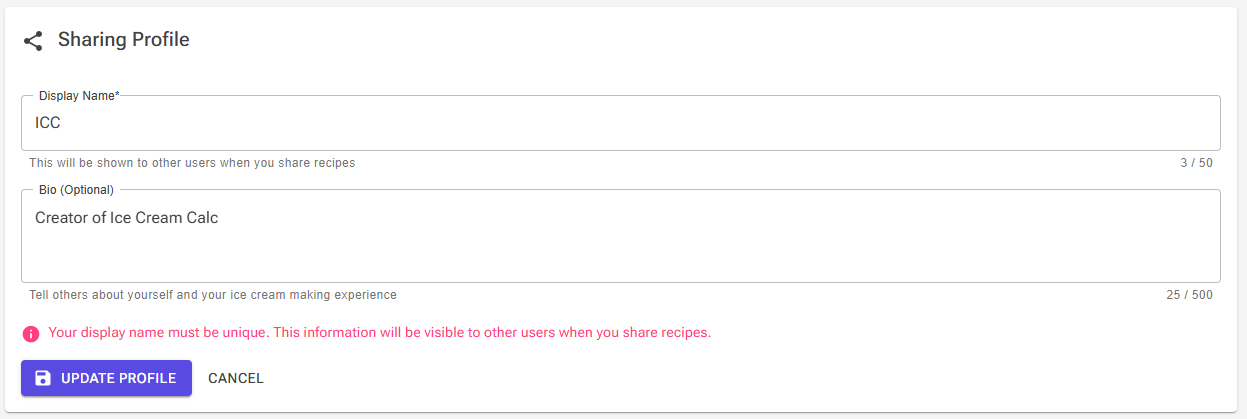
Private links and chart shares do not open this dialog. Without a sharing profile they stop with an error, so set up your profile on the Account page first:
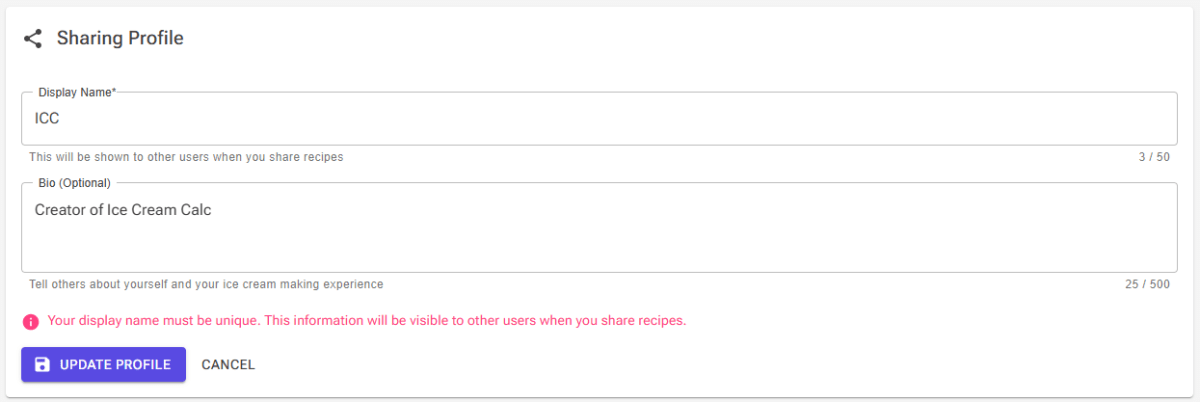
- Open Account from the main menu
- Find the Sharing Profile card
- Enter your Display Name – How you’ll be known in the community
- Add an optional Bio – Tell others about your ice cream expertise
- Click Save Profile
Note: This is a one-time setup. You can change your display name and bio later with Edit Profile on the same card. More about the Account page: Account, Premium and Your Data.
Sharing Recipes
Where to Share Recipes
Public sharing opens the same share dialog from four places:
- Recipe View – the green Share icon (“Share recipe with community”) in the icon row at the top of the page. See Recipe View.
- Recipe Editor – the Share icon in the header. Save your recipe first: the share uses the saved recipe, so the editor asks you to save before sharing.
- Home page – the Share Recipe shortcut, which asks you to select a recipe. If it is not on your Home page, add it with the Edit shortcuts (pencil) icon.
- My Shares – the Share Recipe button, which also asks you to select a recipe
A private link is created in Recipe View, with the blue Link icon (“Share via Private Link”).
Public Community Recipe Sharing
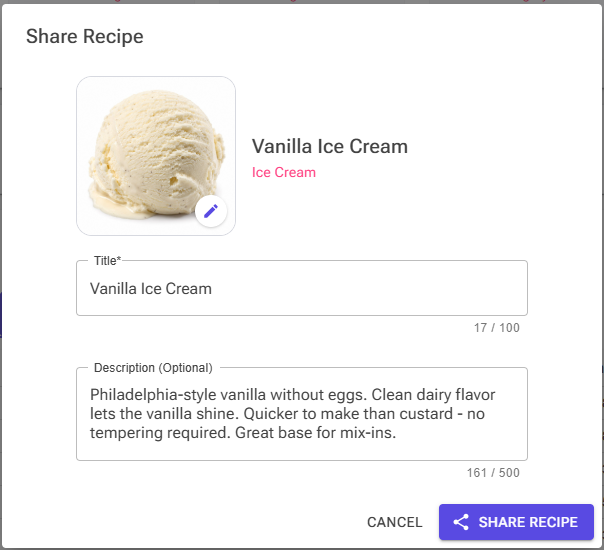
Steps:
- Click Share in Recipe View or the Recipe Editor, or use the Share Recipe shortcut or button and select your recipe
- If this is your first public share, set up your sharing profile (see above)
- Add a photo (optional): click the photo tile to upload an image (PNG, JPEG, WebP or AVIF, up to 10 MB), paste one from the clipboard, or remove the current one. The photo becomes the recipe’s product image: it is saved on your own recipe when you share, replacing the image it had.
- Check the sharing details:
- Title: Pre-filled with the recipe name. Give your shared recipe a catchy, descriptive name (this can be different from your recipe name), up to 100 characters
- Description: Pre-filled with the recipe’s description, up to 500 characters. Explain what makes your recipe special, any tips, or what inspired it
- Click Share Recipe to publish to the community
What Gets Shared:
- Recipe snapshot with all ingredients and quantities
- Recipe calculations and statistics
- The recipe’s settings, such as evaporation and overrun
- The recipe’s instructions (see Recipe Instructions)
- Your recipe’s product image (a frozen copy taken at share time)
- The recipe’s chart – always included when the recipe has one; there is no option to leave it out
- Your custom ingredients (bundled automatically, including their nutrition data)
- Category and tags (from your recipe properties)
Not shared: the recipe’s technical notes, which stay private to you, and your personal rating of the recipe.
Note: The community recipe page shows your full recipe openly – ingredient weights and percentages, the instructions, key ice cream properties, the chart, and simplified nutrition information. Only share recipes you are happy to publish in full.
Note: The category, the tags and the chart are taken from your recipe: the category and tags from its properties, and the chart that is currently selected for the recipe. If you change them later, click Update Share to publish the new ones.
Private Link Recipe Sharing
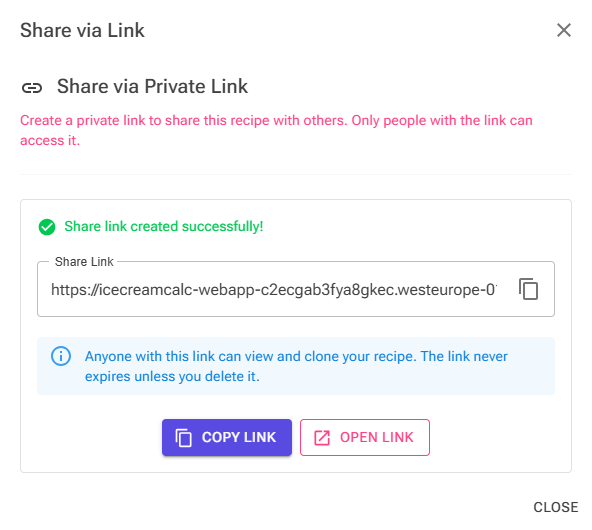
Steps:
- Click the blue Link icon on your recipe view page
- Click Generate Share Link
- Copy the link with Copy Link and share it via email, message, or any channel. Open Link opens it in a new tab
- Recipients can view and clone your recipe using this link
Every Generate creates a new link. A link cannot be updated: to share a newer version, revoke the old link in My Shares and generate a new one.
When the snapshot is taken: a private link captures the recipe the first time someone opens or clones it (including you, with Open Link), not when you generate it. From then on the link always shows that version. If you delete the recipe before anyone has opened the link, the link stops working.
What the recipient sees:
- The title, your display name, the description, the category and the tags
- The number of ingredients and the total mix weight
- The ingredient names (without weights)
- The name of the included chart
- The recipe’s instructions
- Clone Recipe under “Save to Your Recipes” – cloning needs an account. The page offers Sign in or Create an account and brings the recipient back to the link afterwards. The copy opens in Recipe View.
Private Link Features:
- Secure, non-guessable URL (GUID-based)
- No login required for recipients to view
- Not discoverable in Explore or search
- Track views and downloads
- Revoke access anytime from My Shares
Sharing Charts
Where to Share Charts
You can share charts from two locations:
From the Chart Editor:
- Open any chart you’ve created in the Chart Editor
- Click the green Share button (community icon) or blue Link button (link icon) in the top toolbar
From My Shares Page:
- Open My Shares (see Managing Your Shares below)
- Click the Share Chart button
- Select which chart you want to share
Note: Chart shares and chart private links need a sharing profile. Set it up on the Account page first (see How to Share).
Public Community Chart Sharing
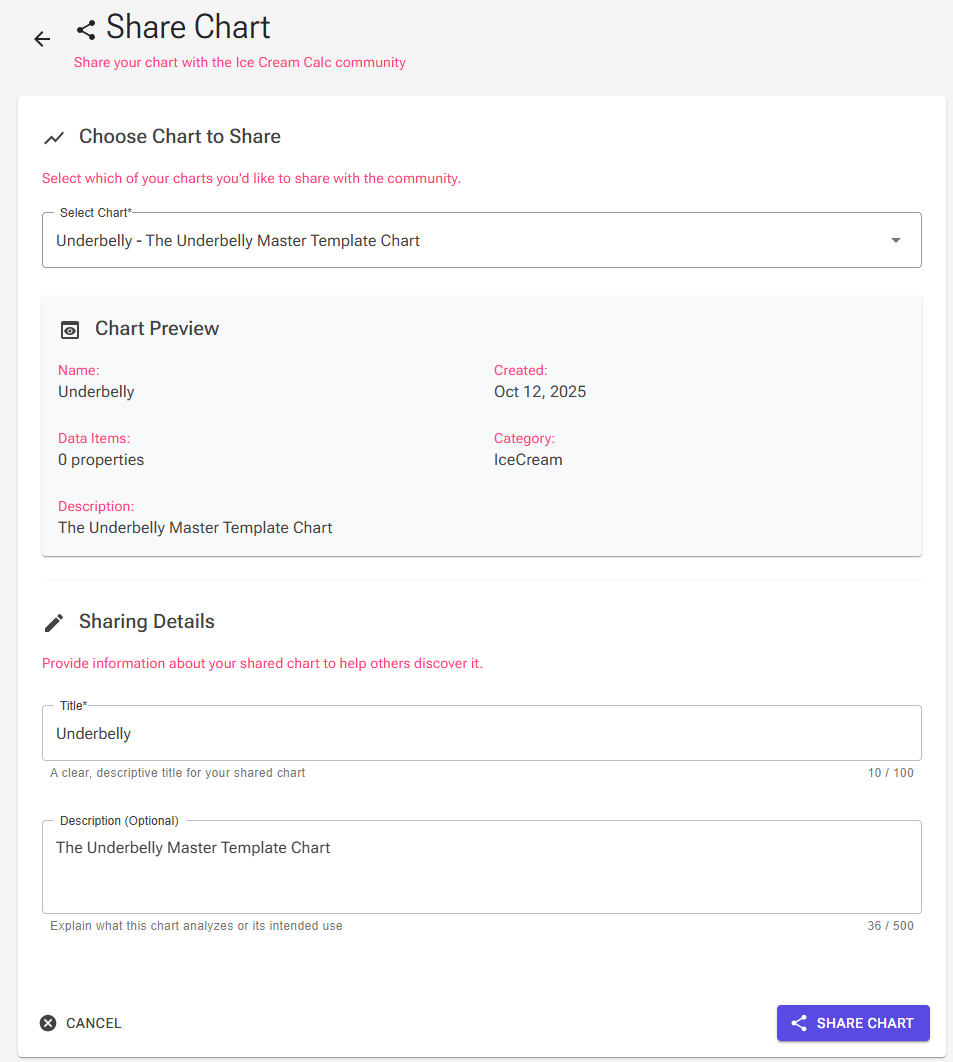
Steps:
- Click the green Share button in Chart Editor
- Select your chart (if starting from My Shares)
- Provide sharing details:
- Title: Descriptive name for your chart
- Description: Explain what the chart analyzes or its intended use
- Click Share Chart to publish to the community
What Happens When Users Clone Your Chart:
- They receive a personal copy they can modify, named “Title (Copy)”
- Attribution is maintained – Your display name stays on the shared chart’s page
- Your original is safe – They can’t affect your version
- Full customization – They can adapt it to their needs
Private Link Chart Sharing
Similar to recipes, click the blue Link button in Chart Editor, then Generate Share Link to create a private shareable URL.
Managing Your Shares (My Shares Page)
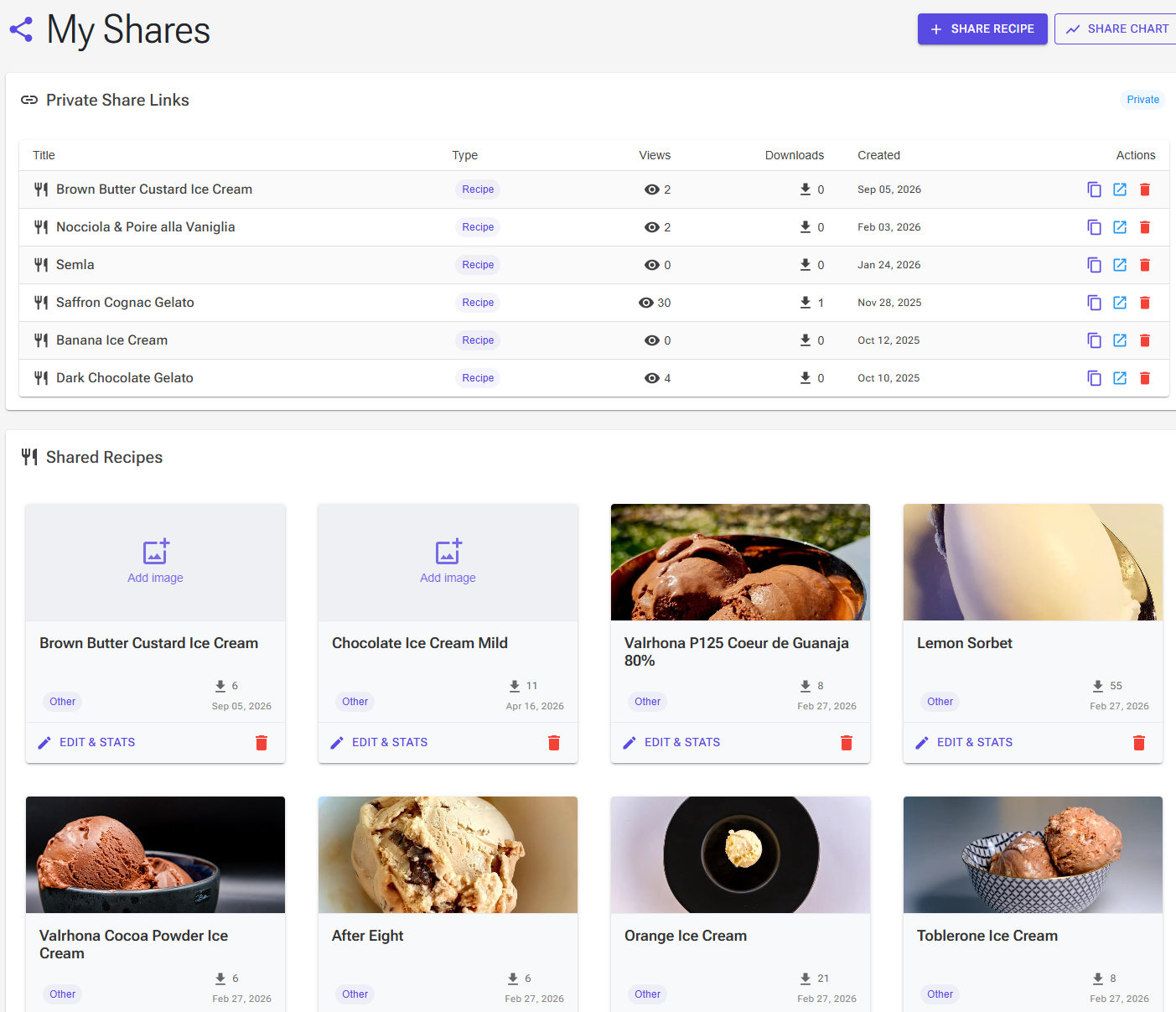
The My Shares page is your central hub for managing all shared content. It is not in the main menu: open it with the My Shares button at the top of the Explore page, or with the My Shares shortcut on the Home page.
The Share Recipe and Share Chart buttons at the top of the page start a new share.
What You Can Manage
Private Share Links Section:
- View all private links you’ve created, for recipes and charts
- See view and download statistics for each link
- Copy links to share again, or open them in a new tab
- Revoke links to disable access immediately – people who already cloned keep their copies
Public Community Shares:
Shared Recipes:
Each recipe share is a card showing the product image, the title, the star rating and number of ratings (once it has ratings), the category, a Chart chip when a chart is included, the download count and the date you shared it.
- Click the card or Edit & Stats – Opens Edit Shared Recipe: change the title, description or photo, view the statistics, and Update Share (see Updating Shared Content above)
- Delete Share (the delete icon) – Remove from community. People who already cloned keep their copies; the share’s ratings are removed with it
Shared Charts:
- Each card shows the title, the rating, the category, the view count and the date you shared it
- Edit & Stats (in the card’s ⋮ menu) – Update the title and description, and view metrics
- Delete Share (in the same menu) – Remove from community
Performance Statistics
Edit Shared Recipe and Edit & Stats on a chart show:
- Views – How many people viewed your content
- Downloads – How many times it was cloned
- Avg Rating – Community rating (1-5 stars)
- Reviews – The number of star ratings received (there are no written reviews)
- Shared on – When you first published it
Discovering Shared Content (Explore Page)
The Explore page is where you discover recipes and charts shared by the Ice Cream Calc community.
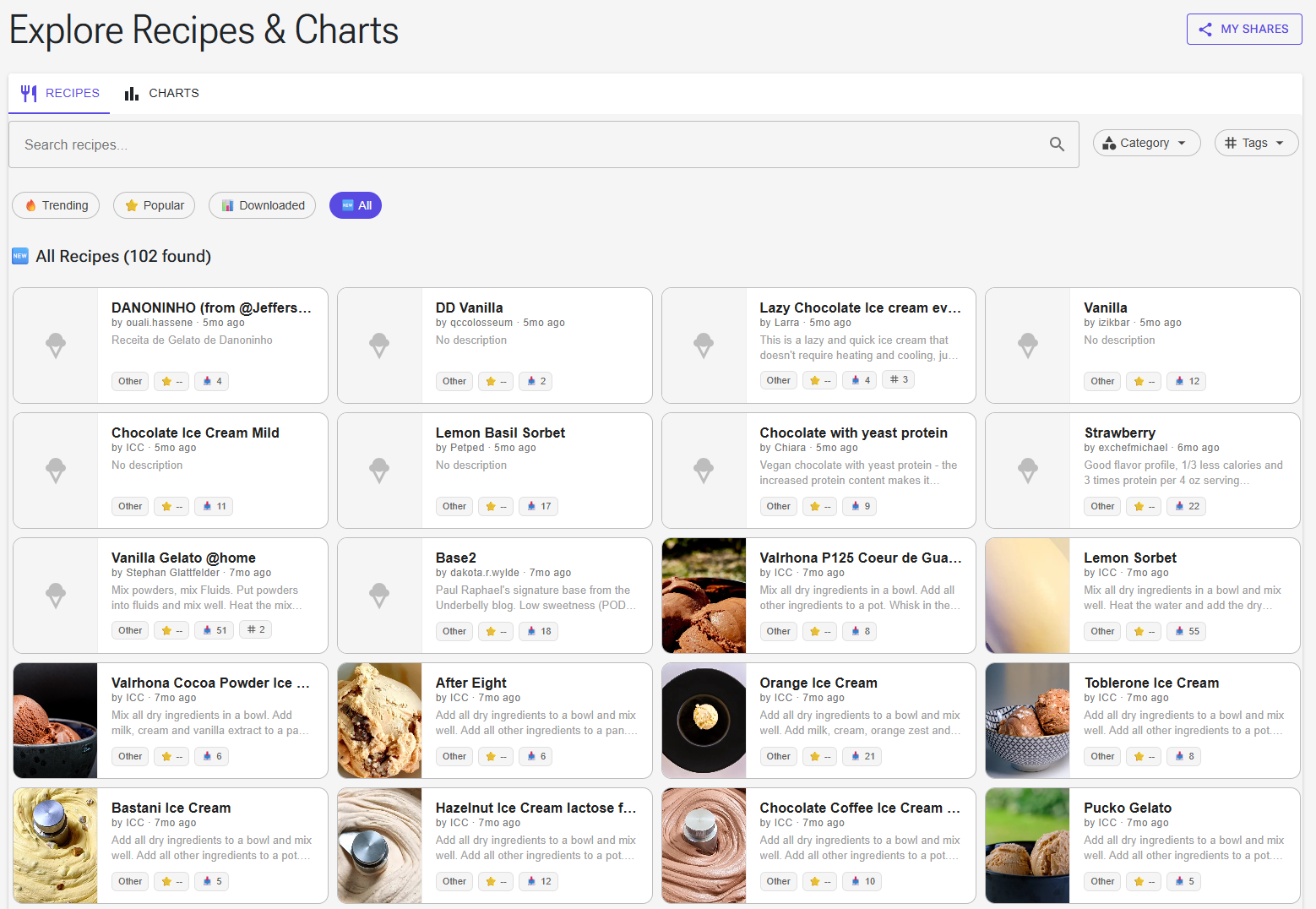
Accessing the Explore Page
- Click Explore in the main navigation menu, or use the Explore shortcut on the Home page
- Choose between Recipes or Charts tabs
Anyone can browse Explore and open the detail pages, even without signing in. Cloning and rating need an account.
Browsing Content
View Modes: The page opens in All.
- 🔥 Trending – Content shared in the last 30 days, ranked by downloads, views and ratings (ratings above 3 stars lift it, ratings below 3 lower it)
- ⭐ Popular – Highest-rated content by community votes
- 📊 Downloaded – Most frequently cloned recipes and charts
- 🆕 All – Complete catalog sorted by newest first
Search and Filtering
Recipe Filters:
- Search bar – Find recipes by title or by the creator’s display name. The description is not searched. Search works in the Popular, Downloaded and All views
- Category filter – Ice Cream, Gelato, Sorbet, Sherbet, etc.
- Tags filter – Multiple selection for Vegan, Dairy Free, Low Sugar, Commercial, etc. A recipe must have all the tags you select
- Clear Filters – Reset all filters at once
Chart Filters:
- Search bar – Find charts by title or by the creator’s display name
- Category filter – Charts use the same categories as recipes (Ice Cream, Gelato, Sorbet, …)
Understanding Content Cards
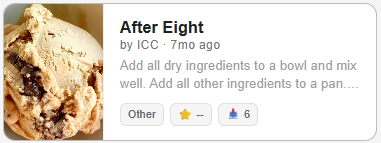
Each card displays:
- Product image (recipe cards; an ice cream icon when the recipe has none)
- Title, the creator name (“by UserName”) and how long ago it was shared
- Description preview
- Category tag
- Rating (⭐) – Average rating or “--” if no ratings yet
- Downloads (📥) – Clone count
- Tags (recipe cards) – The number of tags; hover over it to see them
Click any card to view full details.
Viewing Details and Cloning
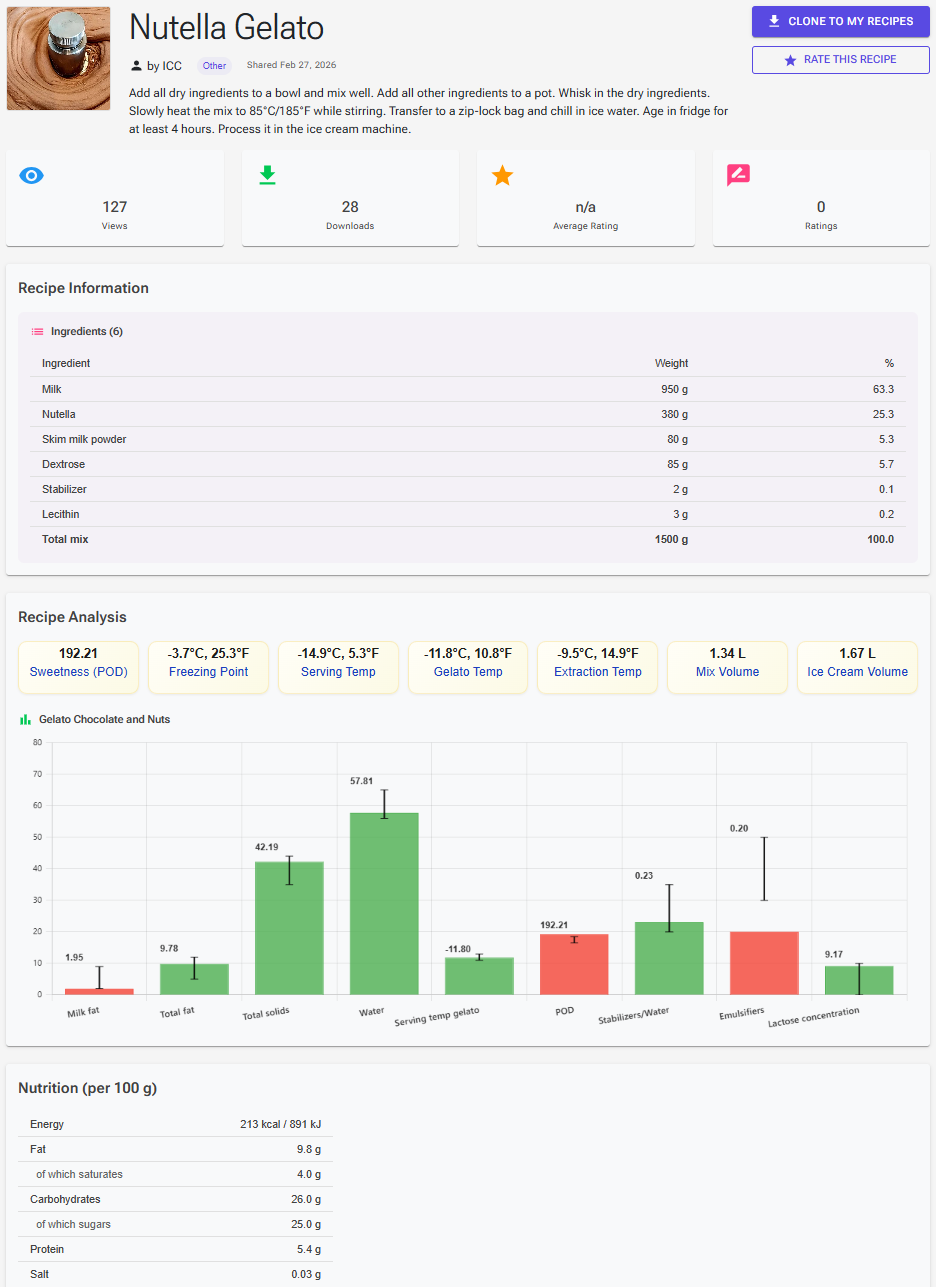
Clicking a recipe card opens the full recipe detail page. You can study the complete recipe before deciding to clone it:
- Full description and creator information, with the product image, category and tags
- Statistics – views, downloads, the average rating and the number of ratings
- Ingredient table – every ingredient with its weight in grams and its percentage of the mix, with add-ins listed separately
- Instructions – the recipe’s method, when the creator wrote one
- Recipe Analysis – key ice cream properties as data cards (sweetness/POD, freezing point, serving temperatures, mix and ice cream volume) plus the recipe’s chart rendered with its target ranges
- Nutrition per 100 g – a simplified nutrition table (energy, fat, carbohydrates, sugars, protein, salt), shown when the ingredients have nutrition data
To make the recipe your own:
- Click the Clone to My Recipes button (you need to be signed in)
- The recipe is copied to your account as “Title (from @Creator)” and opens straight away in the Recipe Editor – including its instructions, its settings, any bundled custom ingredients and the chart
- You can now modify your personal copy freely
What the copy does not include: the product image and the creator’s technical notes. When you already have a personal ingredient that matches one of the creator’s custom ingredients (same name and composition), your copy uses yours instead of adding a duplicate. Ingredients from the shared library are linked as they are.
Free plan: a cloned recipe counts toward the Free plan’s 15 recipes. When you have reached the limit, Clone to My Recipes shows the upgrade dialog instead. See Account, Premium and Your Data.
Chart cards work the same way: click the card, review the details, and click Clone to My Charts. The copy is added to your charts as “Title (Copy)”.
Important: Cloning creates your own independent copy. Your changes won’t affect the original shared version, and updates to the original won’t automatically appear in your copy.
Community Ratings
Community ratings are star ratings from 1 to 5 on shared recipes and charts. They help others discover quality recipes and charts. There are no written reviews: a rating is stars only.
How to Rate Content
Any signed-in user can rate a public share they did not create. You do not need to clone it first.
- Navigate to a shared recipe or chart detail page in Explore
- Click Rate This Recipe (or Rate This Chart)
- Select 1-5 stars based on your experience:
- ⭐ – Poor
- ⭐⭐ – Fair
- ⭐⭐⭐ – Good
- ⭐⭐⭐⭐ – Very Good
- ⭐⭐⭐⭐⭐ – Excellent
- Click Submit Rating
You have one rating per share. To change it, click the Rate button again: the dialog shows your previous rating, and the button becomes Update Rating.
Viewing Ratings
On Content Cards (Explore page):
- The average rating next to a star, for example ⭐ 4.2
- ⭐ -- means the content has no ratings yet
On Detail Pages:
- Average Rating – shown as n/a until the first rating
- Ratings – the number of ratings received
Rating Guidelines
When rating content:
- Be constructive – Focus on the quality and usefulness
- Be respectful – Remember a real person created this
- Be honest – Your feedback helps the community
- Rate what works – Consider how well it achieved its purpose
- Can’t rate your own content – You cannot rate recipes or charts you created; the Rate button is hidden on your own shares
Note: You can only rate public community shares. Private link shares do not have ratings.
Rating Recipes You Cloned
A recipe you clone becomes your own recipe, so you can also give it a personal rating: Overall, Texture, Body, Taste and Color, each 1–5 stars. Personal ratings are private and separate from community ratings. Rate a recipe with the Rating tile in Recipe View, the stars next to the recipe name in the Recipe Editor, or the Rating column on the Recipes page.
- Rate the original too? – The first time you save a rating with an Overall value on a recipe you cloned from Explore, the app asks whether to give the shared original the same number of stars. Yes, rate it adds your Overall as a community rating; No thanks does not. You are asked only once, and later changes to your personal rating never change the community rating. Only the Overall value is sent; the other four stay private. The question is skipped when you have already rated the original on its detail page, or when the share has been removed.
- Made it yet? – A card on the Home page reminds you about recipes you cloned 3 to 60 days ago and have not rated yet. To turn it off, use the card’s close menu, or switch off Show rating reminders in Settings.
- Find them on the Recipes page – The From community and Not rated yet filters list the clones you still have to rate.
Full details: Recipe Ratings.
Best Practices for Sharing
For Recipe Creators
- Test before sharing – Make sure your recipe is finalized
- Write clear descriptions – Help others understand what makes your recipe special
- Use descriptive titles – Make your content easy to find and identify
- Add a photo – Recipes with an image stand out in Explore
- Set the chart, category and tags first – They are taken from your recipe when you first share it
- Update when improved – Keep shared snapshots current with major improvements via Update Share
For Chart Creators
- Explain your ranges – Help users understand your chart philosophy
- Test thoroughly – Ensure your chart works for various recipe types
- Name descriptively – Make it clear what the chart analyzes
- Consider versatility – Charts that work for multiple styles are more valuable
For Link Sharing
- Explain the link – Add context when sharing URLs privately
- Check mobile view – Ensure recipients can view on any device
- Consider your audience – Use public for community, private for specific people
- Track usage – Monitor view counts to gauge interest
- Revoke when needed – Disable links that are no longer relevant
Privacy and Control
What Doesn’t Get Shared
The following information is never shared publicly:
- Your email address or account details
- Private recipes you haven’t explicitly shared
- Your recipes’ technical notes – the instructions are shared, the technical notes never are
- Your personal recipe ratings
- Personal ingredients (unless bundled with a shared recipe)
- Your user activity or usage statistics
- Private share links (not discoverable in Explore)
What IS visible: A shared recipe is published in full. Anyone viewing it in the community sees the complete ingredient list with weights and percentages, the instructions, the calculated properties, the chart, and nutrition information – without needing to clone it. Only share recipes you are comfortable publishing.
Sharing vs. Your Account
- Your original recipes stay private – Sharing creates a separate copy
- Full control – You decide what to share and can remove it anytime
- Attribution protection – Your display name is always credited
- Independent copies – Cloned recipes belong to the users who cloned them
Troubleshooting
Common Issues
“I can’t find the Share button”
- For recipes: use the green Share icon in Recipe View or the Share icon in the Recipe Editor header. Private links are created with the blue Link icon in Recipe View
- For charts: Open the chart in Chart Editor
- Or use the My Shares page, or the Share Recipe shortcut on the Home page
- Check that you’re logged in (guest users can’t share)
“Sharing a private link or a chart fails”
- Private links and chart shares need a sharing profile. Set it up on the Account page (Sharing Profile card), then try again
“Where is My Shares?”
- It is not in the main menu. Open it with the My Shares button on the Explore page, or the My Shares shortcut on the Home page
“My shared recipe looks different from my original”
- Remember: shares are snapshots taken at the time of sharing
- Check if you’ve modified the original recipe after sharing
- Share the recipe again (or click its card in My Shares) and click Update Share to republish your recipe’s current state
- Update Share also publishes the recipe's current chart, category and tags
“My product image doesn’t show on the shared recipe”
- The share keeps a frozen copy of the image from the moment of sharing
- If you added or changed the image after sharing, the share still shows the old state
- Open Edit Shared Recipe (share the recipe again, or click its card in My Shares), pick the photo there if you like, and click Update Share – this refreshes the snapshot, including the image
“Users can’t see my chart with the recipe”
- The chart that is selected for the recipe is included automatically; there is no checkbox
- Select the chart for the recipe, then open the share again (or click its card in My Shares) and click Update Share. This publishes the recipe's current chart and replaces the previous one; views, downloads and ratings are kept
“My private link isn’t working”
- Check if you’ve revoked the share in My Shares
- Verify the complete URL was copied (including https://)
- Ensure the recipient isn’t blocking the domain
- Check that the link hasn’t been deleted
- If you deleted the recipe before anyone opened the link, the link no longer works
“My private link shows an older version of the recipe”
- A private link keeps the version it captured when it was first opened. Revoke it in My Shares and generate a new link
“I can’t rate a shared recipe”
- Ensure you’re logged in
- You can only rate public community shares (not private links)
- You cannot rate your own shared content
- You do not need to clone the recipe first
“Where are my private share links?”
- Go to My Shares page
- Look in the “Private Share Links” section at the top
- Private links are separate from public community shares
“How do I change the category or tags on my shared recipe?”
- Category and tags come from your recipe properties
- Change them in the recipe’s properties, then open the share again (or click its card in My Shares) and click Update Share. Views, downloads and ratings are kept
Community Guidelines
When sharing content in Ice Cream Calc:
- Share original work – Only share recipes and charts you’ve created
- Give credit – If adapting others’ work, acknowledge the source
- Be helpful – Write descriptions that help others succeed
- Stay professional – Keep content appropriate and respectful
- Respect privacy – Don’t share proprietary or confidential recipes without permission
Happy sharing! 🍦