The Settings Page
Open Settings in the main menu to set the defaults the app uses for every recipe: serving temperatures, units, overrun, serving size and a few display and ingredient preferences. Signed-in users also set their notifications and custom ingredient properties here.
Change what you need, then click Save Settings at the top of the page. Nothing is applied until you save. Reset to Defaults puts the temperature, display and ingredient settings back to the values listed below; click Save Settings afterwards to apply them. It does not change your notifications, custom property names or cookie choices.
Your settings are saved with your account, so they are the same on every device you sign in on. For guests, see Settings as a Guest.
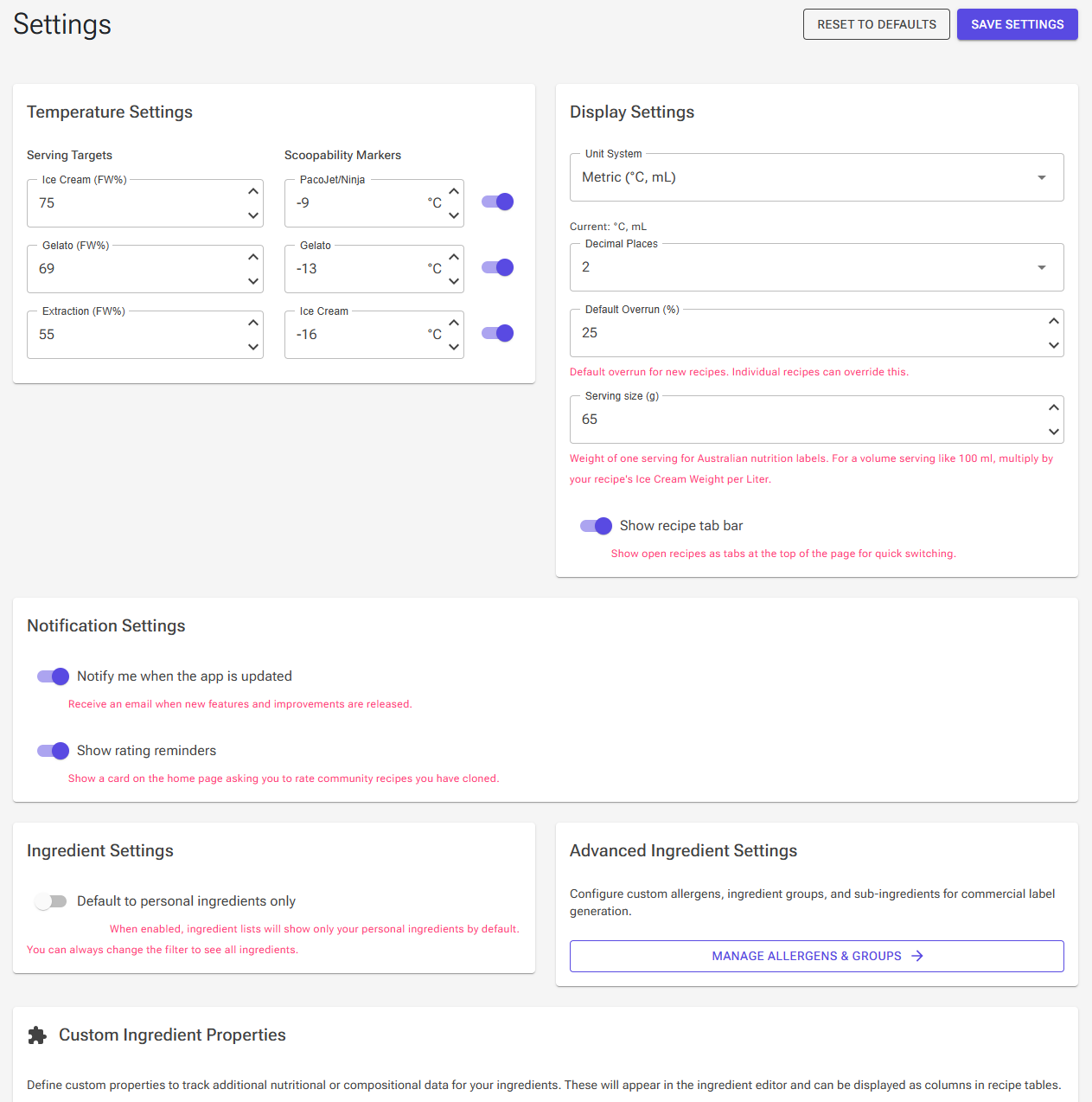
Temperature Settings
This card controls how the app turns your recipe's freezing curve into temperatures. For the science behind it, see Understanding Scoopability and Serving Temperatures.
Serving Targets
Each target is a frozen water percentage (FW%): the share of the water in the mix that has turned to ice. The app finds the temperature at which your recipe reaches that percentage and shows it as the matching temperature in the recipe data and on the freezing curve.
| Setting | Default | Allowed | Sets |
|---|---|---|---|
| Ice Cream (FW%) | 75 | 60–90 | Serving temp: serving temperature for hard-scoop ice cream |
| Gelato (FW%) | 69 | 60–90 | Serving temp gelato: serving temperature for paddle-served gelato |
| Extraction (FW%) | 55 | 40–70 | Extraction temp: the temperature at which the ice cream leaves the machine |
A higher percentage means more of the water is frozen, so the matching temperature is colder. Raise the value if you serve your ice cream firmer, lower it if you serve it softer.
Note: Since September 2026 the serving and extraction temperatures follow these settings. Before that, the app always used 75 %, 69 % and 55 %, whatever you had entered here. If you changed these values earlier, your temperatures may now differ from what you saw before.
Scoopability Markers
The markers appear on the Scoopability bar in the Recipe Editor. Each one shows how soft or hard your recipe is at that temperature. Set the temperature for each marker, or turn a marker off with its switch.
| Marker | Default |
|---|---|
| PacoJet/Ninja | −9 °C |
| Gelato | −12 °C |
| Ice Cream | −16 °C |
You can choose temperatures from −25 °C to −5 °C. With the Imperial unit system the markers are shown and entered in °F. All three markers are on by default.
Display Settings
| Setting | Default | What it does |
|---|---|---|
| Unit System | Metric (°C, mL) | Switches temperatures between °C and °F and volumes between mL and fl oz. Some Production pages also switch to pounds and quarts. Recipe weights stay in grams. |
| Decimal Places | 2 | 1, 2 or 3 decimals for the weight totals on the Production pages. |
| Default Overrun (%) | 25 | The overrun (air whipped in during churning, 0–150 %) for every recipe that has no overrun of its own. |
| Serving size (g) | 65 | The weight of one serving: the default serving on Australian nutrition labels, and the serving in the Cost card's cost per serving. |
| Show recipe tab bar | On | Shows your open recipes as tabs at the top of the page for quick switching. |
Default Overrun
The default overrun is used by every recipe that does not have its own overrun, not only by new recipes. If you change it, existing recipes that use the default change too. In the Recipe Editor, the Overrun field shows (default) when the recipe uses this value. Enter a number to give the recipe its own overrun; click Reset next to the field to go back to the default.
Serving Size
For a serving measured by volume, convert it to grams first: for 100 ml, enter 0.1 × the recipe's Ice Cream Weight per Liter. US nutrition labels use their own standard serving of 2/3 cup instead. See Nutrition Labels.
Notification Settings
Shown only when you are signed in.
- Notify me when the app is updated (on by default): receive an e-mail when new features and improvements are released. The unsubscribe link in those e-mails turns this off; turn it on again here.
- Show rating reminders (on by default): show the Made it yet? card on the Home page, which asks you to rate community recipes you have cloned. Turning the reminders off from the card itself switches this off too. See Recipe Ratings.
Ingredient Settings
Default to personal ingredients only (off by default): when on, ingredient lists show only your personal ingredients at first. You can always change the filter to see all ingredients.
Advanced Ingredient Settings
Click Manage Allergens & Groups to open the Advanced Ingredient Settings page, where you set up your own allergens and ingredient groups for professional ingredient lists and labels. You must be signed in to use it. See Professional Ingredient Lists.
Custom Ingredient Properties
Shown only when you are signed in. Name up to ten extra properties (Custom Property 1 to 10) to track data the app has no field for, for example a specific fiber or polyol. Each named property then appears in the ingredient editor, where you enter its value per ingredient, and can be shown as a column in ingredient and recipe tables.
- A name the app already uses, such as PAC or Lactose, is refused with "'…' is already used by the system."
- Two custom properties cannot have the same name.
- Fix any name errors before you click Save Settings.
Cookie Preferences
Click the arrow on the Cookie Preferences card to open it.
- Essential Cookies are always active. The site needs them for signing in, security and basic functions.
- Functional Cookies remember your preferences, settings and recipe data. Guests need them to save settings.
- Analytics Cookies are listed but not in use.
Click Update Cookie Preferences to save your choice, or Reject All Optional Cookies to keep only the essential ones. These buttons save immediately; you don't need Save Settings for them.
Settings as a Guest
Guests can use the Settings page, without the Notification Settings and Custom Ingredient Properties cards. To save settings as a guest, Functional Cookies must be on; otherwise the app shows "Please enable functional cookies to save settings". Saved guest settings last only as long as your guest session in the current browser tab, like guest recipes. To keep your settings, create a free account. See Introduction.
Preferences Saved Elsewhere
- Home page shortcuts: the pencil next to Shortcuts on the Home page. See Introduction.
- Recipe Editor card layout: Customize layout in the Recipe Editor. See Editor Cards and Layout.
- App language: the language menu in the footer (Premium for languages other than English).
- Logo, password, sharing profile and subscription: the Account page. See Account, Premium and Your Data.