The Recipe Editor gives you full control over ingredient weights, recipe scaling, volume conversions, and cooking evaporation — all in one place. Whether you need to resize a recipe for a different batch size, convert a cup measurement to grams, or account for water lost during pasteurisation, this guide covers every weight and evaporation feature available.
The Weight Summary Bar
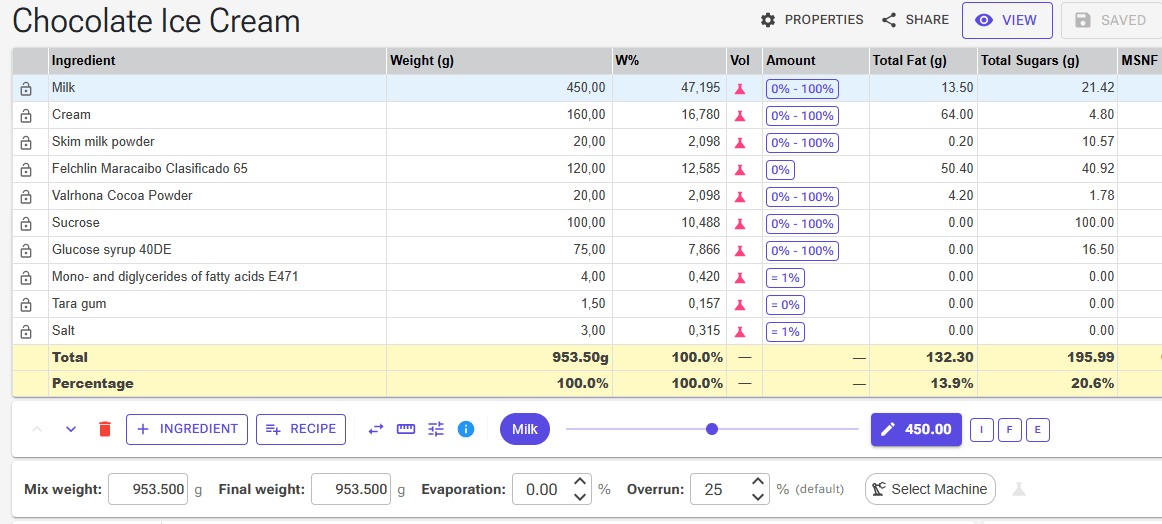
Below the ingredient table you will find the weight summary bar. Its first three fields — Mix Weight, Final weight and Evaporation — control the recipe’s total weight and evaporation. Changing any one of them automatically recalculates the others, so they always stay in sync.
The bar also holds:
- Overrun — the recipe’s own overrun (see below).
- The machine chip and the flask button next to it, Adjust weight to machine — see Scale to a Machine below.
- Tools — opens the Tools dialog with the scaling and evaporation tools described in this article.

Mix Weight
Mix Weight is the total weight of all base ingredients in the recipe, excluding add-ins (inclusions and infusions). This is the weight of liquid mix that goes into your pot or pasteuriser.
You can type a new value directly into this field and the entire recipe will scale proportionally to match. For example, if your recipe totals 1500 g but you want to make a 2000 g batch, simply type 2000 in the Mix Weight field and every ingredient scales up by the same ratio — no manual maths required. Inclusions, infusions and locked ingredients scale along with the rest.
Both the Mix Weight and Final weight fields also accept simple arithmetic, for example 1500*1.2.
Final Weight
Final Weight shows the recipe weight after evaporation has been applied. This field is also editable, and its behaviour depends on the current evaporation setting:
- If evaporation is currently 0 % — editing Final Weight calculates and sets the evaporation percentage needed to go from the current mix weight down to the value you entered. This is the easiest way to set evaporation: cook your mix, weigh it, and type the result.
- If evaporation is already set — editing Final Weight scales the mix weight up or down so that after the same evaporation process you end up with the final weight you want.

Evaporation %
The Evaporation field sets how much weight the mix loses as water during cooking or pasteurisation. It is a percentage of the weight of the cooked ingredients — not of their water content. You can type a value directly or use the stepper, which adjusts in increments of 0.5 %.
When you heat an ice cream mix on the stove, water evaporates. The amount depends on several factors:
- Cooking time — longer cooking means more water loss
- Temperature — higher heat increases evaporation
- Pan size and shape — a wide, shallow pan exposes more surface area and loses water faster than a tall, narrow pot
- Whether the pot is covered — a lid dramatically reduces evaporation
For home and artisan producers cooking on the stove, typical evaporation is in the range of 2 % to 5 %. A quick pasteurisation at 72 °C might lose only 2 %, while a longer cook at 85 °C in a wide pot could lose 5 % or more.
For professional pasteurisers and batch freezers, evaporation is usually close to 0 % because these machines have sealed lids and condensation recovery. If you use a commercial pasteuriser, you can often leave this field at 0.
Why does this matter? Evaporation concentrates everything in the mix — sugars, fats, solids — which shifts the recipe balance. A 5 % evaporation on a 2000 g mix means 100 g of water is gone, and all your carefully calculated percentages have shifted. The calculator accounts for this so your final nutritional values and balance targets reflect what actually ends up in the bowl.
Nutrition values use the finished weight: the cooked mix after evaporation, plus inclusions, without infusions. This applies to the nutrition label and everywhere else nutrition is shown — see Nutrition Labels.
The field also shows a tooltip explaining the effective evaporation when some ingredients are marked as cold additions (see Exclude From Evaporation below). The calculator checks that the evaporation percentage does not exceed the water content of the cooked ingredients; a higher value is refused with a warning.
Overrun
The Overrun field holds this recipe’s overrun — the air whipped in during churning. Until you change it, the recipe uses the Default Overrun (%) from your Settings and the field says (default). Type a value to give this recipe its own overrun; click Reset to go back to the default.
The overrun is used for the recipe’s ice cream volume and for scaling to an ice cream volume (below). Click the Overrun: label to open the Overrun Calculator for this recipe.
Changing Individual Ingredient Weights
Direct Weight Entry
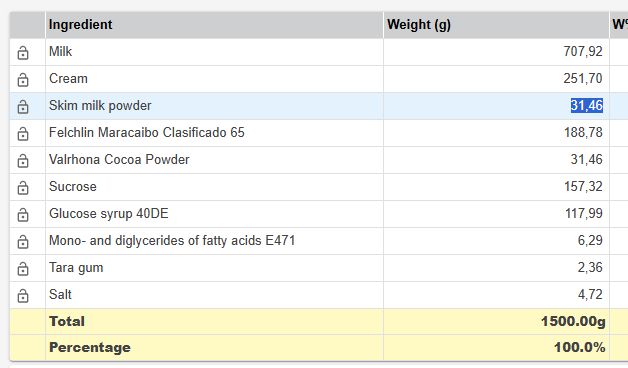
Each ingredient in the recipe table has a Weight (g) field. Click it, type a new weight, and press Enter or Tab. The field auto-selects on focus so you can immediately start typing your new value.
Volume-to-Weight Conversion
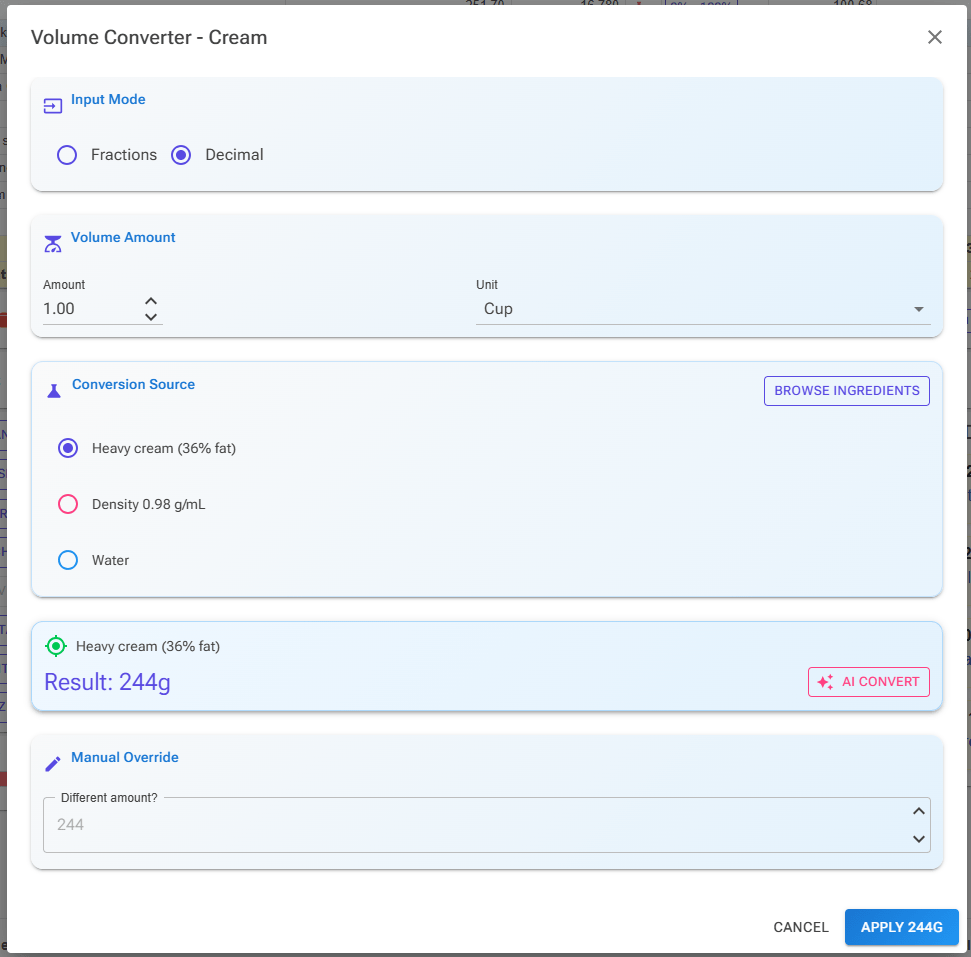
Each ingredient row has a flask button in the Vol column that opens the Volume Converter for that ingredient. (The Advanced Weight dialog below has a Volume Converter button too.) Use it to turn a volume measurement into grams — handy when following a recipe that uses cups or spoons.
- Input Mode — Decimal, or Fractions: a whole number plus a fraction from 1/8 to 7/8, for amounts like “1 ¾ cups”.
- Units — US cup, tablespoon, teaspoon, fl oz, pint and quart; metric mL, dL, tablespoon and teaspoon; UK fl oz, pint and quart; and the Australian tablespoon.
- Conversion Source — the best match from the built-in conversion table (click Browse Ingredients to pick a different entry), the ingredient’s own Density when it has one, or Water. An icon shows how confident the conversion is.
- AI Convert — asks the AI for the weight (AI features need Premium). The AI result goes into Manual Override.
- Manual Override — type your own gram value under “Different amount?”; it is used instead of the conversion.
Click Apply (the button shows the weight in grams) to set the ingredient’s weight.
For egg ingredients (any ingredient with “egg” in its name), the dialog also shows an Egg Count Converter for egg yolks: enter the Number of egg yolks and the Weight per yolk (17 g by default; the dialog lists Small 13 g, Medium 15 g, Large 17 g and X-Large 19 g), then click Use this weight to put the total into Manual Override.
Advanced Weight Dialog
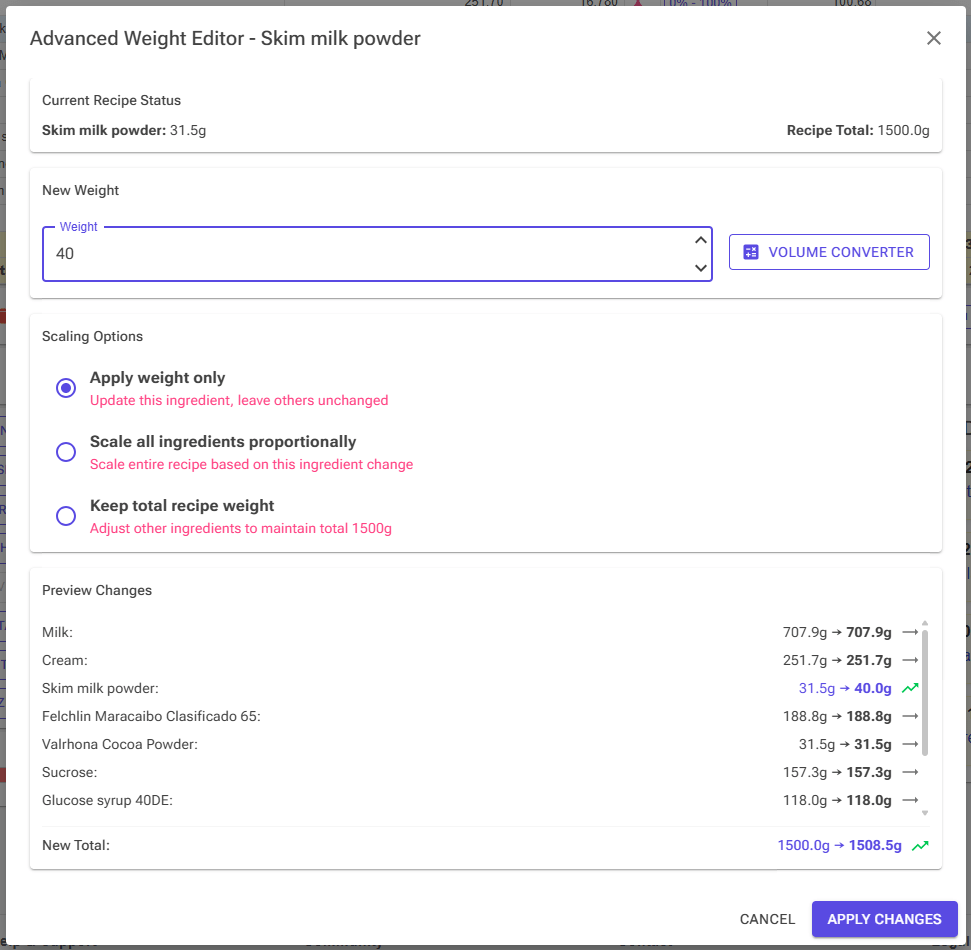
For more control over how a weight change affects the rest of the recipe, select the ingredient and click the weight button beside the slider (it shows the ingredient’s current weight). This opens the Advanced Weight Editor with three scaling options:
- Apply weight only — changes only the selected ingredient’s weight. All other ingredients remain unchanged. Use this when you simply want to override a single weight without affecting anything else.
- Scale all ingredients proportionally — scales the entire recipe up or down based on the ratio of your change. If you change 500 g of cream to 600 g (a 1.2× increase), every other ingredient also increases by 1.2× — add-ins and locked ingredients included.
- Keep total recipe weight — adjusts the selected ingredient to your new weight and redistributes the difference across all other unlocked mix ingredients proportionally, so the recipe total stays the same. Add-ins are not changed. If the unlocked ingredients cannot absorb the difference, only the selected ingredient changes.
The dialog includes a Preview Changes panel listing every ingredient with trend arrows (up, down, or unchanged) and the new total, so you can see the impact of your change before clicking Apply Changes. Locked ingredients and add-ins are marked with an icon.
Example: Your recipe calls for 1300 g of cream but you only have 1000 g in stock. Open the Advanced Weight Dialog for cream, type 1000, and choose Scale all ingredients proportionally to scale the whole recipe down proportionally — or choose Keep total recipe weight to redistribute the 300 g difference across the other ingredients while keeping the same total batch size.
Locking Ingredients
You can lock an ingredient with the lock icon at the start of its row. A lock keeps the ingredient’s weight fixed whenever the app redistributes weight among the other ingredients:
- Keep total recipe weight in the Advanced Weight Dialog
- Editing another ingredient’s W% (weight percentage) in the table
- Balancing — locked ingredients keep their weight (the Smart Balance dialog has its own lock buttons too; see Balancing)
A lock does not protect an ingredient when you scale the whole recipe. Mix Weight, Final Weight, the volume tools, Adjust weight to machine and Scale all ingredients proportionally change locked ingredients too, so the recipe keeps its proportions. You can also still type a new weight for a locked ingredient yourself.
This is what you want for an ingredient where the exact share matters — for example, a stabiliser blend that must stay at precisely 6 g per kilogram: redistribution leaves it alone, and scaling keeps it at the same 6 g per kilogram.
Recipe-Level Scaling
The Tools button in the weight summary bar opens the Tools dialog. Its Recipe Scaling section scales the entire recipe to a volume target. These go beyond simply editing the Mix Weight field — they let you scale to a volume. The same tools can be placed on the Tools card under the chart (it shows Mix volume and Ice Cream Vol. by default; see Editor Cards and Layout). Scaling to a machine is on the weight summary bar itself.
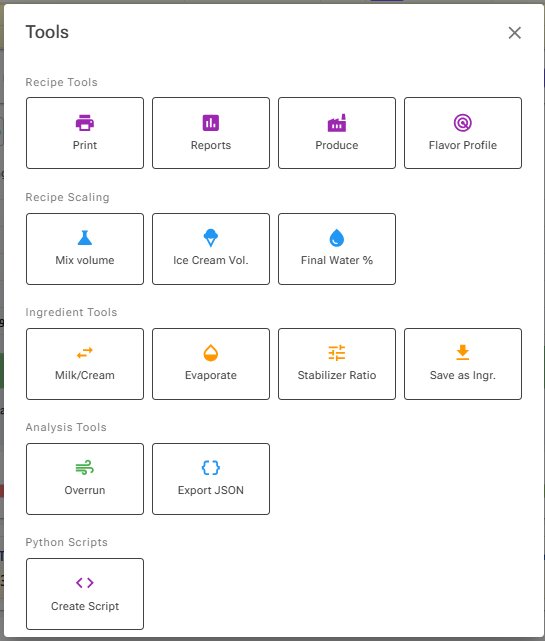
Scale to Mix Volume
Click Mix volume and enter a target mix volume in litres, millilitres, US quarts, pints, gallons or fl oz, or UK pints, quarts or gallons. This is the volume of the mix after cooking, before churning and overrun. The calculator converts the volume to weight with the recipe’s mix density (shown in the dialog), adds back the water that will evaporate, and scales all ingredients proportionally. The Apply button shows the new mix weight.
This is particularly useful when your equipment measures in litres rather than grams — for example, filling a 4-litre pasteuriser.
Scale to Ice Cream Volume
Click Ice Cream Vol. to scale the recipe to a target finished ice cream volume, accounting for overrun — the air incorporated during churning. The dialog uses the recipe’s overrun from the weight summary bar: it works back from your desired volume to the mix volume you need, then to the mix weight, and scales accordingly.
This is the best option when you need to fill a specific number of containers. If you need 5 litres of finished gelato and your overrun is 25 %, the calculator figures out the exact mix weight required (4 litres of mix).
Scale to a Machine
Machine scaling sits on the weight summary bar, not in the Tools dialog:
- Click the machine chip (it reads Select Machine until you choose one). The Select Machine dialog lists the Default Machines and My Machines, each with its optimal volume. Choose No Machine to clear the choice.
- To add your own machine, click Add Custom Machine (or the + beside My Machines). Enter the Bowl Capacity — recommended for home machines; the optimal volume is set to 50 % of it — or a Direct Optimal Volume for commercial machines. Your machines can be edited and deleted in the same dialog.
- Click the flask button next to the chip, Adjust weight to machine. The recipe is scaled so that its mix volume matches the machine’s optimal volume.
Overrun is not used here: the machine’s optimal volume is the amount of mix you pour in, so the calculator compares it with the recipe’s mix volume. The recipe remembers the machine you chose.
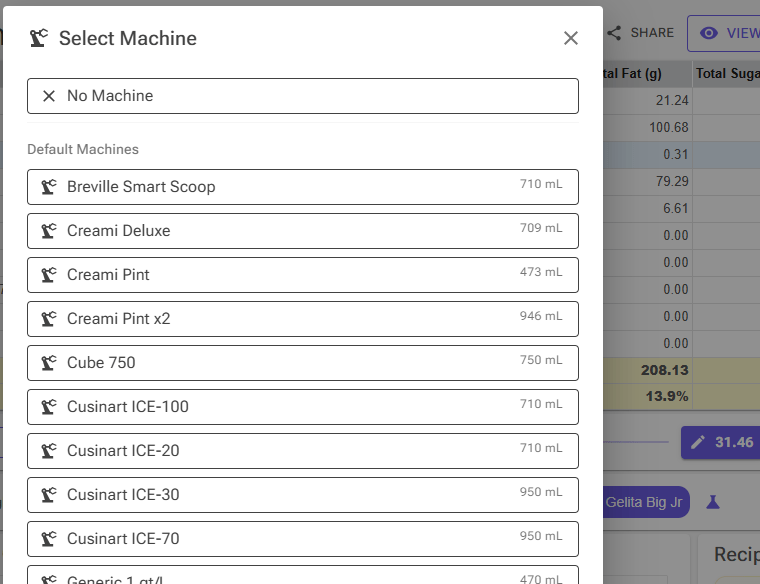
Evaporation & Cooking Features
Exclude From Evaporation (Cold Additions)
When you add an ingredient after cooking — for example, a cold fruit purée stirred into the mix after pasteurisation, or vanilla extract added at the end — that ingredient should not be affected by evaporation calculations. It was never heated, so it did not lose any water.
The Exclude From Evaporation button (the E button beside I and F, shown when you select a mix ingredient) marks an ingredient as a post-cook addition. When enabled:
- The ingredient’s weight is not reduced by the recipe’s evaporation percentage
- The Effective Evaporation is recalculated to apply only to the cooked portion of the mix
- The Evaporation field tooltip updates to show the distinction between base evaporation and effective evaporation
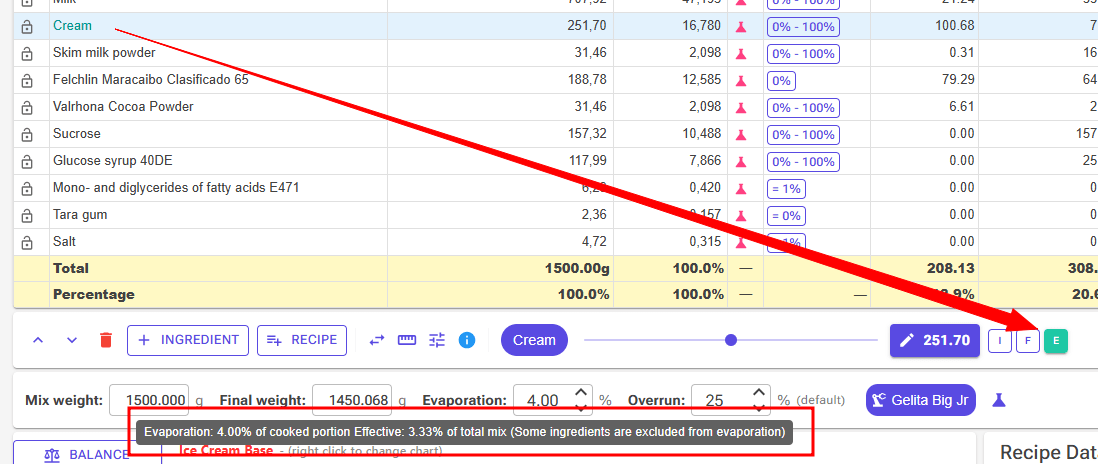
Example: You have a 2000 g recipe with 5 % evaporation. Normally the final weight would be 1900 g. But 200 g of that recipe is a cold fruit purée added after cooking. Only the 1800 g cooked portion loses 5 % (= 90 g), so the actual final weight is 1800 − 90 + 200 = 1910 g. The calculator handles this automatically.
This flag is mutually exclusive with the Inclusion and Infusion flags — an ingredient can only have one of these designations at a time.
Final Water %
Final Water % (Tools → Recipe Scaling) works the other way round: you enter the water percentage you want in the finished mix, and the tool calculates the evaporation that gets you there. The dialog shows the resulting Evaporation, the Water to remove and the Final weight; Apply sets the recipe’s evaporation. It is meant for confectionery products like caramels, fudge and pralines. The highest value you can enter is the mix’s water percentage without any evaporation.
Evaporate Ingredient Tool
Also found in the Tools dialog (Ingredient Tools → Evaporate) and on the Tools card, the Evaporate Ingredient tool lets you create a concentrated version of a single ingredient by simulating water evaporation from that ingredient alone — before it is added to the recipe. Select the ingredient’s row first; the button stays greyed out until you do, and the ingredient must contain water.
This is useful when you reduce an ingredient separately on the stove. Common scenarios include reducing cream to make a concentrated base, cooking down a fruit purée to intensify its flavour, or reducing milk to increase solids.
The dialog starts from the row’s weight (Start weight) and the water it contains. It offers three ways to define the concentration; changing one updates the others:
- Final weight — set the weight after reduction (e.g. “I started with 500 g and reduced it to 350 g”)
- Water — set how many grams of water remain; the helper text shows what share of the final weight that is
- Evaporation — set the percentage of the start weight lost to evaporation
The dialog shows the resulting PAC and POD of the concentrated ingredient. All sugars (including the individual sugars), fats and solids are concentrated proportionally. You can optionally override the PAC/POD values manually: enter a Brix value and tick Use to set both PAC and POD to it, for example if your refractometer reading differs from the calculated value.
The New name is filled in as the ingredient name plus _Evap and the evaporation percentage, for example “Whole Milk_Evap30”. You can change it, but it is rewritten whenever you change the numbers, so edit the name last. Tick Use final weight to set the row’s weight to the final weight; otherwise the row keeps its weight.
When you click OK, the concentrated ingredient is saved as a new personal ingredient in your library, and it replaces the original ingredient in that row. The original ingredient itself is not changed.
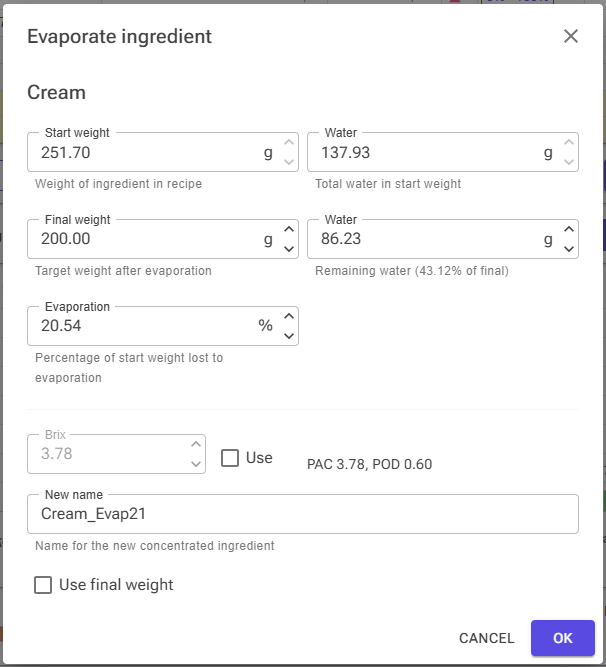
Displacement (Volume Estimation)
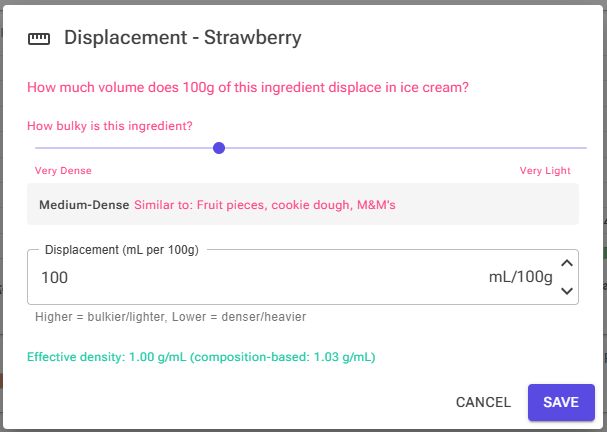
Each ingredient flagged as an Inclusion can have a custom displacement value (mL per 100 g): how much physical space the pieces take up in the ice cream. Select an inclusion row and click the Disp button beside the I and F buttons to set it. Displacement feeds the recipe’s Ice cream volume and the values built on it (Ice Cream Weight per Liter, Cost per Liter), and the Volume Estimator. It is not used when scaling to an ice cream volume target.
Most liquid ingredients have straightforward displacement values, but solid ingredients like chocolate chips or nut pieces take up more space than their weight alone would suggest. The Displacement Dialog lets you fine-tune this:
- A bulkiness slider (scale of 1–7) with preset examples at each level for quick reference
- A direct mL per 100 g input field for precise control
- A reset option to return to the ingredient’s default value
Cooking Reduction Calculator (Tools Page)
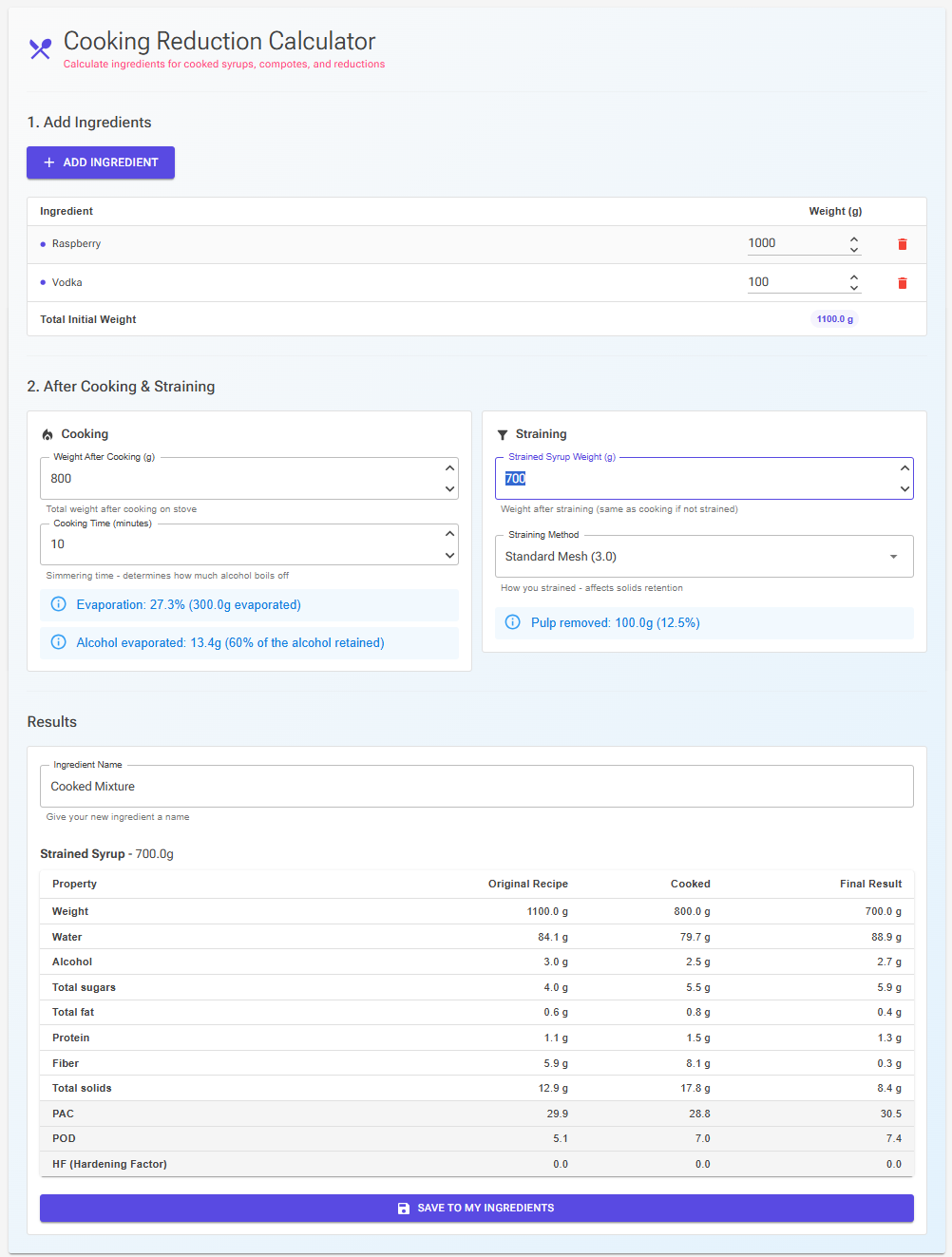
The Cooking Reduction tool on the main Tools page is a standalone calculator for cooked syrups, compotes and reductions made from several ingredients. It is separate from the Recipe Editor’s evaporation features. It models one cooking step, optionally followed by straining, and turns the result into a new ingredient.
- Add Ingredients — add each ingredient with its weight. The page shows the Total Initial Weight.
- Cooking — enter the Weight After Cooking (g), weighed after cooking. The page shows the evaporation percentage and how many grams evaporated.
- Cooking Time (minutes) — shown when one of the ingredients contains alcohol. It decides how much of the weight loss was alcohol rather than water, using standard alcohol retention figures: after 15 minutes of simmering about 40 % of the alcohol remains, after an hour about 25 %, after two and a half hours about 5 %. If the cooking time predicts more alcohol loss than the measured weight loss allows, the alcohol loss is capped and a warning says so. Leave it at 0 to count all the loss as water.
- Straining — enter the Strained Syrup Weight (g) (the same as the cooked weight if you did not strain) and choose the Straining Method, from Very Fine – cheesecloth to Rough Cloth. Water, sugars, alcohol and salt pass through almost completely; the method decides how much fat, fibre, protein and other solids stay behind in the pulp. The page shows how much pulp was removed.
- Results — a table compares the Original Recipe, the Cooked mixture and the Final Result: weight, water, alcohol, total sugars, fat, protein, fibre, total solids, PAC, POD and HF. Give the result a name and click Save to My Ingredients to save it as a personal ingredient you can use in any recipe (you need to be signed in).
Use the Cooking Reduction tool when you want to model a cooking process in detail — for example, reducing a fruit coulis, cooking a wine or rum syrup, or infusing and straining a syrup. Use the Recipe Editor’s built-in evaporation features for straightforward pasteurisation and simple cooking weight loss.
Quick Reference
| What you want to do | Where to find it |
|---|---|
| Resize the whole recipe by weight | Edit the Mix Weight field in the weight summary bar |
| Set a specific final weight after cooking | Edit the Final weight field in the weight summary bar |
| Set evaporation percentage | Edit the Evaporation field in the weight summary bar |
| Give the recipe its own overrun | Edit the Overrun field in the weight summary bar |
| Change one ingredient’s weight | Edit the Weight (g) field directly in the ingredient row |
| Change weight with scaling options | Advanced Weight dialog (the weight button beside the slider) |
| Convert a volume to weight | Flask button in the Vol column of the ingredient row |
| Keep an ingredient fixed when weight is redistributed | Lock icon at the start of the ingredient row |
| Scale recipe to a volume target | Tools → Mix volume or Ice Cream Vol. (also on the Tools card) |
| Scale recipe to fit a machine | Machine chip in the weight summary bar, then Adjust weight to machine (flask button) |
| Mark an ingredient as added after cooking | E button (Exclude From Evaporation) beside I and F |
| Set a target final water % | Tools → Final Water % |
| Concentrate a single ingredient | Select the row, then Tools → Evaporate |
| Set an inclusion’s displacement | Disp button beside I and F (inclusions only) |
| Simulate a full cooking process | Tools page → Cooking Reduction |