Recipe Sets & Labels lets you group multiple recipes together and automatically generate combined nutrition information, ingredient lists, and allergen declarations for the entire set. This is essential when you sell multi-flavor products — such as a praline box, variety pack, or ice cream tasting menu — where food labeling regulations require a single combined label covering all flavors.
This is a Premium feature. You can access it from Production > Recipe Sets & Labels, or by navigating directly to /recipe-sets. For the nutrition label of a single recipe (EU, US or AU format), see Nutrition Labels.
What Is a Recipe Set?
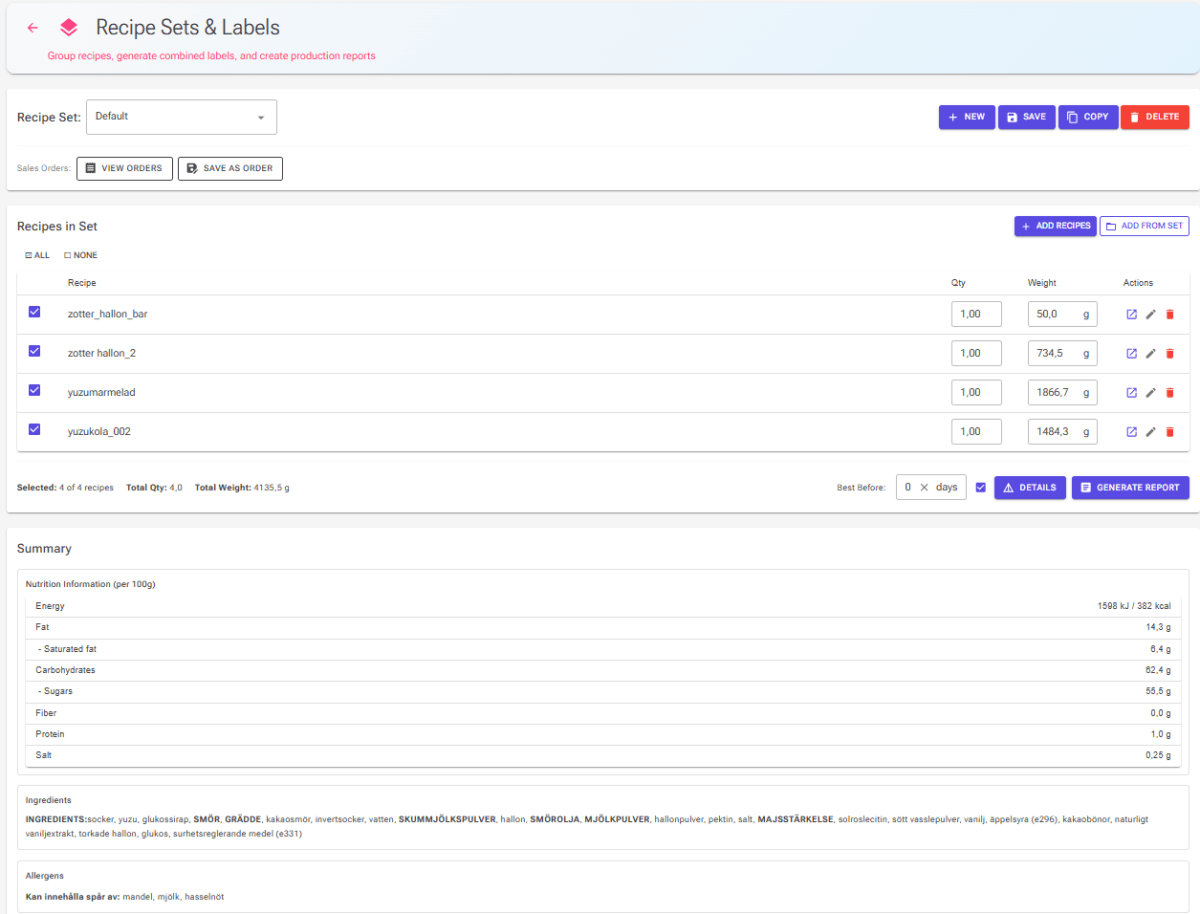
A recipe set is a named collection of recipes, each with a quantity. For example, a “Praline Box Christmas 2025” set might contain 4 Hazelnut Truffles, 4 Dark Chocolate Ganaches, and 4 Salted Caramel Bonbons. The app combines all these recipes to produce one unified label with the correct nutrition values, ingredient list, and allergen declarations — weighted by the quantities you specify.
Recipe sets are reusable. You can update quantities, swap flavors in and out, and generate new labels whenever your lineup changes.
Creating a Recipe Set
- Click the New button in the top toolbar.
- Enter a name for your set (e.g., “Summer Variety Pack”) and click Create.
- The new (empty) set is automatically selected and ready for you to add recipes.
Set names must be unique — the app will warn you if a set with the same name already exists.
Adding Recipes to a Set
There are two ways to add recipes:
Add Recipes — Click this button to open a recipe selection dialog showing all your recipes. Select the ones you want, then click Add. You can add the same recipe multiple times if needed.
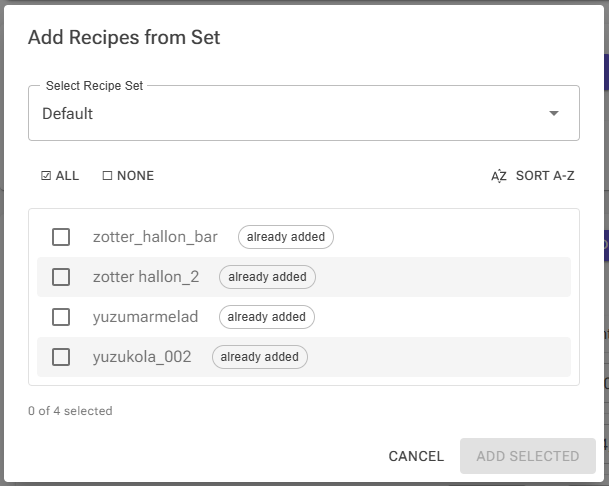
Add from Set — Click this button to import recipes from another existing recipe set. A dialog lets you pick a set, then select which recipes to bring over. Recipes already in the current set are marked with an “already added” badge, so you can avoid duplicates.
The Recipe Table
Once you have recipes in a set, they appear in a table with these columns:
- Checkbox — Controls whether the recipe is included in the combined label calculation. Unchecked recipes stay in the set but are excluded from the label.
- Recipe — The recipe name. Double-click to open the recipe properties dialog.
- Qty — The number of units of this recipe in the set (e.g., 4 pralines). You can type any decimal value.
- Weight — The total weight in grams for this recipe (Qty × weight per unit). You can also edit this field directly — the quantity will be recalculated automatically.
- Actions — Three icon buttons: open recipe in the Recipe Editor, edit recipe properties, or remove the recipe from the set.
The table columns are sortable — click a column header to sort by recipe name, quantity, or weight.
Selecting and Deselecting Recipes
Use the ☑ All and ☐ None buttons above the table to quickly include or exclude all recipes. You can also hold Shift and click a checkbox to select or deselect a range of recipes at once — the same way you would select files in a file manager.
When you check a recipe that has zero quantity, the quantity is automatically set to 1. When you set a recipe’s quantity to zero, it is automatically unchecked.
Summary Row
Below the table, a summary row shows the total count of selected recipes, total quantity, and total weight of all included items.
Current Recipe Shortcut
If you have a recipe open in the Recipe Editor, you will see a ⭐ Current Recipe option at the top of the recipe set dropdown. Selecting this creates a temporary, single-recipe set from whatever recipe you were last editing. This is a quick way to generate a report for a single recipe without creating a permanent set.
Combined Label Summary
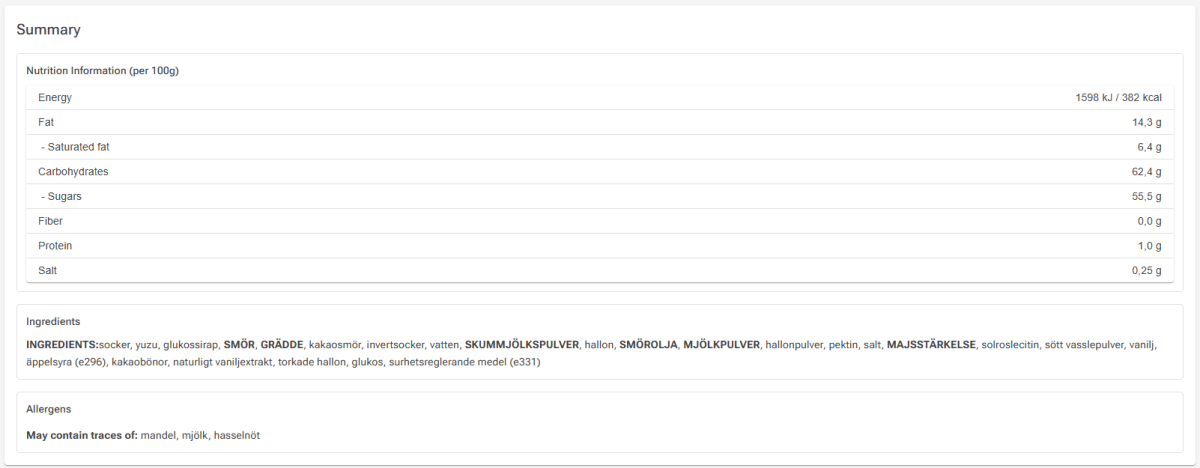
Below the recipe table, the Summary panel shows the combined label data calculated from all included recipes. The summary updates in real time as you change quantities, add or remove recipes, or toggle checkboxes. It is divided into three sections:
Nutrition Information (per 100g)
A table showing the standard EU nutrition declaration values for the combined set, calculated per 100g:
- Energy (kJ / kcal)
- Fat and saturated fat
- Carbohydrates and sugars
- Fiber
- Protein
- Salt
These values are weighted by each recipe’s quantity and weight, so a praline box with more chocolate ganache than fruit jelly will reflect the heavier chocolate contribution.
Ingredients
A merged ingredient list combining all included recipes, sorted by share of weight in descending order — exactly as required for food labeling. Highlighted sub-ingredients (usually allergens) are shown in BOLD UPPERCASE.
- Sub-ingredients: an ingredient with sub-ingredients is split into them. The same sub-ingredient coming from several ingredients or recipes is merged into one entry.
- No sub-ingredients: an ingredient without sub-ingredients is listed under its own name.
- Recipe-derived ingredients (a recipe used as an ingredient) are listed through the parts they carry from their source recipe, not under their own name.
- Groups: sub-ingredients that belong to an ingredient group appear on their own line after the main list: the group name in capitals, a colon, then its sub-ingredients (e.g., CHOCOLATE COATING: cocoa butter, sugar, …).
- Percentages: a sub-ingredient set to show its percentage gets “(n%)” after its name, rounded to a whole number. The percentage is its share of the set’s combined ingredient weight before evaporation.
- Infusions (steeped and removed, such as vanilla pods or tea) are not listed. Their allergens still count in the Allergens section.
For details on how to set up sub-ingredients, groups and percentages, see the Ingredients and Professional Ingredient Lists articles.
Allergens
The allergen section collects allergen data from all included recipes, including their infusions, and displays:
- Contains: — Allergens confirmed present (e.g., Milk, Nuts, Wheat).
- May contain: — Cross-contamination warnings.
If you have configured user-defined allergens on your ingredients, those appear on their own Contains: and May contain: lines below. When one recipe contains a user-defined allergen and another only may contain it, it is listed under Contains. Any “other warnings” (free-text warnings) are displayed as highlighted alert boxes. When nothing is declared, the section says “No allergens declared.”
Generating Reports
Once your set has at least one included recipe, you can generate professional reports and label documents.
Best Before Days
Before generating a report, check the Best Before field (1–365 days) in the toolbar below the recipe table. The app fills it with the minimum Best Before days of the included recipes — the shortest shelf life in your set determines the overall best-before date. A recipe’s Best Before days are set in its Properties (Production section).
- If a recipe uses a recipe-derived ingredient whose source recipe is also in the set, that source recipe’s Best Before days count too. A source recipe that is not in the set is not considered.
- You can type a different value, but the field is recalculated whenever you change the set (quantities, checkboxes, recipes). Make your changes first and enter your value last, or use the prompt below.
The checkbox next to the Best Before field (on by default) controls whether the app always asks you to confirm the Best Before days each time you generate a report. If unchecked, it uses the current value without prompting. If the field is empty, the app asks anyway and suggests 30 days; the prompt accepts up to 3650 days.
Generate Report
- Click the Generate Report button.
- If “always ask” is enabled, confirm or adjust the Best Before days in the prompt dialog.
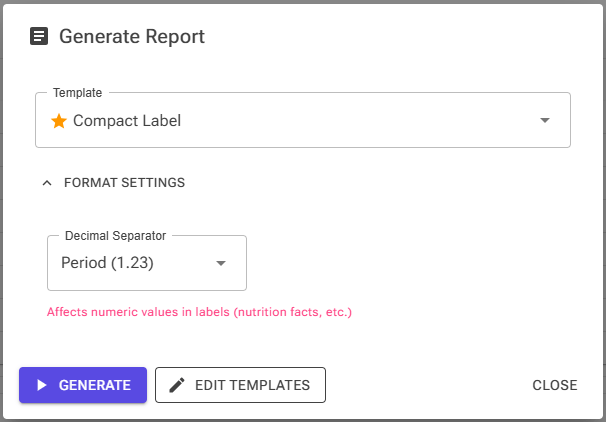
- Select a template from the template dropdown. System default templates are marked with a star icon. Your own custom templates also appear here.
- Optionally expand Format Settings to change the decimal separator (period or comma) for numeric values.
- Click Generate to produce the report, or click Edit Templates to open the template editor.
The generated report opens in a full-screen preview where you can review and print it. For details on creating and editing templates, see the HTML Reports article.
Details View
Click the Details button to open a debug/detail view of the current recipe set. This shows the raw data that goes into label calculations — useful for verifying that the combined values look correct before generating a report.
Saving, Copying, and Deleting Sets
- Save — Saves any changes you have made to the current set (quantities, included/excluded status). The button is only active when there are unsaved changes. When a sales order is open, Save updates the order instead.
- Copy — Creates a duplicate of the current set with a new name. Useful for creating variations (e.g., copying a Christmas box to make an Easter version).
- Delete — Permanently deletes the current set after a confirmation prompt. This cannot be undone. Delete is not available while a sales order is open.
- Clear — The button next to Add Recipes / Add from Set removes all recipes from the set after a confirmation. The recipes themselves are not deleted. For a saved set, this takes effect immediately.
- Default set (☆) — Click the star next to the set dropdown to make the current set your default: it then opens automatically when you visit the page. Click the star again to clear it. Without a default, the first set in the list opens.
If you try to navigate away or switch to a different set with unsaved changes, the app will ask you to confirm before discarding them.
Sales Orders
Sales orders record what a customer ordered: a saved copy of the included recipes and quantities of a recipe set, with a name, a note and the date. While recipe sets are living documents that you update as your lineup changes, an order keeps its own copy, so later changes to the set do not affect it. You can still open an order and correct it (see Editing a Sales Order below).
Saving a Sales Order
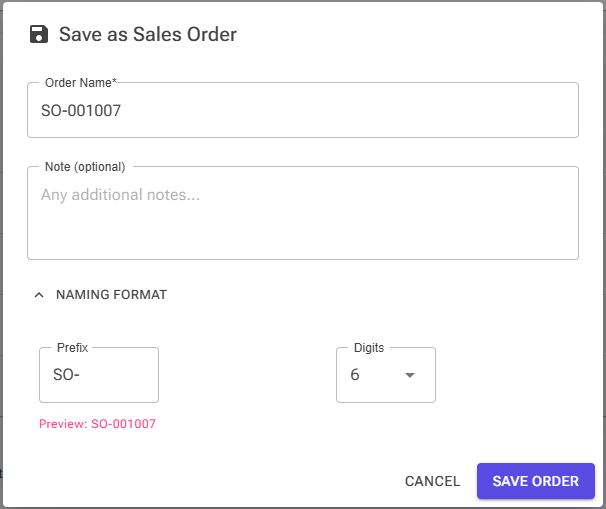
- With a recipe set loaded and at least one recipe included, click Save as Order.
- The dialog pre-fills a name using a sequential number format (e.g.,
SO-000001). You can edit this name to anything you prefer. - Optionally add a note (e.g., “Customer ABC delivery” or “Market event batch”).
- Click Save Order. Only the included (checked) recipes are saved, and the new order opens straight away.
You can customize the order naming format by expanding the Naming Format section in the dialog. Here you can change the prefix (default: “SO-”) and the number of digits (3 to 6). Your choice is remembered for the next order.
Viewing Sales Orders
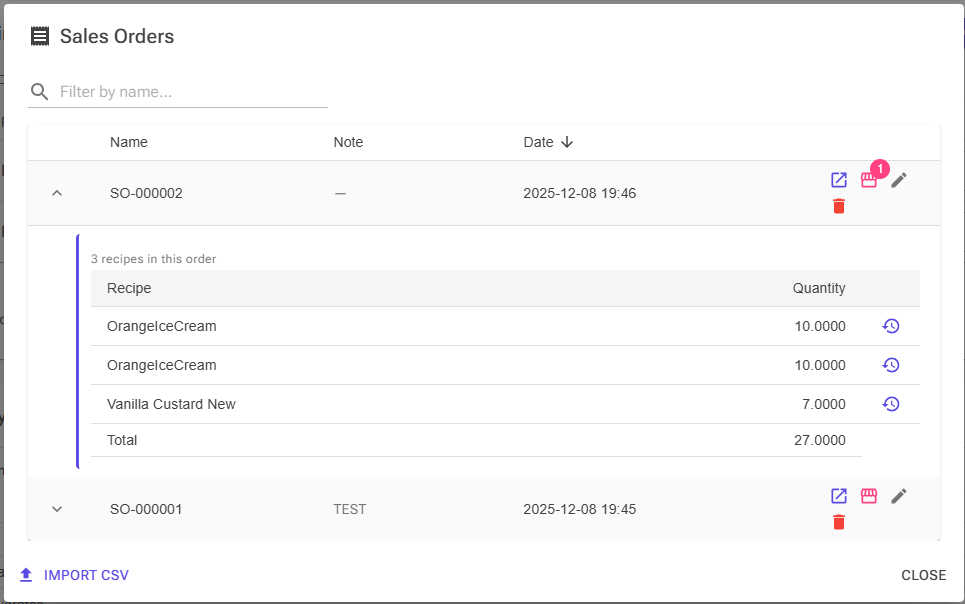
- Click View Orders to open the sales orders dialog.
- Browse your order history (newest first). Use the search field to filter orders by name.
- Click the expand arrow on any order to see its recipe list and quantities.
- From an expanded order, click the history icon next to a recipe (View Latest Production) to open Production Details for the latest batch of that recipe made on or before the order date.
Each order in the list shows its name, note, and creation date. You can sort the table by any column. From the action buttons you can:
- Open — Load the order into the main page for viewing, editing and report generation.
- Showcases — Create and manage customer showcases for the order (see Showcases and QR Codes below). A badge shows how many the order has.
- Edit Note — Update the order’s note.
- Delete — Permanently remove the order.
When viewing a sales order, the page header changes to show a blue “Sales Order: [name]” chip instead of the recipe set dropdown. You can generate reports from a sales order just like you would from a recipe set. Click the X on the chip to close the order and return to your recipe sets.
You can also reach an order from a batch. In the Production Log, open a batch’s Production Details and go to the Sales Orders tab: it lists the orders containing that recipe created on or after the production date. Click Open in Recipe Sets to open an order here. See Production Logging.
Editing a Sales Order
An open order works like a recipe set. Change quantities, tick or untick recipes, add recipes with Add Recipes or Add from Set, remove recipes or Clear the list, then click Save to update the order. If you close the order with unsaved changes, the app asks before discarding them. New and Delete are not available while an order is open; delete orders from the View Orders dialog.
Showcases and QR Codes
A showcase is a customer-facing menu of your recipes with a public link and a QR code. See Showcase for the full feature.
- Showcases for an order: in View Orders, click Showcases on an order, then New showcase. Name it and pick which of the order’s recipes go into it. Each showcase in the list has buttons for its QR code, its settings and the full editor. Deleting a showcase stops its QR code working.
- QR code on a report: open the order and click Add showcase QR next to Generate Report. Pick one of the order’s showcases, or create a new one from the checked recipes. A Showcase: [name] chip shows your choice (click its X to remove it), and the next report you generate carries the showcase link and QR code.
The QR code only appears in report templates that include the showcase fields (such as Data.ShowcaseUrl). See HTML Reports.
Importing Sales Orders
Click the Import CSV button in the sales orders dialog to create an order from a CSV file. This is useful if you track orders in a spreadsheet and want to bring them into the app for report generation.
- The first row holds the column names. An ExternalId column is required. Each row is matched to the recipe with the same External ID, which you set in the recipe’s Properties (Production section). Upper and lower case are ignored.
- A Quantity column is optional. Without it, or when a value can’t be read, a row counts as 1. Use a point as the decimal separator.
- Values can be separated by commas or tabs. Other columns are shown in the preview but not imported. The file can be up to 1 MB.
ExternalId,Quantity
VAN-500,12
CHOC-500,8
PIST-500,4
The preview shows how many rows matched. Unmatched rows are highlighted: pick a recipe for them by hand, or leave them out. Click Create Order, then name the order as you would with Save as Order. Each import creates one order with one line per matched row.
Copying a Sales Order to a Recipe Set
If you want to reuse a past order as the basis for a new recipe set, open the sales order and then click the Copy button. This creates a new recipe set with all the recipes and quantities from the order.
Tips
- Use the Weight column to enter the total weight you need, and the app will calculate the quantity for you — handy when you know you need 500g of a recipe but are not sure how many units that is.
- Temporarily exclude a recipe by unchecking it rather than removing it. This way you can quickly compare labels with and without a specific flavor.
- The Current Recipe shortcut is the fastest way to generate a report for a single recipe — no need to create a recipe set first.
- Save a sales order before making changes to your recipe set. This gives you a snapshot you can always return to.
- Star the set you use most often so it opens automatically.
Related Articles
- HTML Reports — Creating and editing report templates
- Ingredients — Setting up sub-ingredients and allergens
- Professional Ingredient Lists — Ingredient groups and label-ready lists
- Nutrition Labels — The nutrition label for a single recipe
- Showcase — Customer menus with QR codes
- Production System — Overview of production features
- Production Logging — Batches and Production Details
- Recipes — Managing your recipes