What Is a Recipe Rating?
A recipe rating is your own verdict on a recipe, once you have made it. It helps you find your best recipes later: you can sort and filter your recipe list by rating, and the rating travels with the recipe into exports and reports.
A rating has five values, each from 1 to 5 stars:
- Overall
- Texture
- Body
- Taste
- Color
Every value is optional. Overall is a value of its own: it is not calculated from the other four, and Overall alone is a complete rating.
- Your own recipes only. You can rate any recipe in your account, including recipes you cloned from the community or imported. You cannot give a personal rating to someone else’s recipe.
- Private. Only you see your ratings. They are never shared, not even when you share the recipe.
- For every signed-in user. Rating is not a Premium feature. In Guest Mode there are no ratings.
Not the same as community ratings. Shared recipes on the Explore page have their own star ratings from the community. See Personal and Community Ratings below.
Rating a Recipe
Where to Rate
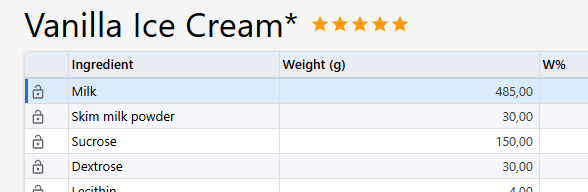
- Recipe Editor – the stars right after the recipe name in the header. An unrated recipe shows an outlined star and the word Rate.
- Recipe View – the Rating tile next to Mix Weight, Ingredients and Category. Click anywhere on the tile.
- Recipes page – the stars in the Rating column (on wider screens).
- Home page – the Rate button on the “Made it yet?” card (see Reminders to Rate).
- Produce – the Rate button in the message after you log a batch (see Reminders to Rate).
The Rating Dialog
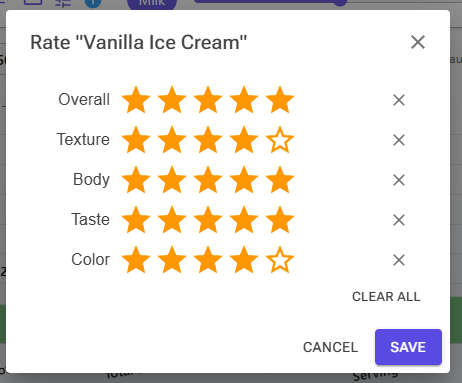
Every place opens the same dialog, titled Rate “recipe name”:
- Click the stars on each row you want to rate: Overall, Texture, Body, Taste, Color
- To clear one row, click the × at the end of the row. Clear all empties every row.
- Click Save
Saved at Once
The dialog’s Save stores the rating immediately. It is not part of the recipe’s own Save:
- Rating a recipe in the Recipe Editor does not mark the recipe as changed, and you do not need to save the recipe afterwards.
- Reloading the recipe or discarding unsaved changes does not change the rating.
- A copy made with Save As starts without a rating, and so does a recipe you clone. Deleting a recipe deletes its rating.
Rated and Not Rated
A recipe counts as rated when it has an Overall value. Without Overall it is not rated, even if Texture, Body, Taste or Color are set: it shows the outlined star, it is listed under Not rated yet, and the reminders still ask about it.
To remove a rating completely, open the dialog, click Clear all and Save.
Where Your Ratings Show
Recipe Editor and Recipe View
Both show the Overall value as small stars. Hover over the stars to see every value you set, for example “Overall 4 · Texture 5 · Body 4 · Taste 4 · Color 3”. The Rating tile on Recipe View appears only on your own recipes.
Recipes Page
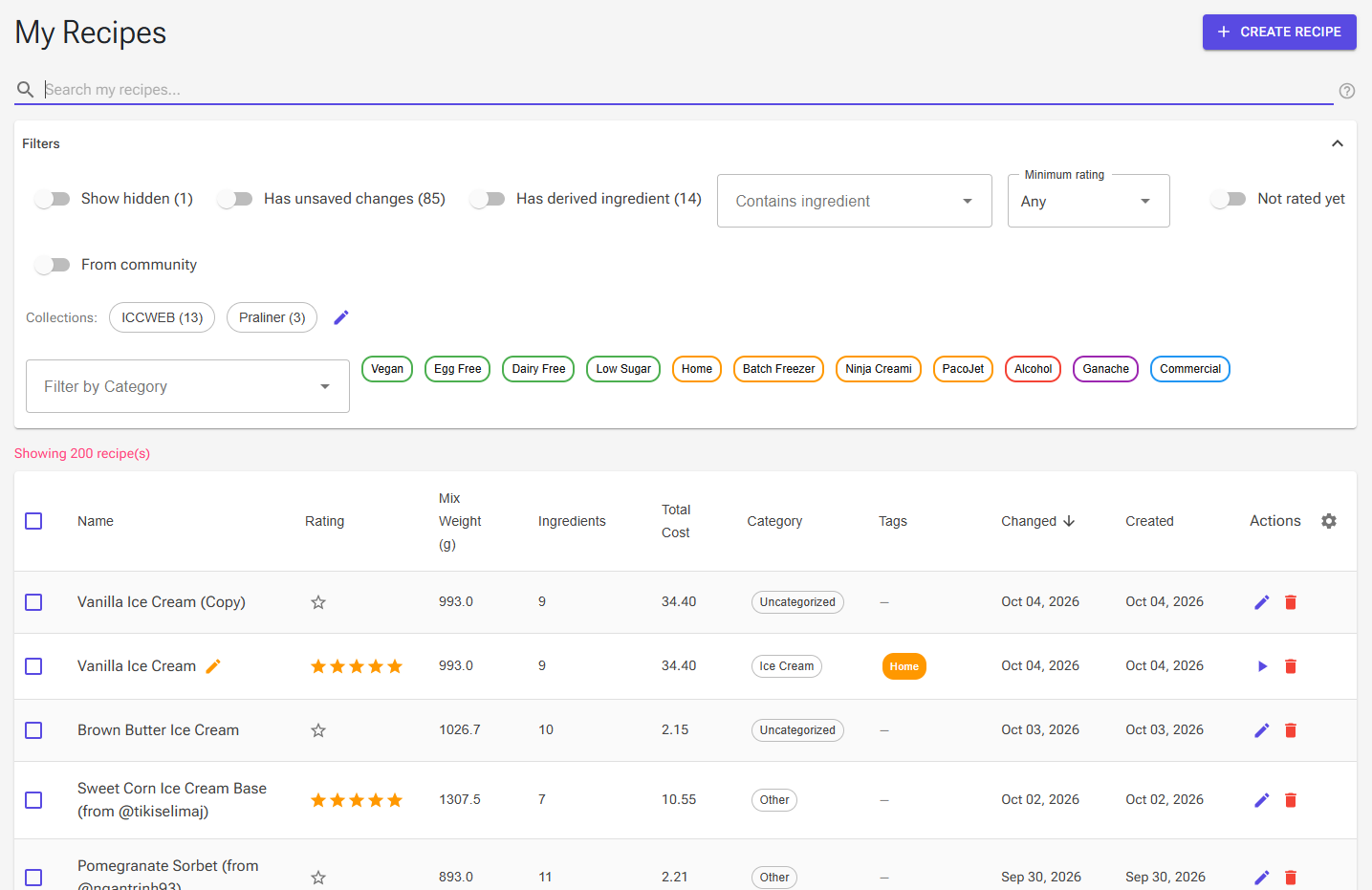
- Rating column – shows the Overall stars. Click them to rate the recipe without leaving the list. Click the column header to sort; unrated recipes come last when you sort best first.
- Default sort – the gear icon in the Actions column header has Rating (Best first), so the list always opens with your best recipes on top.
- On phones the Rating column is hidden; a rated recipe shows “★4” in its info line instead.
- Minimum rating – shows only recipes with at least that Overall: Any, ★ 2+, ★ 3+, ★ 4+ or ★ 5.
- Not rated yet – shows only recipes without an Overall value. It and Minimum rating exclude each other: turning one on clears the other.
- From community – shows only recipes you cloned from shared recipes. The switch appears once you have at least one cloned recipe.
More about the recipe list: Recipes.
Reminders to Rate
After Producing a Batch
When you log a batch with Mark as produced on the Produce page and the recipe has no Overall rating yet, a message asks “How did it turn out? Rate the recipe.” Click Rate in the message to open the rating dialog. The message stays for about ten seconds and does not appear once the recipe is rated.
- When you started production from the Planning calendar, the app returns to Planning after logging the batch and does not show the message.
- The Quality Rating you can give a single batch in the production log is separate. It rates that batch, not the recipe.
Logging batches is part of the Production system (Premium). See Production Logging.
The “Made it yet?” Card on the Home Page
The Home page shows a Made it yet? card when you have recipes cloned from the community that you have not rated. It lists up to three recipes you cloned 3 to 60 days ago that have no Overall rating. Hidden recipes are left out.
Each row shows the recipe name and “from @creator”. Click the name to open the recipe in Recipe View, or use the buttons:
- Rate – opens the rating dialog right there. Once you save an Overall value, the row disappears.
- Not yet – hides this recipe for two weeks.
- Skip – never asks about this recipe again. It stays unrated and still appears under Not rated yet on the Recipes page.
When you have unrated clones older than 60 days, the card adds one line: “You have N older community recipes you haven’t rated.” Show them opens the Recipes page with From community and Not rated yet turned on. Dismiss hides the line for good.
Turning Reminders Off
- The card’s close button (×) offers Remind me later, which hides the whole card for two weeks, and Don’t show rating reminders, which turns it off.
- To turn the card off or back on, go to Settings → Notification Settings → Show rating reminders, then click Save Settings.
The switch controls only the Home page card. The message after producing a batch appears whenever the recipe has no Overall rating.
Recipes You Cloned from the Community
When you clone a shared recipe, from Explore or from a private link, your copy remembers which share it came from. The copy starts unrated: the original’s community rating is not copied into it. Cloned recipes are the ones the “Made it yet?” card and the From community filter look for.
Rate the Original Too?
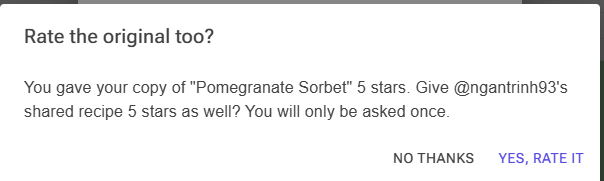
The first time you save a rating with an Overall value on a recipe you cloned from Explore, the app asks Rate the original too?, for example:
You gave your copy of “Pistachio Gelato” 4 stars. Give @maria’s shared recipe 4 stars as well? You will only be asked once.
- Yes, rate it adds your Overall to the shared recipe as a community rating. Only the Overall value is sent; Texture, Body, Taste and Color stay private.
- No thanks leaves the shared recipe alone.
- Either answer is final: you are not asked again for this recipe, and later changes to your personal rating never change the community rating. If you close the question without answering, it comes back the next time you save the rating.
The question is not asked when:
- the rating has no Overall value;
- you already rated the shared recipe on its Explore page;
- the share has been removed, or it was a private link (private links have no community ratings);
- you created the shared recipe yourself.
To give or change a community rating later, open the shared recipe on the Explore page and click Rate This Recipe. See Sharing.
Personal and Community Ratings
| Personal rating | Community rating | |
|---|---|---|
| What you rate | Your own recipes | Public shared recipes and charts created by others |
| Values | Overall, Texture, Body, Taste, Color (1–5 each) | One star rating (1–5) |
| Who sees it | Only you | Everyone, as an average and a count on Explore and the detail page |
| Where you set it | Recipe Editor, Recipe View, Recipes page, Home card, Produce | Rate This Recipe or Rate This Chart on the shared item’s page |
| How they connect | Only through the one-time “Rate the original too?” question, which sends your Overall value | |
Ratings in Exports, Reports and the Desktop App
Excel Export
Export to Excel on the Tools page writes a Rating row on each recipe’s sheet, for example “Overall 4, Texture 5, Body 4, Taste 4, Color 3”. The row is empty for an unrated recipe. The Excel Backup uses the same recipe sheets.
Recipe Files (JSON)
Export Recipes on the Tools page includes all five values, and Import Recipes restores them, so a rating survives an export and re-import. See Import and Export.
Report Templates
The Recipe table in report templates has these fields:
| Field | Contains |
|---|---|
{{Recipe.Rating}} |
Overall, 1–5 |
{{Recipe.RatingTexture}} |
Texture, 1–5 |
{{Recipe.RatingBody}} |
Body, 1–5 |
{{Recipe.RatingTaste}} |
Taste, 1–5 |
{{Recipe.RatingColor}} |
Color, 1–5 |
{{Recipe.RatingStars}} |
Overall as five stars, for example ★★★★☆ |
Each field is empty when the value is not set. The fields are filled only in a report on one of your own recipes. Reports on several recipes, recipe sets, production plans and products leave them empty. Wrap them in an IF block so nothing is printed for an unrated recipe:
{{#IF:Recipe.RatingStars}}<p>Rating: {{Recipe.RatingStars}}</p>{{/IF:Recipe.RatingStars}}More about templates: HTML Reports.
Desktop App
Ratings travel both ways between the web app and the Ice Cream Calculator desktop app, which stores the same five values:
- From desktop: importing a desktop database, with Quick Migrate or the step-by-step Import from Desktop App, brings the ratings in. Files from desktop versions without ratings still import; their recipes arrive unrated.
- To desktop: Export to Desktop (Premium) writes all five values into the desktop file. An unrated value is written as 0, which the desktop app reads as not rated.
Troubleshooting
Problem: I don’t see any rating stars.
Solution: Sign in: Guest Mode has no ratings. The Rating tile on Recipe View appears only on your own recipes. On a phone, the Recipes page hides the Rating column; open the recipe to rate it.
Problem: I set Texture and Taste, but the recipe still shows as not rated.
Solution: A recipe counts as rated only when it has an Overall value. Add one and save.
Problem: I rated a cloned recipe, but I was not asked to rate the original.
Solution: The question needs an Overall value and comes only once per recipe. It is skipped when you have already rated the shared recipe, when the share was removed, and for recipes cloned from a private link. You can still rate the original on its Explore page with Rate This Recipe.
Problem: The “Made it yet?” card does not appear.
Solution: The card shows only recipes cloned from the community, from three days after cloning. Check that Show rating reminders is on in Settings, and that you did not choose Remind me later in the last two weeks. Recipes you skipped and hidden recipes are never listed.
Problem: I changed my rating, but the shared original still shows my old stars.
Solution: This is by design: after the one-time question, your personal and community ratings are independent. Change the community rating on the shared recipe’s Explore page.