What Recipe Instructions Are
Recipe instructions are the method for making a recipe: one or more titled groups, each holding numbered steps. A simple recipe needs one group; a recipe with stages can have one group per stage, such as "Base mix", "Ageing" and "Finishing".
Since 30 September 2026 the instructions belong to the recipe, not to a recipe card. Each recipe has one method, and every card, print and share of that recipe shows the same steps.
Instructions are not a Premium feature. Anyone can write them for their own recipes, guests included. Only the recipe's owner can change them, and on a free account only your 15 newest recipes can be edited. The text is your own and is never translated.
Where to Edit Instructions
There are three places to edit them. All three open the same instructions editor.
The Instructions Card in the Recipe Editor
The Recipe Editor's card area has an Instructions card. It is not part of the Standard layout: add it with Customize layout (the icon in the row with Tools and Print, below the ingredient table) and Add card, or choose the Everything preset. See Editor Cards and Layout.
- While the recipe has no instructions, the card says "No instructions yet. Add the method as groups of numbered steps." with an Add instructions button.
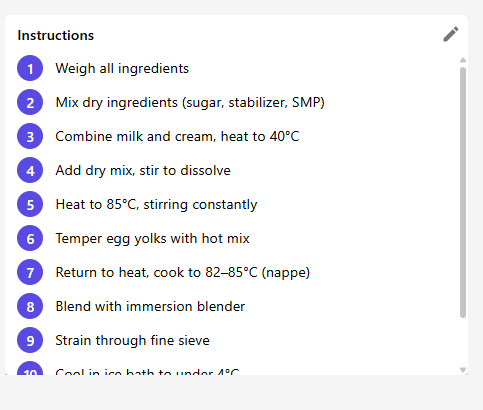
- Once it has some, the card shows them, and the pencil icon in its header (Edit instructions) opens the editor.
- The card can be set to three heights; longer methods scroll inside it.
Properties › Instructions
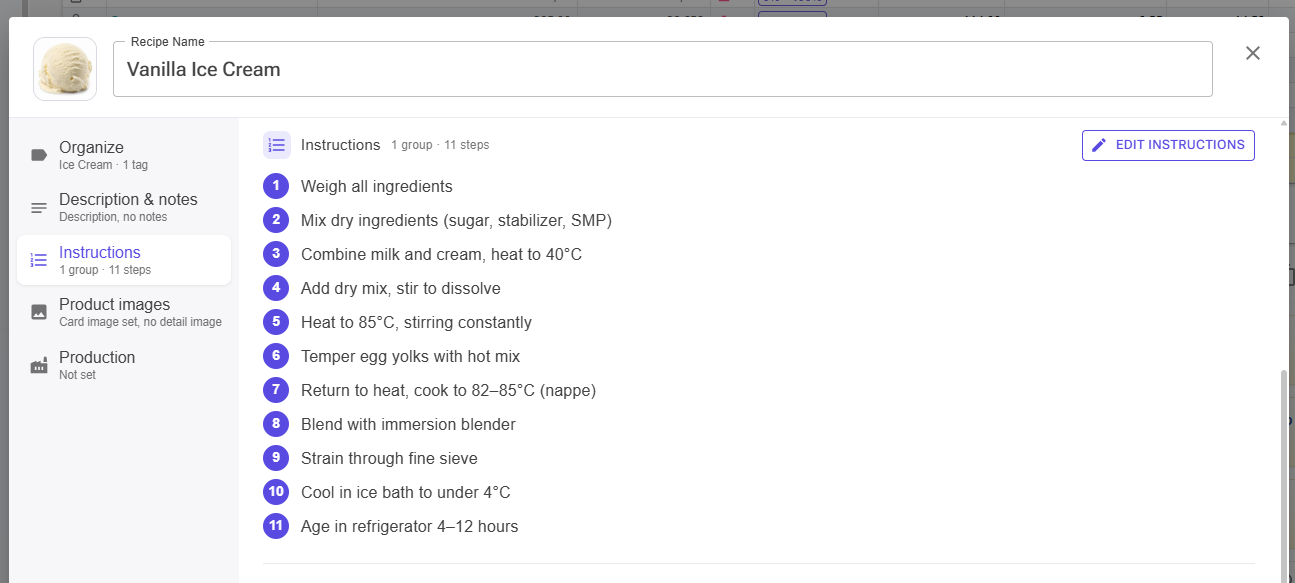
Open the recipe's Properties with the Edit recipe properties icon in the Recipe Editor header, or with the Properties card on Recipe View. The Instructions section shows the current method (for example "2 groups · 9 steps") and an Add instructions or Edit instructions button.
The Card Designer
In the Card Designer, the Edit Instructions button under the card's Instructions section (or a click on the instructions in the card preview) edits the recipe's instructions. Turning Instructions off hides them on that card only; the recipe keeps them. See Recipe Cards.
The Instructions Editor
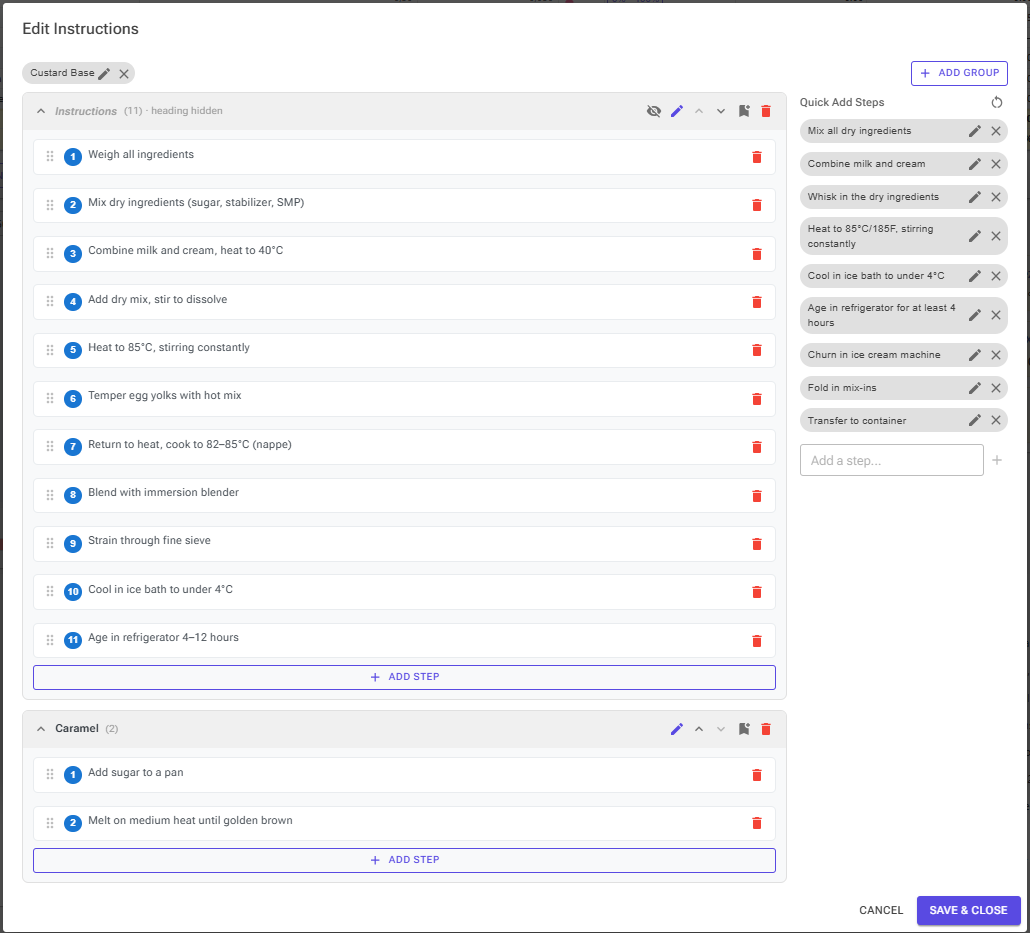
The Edit Instructions dialog has your groups on the left and the Quick Add Steps palette on the right. Template chips and the Add Group button sit along the top.
Groups
- A recipe without instructions starts with one group called "Instructions". Add Group adds "Group 2", "Group 3" and so on, with the title ready to rename.
- Click a group's header to fold or unfold it. Its icons rename the group, move it up or down, save it as a template (bookmark icon) and delete it.
- Group titles can be up to 200 characters.
Hiding the first heading
The first group's title usually repeats the "Instructions" heading above it, so it is hidden by default; the header then says "heading hidden". Use the eye icon (Show this heading / Hide this heading) to change it. Only the first group has this choice: later groups always show their titles. A group keeps its setting when you move it, so a group moved to the top keeps its heading.
Steps
- Add Step adds a numbered step and opens it for typing. Click a step's text to edit it, and the trash icon to delete it.
- Drag a step by its handle to reorder it, or drop it into another group.
- A step can be up to 2000 characters. Steps are numbered automatically within each group.
Quick Add Steps
The palette holds steps you use often. It starts with nine common ones, such as "Mix all dry ingredients" and "Churn in ice cream machine".
- Click a chip to add that step to the end of the last group, or drag it into a group at the exact position you want.
- Edit or remove a chip with its icons, add your own with the Add a step... field, and drag chips to reorder them.
- The Restore defaults icon puts back the original nine steps, after a confirmation.
Templates
A template is a whole group, title and steps, that you can add to any recipe in one click. The chips at the top of the dialog are your templates; a Custard Base template is included to start with.
- Click a chip to add its group. If the recipe has only one empty group, the template fills it.
- To make your own, click Save as Template (the bookmark icon) in a group's header and name the chip.
- The pencil on a chip changes its name and the group title it creates; the × deletes it, after a confirmation.
Your quick steps and templates are saved to your account, not to the recipe, so they are there for every recipe. They are kept even when you cancel the dialog. Guests' quick steps and templates are not saved.
Closing the Editor
Click Save & Close to keep your changes, or Cancel to discard them. When you save, empty steps and groups without steps are removed.
When Instructions Are Saved
Instructions are stored separately from the recipe's ingredients and settings, so the moment they are saved depends on where you edit them:
| Where you edit | When they are stored |
|---|---|
| Instructions card (Recipe Editor) | At once, when you click Save & Close ("Instructions saved") |
| Card Designer | At once, when you click Save & Close, whether or not you save the card |
| Properties dialog | When you click the dialog's Save ("The instructions are stored when you press Save."). Cancel discards them. |
Because of this, instructions are not part of the Recipe Editor's Save, Reload or undo. Reload and undo do not bring back an older method, and you do not need to save the recipe to keep a change to its instructions.
Copies
- Save As in the Recipe Editor copies the instructions to the new recipe.
- Cloning a shared recipe (Clone to My Recipes, or Save to Your Recipes on a private link) copies the instructions that were shared.
- Creating a recipe from one of your templates (My Templates on Create Recipe) copies the template's instructions.
- The AI Recipe Generator saves the AI's preparation steps as the new recipe's instructions: one group with its heading hidden.
Where Instructions Appear
| Where | What you see |
|---|---|
| Recipe cards | Every card of the recipe, recipe-specific and global, shows the recipe's instructions while the card's Instructions section is on: in the Card Designer, when printing, on Produce and on public card links. |
| Printing | Default Print in the print picker (Print in the Recipe Editor, on Recipe View or on Produce) includes the instructions. |
| Produce | A read-only Instructions panel, open by default and foldable, plus the selected recipe card. |
| Community shares | The recipe's page in Explore shows the instructions as they were when you shared. Update Share publishes your current method. |
| Private share links | The recipient sees the instructions as they were when the link was first opened. |
| Public card links | Always the current instructions, following the card's Instructions switch. |
| Reports | As a Method: the Instructions table in single-recipe reports, RecipeInstructions when you select several recipes on the Recipes page, and PlanInstructions in work orders from Production Planning. The default Professional Specification Sheet, Batch Scaling Sheet and Daily Production List include it. See HTML Reports. |
Technical notes are different: they stay private and are never shared. Instructions are included in every share.
Global Cards and Their Standard Method
A global card made before instructions moved to the recipe can still carry steps of its own. It shows them as a standard method on any recipe that has no instructions; on a recipe with instructions it shows the recipe's. If you click Edit Instructions on such a recipe, the editor starts from the card's steps, and saving stores them on the recipe.
Where Instructions Do Not Appear
- Recipe View does not show them. Use Properties or the editor's Instructions card.
- Recipe export files, Export to Desktop and the REST API do not include them.
Tips
- Use groups for stages (base, ageing, churning, finishing), so a long method is easy to follow during production.
- Turn your house method into a template with Save as Template, and add it to new recipes in one click.
- Update your community share after changing the method; shares do not follow later edits by themselves.
- Hide the method on one card, such as a customer-facing card, with that card's Instructions switch.
Troubleshooting
"There is no Add or Edit button"
You can only change the instructions of your own recipes, and on a free account only those of your 15 newest recipes. The message "You can't change the instructions of this recipe." means the same.
"Undo or Reload did not bring back my old steps"
Instructions are saved on their own, outside the editor's Save and undo.
"My shared recipe shows an old method"
Open the share again and click Update Share.
"A card shows steps I did not write for this recipe"
It is a global card's standard method, shown because the recipe has no instructions. Add instructions to the recipe.
"The instructions could not be loaded."
Reload the page. The card shows this instead of an empty method, so you do not add a second method by mistake.
Related Articles
- Recipe Cards – card sections, printing and public links
- Editor Cards and Layout – adding the Instructions card
- Recipe Editor – Properties, Save and undo
- Sharing – community shares and private links
- HTML Reports – the Method tables in templates