Getting Started
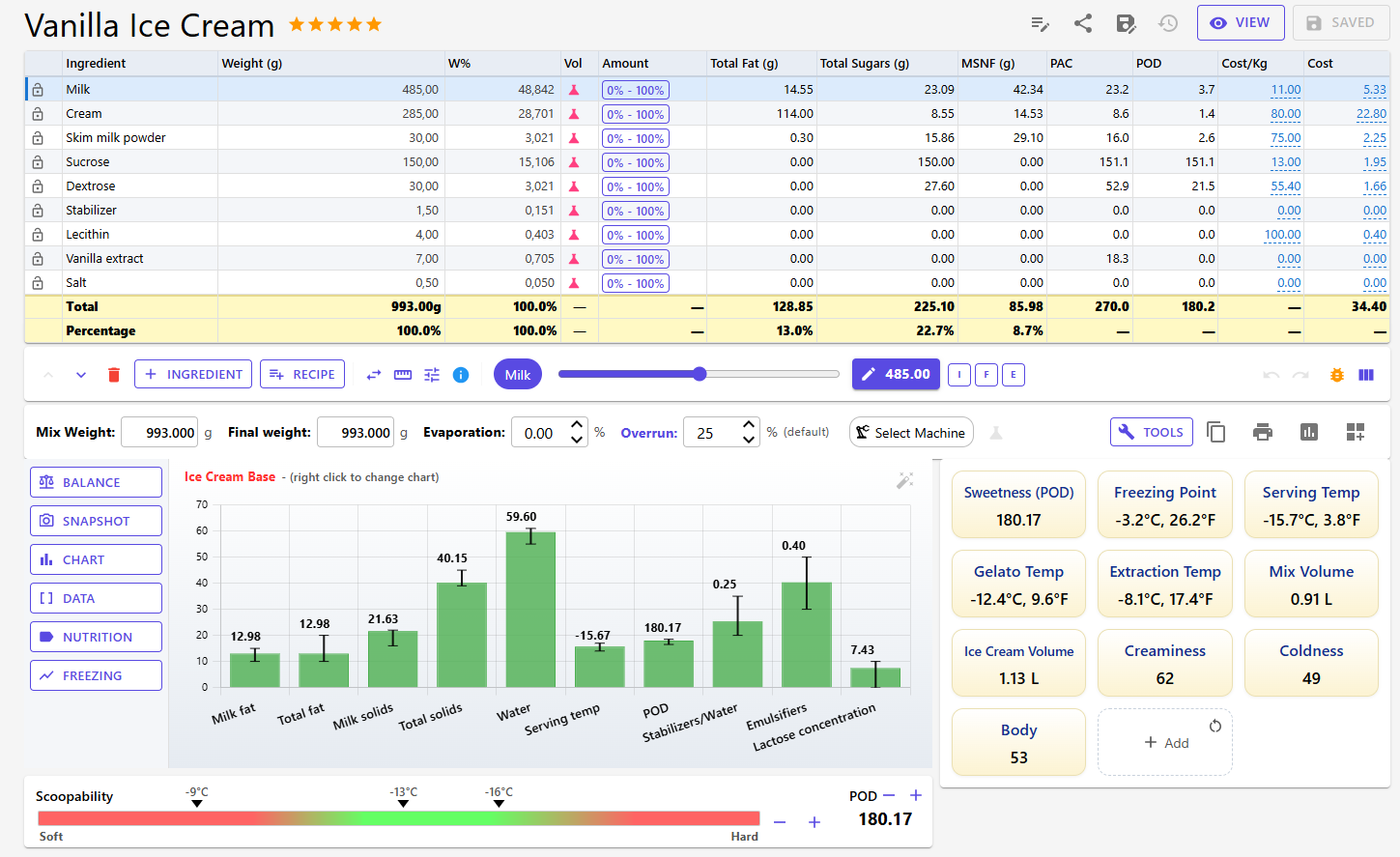
The Recipe Editor is your workspace for creating and refining ice cream recipes in Ice Cream Calc. From top to bottom it has the ingredient table with its action bar, the weight row (mix weight, evaporation, overrun, machine and Tools), and the cards: the chart, Scoopability, Recipe Data and any others you add. For balancing in depth, see Balancing; for charts, see Charts.
Opening the Editor
Click Edit Recipe on Recipe View, or the pencil icon (Edit) in the recipe list; a recipe with unsaved changes shows a play icon (Continue) there instead. New recipes from Create Recipe open in the editor directly, and a recipe opened from the Planning calendar gets a Back to Planning button.
Open recipes appear as tabs in the recipe tab bar at the top of the page, marked with an asterisk when they have unsaved changes; × closes a tab. You can turn the tab bar off in Settings.
The Free plan allows 15 recipes. If you have more, for example after Premium ends, only the 15 newest open in the editor. See Account, Premium and Your Data.
Auto-Save and the Working Copy
The editor never edits your saved recipe directly. It works on a working copy:
- Every change is stored at once in the working copy: weights, ingredients, flags, evaporation, overrun and so on.
- Your saved recipe stays as it was until you click Save.
- The working copy is kept when you refresh the page or leave it. When you open the recipe again, you continue where you left off.
- When the working copy has no unsaved changes, the editor starts from the saved recipe, so changes made elsewhere show up.
An asterisk (*) after the recipe name means there are unsaved changes. On Recipe View such a recipe is marked Unsaved, and you can compare the Saved and Working Copy ingredients.
Saving
- Save copies the working copy to your recipe (Ctrl+S does the same). When there is nothing to save, the button shows Saved and is greyed out.
- If the recipe is used as an ingredient in other recipes, Save updates that ingredient too. See Using a Recipe as an Ingredient.
- Guest mode: if you are not signed in, a Guest Mode chip shows beside the name and the button reads Save (Temporary). Sign in to keep your recipes permanently.
Undo and Redo
The undo and redo arrows sit at the right end of the action bar.
- Undo (Ctrl+Z) reverts the last change; Redo (Ctrl+Y) restores it.
- The history holds the last 50 steps: adding, removing, replacing and moving ingredients, weight changes, flags, locks, amount ranges, mix and final weight, evaporation, overrun, balancing, and the Description & Notes card.
- Save does not clear the history. You can still undo after saving; the recipe then has unsaved changes again.
- Reload clears the history.
- The history lives in your browser tab: it survives a page refresh, but closing the tab loses it.
- The bug icon (View undo history) opens Snapshot History, a list of your steps with the current position and the saved state marked. Jump goes straight to a step.
Not part of undo: changes made in the Properties dialog, the instructions, chart changes and the card layout. Each is stored on its own.
Header Buttons

To the right of the recipe name are four icons (hover to see their names), then View and Save:
| Button | What it does |
|---|---|
| Properties (notes icon) | Opens the Properties dialog (below). |
| Share (share icon) | Shares the recipe with the community. Save first; not shown in guest mode. See Sharing. |
| Save As | Creates a new recipe from what you see in the editor, under a name you choose, and opens it. |
| Reload (restore icon) | Discards all unsaved changes and the undo history, after a confirmation. Greyed out when there is nothing to discard. |
| View | Opens Recipe View. |
Save As copies the ingredients with their weights, flags, ranges, locks, waste factors and displacement; the description and notes; the instructions; the evaporation, overrun, chart and machine; the category and tags; best-before days, moulds and cavities; and the product and detail images. The images are copied as files of their own, so replacing an image on one recipe does not affect the other. External ID and Metadata (set through the REST API) are not copied, because they identify the original recipe. The original recipe's working copy still holds your unsaved changes; open it and click Reload to discard them. On the Free plan, Save As counts toward the 15-recipe limit.
Your rating: for your own recipes, your personal rating shows beside the name, or Rate if you haven't rated it yet. Click it to rate. The rating is stored at once and does not count as a recipe change. See Recipe Ratings.
The Properties Dialog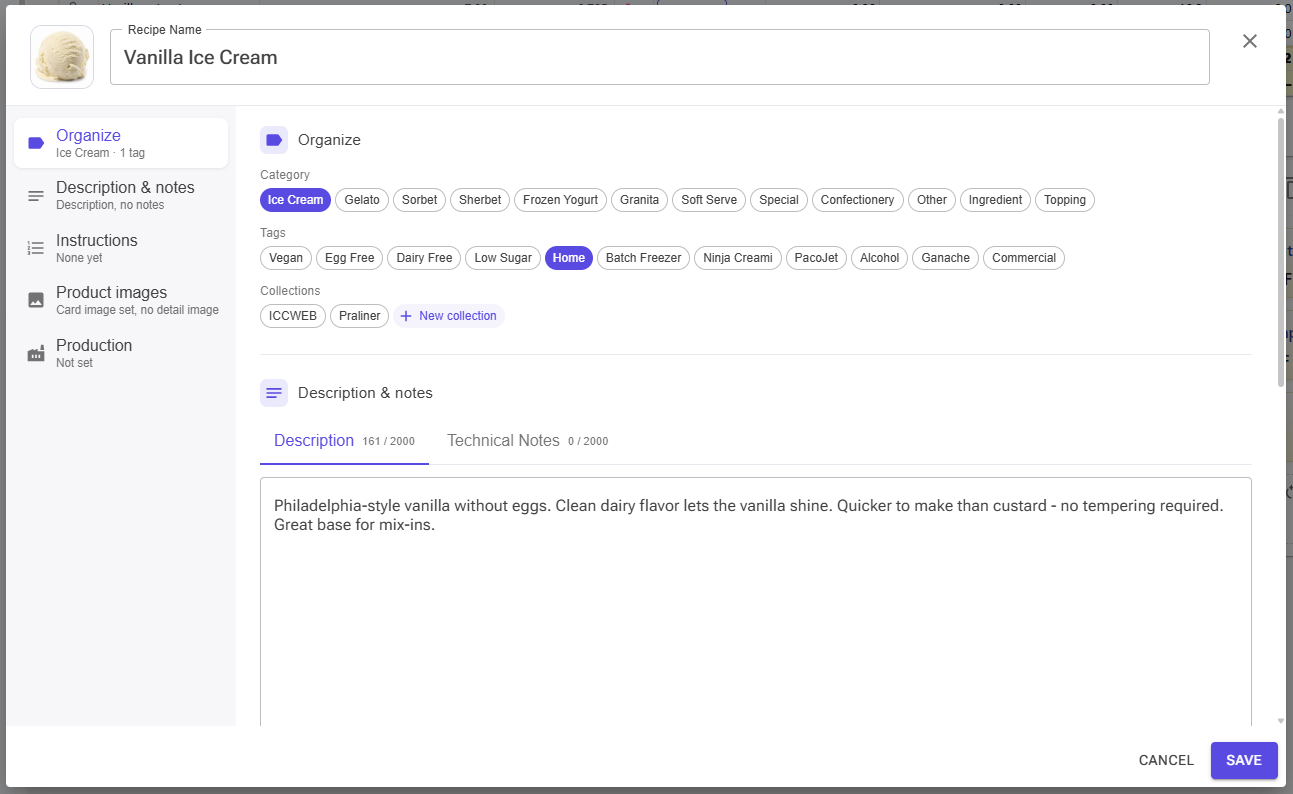
The Properties dialog holds everything about the recipe that isn't an ingredient. The same dialog opens from Recipe View. The list on the left jumps to each section and shows a short summary of it.
- Name (up to 128 characters) and the card image, at the top. Click the image for its options.
- Organize: one Category (Ice Cream, Gelato, Sorbet, Sherbet, Frozen Yogurt, Granita, Soft Serve, Special, Confectionery, Other, Ingredient, Topping), any number of Tags (Vegan, Egg Free, Dairy Free, Low Sugar, Home, Batch Freezer, Ninja Creami, PacoJet, Alcohol, Ganache, Commercial) and your Collections, with New collection. Click a chip to select it; click the selected category again to clear it.
- Description & notes: the Description is shown on the recipe and in Showcase; the Technical Notes are for you and your team and are not shown in Showcase. Up to 2000 characters each.
- Instructions: Add instructions or Edit instructions. See Recipe Instructions.
- Product images: a card image and a detail image. Upload, paste from the clipboard, or remove.
- Production: External ID (SKU, product code), Best Before (1–365 days), Fixed Batch Size (warns before planning this recipe at another batch size) and Hidden (leaves the recipe out of recipe lists and pickers).
Click Save in the dialog to store the changes. They are stored straight away, without the editor's Save, and are not part of undo.
The Ingredient Table
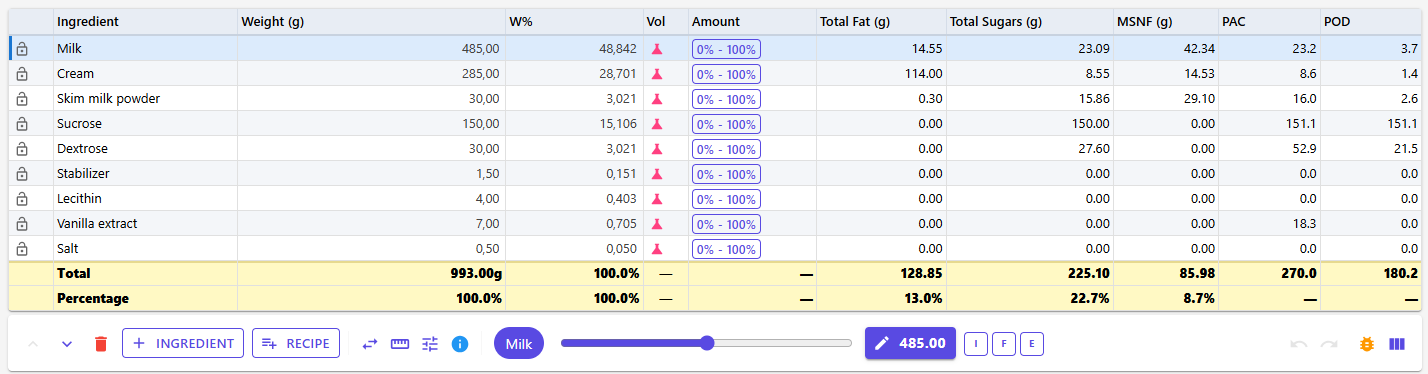
The ingredient table lists every ingredient with its weight and the data columns you choose. Below it, the action bar holds the buttons that work on the table and on the selected ingredient.
Columns
- Lock (first column): a red lock means locked, a grey open lock means unlocked.
- Ingredient: click the header to sort by name. Double-click a name to open the ingredient in the ingredient editor; you return to the recipe afterwards. Name colours: blue = inclusion, orange = infusion, teal = excluded from evaporation, purple = a recipe used as an ingredient.
- Weight (g): editable. Click the header to sort by weight.
- W%: the ingredient's share of the mix weight; editable. It turns red when the ingredient is outside its amount range. Inclusions and infusions show a dash.
- Vol: the flask icon opens the volume converter.
- Amount: the ingredient's allowed range, such as "10% - 40%". Click it to change it.
- Data columns: fat, sugars, MSNF, PAC and POD by default, plus any you add.
W%, Vol and Amount are optional, like the data columns. To choose your columns and their order, click Customize Table Columns (the column icon at the right end of the action bar), make your choice, then click Save & Return. Values with a dashed underline, such as cost, scale and displacement, can be double-clicked to edit.
Selecting an Ingredient
Click a row to select it (when the editor opens, the first ingredient is selected). The selected ingredient is highlighted and gets the weight slider and the I, F and E buttons. The action bar buttons move, replace or remove it, and Ingredient Info (the i icon) shows its values per 100 g and in this recipe.
Its name also appears as a chip in the action bar. Click the chip to open the ingredient in the ingredient editor. For a recipe used as an ingredient (link icon), the chip opens the source recipe, at its original weight or scaled to the amount used here. Save the source recipe first if it has unsaved changes: opening it this way starts from its saved version.
Adding Ingredients
- Click + Ingredient in the action bar.
- The ingredient selection page opens. Search or filter, tick the ingredients you want, then click Add All. To add a single ingredient, double-click it or click Select.
- You return to the editor. Each new ingredient starts at 100 g, and the first one is selected.
Where they go: if you clicked an ingredient before adding, the new ones are inserted just above it. Otherwise they go to the end of the list.
Can't find an ingredient? The selection page can also create one: from the food database, from a nutrition label, with an AI estimate, or by hand. See How to add ingredients.
Adding a Recipe as an Ingredient
The Recipe button ("Add a Recipe as an ingredient") adds another recipe, such as a sauce, a ripple or a base, as one ingredient. Pick the recipe and click Add. If the recipe is already used as an ingredient, that ingredient is added; otherwise a new recipe-derived ingredient is created from it.
Recipes inside recipes can go up to three levels deep, and a recipe can never use itself, directly or through other recipes. When an addition would break either rule, a message names the recipes involved. See Using a Recipe as an Ingredient.
Moving and Sorting
The up and down arrows at the start of the action bar move the selected ingredient one row. Click the Ingredient or Weight (g) header to sort the whole table, and again to reverse it; this changes the recipe's stored order, with inclusions and infusions kept at the bottom. Ctrl+Z undoes either.
Replacing an Ingredient
- Select the ingredient you want to replace.
- Click Replace Ingredient (the swap icon).
- Pick the new ingredient on the selection page: double-click it or click Select.
- If a chart is selected, the editor asks Rebalance recipe? Rebalance adjusts the recipe so its chart values match what they were before the replacement. Skip keeps the weights as they are.
The new ingredient takes the old one's place, weight and I/F/E flags, but starts unlocked with its own default amount range. If rebalancing would make the recipe worse, it is skipped. The replacement and the rebalance are separate undo steps.
Removing an Ingredient
Select the ingredient and click Remove ingredient (the red bin icon). It is removed at once, without a confirmation. Press Ctrl+Z if you removed it by mistake.
Locking Ingredients
Click the lock icon in the first column to lock or unlock an ingredient. A locked ingredient keeps its weight when you balance the recipe (including the Scoopability and POD buttons), type a W% for another ingredient, or use Keep total recipe weight. Locks do not stop whole-recipe scaling: a new mix weight, scaling to a machine or volume, and Scale all ingredients proportionally change every ingredient. See Balancing.
Inclusions, Infusions and Exclude from Evaporation


With an ingredient selected, these buttons appear after the weight slider. A button is filled when its flag is on.
- I (Inclusion): something added after churning, such as chocolate chips, nuts or a sauce.
- F (Infusion): something steeped in the mix and then removed, such as vanilla pods, tea or herbs. Infusions add no nutrition, but they still count for allergens and cost.
- E (Exclude from evaporation): a mix ingredient added after cooking, so it loses no water. Only for mix ingredients.
- Disp (inclusions only): the displacement, how much volume 100 g of the inclusion takes up in the ice cream. The button shows the current value, such as "Disp: 85"; click it to set your own.
I, F and E exclude one another: turning one on turns the others off. Inclusions and infusions move to the bottom of the table and don't count toward the mix weight or W%. For evaporation and displacement in detail, see Recipe Weights, Scaling & Evaporation.
Summary Rows
Two rows at the bottom of the table sum up the mix. Total shows the mix weight (without inclusions and infusions) and the totals of the data columns. Percentage shows 100.0% for W% and each data column's share of the mix where that makes sense.
Changing Weights
Every weight change is stored in the working copy and updates the chart at once. This section covers single ingredients; for scaling the whole recipe, see Recipe Weights, Scaling & Evaporation.
Typing a Weight
Click a value in the Weight (g) column, type the new weight and press Enter or Tab. The field selects its contents when you click it, so you can type straight away.
Typing a Percentage
Click the W% value of a mix ingredient, type a new percentage (such as 15 for 15%) and press Enter. The editor sets the ingredient's weight and takes the difference from, or gives it to, the other unlocked mix ingredients in proportion, so the mix weight stays the same. It refuses when all other mix ingredients are locked, or when there isn't enough weight to take from. W% can't be typed for inclusions and infusions.
The Weight Slider

Drag the slider in the action bar to change the selected ingredient's weight; the table, chart and cards update as you drag. It ranges from 0 to twice the weight the ingredient had when you started (at least 10 g), and returns to the middle when you let go, so the next drag starts from the new weight. Each drag is one undo step. The weight button next to it shows the current weight and opens the Advanced Weight dialog.
The Advanced Weight Dialog
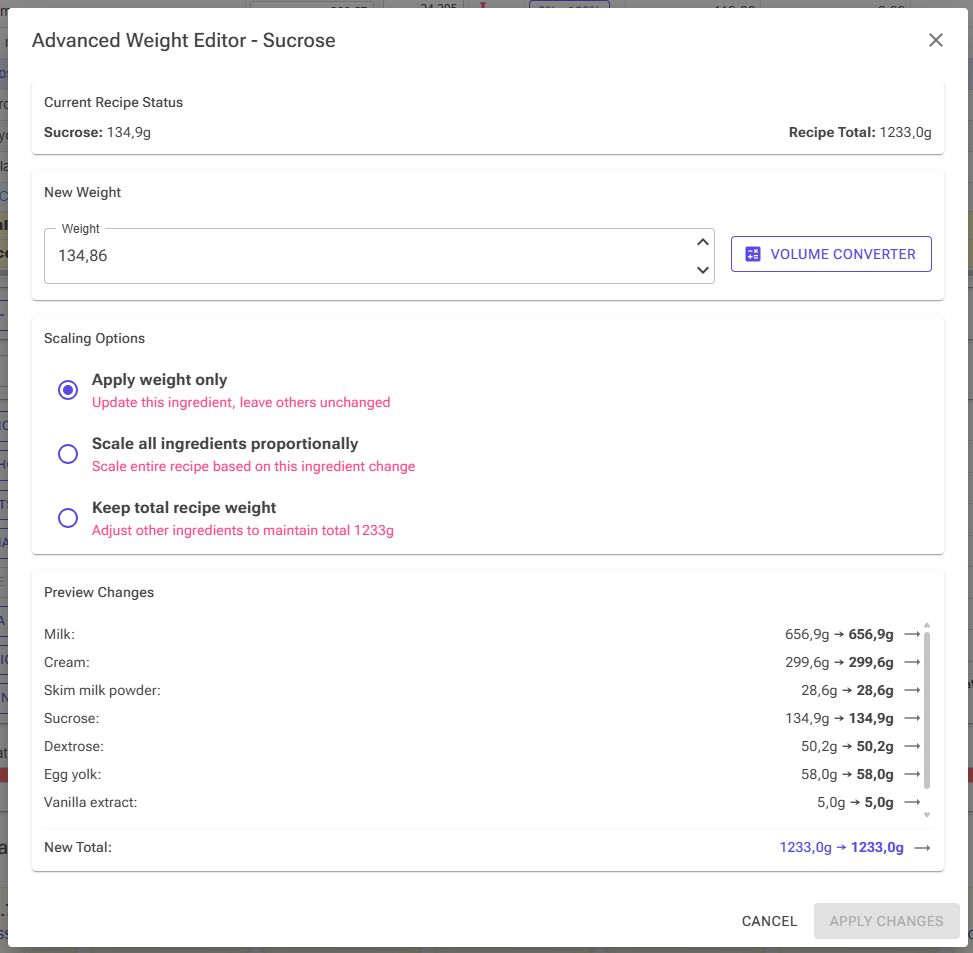
Click the weight button next to the slider. Type the new weight, choose a scaling option, check Preview Changes and New Total, then click Apply Changes.
- Apply weight only: changes this ingredient and nothing else. The mix weight changes.
- Scale all ingredients proportionally: scales every ingredient, locked ones and add-ins included, by the same factor as this one. All ratios stay the same; the mix weight changes.
- Keep total recipe weight: changes this ingredient and takes the difference from the other unlocked mix ingredients, in proportion, so the mix weight stays the same. If there isn't enough unlocked weight, only this ingredient changes and the editor tells you so.
The Volume Converter button in the dialog converts a volume into the new weight.
The Volume Converter
Click the flask icon in the Vol column, or Volume Converter in the Advanced Weight dialog. Enter the amount (as a fraction or a decimal) and the unit, check the conversion source, and click Apply. The converter uses the ingredient's density where it has one; AI Convert (Premium) can estimate the weight instead, and egg ingredients get an egg count converter. See Recipe Weights, Scaling & Evaporation.
Amount Ranges
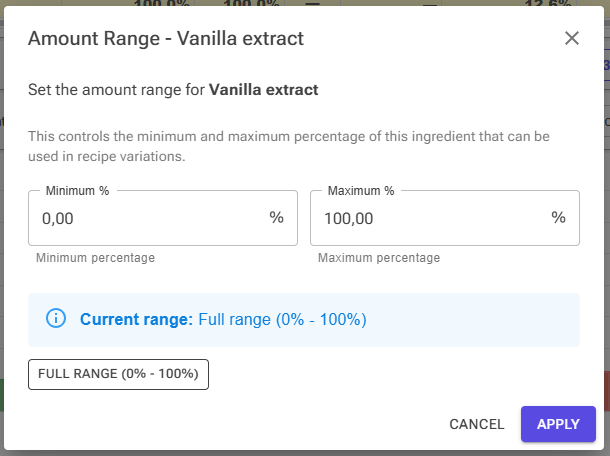
Click the Amount button of an ingredient to set its allowed share of the mix. The dialog shows the current value. Set a range around it with Below, Both or Above and an offset, or type Minimum % and Maximum %; Full Range (0% - 100%) removes the limits. Click Apply.
The balancer keeps the ingredient within its range, and W% turns red when the ingredient is outside it. Learn more in Balancing.
Smart Weight Rounding
Click Smart weight rounding (the ruler icon in the action bar) to make the weights easier to measure. The first click rounds weights above 10 g to whole grams. A second click rounds more coarsely: 5 g steps below 100 g, 10 g steps below 1000 g, and finer steps for small amounts, down to 0.05 g below 2 g. The mix weight and the chart change slightly. Use it after balancing; Ctrl+Z undoes it.
Recipe Weight Controls
The row below the action bar holds the recipe-wide settings, the Tools button and a few quick actions.

Mix Weight and Final Weight
- Mix Weight is the total of the mix ingredients, without inclusions and infusions. Type a new value to scale the whole recipe: every ingredient changes by the same factor, locked ones included, and inclusions and infusions scale with it. Use case: "I need 1500 g of mix to fill my batch freezer."
- Final weight is the weight after evaporation. If evaporation is 0%, typing a final weight sets the evaporation and keeps the mix weight. Use case: "After heating, I weighed 1425 g." If evaporation is already set, typing a final weight scales the recipe so that, with the same evaporation, you end up with that weight.
Both fields accept a comma or a point as decimal separator, and simple calculations such as 2*750.
Evaporation
The percentage of water lost while you heat (pasteurize) the mix. Type a value or use the arrows (steps of 0.5%). Evaporation applies to the cooked part of the mix: ingredients flagged E are added after cooking and lose no water. Hover over the Evaporation: label to see the effective evaporation of the whole mix when some ingredients are excluded.
Overrun
The percentage of air incorporated during churning, set per recipe. A recipe uses your default overrun from Settings, shown with (default), until you type its own value (0–150%); a Reset link then takes it back to the default. Click the Overrun: label to open the Overrun Calculator.
Typical values: about 25% for gelato, 30–50% for ice cream, 80–100% for commercial ice cream. Overrun drives the ice cream volume and everything calculated per litre.
Note! Overrun is a value you supply; it is NOT calculated. Estimate it yourself from your recipe and your machine, or measure it with the Overrun Calculator.
Machine
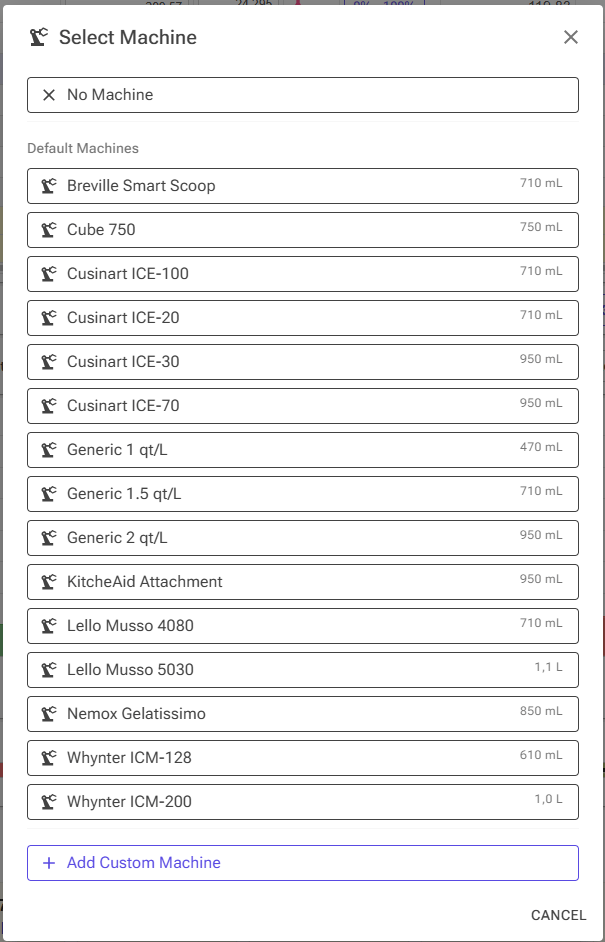
Click the machine chip (Select Machine, or the machine's name) and pick one of the Default Machines or My Machines, or No Machine. You can add, edit and delete your own machines in the same dialog. Then click the flask icon next to the chip (Adjust recipe to …) to scale the recipe so its mix volume matches the machine's optimal volume.
Tools and Quick Actions
Click Tools to open the Tools dialog: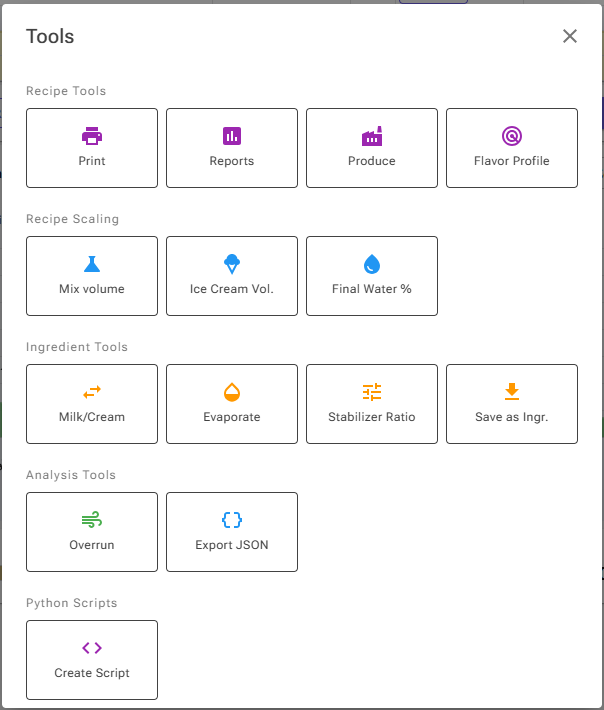
| Section | Tools |
|---|---|
| Recipe Tools | Print (the recipe card, with the editor's current values), Reports, Produce (production mode), Flavor Profile |
| Recipe Scaling | Mix volume, Ice Cream Vol. (uses the overrun), Final Water % (calculates the evaporation for a target final water percentage) |
| Ingredient Tools | Milk/Cream (replace milk and cream with other fat percentages), Evaporate (concentrate the selected ingredient), Stabilizer Ratio, Save as Ingr. (or Edit Ingredient when the recipe already is one) |
| Analysis Tools | Overrun (the Overrun Calculator), Export JSON (for AI analysis) |
| Python Scripts | Your own scripts, with Edit Scripts or Create Script. Python Scripts are a Premium feature. |
See Tools Overview for all tools, and Recipe Cards, HTML Reports, Production Logging and Flavor Profile for the larger ones. The same tools can also sit in a Tools card below the chart (see Cards and Layout below).
The icons after the Tools button are quick actions: Copy ingredients to clipboard (the recipe as plain text, ready to paste into a forum or chat), Print recipe, Quick Report (generates the currently selected report straight away) and Customize layout.
The Chart and Balancing
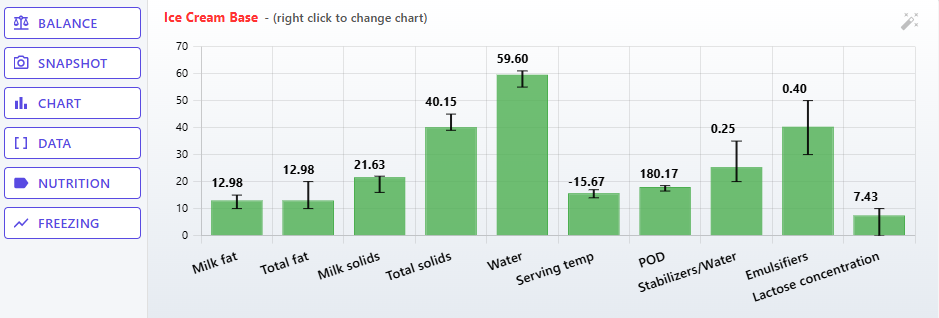
The Chart card shows your recipe against the target ranges of the selected chart. It is your main tool for optimizing and balancing, and it is always the first card.
Reading the Chart
- Green bars: the value is within the target range.
- Red bars: the value is outside the range, too high or too low.
- Yellow bars: no range is set for this property; for information only.
- Grey bars: no data for this property in this recipe.
- Orange bars: snapshot values, when a snapshot is on.
- Yellow diamonds: target values, where the chart has them.
A thin line on each bar marks the range from minimum to maximum. The editor remembers the chart for each recipe. Click a bar to edit that chart property (range, target and other settings) or delete it from the chart; click Save chart to keep the change. For all chart property settings, see Charts.
The Chart Menu
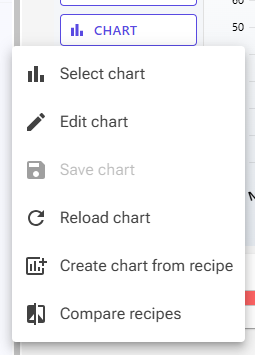
Click Chart in the sidebar:
| Item | What it does |
|---|---|
| Select chart | Browse and choose which chart is active. |
| Edit chart | Opens the chart editor for the selected chart. Click Apply Changes there to bring the changes back to the recipe. |
| Save chart | Saves the changes you made to the chart. A default chart, or one you don't own, can't be changed: the editor offers to create a personal copy with your changes and switches the recipe to it. |
| Reload chart | Discards your local changes and shows the chart as saved. |
| Create chart from recipe | Creates a new personal chart from the current recipe's values. Not available in guest mode. |
| Compare recipes | Compares several recipes side by side on the current chart. |
Chart changes made from the editor (clicking a bar, auto-scale, Edit chart) stay with this recipe until you click Save chart or Reload chart. See Charts for more.
Right-Click and Auto-Scale
- Right-click the chart to switch charts quickly. The menu lists your charts and the default charts (marked Mine or Default, the current one with a check mark), plus Reload.
- The auto-scale icon (the magic wand at the right of the chart name) suggests a display scale for each bar, so that bars of very different sizes are all readable. Click Save chart to keep the new scale factors.
Balancing
Click Balance at the top of the chart sidebar to balance the recipe automatically against the selected chart:
- The Smart Balance dialog lists each ingredient with its class, weight and range. Check the classes, or let Classify with AI suggest them.
- Click Balance. The new weights are applied to the recipe as one undo step.
- When a target still can't be reached, the Balance result summary opens, with Get advice on what kind of ingredient would help. Tick Always show balance summary to see it every time.
Balancing uses the chart's ranges and priorities and respects locked ingredients and amount ranges. A chart must be selected. For the classes, advice and strategies, see Balancing.
Snapshots: Comparing with Another Version
A snapshot freezes a set of chart values so you can compare your recipe with them while you work. Click Snapshot in the chart sidebar and choose Current Recipe to freeze the values you have now, or Select Recipe to compare with another recipe. Pick this same recipe to compare your working copy with its saved version (shown as "(Original)").
Orange bars then appear beside your bars, the Recipe Data tiles show the snapshot values too, and the Smart Balance dialog offers Balance to snapshot. The button reads Snapshot ON; click it to clear the snapshot.
A snapshot only compares values; it doesn't store a recipe. To go back to an earlier saved version, use History on Recipe View (Premium).
Data, Nutrition and Freezing
The last three sidebar buttons open more detail, always for the recipe as it is in the editor, unsaved changes included:
- Data: all calculated recipe data in a browsable table. See Recipe Data Calculation System.
- Nutrition: the recipe's nutrition label. See Nutrition Labels.
- Freezing: the full freezing curve. See Understanding Scoopability and Serving Temperatures.
On a phone (768 px wide or less), the chart shows as horizontal bars, and its buttons become a row of icons below the chart. Tap a bar to edit that chart property.
Scoopability and POD
The Scoopability card shows how firm your recipe is at serving temperature, with the sweetness (POD) beside it. Both have +/− buttons for quick adjustments without a full balance.

The Scoopability Bar
The bar runs from Soft (left) to Hard (right). Triangle markers show where your recipe sits at up to three serving temperatures (PacoJet/Ninja Creami, gelato and ice cream), each labelled with its temperature: further right is firmer. You set the temperatures, and which markers show, in Settings. Hover over the bar to see the frozen water percentage and the texture at that point.
The buttons at the right of the bar:
- − (Make softer, increase PAC): click when the markers sit too far toward Hard.
- + (Make harder, decrease PAC): click when the markers sit too far toward Soft.
Each click nudges the recipe a small step and tries to keep fat, solids and total sugars about where they are. Locked ingredients don't change, a chart must be selected, and each click is one undo step. For PAC, frozen water and serving targets, see Understanding Scoopability and Serving Temperatures.
The POD Card
POD is your recipe's relative sweetness; higher numbers are sweeter. − decreases and + increases it a small step, while trying to keep fat, solids, total sugars and PAC about where they are, so the change usually comes from shifting between sugars. Learn more in Sugar Composition.
Ratio Adjustment Panel
The Ratio Adjustment panel balances two ingredients against each other while keeping their combined weight.
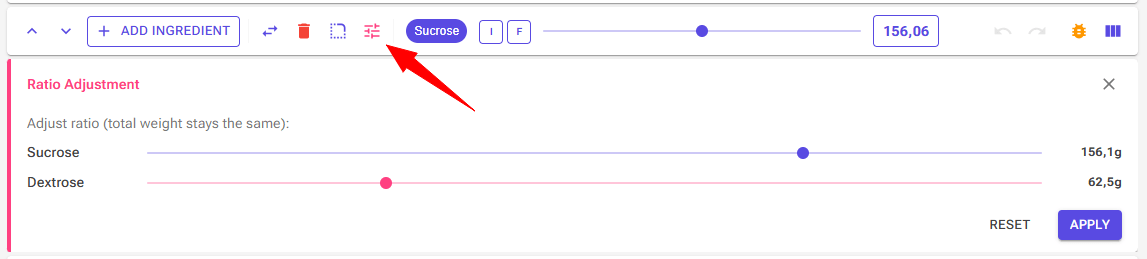
Select an ingredient in the table and click Adjust ingredient ratio (the slider icon) in the action bar. The panel opens below the action bar.
Step 1: choose the second ingredient. The panel shows your selected ingredient and the text "Select second ingredient to create ratio:". Click one of the chips; inclusions and infusions are not offered.
Step 2: adjust the ratio. Two sliders appear, one per ingredient, each showing its share of the combined weight. Drag either one; the other follows, so the total stays the same. Each slider stays between 5% and 95%, so neither ingredient drops to zero.
Step 3: apply or reset. Apply keeps the new weights, adds one undo step and closes the panel. Reset puts the original weights back; use it before closing the panel if you don't want to keep the change.
Use cases:
- Balance milk fat and MSNF by adjusting the milk/cream ratio.
- Adjust sugar types (sucrose vs. dextrose) to change PAC and POD.
- Fine-tune a stabilizer blend without changing the total stabilizer amount.
Cards and Layout
Below the weight row, the editor shows cards. The Standard layout has the Chart with Scoopability below it, and Recipe Data beside it on wide screens. You can add Freezing Curve, Data table, Nutrition, Description & Notes, Instructions, Cost, Sugars (Premium) and Tools. On phones, the cards stack in one column.
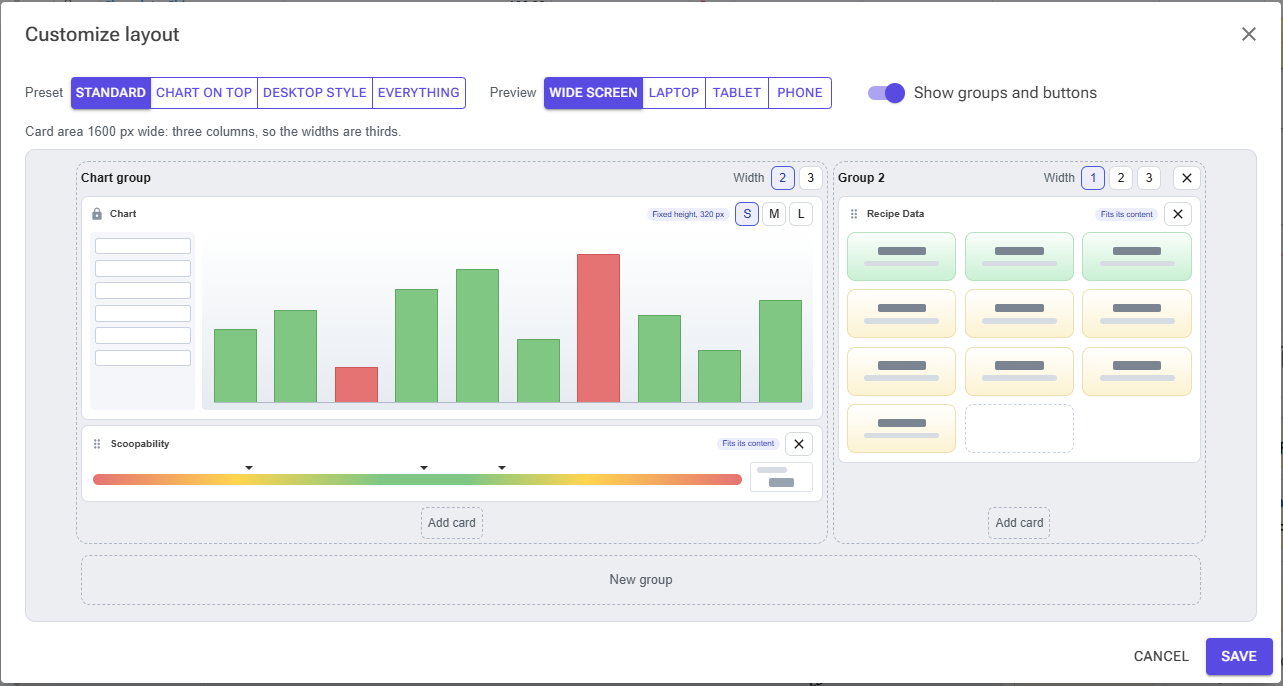
Click Customize layout (the dashboard icon at the right end of the weight row) to choose a preset, add, remove and move cards, and set the chart's height. Your layout is saved to your account and is the same for every recipe. For every card and the layout designer, see Editor Cards and Layout.
The Recipe Data Card
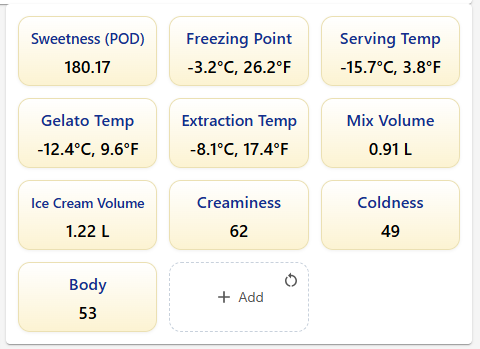
The Recipe Data card shows key values as tiles, such as POD, serving temperatures and volumes. Click Add (the last tile) to add values from the data browser, drag a tile to move it, double-click it to rename it or set a range, and use its bin icon to remove it. The corner icon on the Add tile resets the tiles to the default set.
Keyboard Shortcuts
| Keys | Action |
|---|---|
| Ctrl+Z | Undo the last change |
| Ctrl+Y | Redo the last undone change |
| Ctrl+S | Save the recipe (only when there are unsaved changes). It also stops the browser's own save dialog. |
- The shortcuts use the Ctrl key, also on a Mac.
- While a dialog is open, Ctrl+Z and Ctrl+Y work on the dialog's fields, not the recipe, and Ctrl+S does nothing.
- In a multi-line text box, such as the Description & Notes card, Ctrl+Z and Ctrl+Y undo your typing. Single-line fields, such as weights, keep recipe undo.
Common Workflows
Quick Recipe Refinement
- Open the recipe in the Recipe Editor.
- Choose a chart for your recipe type: Chart › Select chart, or right-click the chart.
- Click Balance, check the classes in the Smart Balance dialog, and click Balance.
- Review the chart: look for remaining red bars.
- Fix what's left with the weight slider, or with the Scoopability and POD buttons.
- Click Save when you're happy.
Scaling a Recipe
- To a weight: type the target in the Mix Weight field, such as 1500, and press Enter.
- To a volume: click Tools › Mix volume or Ice Cream Vol., enter the volume and unit, and click Apply.
- To a machine: select your machine with the machine chip, then click the flask icon next to it.
More in Recipe Weights, Scaling & Evaporation.
Adjusting Firmness
- Check the markers on the Scoopability bar.
- Too firm (markers toward Hard): click −. Too soft (markers toward Soft): click +.
- Repeat until the markers sit where you want them, then run Balance again if other properties went out of range.
Converting a Volume Recipe
If your source recipe uses cups and tablespoons: add all the ingredients (each starts at 100 g), then for each one click the flask icon in the Vol column, enter the volume and click Apply. Adjust the mix weight at the end if needed.
Comparing Recipe Versions
- Click Snapshot › Select Recipe and pick the recipe to compare with: an older version, a competitor's recipe, or this recipe itself to compare with its saved version.
- Adjust your recipe toward (or away from) the orange bars, or use Balance to snapshot in the Smart Balance dialog.
- Click Snapshot ON to clear it when you're done.
To compare several recipes at once, use Chart › Compare recipes.
Tips and Best Practices
- Choose the right chart for your recipe type, and balance before fine-tuning: let the balancer get you close, then adjust by hand.
- Lock base ingredients you want to keep, such as milk and cream for a fixed fat ratio, and set amount ranges on key ingredients. If balancing fails, check your locks: too many leave the balancer no room.
- Use the ratio panel for two-ingredient adjustments, and the Scoopability and POD buttons for quick firmness and sweetness changes.
- Take a snapshot before big changes, so you can see how far you've moved.
- Customize the columns and cards to show what you need right now: nutrition, cost or ice cream properties.
- Save regularly. The working copy keeps your edits safe, but only Save updates the recipe itself, and you must save before you can share it. Use Save As to try a variation without touching the original.
- Name recipes descriptively (flavour, date or version, such as "Vanilla Bean v3 – Jan 2026") and set the category, tags and description in the Properties dialog, so they are easy to find.
- On a phone, turn it sideways to see more of the table. On a tablet, pin the browser tab to keep the recipe open in the kitchen.
For more balancing strategies, see Balancing.