📋 System Overview
The Recipe Card system allows users to create multiple customizable cards for each recipe, suitable for different purposes like printing, sharing, manufacturing specs, or social media. Cards can be recipe-specific or global (reusable across all recipes).
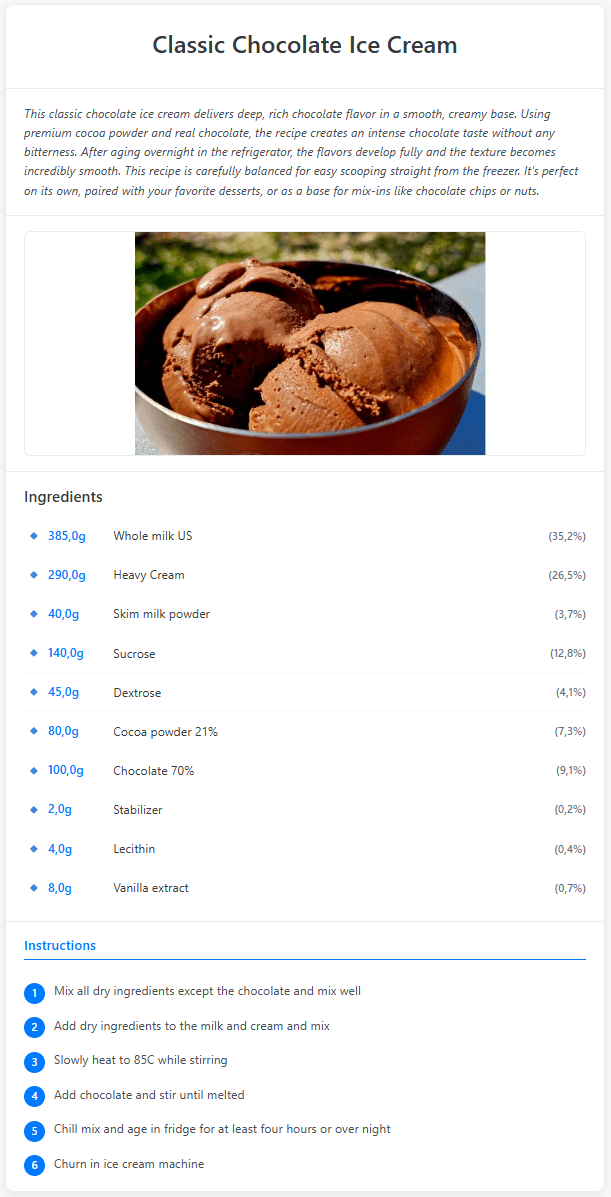
Key Capabilities
- Multiple cards per recipe – Create unlimited variations for different purposes
- Global card templates – Create reusable card layouts for all your recipes
- Rich customization – 8 sections you switch on or off: Logo, Comment Text, Image, Info Chips, Ingredients, Instructions, Nutrition, and Notes
- The recipe's own instructions – Every card shows the method stored on the recipe, so you write it once
- Card Manager – Copy cards, copy them to other recipes, or import a card from another recipe
- Public sharing – Generate public links for recipe-specific cards, with view tracking and a Pinterest button
- Professional layouts – Print-ready formatting, including printing at the batch weight from the Produce page
- Real-time preview – See changes instantly as you design
🎯 Core Concepts
Recipe-Specific vs Global Cards
Recipe-Specific Cards
Cards tied to ONE specific recipe, containing recipe-unique information.
Best Used For:
- Recipe cards with custom descriptions or stories
- Cards with recipe-specific images (photos of the final product)
- Recipe-specific notes or variations
- Cards you want to share through a public link
Example: “Vanilla Bean Ice Cream – Home Recipe” card with:
- Beautiful product photo
- Custom description about Madagascar vanilla beans used
- The recipe's step-by-step instructions
- Personal notes about texture preferences
Global Cards
Cards NOT tied to any specific recipe – reusable templates that work with ANY recipe.
Best Used For:
- Technical specification sheets – Standard layout showing PAC, POD, mix volume, etc.
- Quick print cards – Simple ingredients + basic info, no descriptions
- Manufacturing cards – Consistent format for production floor use
- Nutritional labels – Standard nutrition facts + allergen info
- Minimalist cards – Just ingredients and calculated data, no fluff
Example: “Technical Spec Sheet” global card with:
- No image section
- No custom descriptions
- Info chips: PAC, POD, Serving temp, Mix volume, Ice cream volume
- Ingredients with percentages
- Instructions section switched off (assumes trained staff)
Why Global Cards Are Powerful:
- Create once, use with ALL recipes
- Ensures consistent formatting across your recipe collection
- Perfect for business/professional use cases
- Saves time – no need to recreate layout for each recipe
Note: Global cards can be printed with any recipe, but they cannot be shared through a public link. To share one, Copy it in the Card Manager (the copy belongs to the current recipe) and share the copy.
Instructions Belong to the Recipe
The method (groups of numbered steps) is stored on the recipe, not on a card. Every card for the recipe, global cards included, shows the recipe's instructions when its Instructions section is switched on. You write them once and every card, Default Print, the Produce page, and your shares use the same text.
- Write or edit the instructions in the recipe: Properties › Instructions, or the Recipe Editor's Instructions card
- In the Card Designer, Edit Instructions also edits the recipe's instructions. They are saved on the recipe as soon as you close the instructions dialog, whether or not you save the card
- Switching Instructions off on a card hides them on that card only; the recipe keeps them
See Recipe Instructions for writing the method.
A card made before instructions moved to the recipe may still show its own old steps while the recipe has none. Open Edit Instructions on that card: the old steps are filled in for you, and when you save they move to the recipe.
🏗️ Card Structure – 8 Configurable Sections
Every recipe card consists of up to 8 sections that can be toggled on/off in the Card Designer's Sections list:
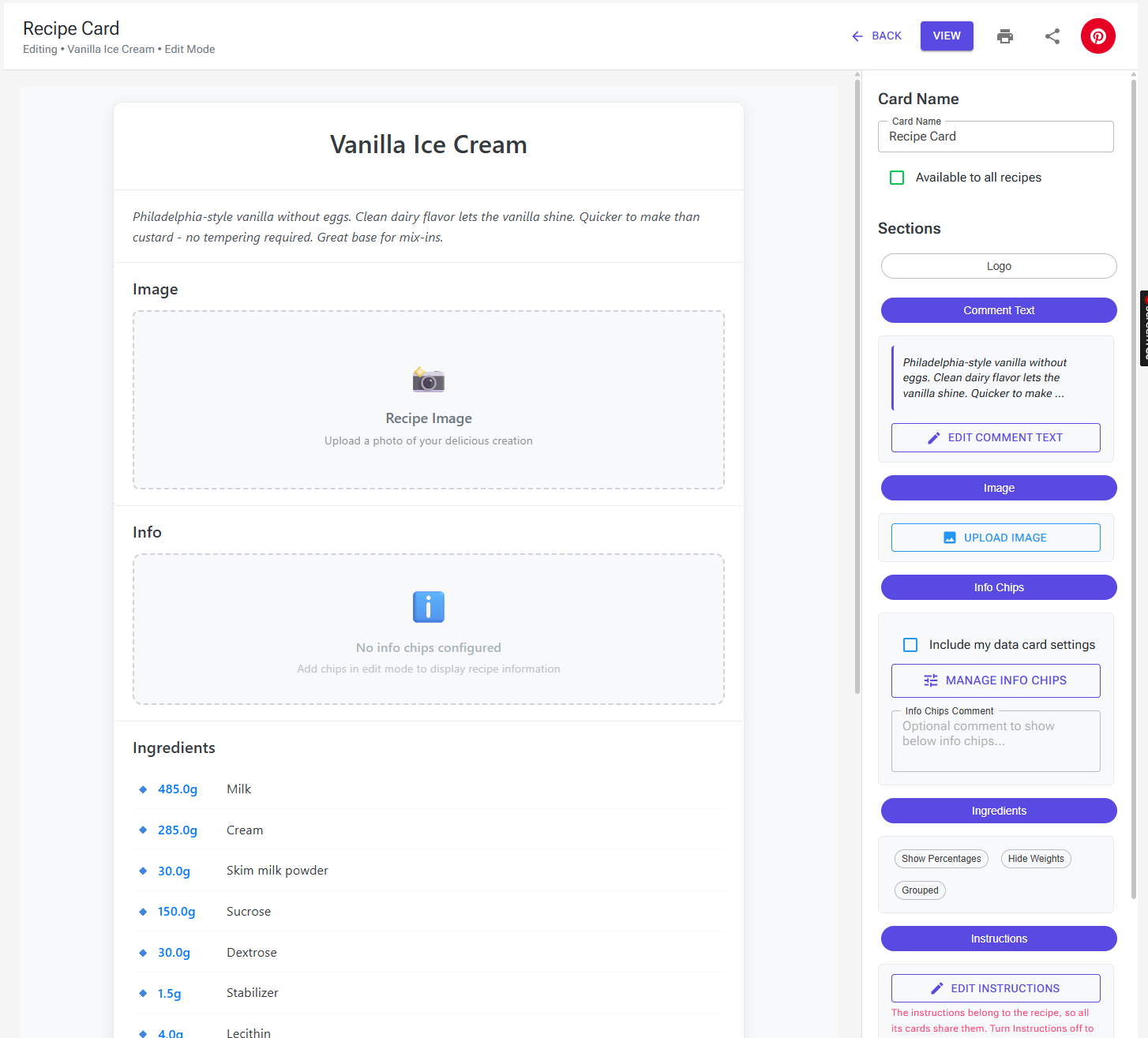
1. Logo Section
Purpose: Your business logo in the top-left corner of the card header
Upload the logo once on the Account page; every card can then show it. If you haven't uploaded one, the Logo panel shows a link to your account settings. The logo is off on new cards.
2. Comment Text Section
Purpose: Recipe description, introduction, or marketing copy
Click Edit Comment Text to write it. A new card starts with the recipe's description.
When to Use:
- Public recipe sharing (tell the story)
- Social media posts (engaging description)
- Recipe books/collections (context and inspiration)
3. Image Section
Purpose: Visual representation of the recipe
Features:
- Upload images (JPG, PNG, GIF, WebP) up to 10 MB
- Crop and position tool (800x300px display area): drag to pan, zoom, or Fit to Frame, then Apply
- Image text – shown as a caption under the image and used as its alt text for accessibility
- Automatic compression (the cropped image is saved as a JPEG)
- Remove Image to start over
When to Use:
- Social media cards (visual impact)
- Menu displays (show the product)
- Recipe collections (appetizing photos)
4. Info Chips Section
Purpose: Display key recipe metrics in visual chip format
Click Manage Info Chips to add, reorder, edit, or delete chips. There are two types:
Calculated Chips (from recipe data)
Added with Add Data Chips. They pull real-time values from recipe calculations:
- PAC (freezing point) – Shows scoopability
- POD (sweetness) – Relative sweetness value
- Serving temp – Optimal serving temperature
- Mix volume – Volume before churning
- Ice cream volume – Final volume after overrun
- Energy/100g – Calories per 100 grams
- Butter fat – Milk fat percentage
- Cost/Kg – Recipe cost per kilogram
- Plus ALL other calculated recipe data
Manual Chips (custom user values)
Added with Add Manual Chip. You type the label and value:
- Prep Time – “20 minutes”
- Difficulty – “Easy”, “Medium”, “Hard”
- Yield – “8 servings”
- Churn Time – “30 minutes”
- Aging Time – “4-8 hours”
- Storage – “2 weeks frozen”
User Data Card Settings Integration: Users can configure their preferred calculated chips in their global settings (e.g., “Always show PAC, POD, Serving temp”).
When creating a card, enable “Include my data card settings” to automatically prepend these default chips before any custom chips you add to the card.
Info Chips Comment
The Info Chips panel also has an Info Chips Comment field: optional text shown directly below the chips.
When to Use:
- Explain unusual metrics (“High PAC for soft-scoop texture”)
- Provide context (“Optimized for -18°C freezer storage”)
- Add disclaimers (“Nutritional values approximate”)
- Highlight special features (“Extended aging improves flavor”)
Example:
“This recipe is optimized for professional soft-serve machines. Home users may need to adjust serving temperature up by 2-3°C for easier scooping.”
5. Ingredients Section
Purpose: Display recipe ingredient list
Features:
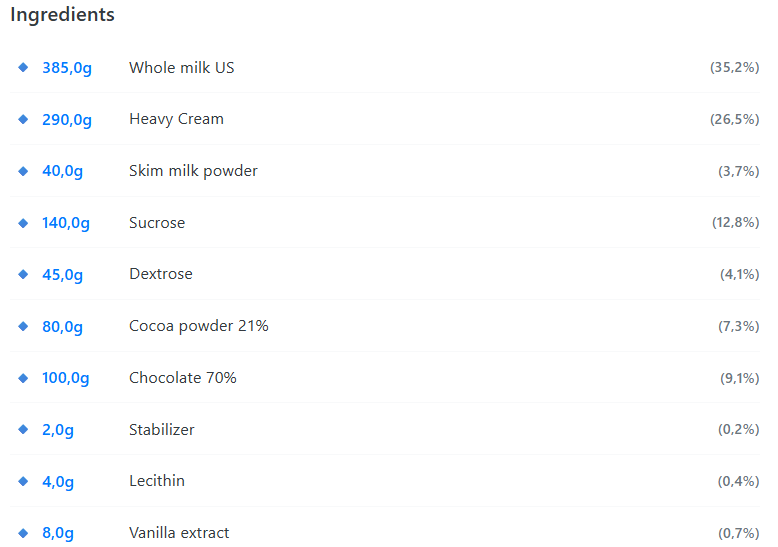
- Ingredient name and weight (grams), with a total row
- Visual icons:
- 🔹 Regular ingredients (blue diamond)
- 🔸 Add-ins (orange diamond), labelled “(Inclusion)” or “(Infusion)”
- Base ingredients are listed first, then the add-ins
Configuration Options:
- Show Percentages – Display ingredient % next to weights. Useful for professional recipes, recipe scaling, and formulation work
- Hide Weights – List the ingredients without weights or the total row, for example on a menu card
- Grouped – Split the list into Liquids, Powders, and Add-Ins, each sorted heaviest first. Handy for weighing in production
6. Instructions Section
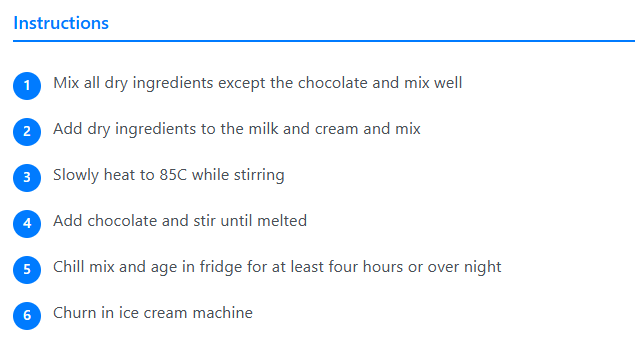
Purpose: Step-by-step process guide
Features:
- The recipe's instructions – the section shows the method stored on the recipe (see Instructions Belong to the Recipe above)
- Instruction Groups – Multiple titled groups (e.g., “Prepare Base”, “Add Vanilla”)
- Numbered Steps – Auto-numbered within each group
- Edit Instructions – edits the recipe's instructions, for all its cards
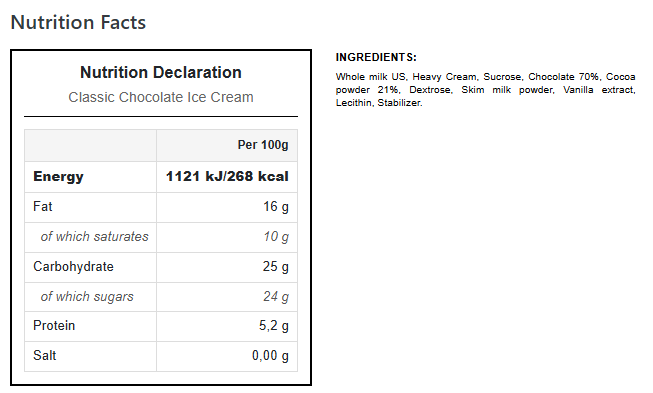
7. Nutrition Section
Purpose: Nutritional facts and legal compliance information
Configuration Options:
- Format – EU Format (values per 100 g), US Format, or AU Format
- Serving Size (g) – For US and AU. US starts at the standard 65 g (2/3 cup); AU starts at the default serving size from your Settings
- Show Nutrient Table – The nutrition facts table
- Show Allergens – “Contains” and “May contain” lines
- Show Ingredients – The ingredient statement
For how the values are calculated, see Nutrition Labels.
8. Notes Section
Purpose: Additional information, tips, variations, storage instructions
Click Edit Notes to write the card's notes. A new card starts with the recipe's technical notes; after that, the card's notes are its own.
When to Use:
- Recipe variations (“Try adding 100g chocolate for chocolate vanilla”)
- Storage instructions (“Stores well for 2 weeks frozen”)
- Serving suggestions (“Pairs beautifully with warm apple pie”)
- Technical notes (“Reducing sugar will increase hardness”)
- Troubleshooting tips (“If too hard, increase PAC by 10”)
🔄 Workflow – Creating a Recipe Card
Step 1: Access Card Manager
- Open your recipe's Recipe View page
- In the Recipe Cards section, click “Manage cards” (or navigate to
/recipe/{id}/cards) - See all cards for this recipe, in two sections: Recipe-Specific Cards and Global Cards
Card Manager Actions
- Add Card – Create a new card (Step 2)
- Import Card – Pick another of your recipes, then one of its cards. A copy named “(Imported from …)” is added to this recipe
- Edit – Open the card in the Card Designer
- Copy – Make a copy for this recipe under a new name (default “… (Copy)”). Copying a global card gives you a recipe-specific copy
- Copy To – Copy the card to another of your recipes
- Delete – Delete the card after confirming
- Back – Return to Recipe View
Step 2: Create New Card
- Click “Add Card” button
- Enter card name (e.g., “Social Media Version”, “Tech Spec Sheet”) and click Create
- Card created as recipe-specific by default, starting with the recipe's description as its Comment Text and the recipe's technical notes as its Notes
- Opens Card Designer immediately, in edit mode
Step 3: Design Your Card
Set Card Scope
- Recipe-Specific (default) – Tied to this recipe only
- Global Template – Tick the “Available to all recipes” checkbox
Configure Sections (Edit Mode)
- A new card opens in edit mode. A card you open from Recipe View opens in view mode: click “Edit” to enter design mode
- Use section chips in sidebar to toggle sections ON/OFF:
- Click chip → section enabled (blue filled chip)
- Click again → section disabled (gray outlined chip)
- When section enabled, expand panel below to configure:
- Edit content (text, images, instructions)
- Configure options (percentages, weights, grouping, nutrition format, etc.)
- Add/manage info chips
Edit Section Content
- Logo: Shows your account logo; upload it on the Account page
- Comment Text: Click “Edit Comment Text” → opens text editor dialog
- Image: Upload image → crop/position → add image text
- Info Chips: Click “Manage Info Chips” → add calculated/manual chips; write the Info Chips Comment
- Ingredients: Show Percentages, Hide Weights, Grouped
- Instructions: Click “Edit Instructions” → edits the recipe's groups and steps
- Nutrition: Choose EU/US/AU, set the serving size, and toggle the nutrient table, allergens, and ingredients
- Notes: Click “Edit Notes” → opens text editor dialog
Real-Time Preview
- Left side shows live preview as you make changes
- Exactly how card will appear when printed/shared
- Changes are not saved in the background – see Step 4
Step 4: Save & Use Card
- Click “View” to leave edit mode and check the result (this does not save)
- Click “Back” to save the card and return to the Card Manager (or to Recipe View, if you opened the card from there)
- Your card is now available for:
- Printing (Print button in designer, or the Print icon on Recipe View)
- Sharing (Share button → public link)
- Quick access from Recipe View page
The card is saved when you click Back, tick or untick “Available to all recipes”, or click Share or the Pinterest button. There is no auto-save.
⚠️ Important: If you leave the designer any other way – the browser's back button, the menu, or closing the tab – unsaved card changes are lost. Instructions are the exception: they are saved on the recipe when you close the instructions dialog.
🖨️ Printing Recipe Cards
From Recipe View Page
- Open recipe in view mode
- Click Print button in header
- Dialog shows available cards:
- Default Print – Quick card built from the recipe: logo, description, data chips, ingredients with percentages, instructions, allergens, and technical notes
- Global Cards – All your global template cards
- Recipe-Specific Cards – Cards for this recipe
- Click card to print immediately
- Browser print dialog opens → configure printer settings
From the Recipe Editor
Choose Print from the editor's Tools. You get the same card picker, and the card shows your working copy, including changes you haven't saved yet.
From the Produce Page
- On the Produce page, scale the batch as needed
- Click the Print icon next to the Ingredients heading (“Print recipe with current batch weights”)
- Pick a card; it prints with the ingredient weights scaled to the current batch
- Click Back to return to the same production view
From Card Designer
- Open any card in designer mode
- Click Print icon in header
- Card automatically switches to view mode (hides edit UI)
- Browser print dialog opens
- Print-optimized CSS ensures clean output
Print Optimization Features:
- No navigation elements or edit controls
- Clean white background
- Proper page breaks
- High-quality rendering
- Optimized for standard paper sizes
🔗 Sharing Recipe Cards
Only recipe-specific cards can be shared. If you click Share on a global card, you see “Global cards cannot be shared.”
Create Public Share Link
- Open card in designer mode
- Click Share button (icon in header). The card is saved first
- The Share Recipe Card dialog opens. Click Generate Public Link
- The dialog now shows:
- Unique public URL:
icecreamcalc.app/share/recipe-card/{shareId}, with a copy icon - When it was shared and the view count
- A preview of what others will see
- Open Link to check the public page
- Unique public URL:
- Click the copy icon → link copied
- Share URL anywhere:
- Social media (Facebook, Instagram, WhatsApp)
- QR codes
- Embedded in websites
The Share icon turns green while the card has a public link.
Remove a Public Link
Open the Share dialog again and click Remove Public Link. The link stops working straight away.
Share on Pinterest
The red Pinterest button in the designer header saves the card, creates a public link, and opens Pinterest's pin dialog in a new window with the card's image and the recipe name.
Public Shared Page Features
- Clean, app-free presentation (no navigation bars)
- The recipe's instructions, when the card's Instructions section is on
- Mobile-responsive design
- Floating badge: “Made with Ice Cream Calc” (links back to app)
- A Pin button on the card image, so visitors can pin it to Pinterest
- Link previews on social media show the card name and image; search engines do not index the page
- View count tracking (auto-increments on each view)
- Professional presentation perfect for public sharing
Share Management
- Share status visible in Card Manager (green “Public Link” strip on the card)
- View count displayed next to shared cards
- One-click copy share link from manager
- Remove a link with Remove Public Link in the Share dialog
Pro Tip: Share links are permanent and secure (GUID-based). Even if you edit the card, the share link stays the same and shows updated content.