Overview
Most ice cream leaves the kitchen in a container: a 500 mL tub, a cup, a gastronorm pan. Products and Packing lets you describe those finished items, pack them from the batches you produce, and keep count of the packed units you have in stock. It covers three things:
- Packaging Items — the cups, tubs, lids and labels you use, with stock and cost.
- Product Definitions — what goes into one unit: one or more recipes (in g or mL per unit) plus packaging.
- Product Inventory — the packed units you have on hand, which you pack from produced batches and then sell or use.
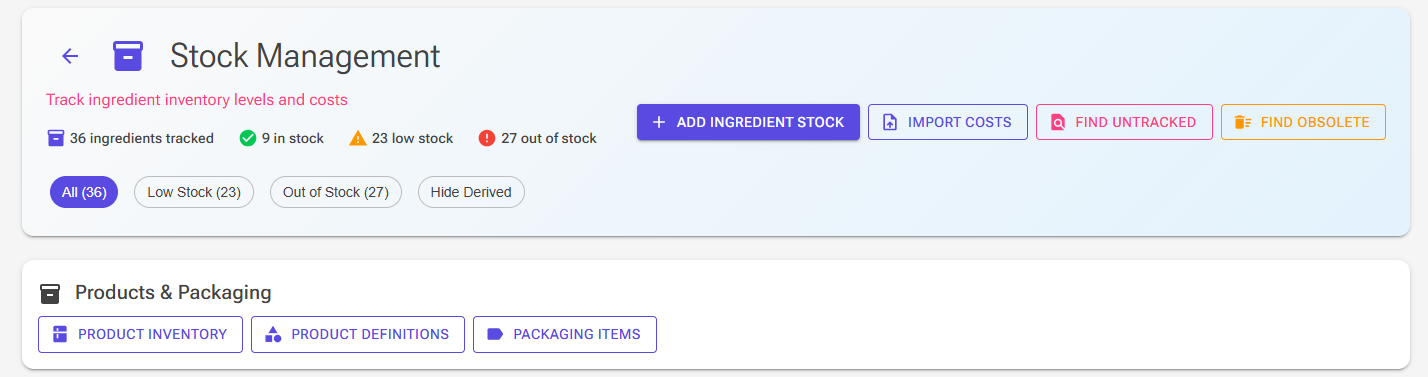
Products and Packing is part of the Production system and is a Premium feature. You find it in the Products & Packaging section of the Stock page, which has three buttons: Product Inventory, Product Definitions and Packaging Items. The same three dialogs can also be added to the Shortcuts on the Home page.
The Typical Workflow
- Add your packaging items (for example a 500 mL tub and its lid).
- Create a product definition that combines recipes and packaging into one unit.
- Optionally, plan the product on the Production Planning calendar. This creates a packing task and the recipe plans needed to fill it.
- Produce the recipes as usual. Each produced batch can then be packed.
- Pack the product. The mix is taken from your batches, the packaging is taken from stock, and the units go into Product Inventory.
- Sell or use units from Product Inventory as they leave.
Packaging Items
Click Packaging Items to see your packaging stock. Click Add Item to create one, with these fields:
| Field | What it does |
|---|---|
| Name | Required, for example “Tub 500 mL” or “Lid 500 mL”. |
| Stock Quantity (units) | How many you have. Packing reduces it. |
| Cost Per Unit | Used for the packaging part of a product’s cost. |
| Low Stock Threshold | When stock falls below this, the item shows a warning icon and an orange row. |
| Volume (mL) | For containers only (cups, tubs). Leave it empty for lids, labels and the like. The volume is used to fill in recipe quantities in a product and to filter Product Inventory by container. |
| Reusable | For containers that come back, such as pans that go to an event. A reusable item returns to stock when the units packed in it are sold or used. |
| Notes | Free text, also searchable. |
Rows are shaded by stock level: red when out of stock, orange when below the threshold. A recycling icon marks reusable items. Each row has three buttons:
- Adjust Stock — enter a quantity and click Add Stock or Reduce Stock.
- Edit — change any field.
- Delete — archives the item. It can no longer be used in new products.
Product Definitions
Click Product Definitions to see your products. The list can be searched by name or description and filtered by the category of the recipes in each product.
Creating a Product
Click Add Product and fill in:
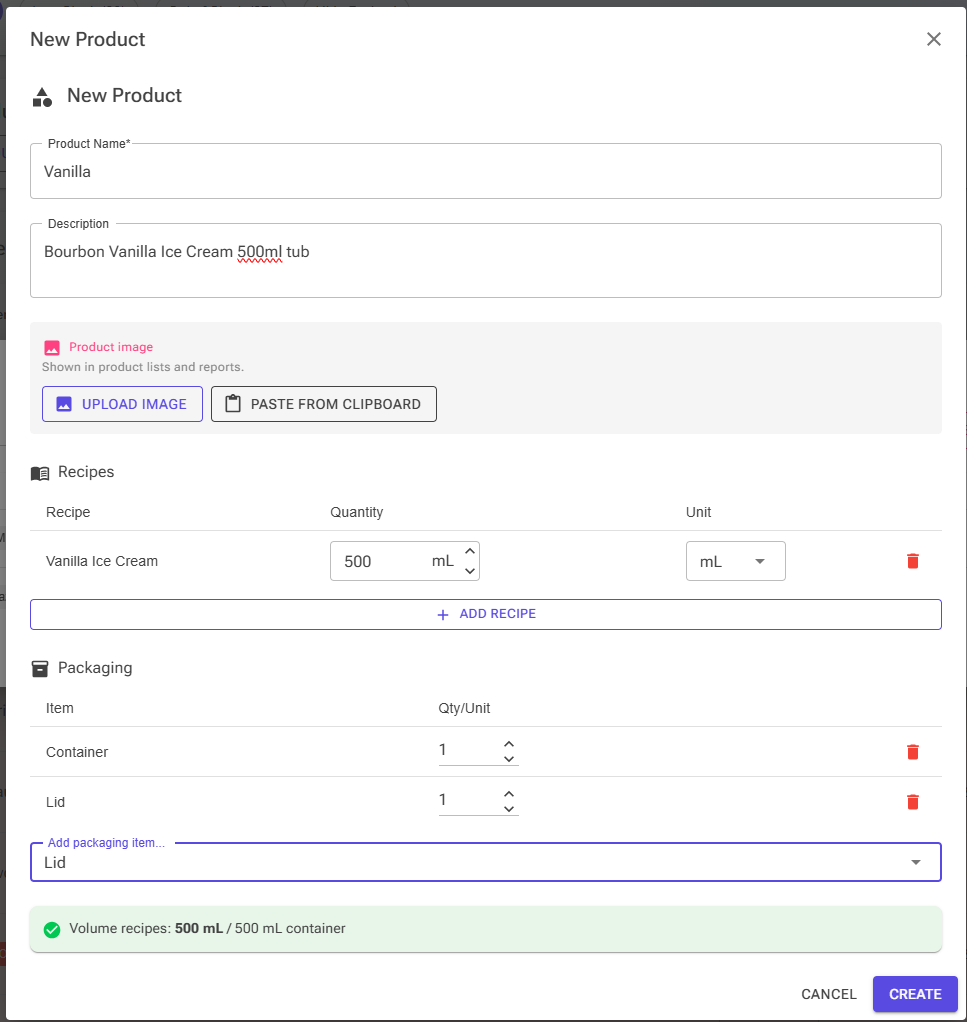
- Product Name (required) and Description.
- Product image — Upload image or Paste from clipboard. The image is shown in product lists and reports.
- Recipes — click Add Recipe for each recipe in one unit, then set its Quantity and Unit: mL (the volume of finished ice cream in the unit) or g (its weight). For g, enter the weight of the ice cream without add-ins; a recipe’s add-ins come on top, and a note under the table says so. A product needs at least one recipe. A tub with two flavours side by side has two recipes.
- Packaging — pick items from Add packaging item... and set the Qty/Unit, for example one tub and one lid.
When the packaging includes a container with a volume, a summary compares it with the mL recipes, for example “Volume recipes: 500 mL / 500 mL container”. It turns green when they match. If they do not, click Auto-fill to share the container volume equally between the mL recipes. Adding the first container to a product that already has recipes fills the volumes in for you. A product with only g recipes shows its Total Weight instead.
Click Create (or Save when editing).
The Product List
Each row shows the product’s recipes with their quantity per unit, its packaging, and an estimated Cost/Unit. Hover over the cost to see the recipe and packaging parts. The estimate is based on current stock prices: the recipe’s cost per litre or per kg for the quantity in one unit, plus the cost of each packaging item. The row buttons are:
- Generate Report — see below.
- Edit Product.
- Duplicate product — creates a copy named “(Copy)”, including its image.
- Delete Product — removes the product from the list. Units you have already packed stay in Product Inventory.
Product Reports
Generate Report first asks for Best Before Days. It suggests the shortest best-before period of the product’s recipes, or 30 days if none is set. The report then opens with the Product templates. Two are built in:
- Product Specification Sheet — recipe composition, packaging, costs and combined nutrition.
- Product Label — a compact label with the merged ingredient declaration, allergens, nutrition and best before date.
The data covers one unit: the recipes are combined in their per-unit proportions into one ingredient list, allergen list and nutrition table. You can build your own Product templates; see HTML Reports.
Replacing a Recipe Across Products
When you replace a recipe, for example with an improved version, you do not have to edit every product. Click Replace recipe across products:
- Under Recipe to replace, choose the recipe. The number of products using it is shown.
- Under Replacement recipe, pick the new recipe.
- Under Products to update, tick the products to change (Select all and Select none help).
- Click Replace in N products.
Each product keeps its quantities and units. If a product already contains the replacement recipe, its link to the old recipe is simply removed.
Packing Products
Packing turns produced ice cream into units in Product Inventory. The Pack Product dialog opens from three places:
- Pack on a packing task card in Production Planning — the product and units are filled in, and the card turns green when you confirm.
- Quick Pack in Product Inventory — you choose the product.
- Pack More on a product row in Product Inventory.
The dialog has four steps:
- Product & Units — select the product (if it is not filled in) and enter the Units to Pack. The product’s recipes and packaging are listed for reference.
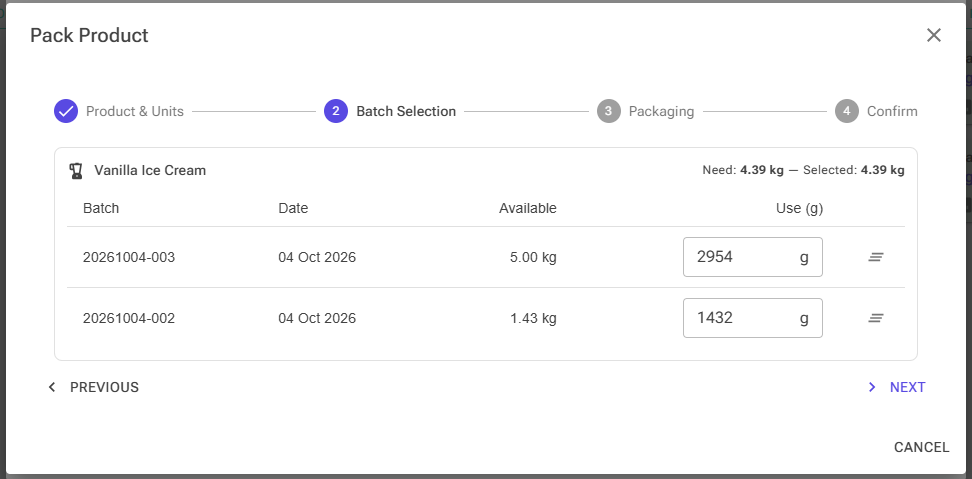
- Batch Selection — for each recipe, the dialog shows how much mix is needed and lists the produced batches that still have mix left (batch code, date, available quantity). The oldest batches are selected first. You can change the grams to use from each batch; “Need” and “Selected” are shown side by side. If you select less than you need, a “Short by” warning appears, but you can still pack. Clear remainder on a batch clears what is left of it, after a confirmation, so the batch no longer appears as available for packing. The production log entry stays in your records.
- Packaging — each packaging item shows In Stock and Qty to Use (the quantity per unit times the units), with a Low or OK status. You can change the quantities, for example if a lid broke. Set a quantity to 0 to use none of that item; with every quantity at 0, no packaging is taken from stock.
- Confirm — review the batches and packaging, add optional notes, and click Confirm Pack.
Confirming creates a packing record in Product Inventory with the units packed. The mix you selected is deducted from the batches, and the packaging quantities are deducted from packaging stock (never below zero). The record also stores the actual cost per unit, from the cost of the batches used plus the packaging.
How Much Mix Each Unit Uses
A batch’s available quantity is its yield after evaporation, so packing does not adjust for evaporation again.
- Recipes in g: grams per unit × units. The grams are finished ice cream without add-ins, the same basis as a batch’s yield.
- Recipes in mL: the unit volume is finished ice cream, so the app works back to mix weight. It removes the space taken by inclusions (from the recipe’s inclusion volume), removes the air added during churning (the recipe’s overrun, or your Settings default when the recipe has none), and converts the remaining mix volume to weight with the recipe’s density.
Example: a 500 mL tub of a recipe with 30% overrun, no inclusions and a density of 1.10 kg/L needs 500 ÷ 1.30 = 385 mL of mix, which is about 423 g.
When you plan a product, the recipe plan needs the mix weight before cooking, so for both g and mL products the amount is divided by (1 − the recipe’s evaporation). For example, 100 units of 500 g from a recipe with 8% evaporation plan 50 ÷ 0.92 = 54.35 kg of mix, which gives the 50 kg that packing needs. Recipes without evaporation plan exactly the packing amount.
For the full explanation of weight, volume and overrun, see Production System – Weight, Volume & Overrun.
Product Inventory
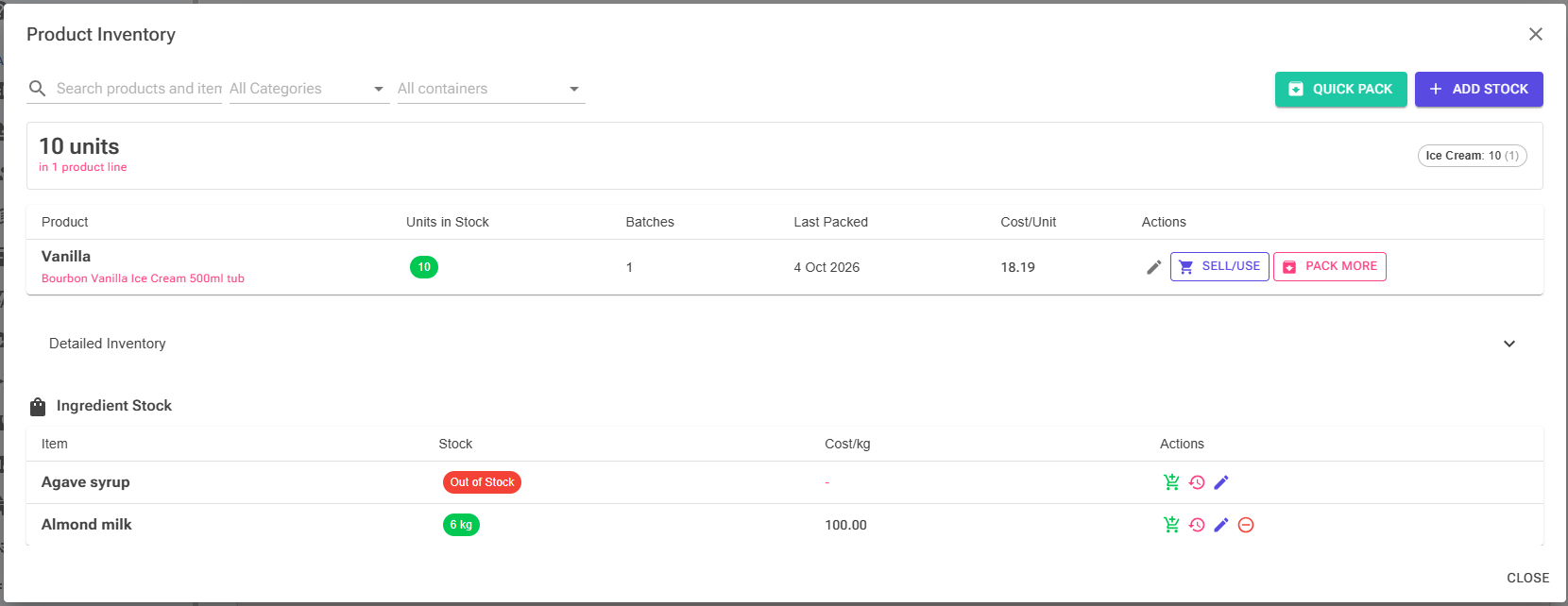
Click Product Inventory to see the packed units you have in stock. A summary at the top shows the total number of units and product lines, with a breakdown by recipe category (or by container when you filter on a category). You can search by name and filter by category and by container (the product’s first packaging item with a volume).
Each product row shows:
- Units in Stock.
- Batches — the number of packing records with units left.
- Last Packed.
- Cost/Unit — the estimate from current prices, as in Product Definitions.
And these actions:
- Edit (pencil) — set the number of units in stock after a count, or use Zero. A lower number is taken from the oldest packing records first; a higher number is added to the newest record.
- Sell/Use — enter the quantity sold or used. Units are taken from the oldest packing records first.
- Pack More — opens Pack Product for this product.
Two buttons sit above the table. Quick Pack opens Pack Product for any product. Add Stock adds existing stock without creating a production batch, for example when you start using the app with a freezer already full. Enter the product, the Units in Stock, the Date packed / received and an optional Cost per unit, which is pre-filled from the product’s estimate. No batches or packaging are deducted.
When a product’s units reach zero, it disappears from the list until you pack it again.
Detailed Inventory
Open Detailed Inventory below the table to see each packing record separately, with units packed, units remaining, date and the actual cost per unit. Each record has its own Sell/Use button and a Delete button.
Deleting a packing record restores the packaging stock it used. For reusable packaging, only the containers still holding unsold units are restored. The mix it used is not returned to the batches.
Reusable Packaging
When you sell or use units packed in a reusable container, the container returns to packaging stock once it is completely emptied. With one pan per unit, each unit sold returns one pan. If you packed several units into one container (by lowering Qty to Use when packing), that container returns only when all of its units are sold. Setting the units with Edit in Product Inventory frees or re-commits containers in the same way.
Bought Items in the Inventory
You can list ready-made items you buy and resell, such as cones or bought sorbets, next to your own products. On the Stock page, open the item’s Edit Stock dialog and tick Show in Product Inventory (“Display this bought item alongside produced products”). The item then appears in an Ingredient Stock section of Product Inventory, with its stock in weight and cost per kg, and buttons to Quick Add Stock, view stock details, edit stock details and Clear stock. These items are ingredient stock, not packed units, so they follow the rules in Stock Management.
Products on the Planning Calendar
On the Production Planning calendar, each day has a Product button. Choose a product, the number of units and the packing date, and the app creates a packing task for that day plus recipe plans for the mix, by default the day before. Existing plans for the same recipes that week can be increased instead of adding new ones. When the batches are produced, click Pack on the packing task card. Production Planning describes the dialog step by step.
Packing History for a Batch
Every produced batch keeps track of what happened to its mix. Open a batch from the Production Log with View production details:
- The Overview tab has a Batch Status bar with Produced, Packed and Remaining in kg. While mix remains, Mark as Used lets you record a quantity used outside packing, with an optional reason (for example an event, testing or discarded).
- The Packing History tab lists every use of the batch: the date, the product, the units and the quantity used. Uses recorded with Mark as Used or Clear remainder are marked Manual.
A batch stops appearing in Pack Product once nothing remains. See Production Logging for the rest of the production details.
Tips
- Give containers a Volume (mL); products then fill in their recipe quantities for you, and Product Inventory can be filtered by container.
- Define products in mL when you fill containers by volume, and in g when you sell by weight.
- Set a Low Stock Threshold on cups and lids so you see in time when to reorder.
- Use Clear remainder for the little mix left in a batch that will never fill a whole unit, so the batch stops showing as available.
- Use Replace recipe across products when you change a recipe, rather than editing every product.