Production Planning helps you schedule production runs across a weekly calendar, forecast ingredient needs based on your upcoming plans, and generate work orders for your team. It brings together your recipes, stock levels, and production goals into one organized workflow. You can plan recipes directly, or plan products (packed units such as tubs or cups), which adds a packing task together with the recipe plans needed to fill it.
Production Planning is a premium feature, like the rest of the Production system. If you are on a free plan, you will see an upgrade prompt when navigating to the Planning page. Upgrade to Premium to unlock full access to scheduling, forecasting, and work order generation.
Getting Started with Planning
Navigate to Production Planning from the Production hub by selecting the Production Planning card. The page opens with two tabs: Calendar View and List View.
Calendar View is your primary workspace for day-to-day scheduling. List View gives you a broader look at plans across a date range, along with a powerful ingredient forecast. You will likely use both tabs regularly depending on whether you are scheduling or purchasing.
Calendar View
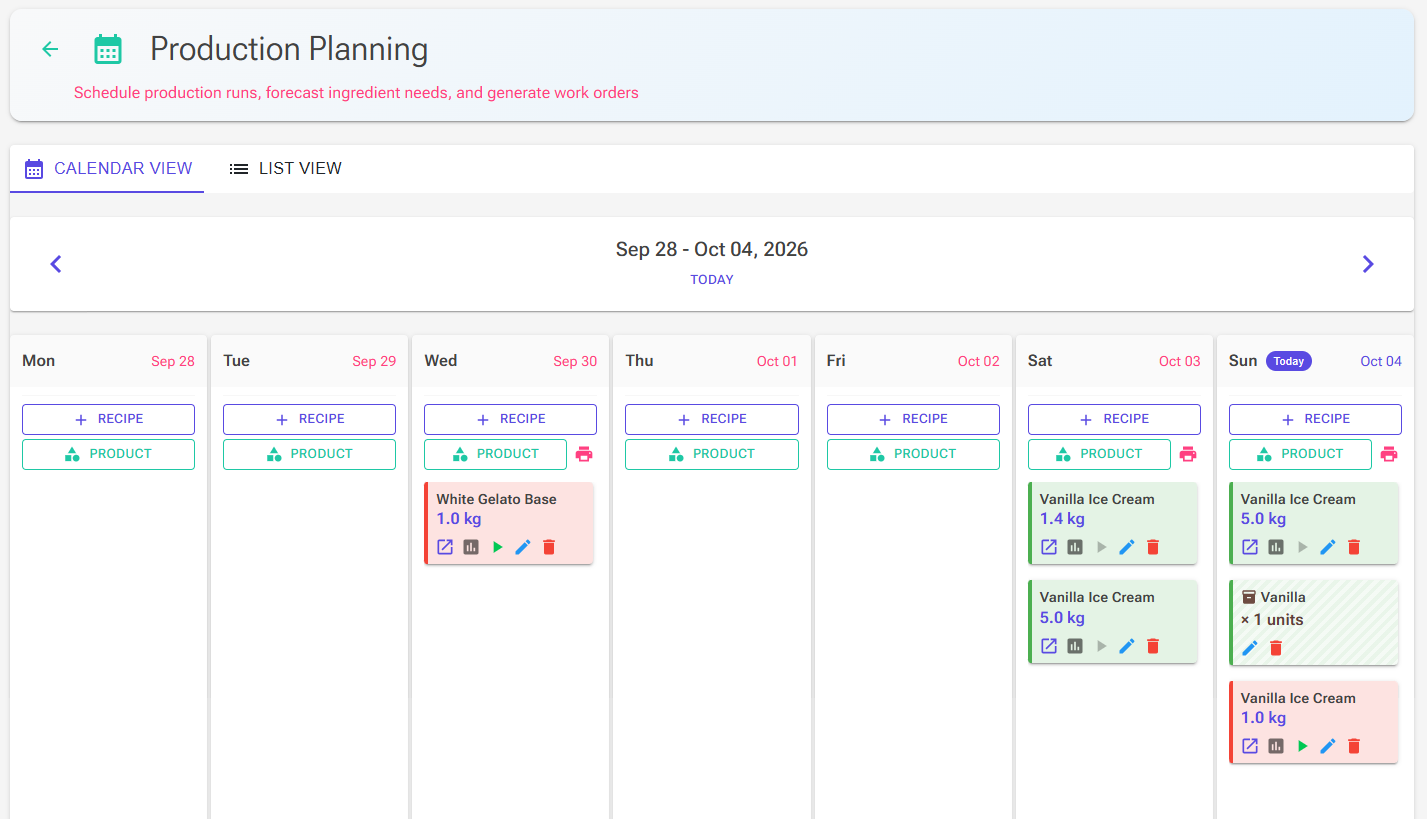
The Calendar View displays a full week from Monday to Sunday, with each day shown as a column. Use the left and right arrow buttons to navigate between weeks, or click the “Today” button to jump back to the current week. Today’s column is marked with a Today chip. On smaller screens the days wrap into fewer columns, down to a single column on a phone.
Each day column holds two kinds of cards:
- Recipe plans — the recipe name and the planned quantity in kilograms.
- Packing tasks — a box icon, the product name and the number of units to pack (see Planning Products below).
Hovering over a card reveals a tooltip with container details, notes, and production status. Double-click a card to edit it.
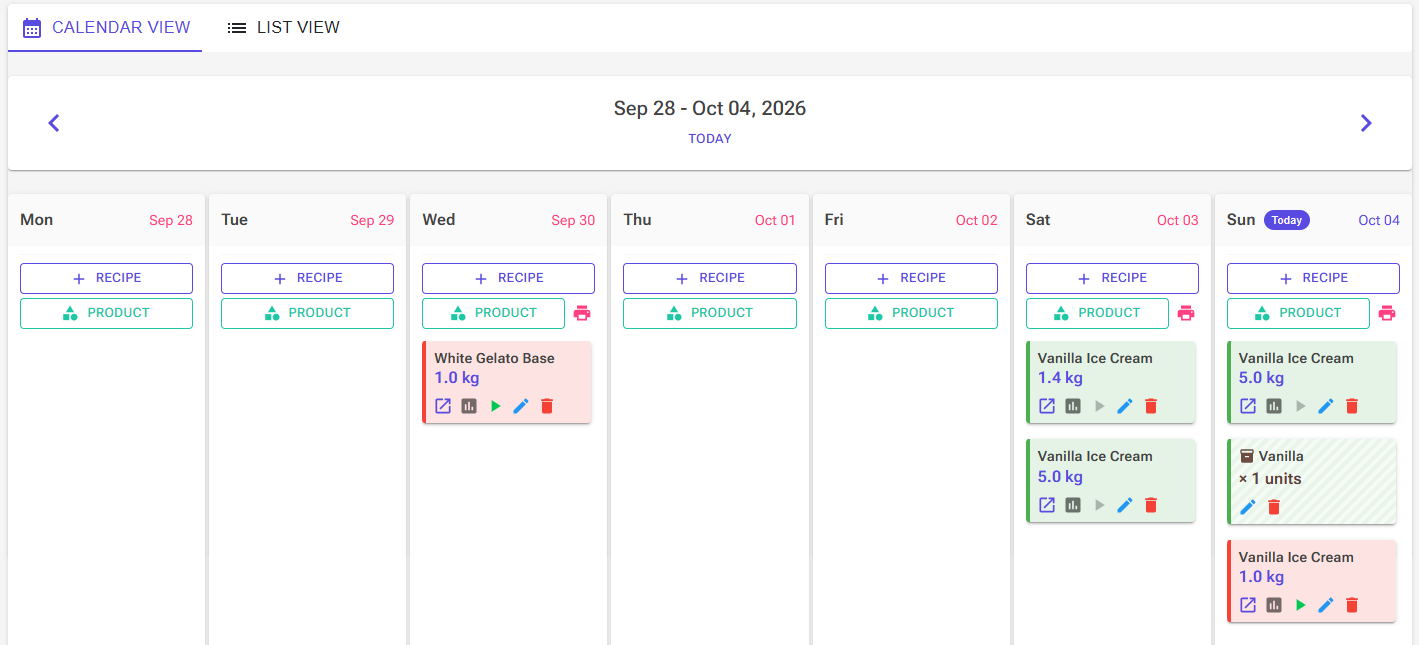
At the top of each day column you will find two buttons: Recipe adds a recipe plan, and Product adds a product (a packing task plus the recipe plans it needs). When a day has cards, a Work Order icon (a printer) also appears, allowing you to generate a work order for that day’s production.
Moving and Reordering Cards
Cards move by drag and drop. Drag a card up or down within a day to set your production sequence, or drop it on another day to reschedule it. The new order and date are saved straight away, and the order within a day is the order used on the work order.
Card Buttons
Each recipe plan card provides several action buttons along its bottom edge:
- Open recipe — opens the recipe in the Recipe Editor
- View ingredient forecast — switches to List View for that week with only this plan selected
- Mark as produced (play button) — start production from this plan, which takes you to the Produce page with the planned quantity pre-filled
- Edit plan — open the edit dialog to change the date, quantity, notes, or containers
- Delete plan — remove the plan after a confirmation prompt
Packing task cards have Pack (hidden once the task is packed), Edit packing task and Delete packing task.
When unproduced plans depend on each other through a recipe-derived ingredient (for example a base mix made from one of your own recipes), extra icons appear on the right of the card. Depends on other plans lists the plans, on the same day or earlier, that produce an ingredient this plan needs. Other plans depend on this lists the plans, on the same day or later, that use what this plan produces.
Card Colours
- Red — planned, not started yet
- Amber — in progress: at least one ingredient has been ticked on the Produce page checklist
- Green — produced
Packing task cards are striped: red until the task is packed, green once it is packed. Once a plan is marked as produced, its Mark as produced button is disabled.
Adding a Production Plan
To add a new plan, click the Recipe button on the desired day in Calendar View. The process follows several steps to ensure your plan is complete and accurate.
- The Select Recipe dialog opens. Search for and select the recipe you want to produce, then click Add.
- A plan is created for one batch: the quantity is set to your recipe’s mix weight in kilograms.
- The Edit Production Plan dialog opens immediately so you can refine the planned date, quantity, containers and notes before clicking Save.
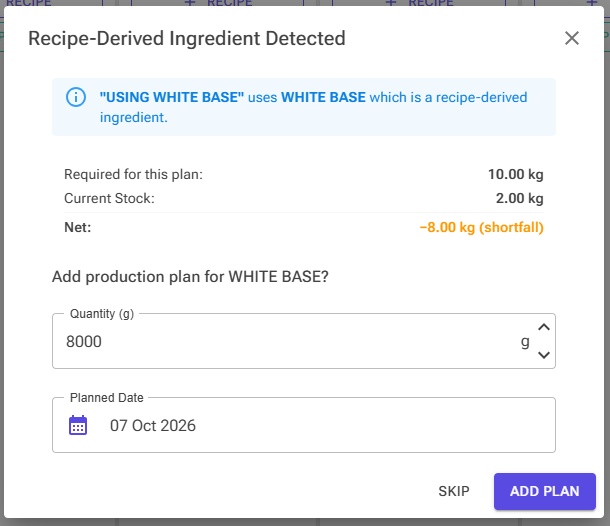
- After you save, the app checks whether the recipe uses a recipe-derived ingredient (such as a base mix made from one of your own recipes). For each one it finds, the Recipe-Derived Ingredient Detected dialog opens (see below).
If you cancel the Edit Production Plan dialog, the new plan is deleted again. This ensures you never end up with incomplete or unintended plans on your calendar.
Recipe-Derived Ingredients
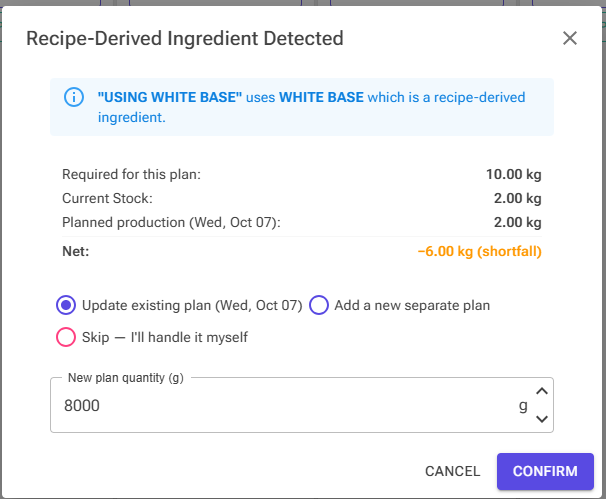
The dialog summarises the ingredient: how much this plan needs, how much other unproduced plans up to the same date need, your current stock, any planned production of its source recipe, and the Net result as a surplus or shortfall. Only ingredients made from your own recipes are checked.
All these amounts are the finished weight of the ingredient, after cooking: a planned batch of its source recipe counts for what it will yield after evaporation. The quantity you enter is finished weight too. For a source recipe with evaporation, a note under the quantity shows the mix weight the plan will get, for example “After evaporation. The plan will be 1.00 kg of mix.” for 800 g of a caramel that loses 20% when cooked. If you do not track stock for the ingredient yet, the check starts tracking it at 0.
- No plan for the source recipe yet (between today and this plan’s date): the dialog suggests a plan for the shortfall, dated the day before this plan (or today, if that day has passed). Adjust the quantity and date, then click Add Plan, or click Skip. When your stock already covers the need, the dialog says so, and you can still add more.
- A plan for the source recipe already exists: choose Update existing plan (pre-filled with enough to cover all plans), Add a new separate plan, or Skip — I’ll handle it myself, then click Confirm.
Containers and Volume Calculation
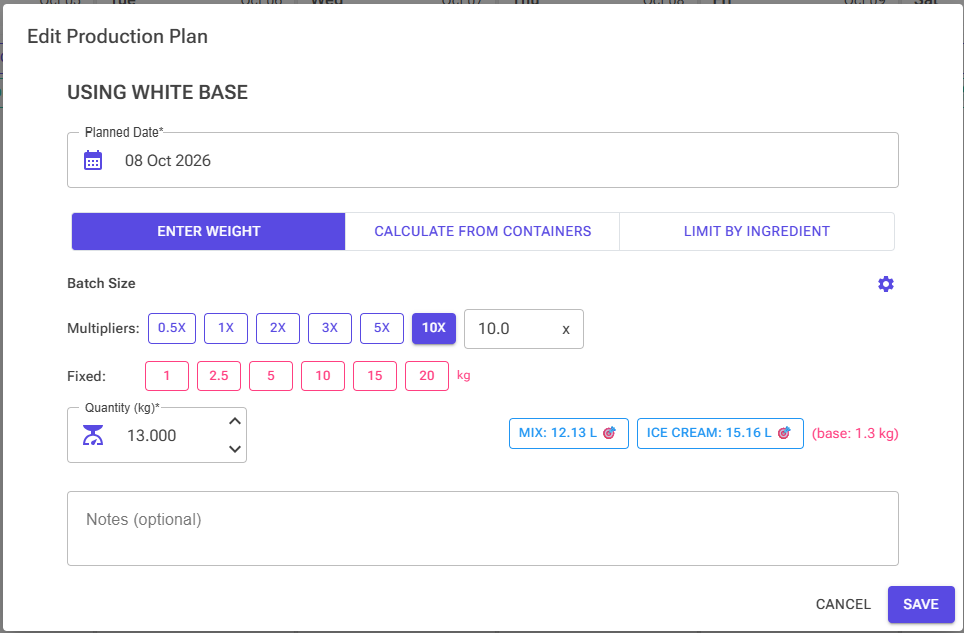
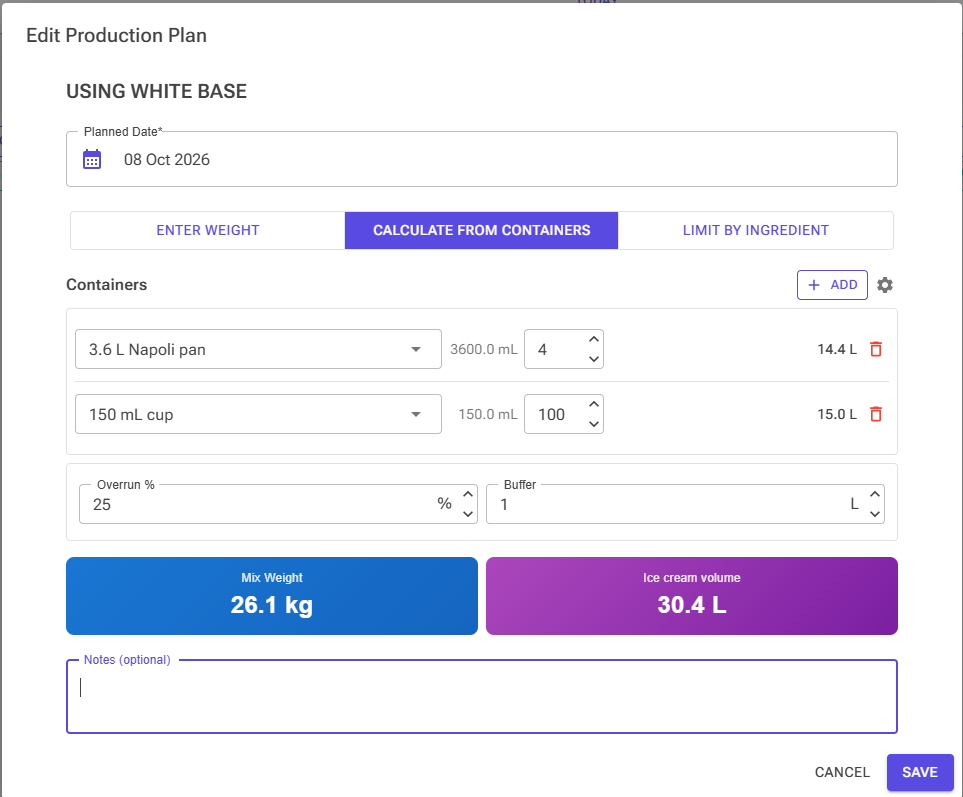
When editing a plan, you can specify your production quantity in three ways, chosen with the toggle at the top of the dialog. The Enter Weight mode lets you type a weight in kilograms directly, with batch multiplier buttons and fixed-weight presets for quick entry. The Calculate from Containers mode lets you work backward from the containers you need to fill. The Limit by Ingredient mode sizes the batch from the stock of one ingredient.
Weight Entry Mode
In weight mode, you see a row of multiplier buttons (such as 0.5x, 1x, 2x, 3x, 5x, 10x) that scale your recipe’s base weight, shown as “base: X kg”. Below that, fixed weight buttons let you jump to common batch sizes like 1 kg, 5 kg, or 10 kg. You can also type a custom multiplier or weight directly.
A settings panel (accessed via the gear icon) lets you customize both the multiplier and fixed-weight presets to match your typical production sizes. These settings are saved per user and persist across sessions.
If your recipe has density and volume data, you will also see volume target buttons for mix volume and ice cream volume. Clicking these opens a dialog where you can specify a target volume, and the system calculates the required batch weight accounting for overrun and evaporation.
Container Calculation Mode
In container mode, you build a list of containers to fill. Click “Add” to add a container row, then select a container type from the dropdown. Containers can be either preset types (system-defined sizes like 5L) or custom types that you define yourself through the container management dialog (the gear icon next to Add).
For each container row, you select the container size and specify a quantity. The system displays the total volume per row. Overrun % starts at the recipe’s own overrun (or your Settings default when the recipe has none), and you can change it for this plan. Buffer adds extra volume, in litres (quarts if you use US units), on top of the containers to account for waste or spillage.
The dialog shows two calculated results: the Mix Weight you need to prepare, and the total Ice cream volume (containers plus buffer). The mix weight calculation accounts for overrun, density, the space taken by inclusions, and evaporation from your recipe settings.
Limit by Ingredient Mode
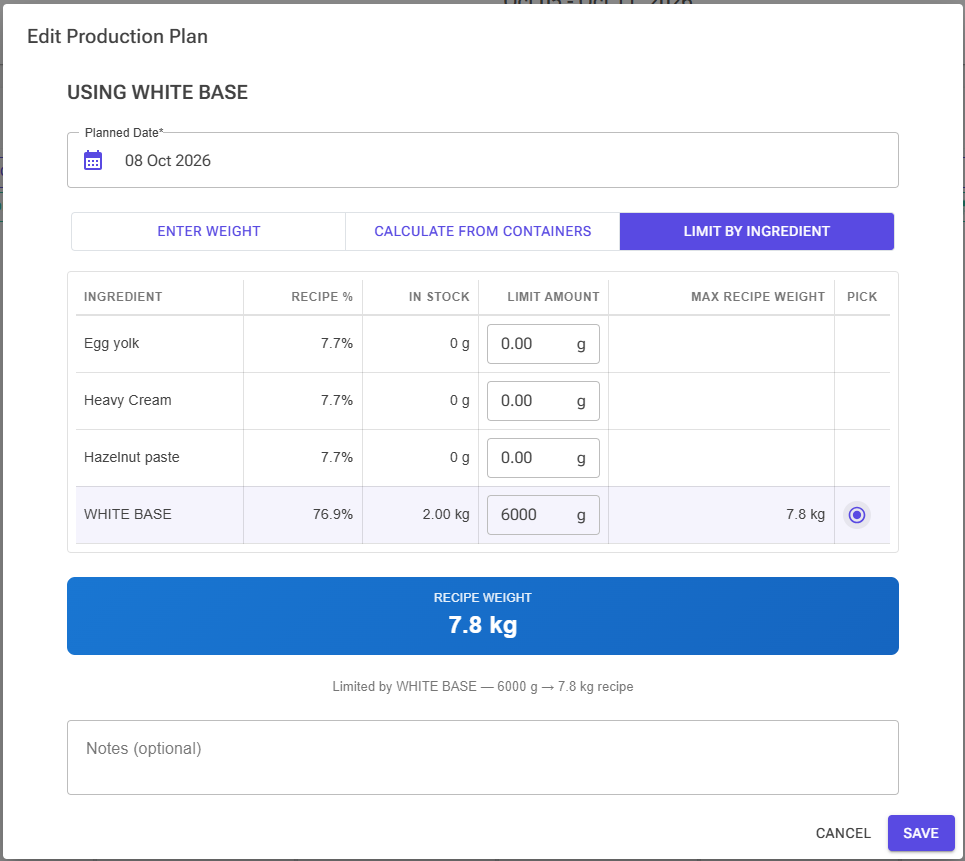
Use this mode when one ingredient limits how much you can make, for example the last tray of a fresh fruit purée. The dialog lists every ingredient of the recipe with:
- Recipe % — its share of the mix weight
- In Stock — your current stock, or N/A if you do not track the ingredient
- Limit Amount — how many grams you want to use, pre-filled with your stock
- Max Recipe Weight — the largest batch that amount allows
- Pick — the ingredient that sets the batch size
The ingredient that allows the smallest batch (the bottleneck) is highlighted and picked for you. Pick another row or type your own limit amount, and the result box shows the Recipe Weight with a line such as “Limited by Strawberry purée — 1500 g → 7.5 kg recipe”.
Fixed Batch Size
If a recipe has Fixed Batch Size switched on in its Recipe Properties, the dialog shows a Fixed Batch Size chip next to the recipe name. Saving a quantity that differs from the recipe’s batch size, in any mode, asks you to confirm with Yes, change size.
Planning Products
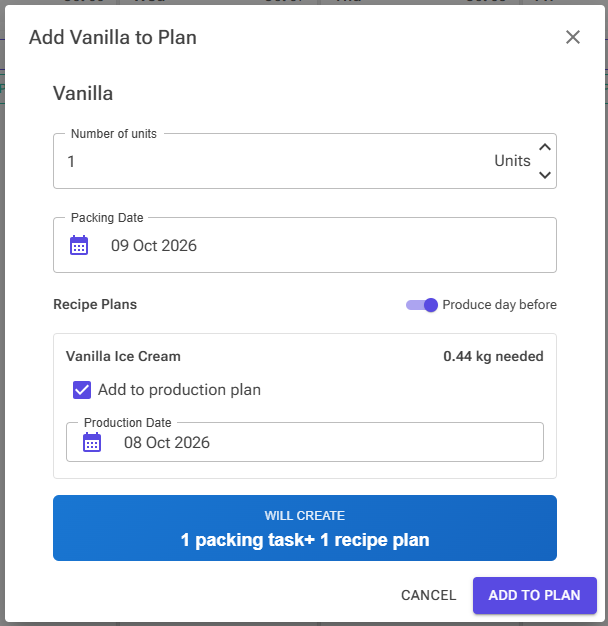
A product is a packed item, such as a 500 mL tub, defined in Product Definitions with one or more recipes per unit and its packaging (see Products and Packing). Planning a product creates a packing task on the packing day, plus the recipe plans needed to fill it.
- Click Product on the day you want to pack.
- Pick the product from the list (search or filter by category if needed) and click Select.
- Enter the Number of units and check the Packing Date.
- Under Recipe Plans, each recipe of the product shows how much mix is needed in kg. Leave Add to production plan ticked to plan it, and check its Production Date. The Produce day before switch, on by default, sets the production dates one day before the packing date; the app remembers your choice.
- Click Add to Plan. The box above the button shows what will be created, for example “1 packing task + 2 recipe plans”.
If an unproduced plan for the same recipe already exists in the week you are viewing, the dialog shows it (“Existing plan: 6.0 kg on Tue”) and lets you choose Increase existing plan to X kg (selected by default) or Create new plan. A summary compares the total demand of all packing tasks that week with the existing plan and shows the net surplus or shortfall. Recipes with a fixed batch size are marked “Fixed batch size — will be scaled”.
For a product measured in mL, the mix needed is converted from the unit volume using the recipe’s overrun, density, inclusions and evaporation. For a product measured in g, it is the grams per unit multiplied by the units, divided by (1 − the recipe’s evaporation), because the grams are finished ice cream without add-ins. Production System – Weight, Volume & Overrun explains the conversion.
New recipe plans get a note such as “Tub 500 mL × 40” and go through the same recipe-derived ingredient check as any other plan.
When the batches are produced, click Pack on the packing task card. The Pack Product dialog opens with the product and units filled in, and when you confirm, the card turns green. Use Edit packing task to change the date, units or notes. Changing the units there does not change the recipe plans; the dialog shows whether the existing plans still cover the total demand.
List View and Ingredient Forecast
Switch to the List View tab when you need to see plans across a broader date range and forecast ingredient requirements. The top of the page provides quick range buttons: This Week, Next Week, Next 2 Weeks, and This Month. You can also set a custom date range using the start and end date pickers.
The plan list sits at the top, with the Ingredient Forecast below it. Each plan entry has a checkbox and displays the recipe name, date, planned quantity, and a “Produced” badge if the plan has already been completed. Use Select Unproduced to tick every plan that is not produced yet, Select All to tick them all, or Clear to untick them.
Packing tasks in the range are listed under the plans, under Packing Tasks. They have no checkbox: packing uses produced batches rather than raw ingredients, so packing tasks do not add to the forecast.
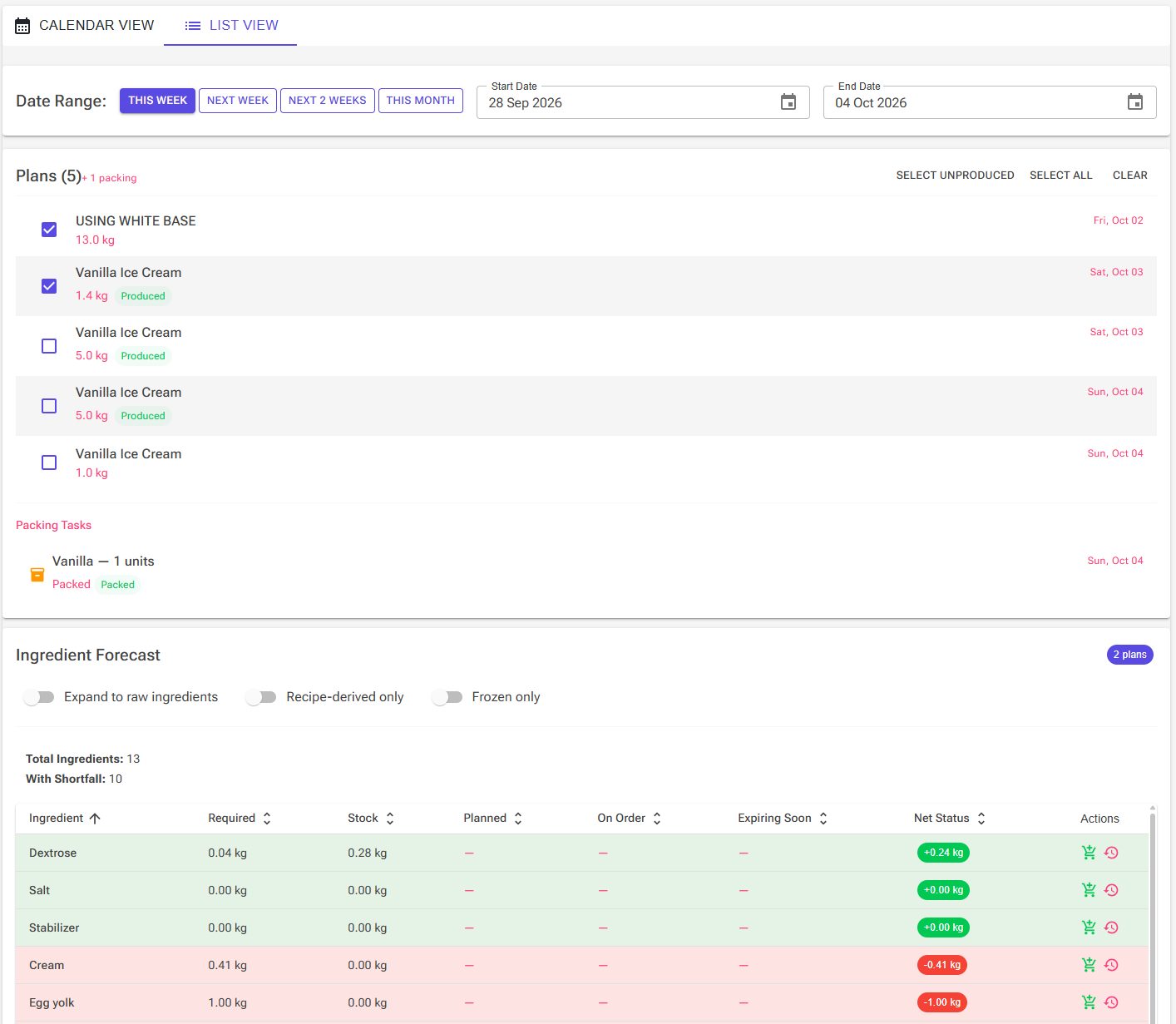
The Ingredient Forecast updates automatically as you select or deselect plans. The forecast aggregates all ingredients required across your selected plans and compares them against your current stock levels. Three switches sit above the table:
- Expand to raw ingredients — breaks recipe-derived ingredients (such as base mixes) down into their component ingredients, giving you a complete picture of raw material needs. Stock you already hold of the derived ingredient is used first; only the remainder is broken down. A derived ingredient that leads back to a recipe already being broken down (for example a recipe that uses its own derived ingredient) is not broken down again and stays a row of its own.
- Recipe-derived only — shows only recipe-derived ingredients.
- Frozen only — shows only ingredients whose stock item is stored frozen.
To see the forecast for a single plan, click View ingredient forecast on its calendar card.
Understanding the Forecast Table
The ingredient forecast table is sortable by any column and provides a comprehensive view of your supply situation. Each row represents one ingredient across all selected plans, and all quantities are shown in kilograms.
The table columns are:
- Ingredient — the ingredient name; a snowflake icon marks stock stored frozen and a fridge icon marks stock stored chilled
- Required — the total quantity needed across all selected plans, including each recipe row’s waste factor
- Stock — your usable stock; expired lots are not counted
- Planned — for a recipe-derived ingredient, what its source recipe’s unproduced plans (from today up to the last selected plan’s date) will yield after evaporation
- On Order — quantity currently on order from suppliers but not yet received
- Expiring Soon — stock in lots that expire within the next 7 days; hover over this value to see individual lot details including quantity, expiry date, and supplier name
- Net Status — your overall supply position for this ingredient
- Actions — quick buttons to add stock (Quick Add Stock) or view stock details and movement history
The Net Status column shows a coloured chip with Stock + On Order + Planned − Required, in kg:
- Green, +X kg — you have enough stock on hand
- Amber, +X kg — current stock is insufficient, but on-order stock and planned production cover the shortfall
- Red, −X kg — you are short even after accounting for orders and planned production
Each row is tinted in the same colour, and the rows are grouped: green first, then amber, then red. Within each group, rows follow the column you sort by. A summary at the top shows the total number of ingredients and how many have a shortfall (amber and red rows).
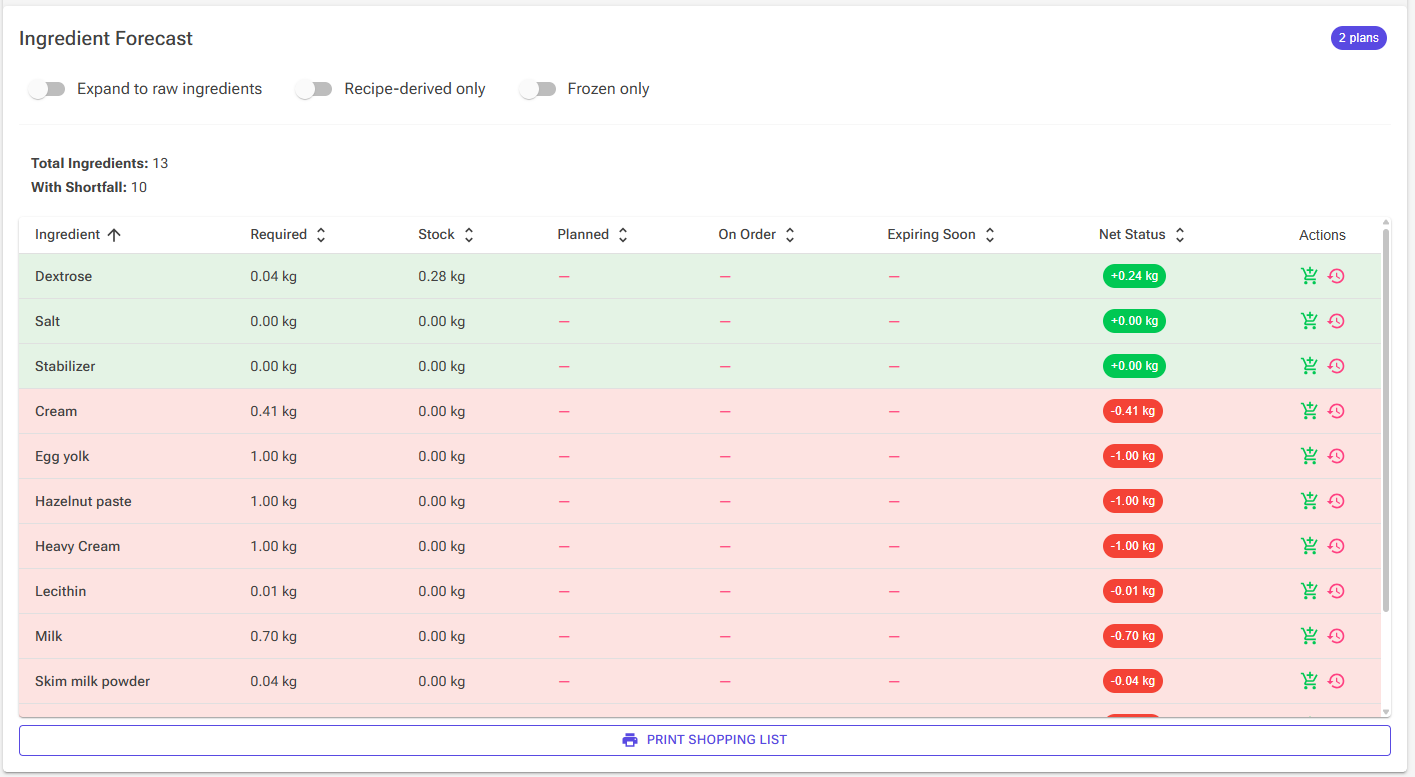
Use the Print Shopping List button at the bottom to generate a printable list with Required, Stock and To Buy for every ingredient of the selected plans. To Buy is Required minus Stock: quantities on order are not subtracted, and the switches above the table do not filter the printout, so check the On Order column before you place orders.
Note: the Shopping List card on the Tools page is a separate, free tool. It totals the ingredients of recipes you pick and does not look at your stock or your plans.
Producing from a Plan
When you are ready to produce, click the Mark as produced (play) button on a plan card in Calendar View. This navigates you to the Produce page with the recipe and planned quantity pre-filled, so you can begin logging your production immediately.
Instead of the usual Batch Size card, the Produce page displays a Planned Production card with:
- the planned quantity and, for a recipe with evaporation, the weight left after cooking (“→ X kg after evaporation”)
- Buckets — split the mix across up to 20 mixing buckets. Every ingredient then shows its weight per bucket, and the card shows the volume each bucket holds. The number of buckets is saved with the plan.
- the plan’s containers — tap a container to mark it filled while you work (these ticks are not saved)
- Plan Notes, if the plan has notes
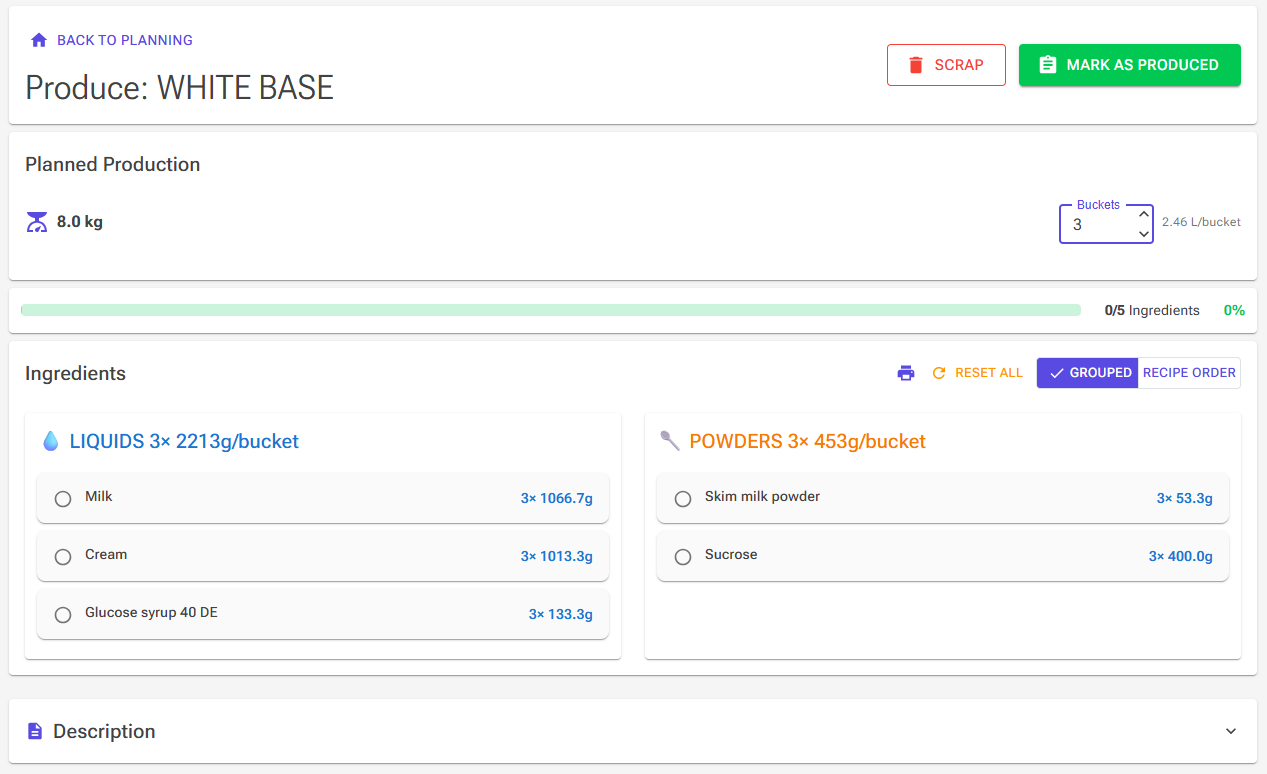
Ingredients you tick on the checklist are saved with the plan, so you can leave the page and continue later; the plan card turns amber on the calendar. When you click Mark as produced on the Produce page and complete the production dialog, the batch is logged, the plan is marked as produced, and you are returned to the Planning page. If you Scrap the batch instead, the saved progress is cleared and the plan stays unproduced. See Production Logging for the production dialog.
Produced plans remain visible on the calendar in green so you can track what has been completed. The Mark as produced button is disabled for completed plans to prevent accidental changes.
Work Orders
To generate a work order, click the Work Order icon (printer) at the top of a day column in Calendar View. The system compiles all recipe plans for that day, in calendar order, into a single report. Packing tasks are not included.
The default Daily Production List template includes the following information:
- Production date and a summary (number of recipes and total quantity)
- A table of the day’s recipes with quantity and containers
- Details for each planned recipe, including plan notes and scaled ingredient quantities with percentages
- Each recipe’s instructions as a Method section, when the recipe has instructions (see Recipe Instructions)
The default template does not print a combined ingredient list for the whole day. The data for one is available if you build your own template.
The report opens in a dialog where you can preview it and print or save it. Work orders use the app’s HTML report template system, so they follow the same formatting as other generated reports.

Importing Plans from the Desktop App
If you used the Ice Cream Calculator desktop app, you can bring its scheduled production runs into Planning. Production plans are not part of the one-step desktop migration; use the advanced import instead (see Desktop Migration Guide).
- Import your recipes first. Plans are matched to your web recipes by name.
- Upload your desktop database on the Import from Desktop page (the Import from Desktop card on the Tools page, or Advanced import on the migration page). When the database contains plans, click Import Plans (N).
- The Import Production Plans page shows Total Plans, Recipe Matched and Unmatched (will skip), and lists any desktop recipes it could not find.
- Tick the plans to import, or use Select all matched and Deselect all. Each row shows the date, the desktop recipe name, the match, the quantity, the status (Produced or Planned) and the notes.
- Click Import N Plan(s), then Open Planning.
Recipe names are matched regardless of upper and lower case; if two of your recipes share a name, the most recently changed one is used. Plans that were produced in the desktop app stay marked as produced. Importing the same file twice adds the plans twice.
Tips
- Drag cards within a day to set the production sequence for each day — this order is also reflected in work orders.
- If your recipe uses a base mix made from your own recipe, let the Recipe-Derived Ingredient Detected dialog that follows saving add or update the base plan for you, the day before.
- Use Select Unproduced in List View to forecast only what is still to be made.
- In the ingredient forecast, enable Expand to raw ingredients before printing your shopping list to ensure you account for all raw materials, especially when producing base mixes in-house.
- Customize your batch multiplier and fixed-weight presets in the edit dialog settings to match your standard production sizes for faster plan entry.
- Use the Quick Add Stock button in the forecast table to record incoming deliveries without leaving the Planning page.
- The container calculation mode is especially useful when you need to fill a specific number of tubs or pans and want the system to calculate the exact mix weight, factoring in overrun and evaporation.
- Use Limit by Ingredient when a seasonal or perishable ingredient decides how much you can make.
- Plan packed products with the Product button: with Produce day before on, the recipes are scheduled the day before packing.
- Check the Expiring Soon column in your forecast to prioritize using ingredients that are close to their expiry date.