The Production Logging system in Ice Cream Calculator tracks every batch you make, from scaling your recipe to reviewing analytics. This article covers the Produce page, the Production Log, and Production Analytics.
Logging batches is part of the Production system and needs Premium: Mark as produced, the Production Log and Production Analytics. On the Free plan you can still use the Produce page to scale a recipe and tick off ingredients as you weigh them.
Producing a Batch
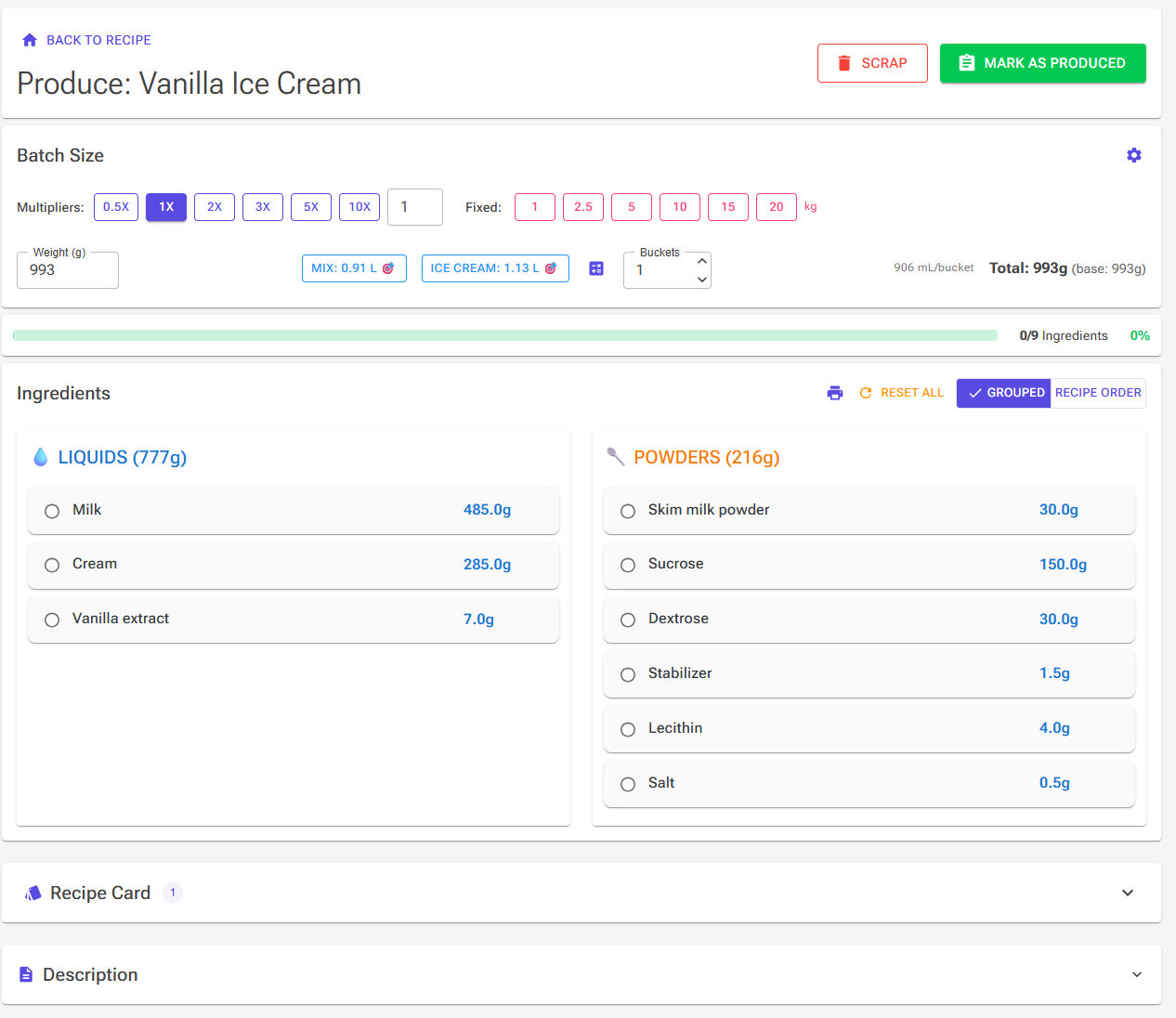
The Produce page is your primary production interface. To open it, click Start Production on the Recipe View, or choose Produce from the Recipe Editor's tools. You can also arrive here from the Planning page by clicking the play icon (Mark as produced) on a plan card, in which case the batch size and container information are pre-filled from your plan.
At the top of the page you will see the recipe name and a navigation button labeled either “Back to Recipe” or “Back to Planning.” Two buttons sit in the top-right corner on desktop: the red Scrap button for a failed batch (see Scrapping a Failed Batch) and the green Mark as produced button. On phones and smaller tablets, both appear as floating buttons at the bottom of the screen.
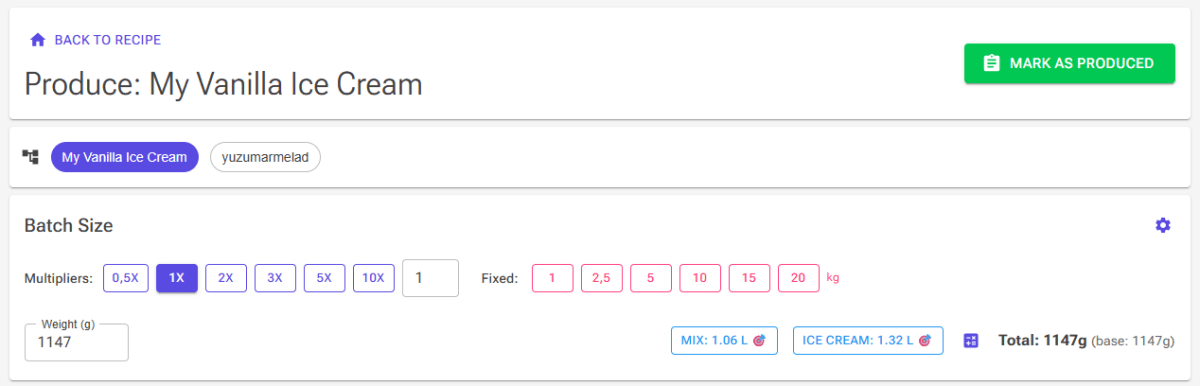
If your recipe uses sub-recipes (derived ingredients such as a pastry base or a sauce), a navigation bar of chips appears below the header. Click any chip to switch between the main recipe and its sub-recipes while staying in the same production session.
Setting Your Batch Size
The Batch Size card gives you several ways to scale your recipe. Choose whichever method best matches how you work in your kitchen or production facility.
Multiplier buttons let you scale relative to the base recipe, with default slots of 0.5x, 1x, 2x, 3x, 5x, and 10x. The active multiplier appears as a filled button, and a custom multiplier field lets you enter any arbitrary scale factor.
Fixed weight buttons set the total batch to a specific weight, with defaults of 1 kg, 2.5 kg, 5 kg, 10 kg, 15 kg, and 20 kg. A custom weight field (in grams) lets you enter any exact target weight.

Volume target buttons appear when your recipe includes volume data, showing labels like “Mix: 1.2L” and “Ice Cream: 1.8L.”
The container calculator (calculator icon, “Calculate from Containers”) opens the Calculate Production Weight dialog. Add one or more container rows, each a preset size or a custom size (mL, fl oz, L, qt or gal) with a quantity. Adjust the overrun percentage if needed, and add an optional Buffer as a waste or safety margin. The dialog works out the required mix weight; click the Apply button (for example “Apply 4.2 kg”) to scale the batch to it.
At the bottom of the card, a summary line shows Total weight in grams, the base recipe weight in parentheses, and any add-in weight separately. For example: “Total: 5000g (base: 4200g) + 800g add-ins.”
Customizing Your Presets
Click the gear icon in the Batch Size card to open the settings panel where you can customize all six multiplier slots and six fixed weight slots. The 1x multiplier slot cannot be changed.
- Click the gear icon to expand the settings panel.
- Edit the multiplier values (the 1x slot is locked).
- Edit the fixed weight values in kilograms.
- Click Save Settings to keep your changes, Reset to Defaults to restore originals, or Cancel to discard edits.
Your customized presets are saved to your account and persist across sessions.
Splitting the Mix into Buckets
If the batch is too big for one bucket or one machine run, set Buckets (1 to 20; called Mixing buckets on a phone). Each ingredient then shows its weight per bucket, for example “3× 412.5g”, and each group header shows the group weight per bucket. When the recipe has volume data, the volume per bucket appears next to the field, including add-ins and before churning, so you can check that it fits your bucket.
The bucket count resets when you leave the page, except when you produce from a plan: then it is saved with the plan.
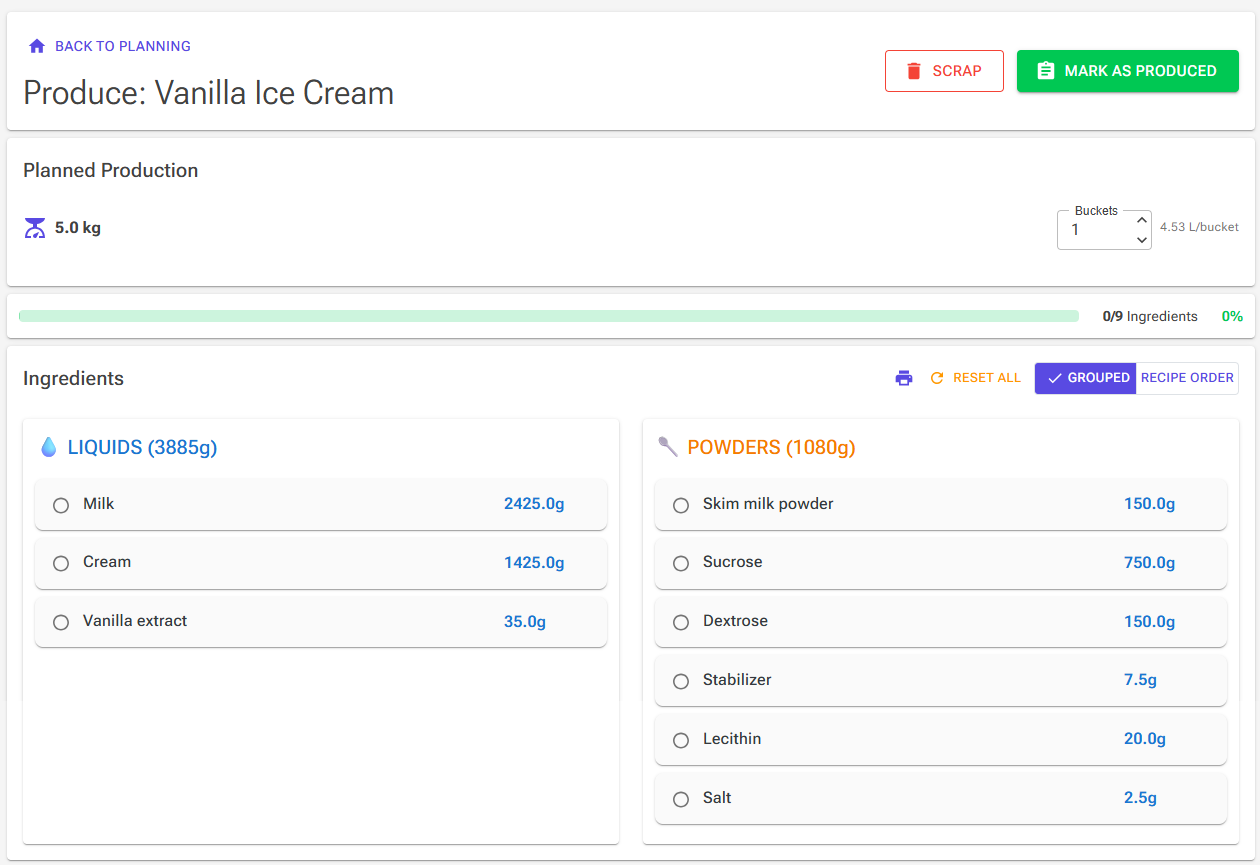
Planned Production
When you arrive at the Produce page from the Planning page, the Batch Size card is replaced by a Planned Production card. This card displays the planned quantity in kilograms, the Buckets field, and any plan notes.
If your plan includes containers, they appear as clickable cards. Tap each container to toggle it between unchecked and checked (filled) state as you work through your production run. This gives you a visual record of which containers have been filled.
The ingredients you tick off are saved with the plan, so you can leave the page and pick up where you left off.

The Ingredient Checklist
Below the batch size controls, a progress bar tracks how many ingredients you have checked off, showing both a count (e.g., “4/12 ingredients”) and a percentage.
The ingredient list supports two display modes via the Grouped and Recipe Order toggle. Grouped view organizes ingredients into categories, while Recipe Order shows them in the sequence they appear in your recipe, with an Inclusion or Infusion chip on add-ins.
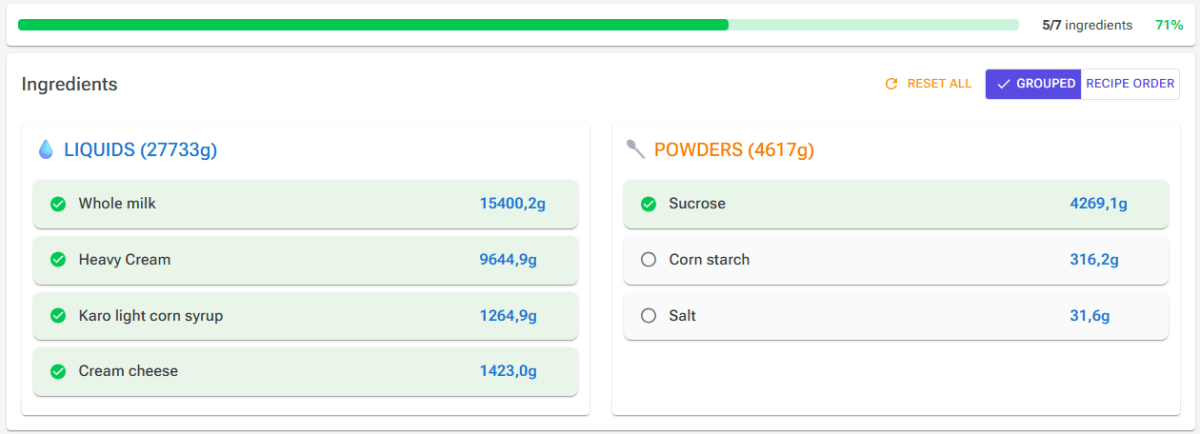
In Grouped view, ingredients are sorted into categories with emoji labels and subtotal weights:
- Liquids — milks, creams, water, liquid sweeteners
- Powders — sugars, milk powders, stabilizers
- Inclusions — chocolate chips, cookie pieces, fruit chunks
- Infusions — vanilla beans, tea leaves, spices (listed in the same card as the inclusions)
Each group header shows the combined weight for that category. To mark an ingredient as weighed, click or tap its card and a green checkmark appears; click again to uncheck. The Reset All button clears every checkmark at once.
Each ingredient card shows the ingredient name and its scaled weight in grams. The weight automatically reflects your selected batch size, so you always see the exact amount to weigh.
Lot hints. If you track stock in lots, an ingredient card can show which lots to use, for example “Use lot: Valrhona #L2291 (800g), exp Mar 14 (200g)”. The hints follow the same order as stock deduction (FEFO, soonest expiry first; see Which Lots Are Used) and skip expired lots. A lot appears in a hint only when it has a supplier, a lot number or an expiry date.
Expired stock. When any ingredient in the recipe has expired lots, a warning at the top of the page tells you how many, and that expired stock will not count as available during production.
Printing, Instructions and Recipe Cards
The print icon in the Ingredients header prints the recipe with the current batch weights, so the printout matches the batch you are making.
Below the checklist, the Produce page shows panels with the recipe's own content. Each appears only when the recipe has that content:
- Instructions — the recipe's method, open by default. It is read-only here; you edit instructions in the recipe. See Recipe Instructions.
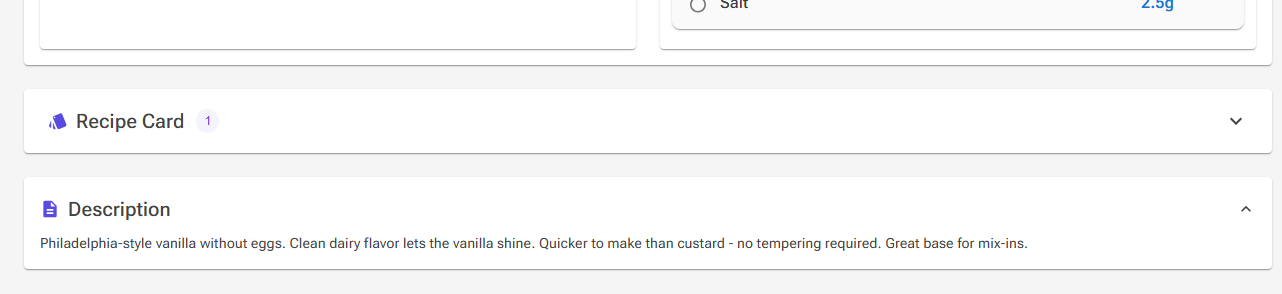
- Recipe Card — the recipe cards available for this recipe. When there is more than one, chips let you switch between them. See Recipe Cards.
- Description and Notes — the recipe's description and notes, collapsed by default.
Marking as Produced
Once you have finished your batch, click the green Mark as produced button. On desktop this is in the top-right corner of the page header. On mobile, it appears as a floating action button. Logging a batch needs Premium; on the Free plan the button opens an upgrade dialog instead.
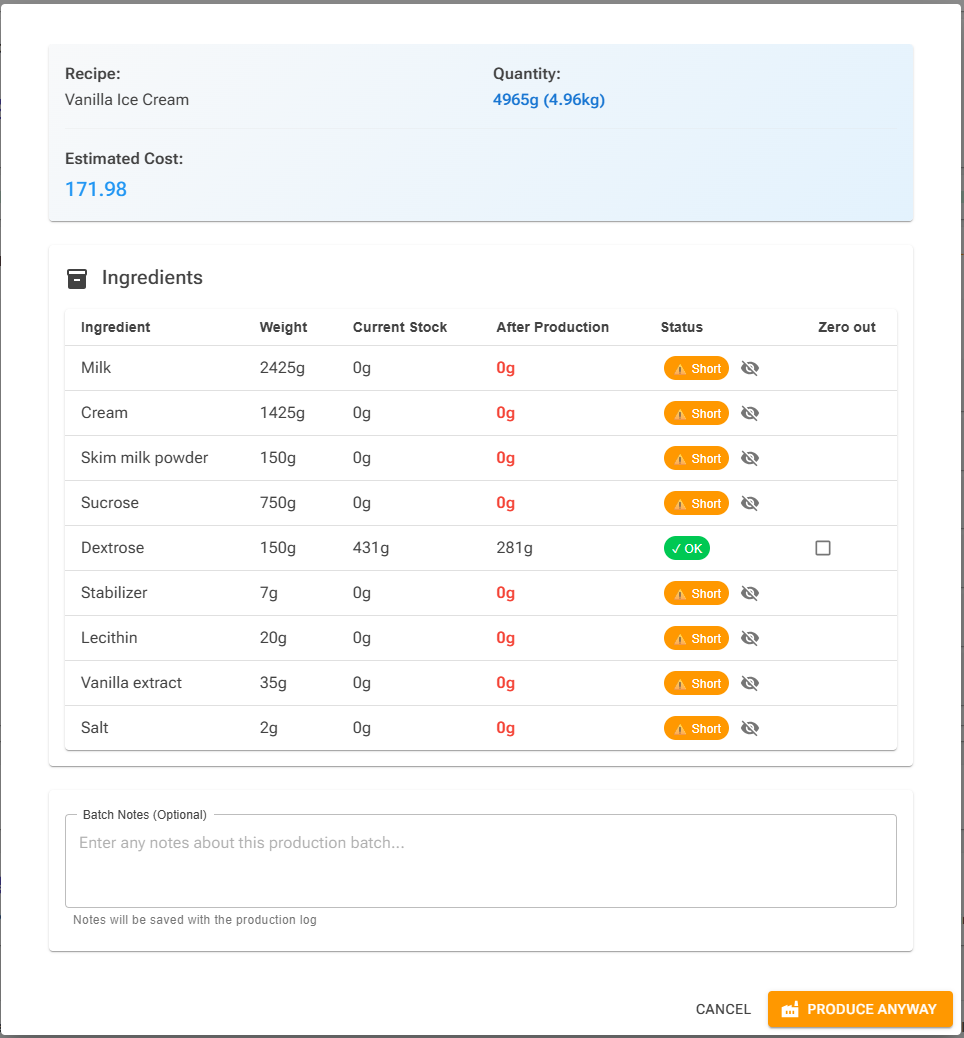
This opens the production dialog. The top shows the recipe, the quantity and the estimated cost, which uses each ingredient's current cost per kg in stock. Below it, an ingredient table (cards on a phone) lists each ingredient's weight, current stock, stock after production and status.
Reading the Ingredient Table
- Weight — the amount that will be deducted from stock. If the recipe row has a waste factor, a second line shows the recipe weight plus the waste, for example “500g + 10% waste”.
- Current Stock and After Production — the available stock before and after this batch. Expired stock is not counted as available, and a warning above the table tells you when this applies.
- Status — see the table below.
- Zero out — tick this to use up all remaining stock of an ingredient, for example the last bit of an opened bag that you throw away. The row then shows the discarded amount.
| Status | Meaning |
|---|---|
| OK | There is enough stock for this batch. |
| Short | There is not enough stock. You can still produce: the confirm button changes to Produce Anyway. The eye icon next to the chip hides the low-stock warning for that ingredient, in later runs too; click it again to bring the warning back. |
| Auto-tracked | The ingredient is not in stock tracking yet. It is added to stock tracking at 0 g when you confirm. |
| Produced | The recipe-derived ingredient that this recipe makes. Its stock goes up instead of down. |
| Expired: N g | An extra red chip when part of the ingredient's stock has expired. |
Which Lots Are Used
Stock is deducted lot by lot in FEFO order (first expired, first out): the lot that expires soonest is used first, lots without an expiry date come after dated lots, and lots with the same date are used oldest first. Expired lots are skipped. The deducted amount includes any waste factor.
To use a different lot first, for example one that is already open, click Adjust lots under the ingredient name. Drag the lots into the order you want; the amounts are filled from the top down. Click Apply order, and the row shows “Lots reordered ✓”. Adjust lots appears only when the ingredient has at least two usable lots holding more than the batch needs, because otherwise the order makes no difference.
For more about lots, expiry and write-offs, see Stock Management.
Recipe-Derived Ingredients
If the recipe uses a recipe-derived ingredient (for example a base you make from another recipe), the dialog shows the checkbox Deduct base ingredients of recipe-derived ingredients. Tick it when the base was not logged as produced: the base recipe's ingredients are then deducted from stock instead of the derived ingredient itself, and each is labeled “via” followed by the base's name. Your choice is remembered for the next production run.
If the recipe you are producing is itself the source of a recipe-derived ingredient, that ingredient appears with the Produced status. When you confirm, its stock goes up by a new lot that carries the batch's cost per kg and, if the recipe has Best Before days, an expiry date. See Using a Recipe as an Ingredient.
Confirming the Batch
You can add optional Batch Notes; they are saved with the production log. Then click Confirm Production (or Produce Anyway if something is short). The system performs several actions automatically:
- Generates a batch code in the format YYYYMMDD-NNN (for example, 20260209-001).
- Deducts ingredient quantities from your stock, lot by lot as described above.
- Calculates and records the estimated batch cost based on ingredient prices.
- Creates ingredient usage logs for every ingredient in the batch.
- Creates lot usage records for traceability, so you can later see which lots went into the batch.
- Adds stock for the recipe-derived ingredient, if the recipe makes one.
If you arrived from the Planning page, confirming production also marks the plan as produced and navigates you back to the Planning view. A success message confirms the quantity that was recorded.
Rating the Recipe
After you log a batch from a recipe (not from a plan), a message asks “How did it turn out? Rate the recipe.” Click Rate to open the recipe rating. The prompt appears only if you have not rated the recipe yet. This recipe rating is separate from the batch's own quality rating in the Production Log. See Recipe Ratings.
Scrapping a Failed Batch
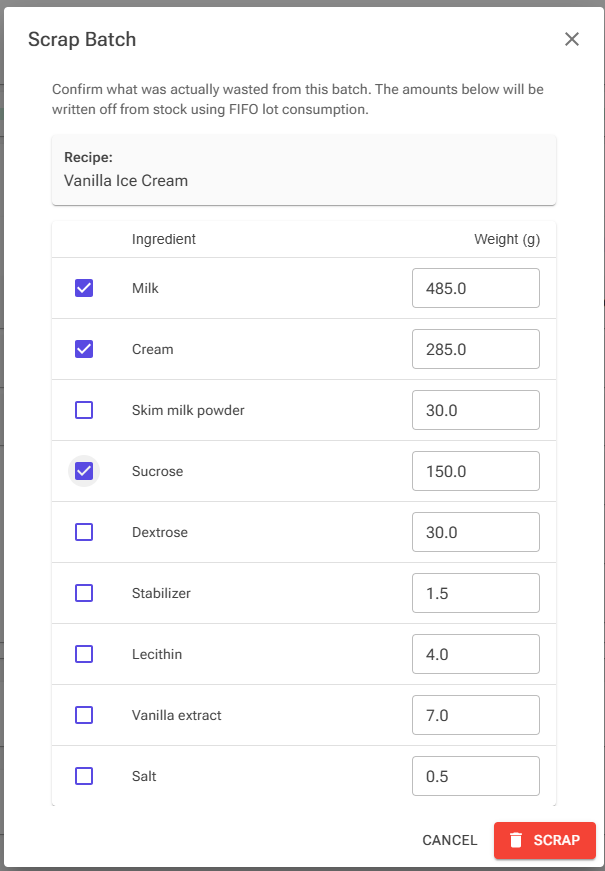
If a batch fails, click the red Scrap button instead of Mark as produced. The Scrap Batch dialog lists the recipe's ingredients with their batch weights. Ingredients you have already ticked in the checklist are pre-selected. Change the selection and the weights to what was actually wasted, then click Scrap.
The selected amounts are written off from stock as waste, lot by lot in FEFO order. Scrapping creates no Production Log entry and no batch code, and it clears the checklist. Ingredients that are not in stock tracking are marked Not tracked and cannot be selected.
Production Log
The Production Log page, opened from the Production Log card in the Production hub, is your complete production history. It shows every batch you have ever produced, with key details visible at a glance.
The header shows totals for your filtered results: the number of batches, total weight in kilograms, the number of recipes, total cost and total waste (cost and waste appear when there is data). These update automatically as you apply filters.
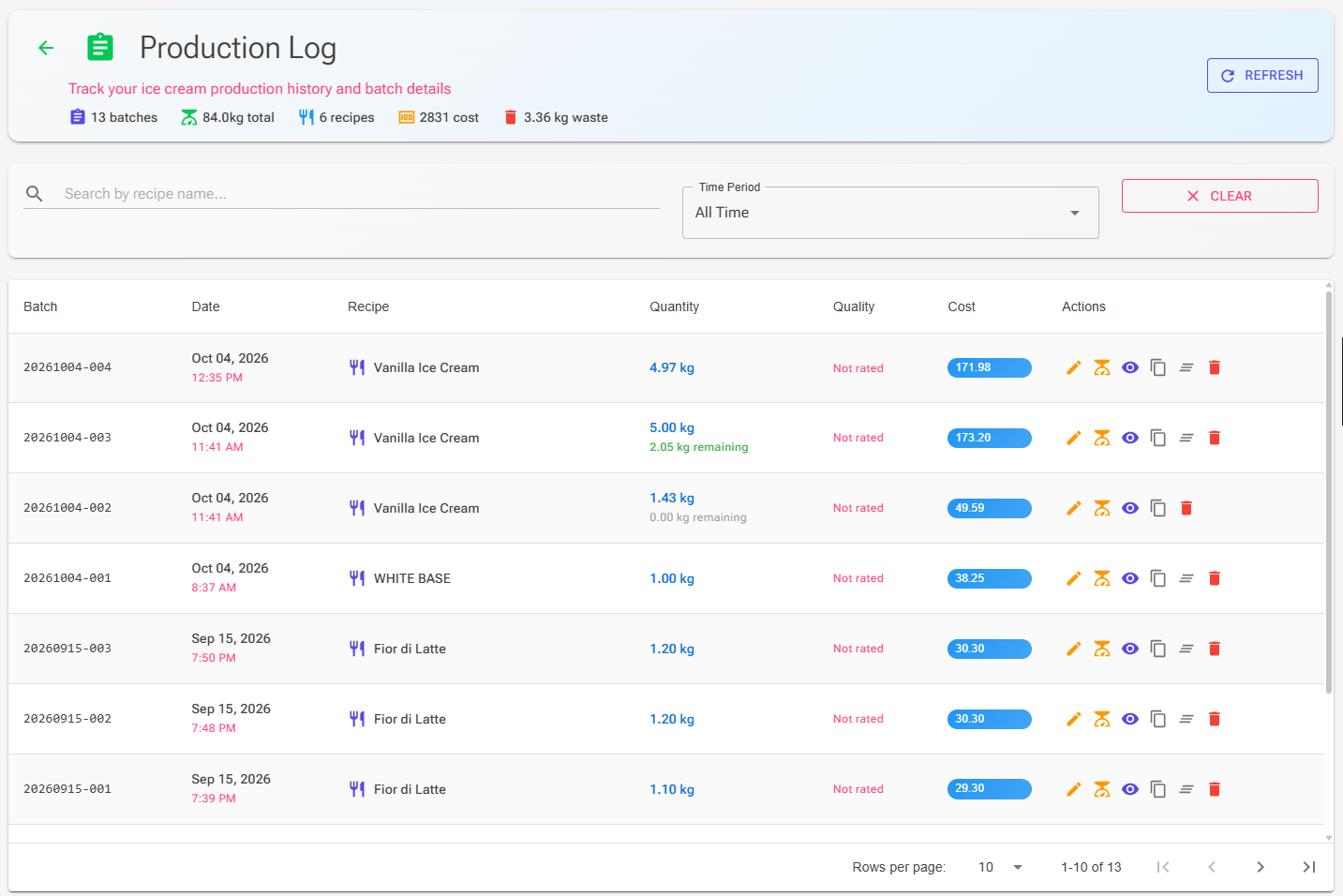
On desktop, production records appear in a table with the following columns:
- Batch — the batch code in monospace font for easy reading, with the operator name below it when recorded
- Date — when the batch was produced
- Recipe — which recipe was produced, with the start of the batch notes
- Quantity — in kilograms. Once you have packed products from the batch, a second line shows how much is left, for example “2.40 kg remaining”
- Quality — a star rating from 1 to 5, or “Not rated”
- Cost — estimated production cost for the batch
- Actions — see below
On mobile, the layout switches to compact cards optimized for smaller screens, and batches produced less than 24 hours ago are marked New.
Filtering Your Log
Use the search field to filter by recipe name. The time period dropdown (All Time by default) lets you narrow results to a specific window:
- Last Week
- Last Month
- Last 3 Months
- Last 6 Months
- Last Year
- All Time
- Custom Range (with date pickers, on desktop)
Active filters appear as chips that you can dismiss individually. Click Clear to remove all filters at once and return to the full view.
Actions on Each Batch
Each production record has these action buttons:
- Edit details (pencil icon) — opens the Edit Production Details dialog (see below)
- Correct quantity (scale icon) — fixes a batch that was logged with the wrong quantity, for example after using the wrong unit. Enter the corrected quantity in kg: ingredient usage, cost, yield and waste for the batch are rescaled proportionally, so your analytics reflect the corrected amount. Stock levels and lot movements are not changed, so adjust the affected stock manually if wrong amounts were deducted.
- View details (eye icon) — opens the Production Details dialog (see below)
- Copy to clipboard — copies the recipe name, production date and batch code, for example to paste onto a label
- Clear remainder — shown while part of the batch is still available for packing. It clears the rest, so the batch no longer appears as available for packing. The log entry stays in your records.
- Delete — permanently removes the production record. Stock levels are not adjusted.
To trace a batch back to its ingredient lots, open View details and use the Traceability tab.
Production Details
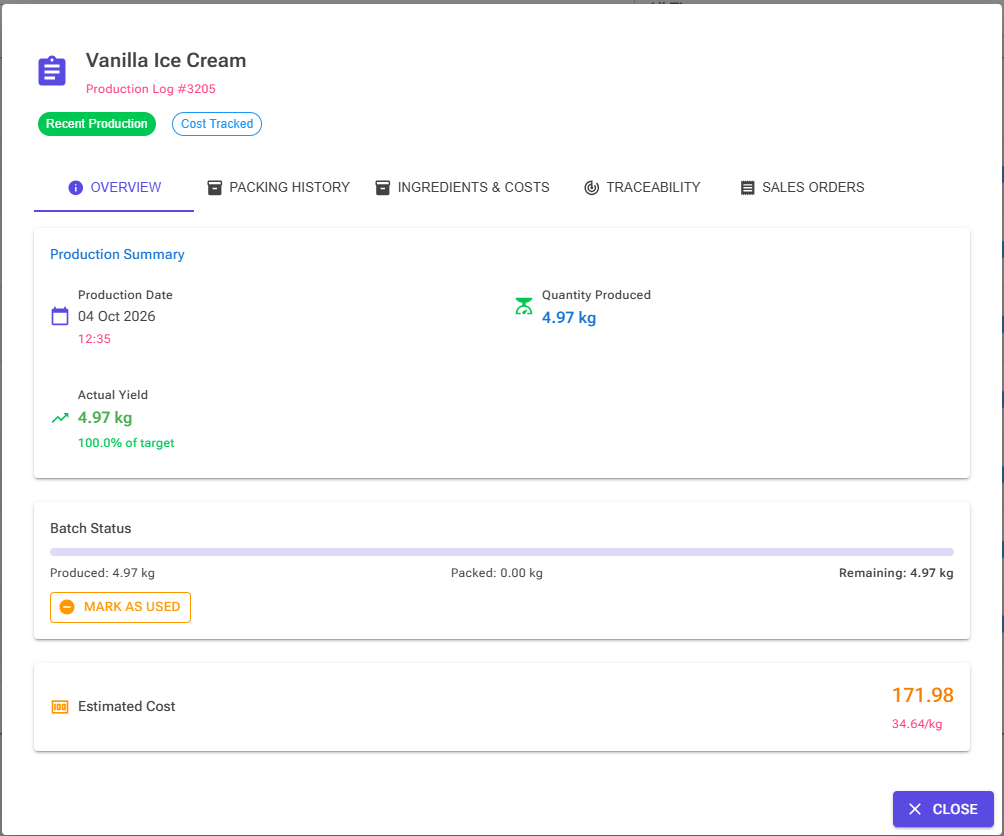
The Production Details dialog has five tabs:
- Overview — production date, quantity produced, actual yield and waste, batch notes and the estimated cost. Batch Status shows how much was produced, packed and is remaining. Mark as Used records part of the batch as used outside packing (for example for an event, testing, or discarded), with an optional reason.
- Packing History — the products packed from this batch, with date, units and quantity used. See Products and Packing.
- Ingredients & Costs — each ingredient used, its quantity and cost, and a cost breakdown. For this log entry you can edit an ingredient's cost, apply its current stock cost, or set a cost where none was recorded.
- Traceability — the lots this batch consumed, grouped by ingredient, with the supplier (or In-house for lots you produced yourself), lot number, quantity, expiry and cost. For a planned batch it also lists the target containers. Full Trace opens the Traceability page with this batch searched. See Production Traceability.
- Sales Orders — sales orders containing this recipe that were created on or after the production date. Batches and orders are not linked directly, so use the dates to judge which orders the batch filled. A switch limits the list to orders created before the next batch of the same recipe.
Editing Production Details
Clicking the edit icon on any batch opens the Edit Production Details dialog. The top of the dialog shows read-only information: recipe name, batch code, production date and time, and quantity produced in kilograms.
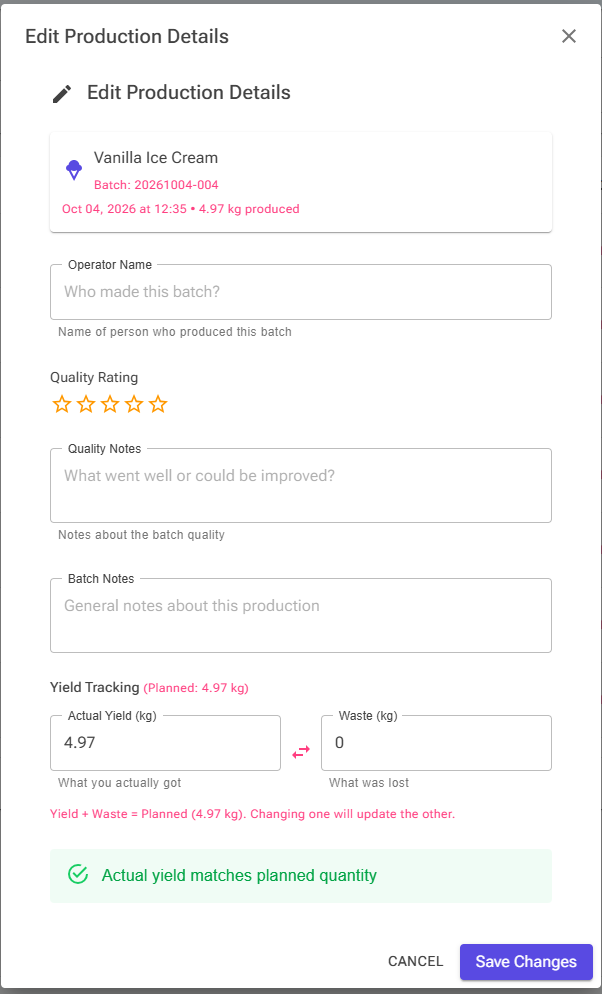
You can update the following fields:
- Operator name — who produced the batch
- Quality rating — a 1-to-5 star rating
- Quality notes — observations about what went well or could improve
- Batch notes — general notes about the production run
Yield Tracking
The yield tracking section lets you record what actually happened versus what was expected. Its heading shows the mix weight and the expected weight after evaporation; for a recipe without evaporation the two are the same. Enter either the Actual Yield (kg) or the Waste (kg), and the other field updates automatically, since yield plus waste equals the expected weight. Evaporation counts as neither yield nor waste.
Example: a 10 kg mix with 8% evaporation is expected to give 9.20 kg. The dialog opens with Actual Yield 9.20 and Waste 0. If 0.30 kg was spilled, enter Waste 0.30 and Actual Yield becomes 8.90.
An alert shows the percentage difference from the expected weight. A yield within 5% shows a green success indicator. Larger deviations are flagged so you can investigate and improve your process over time.
Actual Yield starts at the yield recorded when the batch was logged, which is the expected weight. The yield also sets how much of the batch is available for packing, so record waste here to keep packing accurate. In Production Details, “% of target” and the waste rate are measured against the same expected weight.
Production Analytics
The Production Analytics page provides a visual overview of your production trends. Access it from the Analytics card in the Production hub. A time period filter at the top lets you choose Last Week, Last Month (the default), Last 3 Months, Last 6 Months, Last Year, All Time, or a Custom Range with your own dates.

Flavours and Components
Analytics separates two kinds of recipe:
- Components — bases: recipes that are the source of a recipe-derived ingredient used in other recipes.
- Flavours — all other recipes.
The Flavour filter card lists the flavours produced in the period, with their batch count and weight. All are selected by default. Untick flavours, or use Select all and Clear all, to focus on some of them.
Overview Cards
Five overview cards appear at the top. A trend arrow compares each figure with the previous period of the same length (e.g., “Last Month” compares to the month before that):
- Total Batches — how many batches you produced
- Total Volume — combined weight of those batches
- Unique Recipes — how many different recipes you made, plus average batch size
- Total Costs — the raw-material cost of all production in the period, with a per-kilogram figure. It shows “n/a” when no ingredient costs are recorded.
- Total Waste — total waste amount with a waste rate percentage (shown only when waste data exists)
Batches, volume, recipes and waste count only the flavours selected in the Flavour filter. Total Costs always covers all production, bases included, and counts raw materials only, so the cost of a base is not counted a second time when a flavour uses it.
Charts
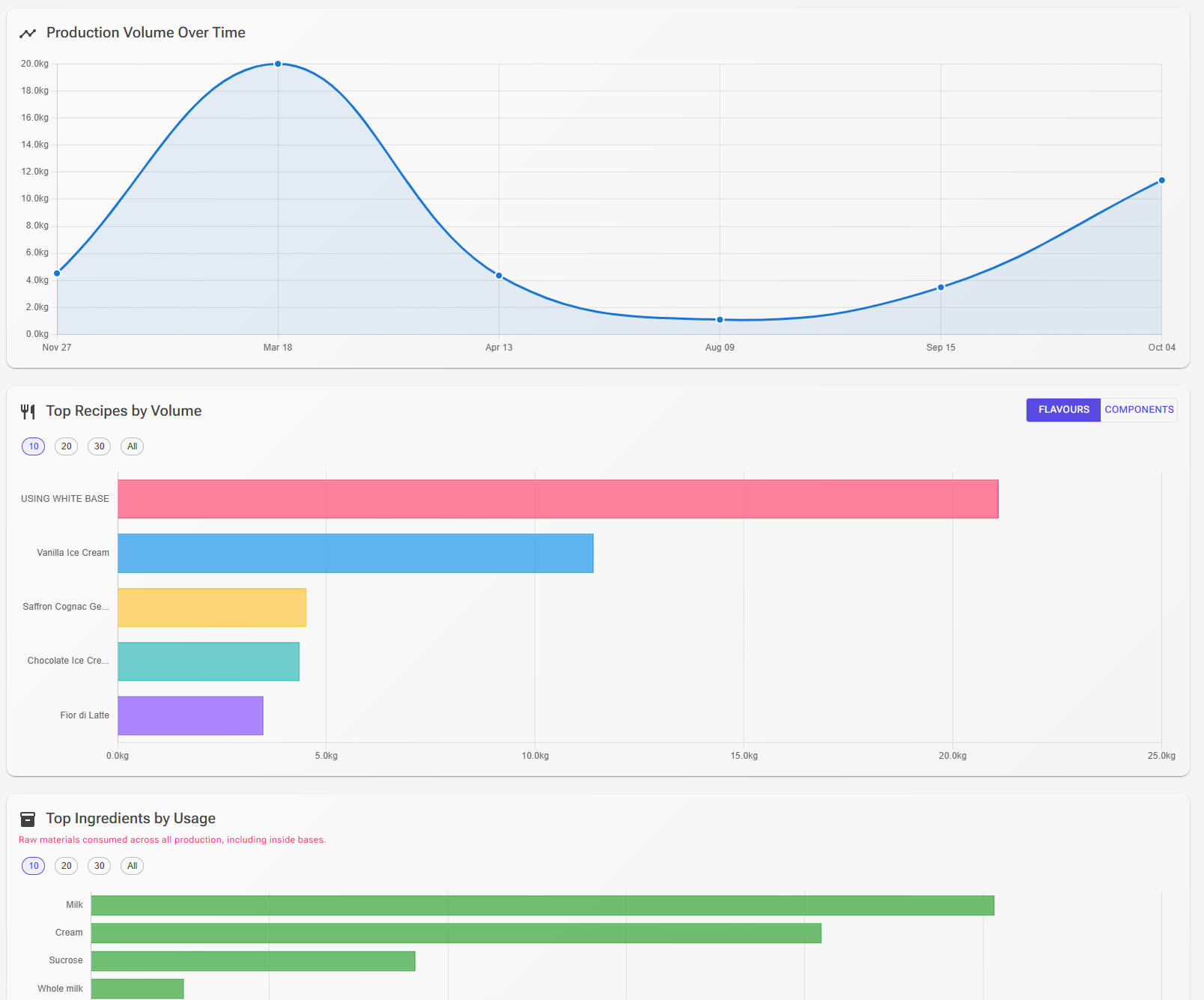
Below the overview cards, four interactive charts visualize your production data:
- Production Volume Over Time — a line chart showing the selected flavours' output across the date range. This is the largest chart, spanning the full width on desktop.
- Top Recipes by Volume — a bar chart ranking recipes by the total weight produced. Switch between Flavours (follows the Flavour filter) and Components (your bases).
- Top Ingredients by Usage — a bar chart of the raw materials you consume the most by weight, across all production, including those used inside bases.
- Top Ingredients by Cost — a bar chart revealing which raw materials cost you the most in total.
Chips above the recipe and ingredient charts set how many bars they show: 10, 20, 30 or All.
When no data exists for the selected time period, each chart area displays a placeholder message prompting you to either log some production or adjust your date range.
Tips
- Customize your presets early. Set your multiplier and fixed weight slots to match your standard batch sizes and container volumes. This saves time on every production run.
- Use the ingredient checklist consistently. Tapping each ingredient as you weigh it reduces errors, especially for complex recipes with many powders.
- Scrap failed batches. The Scrap button takes the wasted ingredients out of stock without adding a batch to your log, so your production history stays accurate.
- Record operator names. When multiple people produce batches, noting the operator helps trace quality issues back to specific production runs.
- Track yield and waste after every batch. Even rough estimates are valuable. Over time, this data reveals patterns that help you reduce waste and improve consistency.
- Add quality ratings. A quick 1-to-5 star rating takes seconds but builds a powerful dataset for spotting which recipes and conditions produce the best results.
- Review analytics monthly. Regular reviews help you catch rising costs, waste, and volume trends before they become problems.
- Use the container calculator for precision. If you sell in fixed-size containers, the container calculator eliminates guesswork about how much mix to prepare.
- Filter the log to focus. Use the time period and recipe name filters to zero in on the data that matters instead of scrolling through months of records.