The Production system gives you a complete set of tools for managing your ice cream production — from tracking ingredient stock and logging batches, to planning ahead and tracing ingredients for compliance. Everything is optional: use as much or as little as you need.
Production is a Premium feature. Stock tracking, batch logging, analytics, traceability, planning, and recipe sets all need Premium. On the Free plan you can open the Production Hub, but its cards open an upgrade dialog instead of the tool.
You’ll find all production tools in the Production Hub, accessible from the main navigation menu.
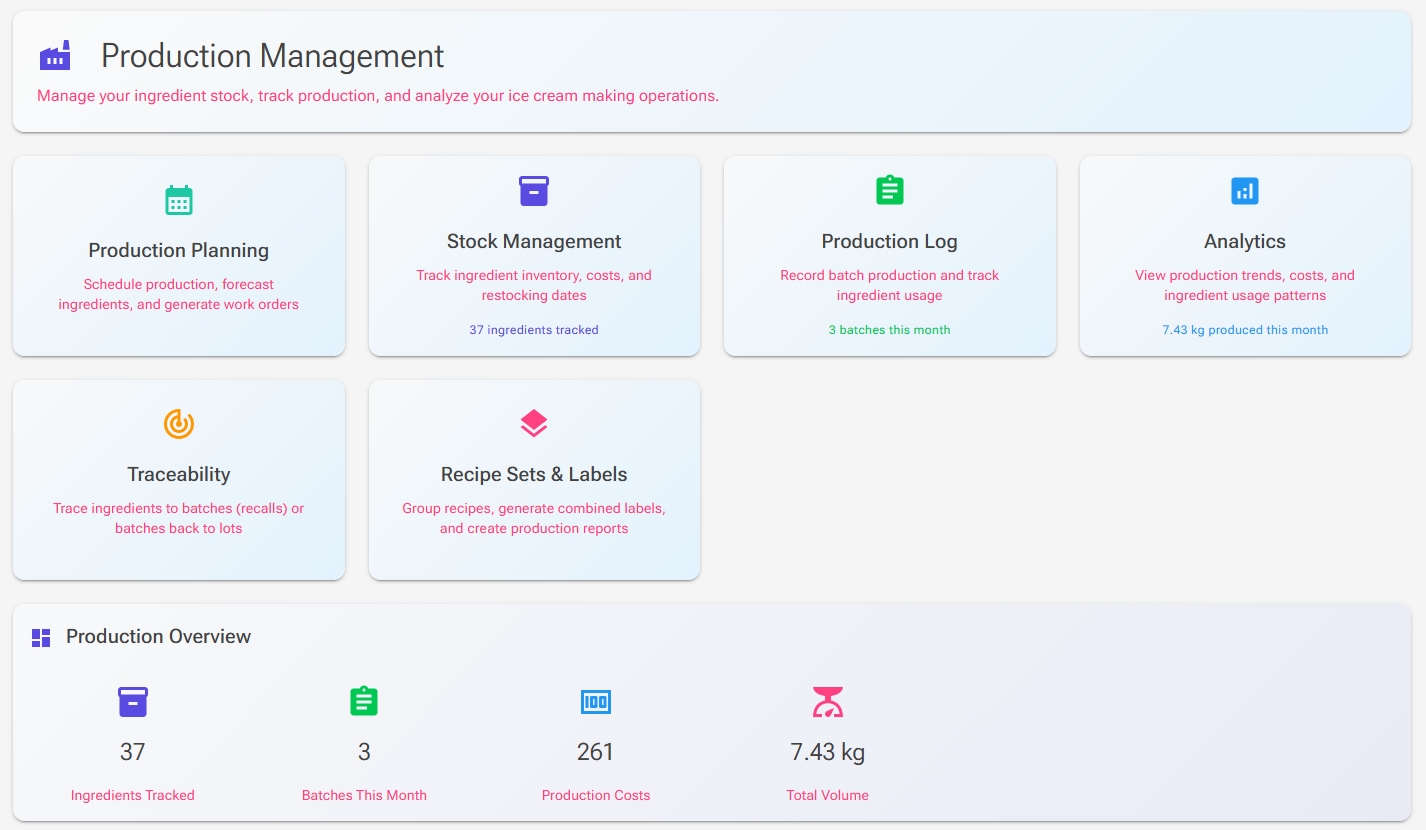
The Production Hub
The Production Hub is your starting point. It displays six tool cards, each leading to a different part of the production system. All six need Premium; on the Free plan a banner at the top of the Hub offers the upgrade.
- Production Planning — Schedule production runs, forecast ingredient needs, and generate work orders
- Stock Management — Track ingredient inventory, lots, expiry dates, costs, and purchase orders, plus your products and packaging
- Production Log — Record batch production and view your production history
- Analytics — View production trends, costs, and ingredient usage patterns
- Traceability — Trace ingredients forward to batches (supplier recalls) or backward from batches to supplier lots (customer complaints)
- Recipe Sets & Labels — Group recipes together for combined labels, production reports, and sales orders
Below the cards, a Production Overview panel shows quick stats: ingredients tracked, low stock items, pending orders (with how many are overdue), lots expiring within the next 7 days (Lots Expiring Soon), and this month’s batches, production costs, and total volume. Low stock items, pending orders, expiring lots, costs, and volume appear only when there is something to show.
How the Parts Fit Together
The production system may look like many separate tools, but they all connect through a simple flow. Here’s how the pieces relate to each other:

Stock is the foundation. When you add your ingredients to stock tracking and record purchases (with supplier and lot details), everything else builds on it automatically.
Recipes are what you produce. Every production batch is linked to a recipe, and the system uses the recipe’s ingredient list to calculate how much stock to deduct and what the batch costs.
Planning is optional. You can skip it entirely and produce batches directly from your recipes. But if you want to schedule ahead, the planning calendar lets you lay out your week and forecast exactly how much of each ingredient you’ll need.
Production logging happens when you mark a batch as produced. The system generates a unique batch code, deducts ingredients from stock, calculates costs, and records which supplier lots were consumed.
Traceability works automatically behind the scenes. If you record supplier lot numbers when purchasing stock, the system keeps track of which lots went into which batches — ready for you to search whenever you need it.
Two Ways to Produce
There are two paths to logging a batch, depending on whether you plan ahead or produce on the fly.
Quick Production (No Planning Required)
This is the fastest way to log production. No planning step needed — just go straight from recipe to batch.
- Open any recipe and click Start Production on the Recipe View, or choose Produce from the Recipe Editor’s tools
- Set your batch size using multiplier buttons, fixed weights, or the container calculator. For a large batch, set Buckets to see each ingredient’s weight per mixing bucket
- Use the ingredient checklist to track your progress as you weigh. The recipe’s Instructions are shown below the checklist
- Click Mark as produced to confirm
The system automatically deducts stock, calculates costs, and logs the batch with a unique batch code. If you have not rated the recipe yet, it then asks how the recipe turned out (see Recipe Ratings). If a batch fails, click Scrap instead: the wasted ingredients are written off from stock without creating a log entry. For full details, see Production Logging.
Planned Production
If you want to schedule production in advance, the Planning tool lets you lay out recipes on a weekly calendar and forecast ingredient needs before you start.
- Open Production Planning from the Hub
- Add recipes to specific days on the calendar with each day’s Recipe button (the Product button plans a product instead)
- Switch to the List View tab to see ingredient forecasts — which ingredients you need, what’s in stock, what’s short, and what’s expiring soon
- When it’s time to produce, click the play icon (Mark as produced) on the plan card — the Produce page opens with the batch size and containers pre-filled from your plan
Planning also supports work order generation for printing daily production sheets. For full details, see Production Planning. For how planned weights, volumes, and overrun relate, see Production System – Weight, Volume & Overrun.
Stock Management
Stock management tracks your ingredient inventory levels, costs, and purchase history. You can add ingredients to tracking, record purchases with supplier details, lot numbers, and expiry dates, record orders that have not arrived yet, import a price list with Import Costs, and set low-stock thresholds for alerts.
Stock is held in lots and is automatically deducted when you produce a batch, in FEFO order (first expired, first out) — the lot that expires soonest is used first, and expired lots are skipped. When you mark a batch as produced, Adjust lots lets you choose a different order for an ingredient. The Hub shows warnings when ingredients are running low, lots are expiring soon, or pending orders are overdue.
The Stock page also has a Products & Packaging section with Product Inventory, Product Definitions, and Packaging Items, for turning your batches into packed products. See Products and Packing.
For full details, see Stock Management.
Production Log and Analytics
Every batch you produce gets a unique batch code (formatted as YYYYMMDD-NNN, for example 20260205-001) and is recorded in your Production Log. You can filter by recipe or time period, edit batch details like quality rating, yield, and waste, fix a batch logged with the wrong quantity (Correct quantity), and view complete ingredient usage, packing, and traceability details for each batch.
The Analytics page builds on your production history with visual charts and trend comparisons. It shows production volume over time, your top recipes by volume, top ingredients by usage and cost, and total waste, and compares current stats against the previous period. A flavour filter lets you focus on selected flavours. Choose Last Week, Last Month, Last 3 Months, Last 6 Months, Last Year, All Time, or a custom date range.
For full details on logging and analytics, see Production Logging.
Traceability
The Traceability tool lets you trace ingredients in two directions:
- Forward trace (supplier recall) — A supplier reports a problem with a lot. Search by supplier name or lot number to find all production batches that used it.
- Backward trace (customer complaint) — A customer has an issue with a specific batch. Search by batch code to see exactly which supplier lots were used, grouped by ingredient.
Traceability data is created automatically when you record purchases with lot numbers and produce batches through the system. No extra steps needed.
For full details, see Production Traceability.
Recipe Sets & Labels
Recipe Sets let you group recipes together — for example, your weekly flavor lineup. From a set, you can generate combined ingredient labels and create production reports. Recipe Sets & Labels is accessed from the Production Hub.
A set can also be saved as a sales order with Save as Order, to record what a customer ordered. View Orders lists your orders: open one to view or change it, import an order from a CSV file, or manage the order’s showcases. The Sales Orders tab in a batch’s Production Details lists the orders for that recipe created after the batch. For full details, see Recipe Sets & Labels.
Getting Started — Recommended First Steps
If you’re new to the production system, here’s a suggested path to get going:
- Add your ingredients to Stock — Open Stock Management and use “Find Untracked” to add all the ingredients from your recipes in one step. You don’t need exact quantities to start.
- Set cost per kg — Enter the cost for your ingredients in the stock table, or paste or upload a price list with Import Costs. This enables automatic cost tracking when you produce batches.
- Produce your first batch — Open a recipe, start production, set your batch size, and click Mark as produced.
- Check your Production Log — See the batch you just created, including batch code, ingredient usage, and estimated cost.
- Record a purchase with lot details — Next time you buy ingredients, click the Quick Add Stock icon on the ingredient’s row on the Stock page and fill in the supplier name, lot number, and expiry date. This enables traceability and FEFO.
From there, explore Planning and Analytics as your needs grow.
Related Articles
- Production Logging — Recording batches, production history, and analytics
- Production Planning — Calendar scheduling, ingredient forecasting, and work orders
- Stock Management — Ingredient inventory, purchases, lots, and expiry tracking
- Production Traceability — Forward and backward ingredient tracing
- Production System – Weight, Volume & Overrun — How weights, volumes, and overrun relate in production
- Recipe Sets & Labels — Combined labels, reports, and sales orders
- Products and Packing — Product definitions, packaging, and packing batches
- Recipes
- Ingredients
- HTML Reports