What the Nutrition Label Page Does
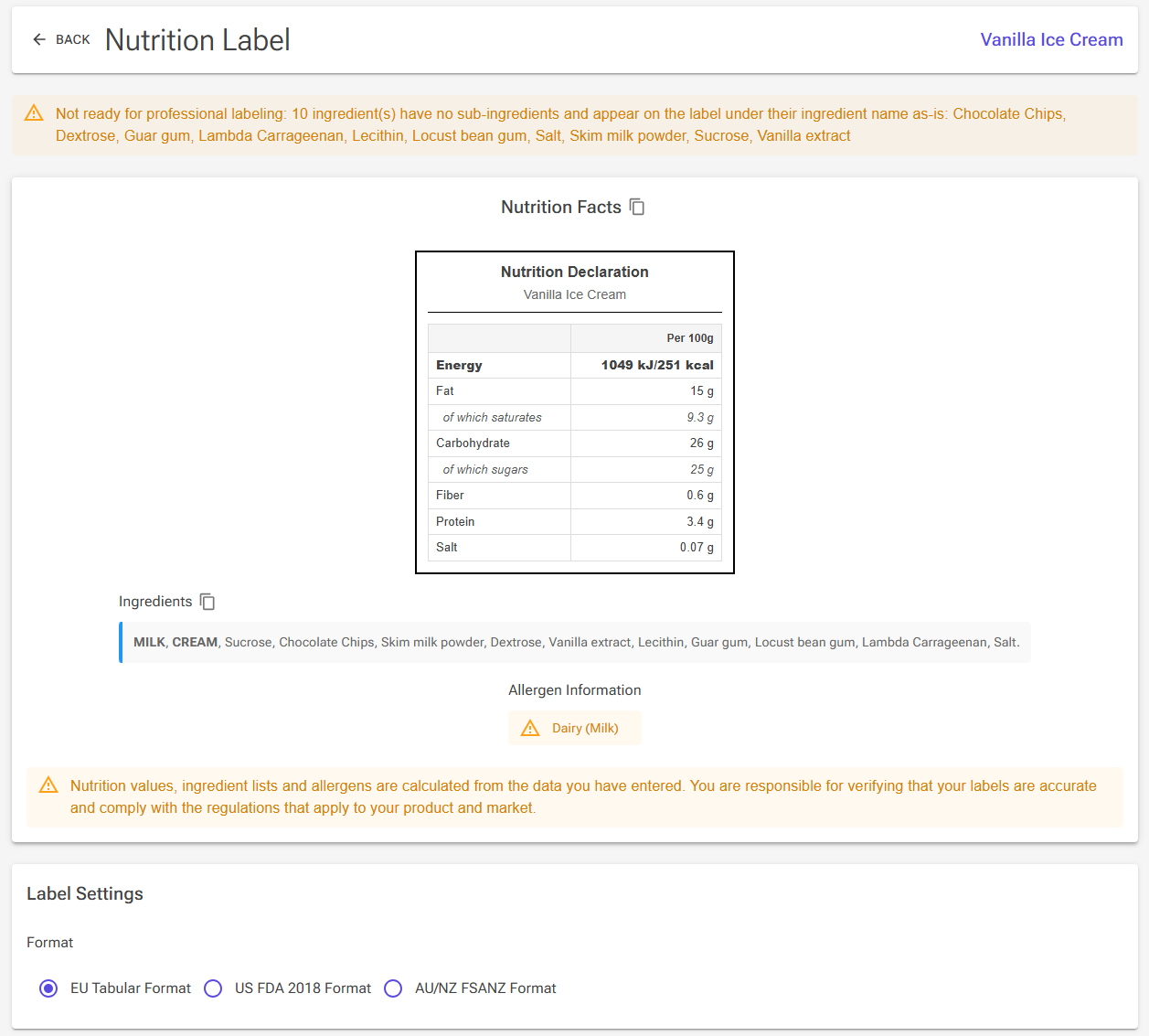
The Nutrition Label page shows what the label for one of your recipes would say: a nutrition panel in EU, US or Australian/New Zealand format, the ingredient list, and the allergen statement. Everything is calculated from the recipe and from the data on its ingredients, so it updates as soon as you change a weight or an ingredient.
Use it to check a recipe before you print a label, and to copy the ingredient list and the nutrition panel into your own label artwork. The page is available on every plan.
Not what you are looking for? This page makes a label for your recipe. To create an ingredient from the nutrition label on a product you bought, see Nutrition Label Import.
Opening the Nutrition Label
The page opens from the Recipe Editor. It is not in the menu, on the Tools page or among the Home page shortcuts. Open the recipe in the editor, then:
- On a computer: click Nutrition in the button column beside the chart.
- On a phone or a narrow window: tap the label icon (Nutrition Label) in the button row under the chart.
- From the Nutrition card: if your editor layout includes the Nutrition card, click its Open the nutrition label icon in the card's title bar.
The page shows the recipe exactly as it is in the editor, including changes you have not saved yet. You do not have to save first to see the effect of an edit. Click Back at the top of the page to return to the editor.
What Is on the Page
The Readiness Alert
At the top, an alert tells you whether the ingredient list is built entirely from data you have declared:
- Ready for professional labeling (green): every ingredient in the recipe has sub-ingredients, so the list is built only from your declared data.
- Not ready for professional labeling (orange): it names the ingredients that have no sub-ingredients. Each of them appears on the label under its ingredient name as it is, for example "Cream 40% UHT, Supplier X" instead of "CREAM".
Infusions are not checked, because they are added to the list by name in any case. To fix a "Not ready" alert, give each named ingredient at least one sub-ingredient row; Professional Ingredient Lists explains how.
Note: An ingredient made from a recipe counts as declared, because it carries the ingredient list of its source recipe. Whether that list is complete depends on the source recipe, so open the source recipe's label to check it. See Using a Recipe as an Ingredient.
The Nutrition Panel
Under the Nutrition Facts heading is the panel in the format you choose under Label Settings (see below). The copy icon beside the heading copies the panel as an image.
Ingredients
The Ingredients section shows the ingredient declaration for the whole recipe, with allergens in BOLD UPPERCASE. The copy icon beside the heading copies the list together with the allergen statements. How the list is built is described further down.
Allergen Information
When the recipe has allergens, this section shows up to three kinds of statement:
- Contains: the allergens that are present.
- May contain: the allergens that may be present as traces.
- Special warnings: each of your Special Warning statements (for example the azo colours statement) in a box of its own.
The Disclaimer
At the bottom of the label area, a notice reminds you that the values, the ingredient list and the allergens are calculated from the data you entered, and that you are responsible for checking that your labels are accurate and comply with the rules for your product and market.
Choosing a Format and Serving Size
Pick the format under Label Settings › Format. The panel redraws at once.
| Format | What the panel shows | Serving size |
|---|---|---|
| EU Tabular Format | A "Nutrition Declaration" per 100 g: energy in kJ and kcal, fat, of which saturates, carbohydrate, of which sugars, fibre (only when the recipe has some), protein and salt. | None. The page shows the per-100 g column only. |
| US FDA 2018 Format | A "Nutrition Facts" panel per serving: servings per container, calories, the nutrients with their % Daily Value (based on 2,000 calories a day), added sugars, vitamin D, calcium, iron and potassium. | Starts at 65 g (2/3 cup). The volume in cups is shown beside the grams. |
| AU/NZ FSANZ Format | A "Nutrition Information" panel with a per-serving and a per-100 g column: energy in kJ, protein, fat (total and saturated), carbohydrate, sugars and sodium in mg, plus servings per package. | Starts at the serving size in your Settings. |
Serving Size
For the US and AU formats, a Serving size field (in grams, 1 to 500) appears under the format choice:
- US: Reset to Standard (2/3 cup) sets it back to 65 g.
- AU/NZ: Reset to default sets it back to the value in Settings › Display Settings › Serving size (g).
Switching the format also resets the serving size to that format's starting value, so set the serving size after you have chosen the format. The number of servings is the finished weight of the batch divided by the serving size.
Tip: To declare a volume serving such as 100 ml on an AU/NZ label, multiply by your recipe's Ice Cream Weight per Liter and enter the result in grams.
How the Values Are Calculated
All values describe the finished product: the mix after evaporation, plus the inclusions.
- Evaporation: if you cook the mix down, only the cooked ingredients lose water. Nutrients therefore rise per 100 g. Inclusions, and ingredients you exclude from evaporation, keep their weight. See Recipe Weights, Scaling & Evaporation.
- Inclusions are part of the product and count in full.
- Infusions are steeped and removed, so they add no nutrition. They still appear in the ingredient list and their allergens still count.
Each format applies its own rounding: the EU and AU formats round to 0.1 g below 10 g and to whole grams from 10 g, with salt to 0.01 g below 1 g (EU) and sodium to whole milligrams (AU). The US format uses the FDA rounding rules. The values match the label values in the Recipe Editor, so the editor's Nutrition card and this page agree.
How the Ingredient List Is Built
The list is assembled from the sub-ingredients of every ingredient in the recipe:
- Each ingredient with sub-ingredients is broken down into them, weighted by its share of the recipe. An ingredient made from a recipe is broken down into the ingredient list of its source recipe.
- Entries with the same name, regardless of capitals, are added together into one entry.
- Everything is sorted by weight, highest first. Grouped sub-ingredients (such as Colours) stay in this one list on this page, sorted by weight like the rest.
- Entries you marked Highlight print in BOLD UPPERCASE. Entries you marked Show % get their percentage of the recipe after the name, as a whole number.
- An ingredient with no sub-ingredients appears under its own name. Infusions are added at the end, under their own names. The list ends with a full stop.
The percentages describe the recipe as you weigh it out, before evaporation. If no ingredient in the recipe has sub-ingredients, the page lists the ingredient names in order of weight instead, with nothing highlighted.
For setting up sub-ingredients, highlighting, groups and your own allergen list, see Professional Ingredient Lists.
How the Allergen Statement Is Built
- The statement combines the built-in allergens ticked on each ingredient's Allergens tab and your own allergens assigned in the Sub-Ingredients & Allergens editor. Built-in allergens appear under their fixed English names.
- An allergen that appears in both systems with the same name, regardless of capitals, is listed once. Different names for the same allergen, such as "Milk" and "mjölk", are both listed, so use one system per ingredient library.
- If one ingredient contains an allergen and another may contain it as traces, it is listed only under Contains.
- Allergens of infusions count, because an infused ingredient can still cause a reaction.
- Special Warning statements are never merged into the Contains or May contain lists; each prints on its own.
Copying the Label into Your Artwork
The page has no file download. Instead, two copy buttons put the parts on your clipboard, ready to paste into your label design:
- Copy ingredients and allergens (the icon beside Ingredients): copies "Ingredients:" with the list, followed by the Contains, May contain and special warning statements. The text is copied with its formatting, so the bold uppercase allergens survive when you paste into Word or another editor that accepts formatted text.
- Copy nutrition facts as image (the icon beside Nutrition Facts): copies the panel exactly as it is shown, in the current format and serving size, as a high-resolution PNG image on a white background.
A message confirms each copy. If you see "Could not copy to clipboard", your browser has blocked clipboard access; allow it for the site, or try another browser.
Where Else the Same Data Appears
- The Nutrition card in the Recipe Editor: shows the ingredient list, the allergens and an EU table per 100 g, and optionally a US table per 65 g serving. Use the card's tune icon to choose its parts. The card is in the "Everything" layout preset, or add it with Customize layout; see Editor Cards and Layout.
- Recipe cards: a card can include the nutrition panel, the ingredient list and the allergens, built the same way. The format and serving size are set on the card. See Recipe Cards.
- Recipe Sets: the Summary panel of a Recipe Set shows a combined label for several recipes sold as one product. It prints grouped sub-ingredients on their own lines and lists the built-in and your own allergens as separate statements. See Recipe Sets & Labels.
- HTML reports: report templates can place the ingredient list, each group line, the allergen statements and the nutrition values wherever your layout needs them. See HTML Reports.
- Display Case: a flavour's details show its allergens and its nutrition per 100 g. See Display Case.
Troubleshooting
Problem: The alert says "Not ready for professional labeling".
Solution: The ingredients it names have no sub-ingredients, so they print under their own ingredient names. Open each one, go to the Tools tab, click Sub-Ingredients & Labeling and add at least one row with the wording you want on the label. For a simple ingredient such as cream, one row with its own name at 100% and Highlight ticked is enough. Labeling data belongs to your own ingredients, so convert standard library ingredients first with Convert to Personal Ingredients.
Problem: Instead of the panel, a red box says "Unable to generate nutrition label".
Solution: The reason is listed below the message. The usual causes are a recipe whose only ingredients are infusions, an ingredient that could not be loaded (for example one that was deleted), or a recipe with no weight left after evaporation.
Problem: An allergen is listed twice, for example "Milk" and "mjölk".
Solution: The same allergen is set in both allergen systems under different names. Keep one system; Professional Ingredient Lists explains how to clear the built-in flags.
Problem: My serving size went back to 65 g.
Solution: Switching the format resets the serving size. Choose the format first, then enter the serving size.
Related Articles
- Professional Ingredient Lists: sub-ingredients, highlighting, groups and your own allergen list.
- Nutrition Label Import: creating an ingredient from a product's nutrition label.
- Recipe Cards: printing the label data on a recipe card.
- Recipe Sets & Labels: one combined label for several recipes.
- Recipe Weights, Scaling & Evaporation: how evaporation changes the finished weight.
- HTML Reports: building your own label layouts.