Introduction: When to Use Nutrition Label Import
The Nutrition Label Import is your tool for creating ingredients directly from product packaging. It is the alternative to the Food Databases when you have the product in hand. This method is perfect when:
- The food database doesn’t have your specific ingredient: Branded products, specialty items, or regional foods
- You have the product in hand: The easiest way – just read the label and type the values
- You need exact product data: Specific brand formulations that may differ from generic food database entries
- You’re working with processed foods: Many processed items have detailed nutrition labels
- Regional products: Items specific to your country or region
The Challenge: Missing Ice Cream Data
Just like with a food database import, there’s a critical point to understand: Standard nutrition labels don’t contain the specialized properties needed for ice cream formulation.
What nutrition labels DO show:
- Calories/Energy
- Total Fat (and sometimes saturated/trans fat)
- Total Carbohydrates
- Total Sugars (maybe added sugars)
- Protein
- Salt/Sodium
- Sometimes: fiber, cholesterol, vitamins/minerals
What nutrition labels DON’T show (but ice cream needs):
- ❌ PAC (Freezing Point Depression): Never on labels – must be calculated
- ❌ POD (Sweetness Power): Never on labels – must be calculated
- ❌ Individual sugar types: Rarely shown (sucrose vs glucose vs lactose vs fructose)
- ❌ Milk Fat vs Total Fat: Labels only show “Total Fat”
- ❌ MSNF (Milk Solids Not Fat): Critical for dairy but never on labels
- ❌ Cocoa Fat vs Total Fat: Not distinguished on chocolate labels
- ❌ Water content: Almost never listed
⚠️ Key Understanding: The Nutrition Label Import page takes the basic data from your product label and uses your Food Type selection to calculate the missing ice cream-specific properties. This is why choosing the correct food type is absolutely critical!
The Nutrition Label Import Workflow
Importing from a nutrition label is a straightforward 4-step process:
- Select format: Choose EU or US nutrition label format
- Enter values: Type exactly what you see on the label
- Select food type: Tell the calculator what kind of ingredient this is
- Apply: Let the calculator compute ice cream properties
Opening the Nutrition Label Import Page
There are two ways to open the Add Ingredient from Nutrition Label page:
Method 1: When Creating a New Ingredient
- On the Ingredients page, type the ingredient’s name in the search box
- Click Add ingredient ▾ and choose “From nutrition label”
- Your search term becomes the name of the new ingredient
The same menu is on the Select Ingredient page you use when adding an ingredient to a recipe, and on the Suggestions card that appears when a search finds nothing.
Method 2: From the Ingredient Editor
- Open an ingredient in the ingredient editor
- In the import card at the top, click the “Nutrition Label” tile (“From product label”)

Step 1: Choose Your Label Format (EU vs US)
The first decision is selecting which nutrition label format to use. The Ice Cream Calculator supports both major formats. The page opens on the US tab when your browser language is US English (en-US), and on the EU tab otherwise.

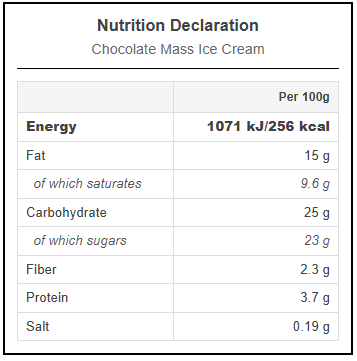
EU Format
Used in: European Union, UK, and many other countries
Characteristics:
- Always shown per 100g or 100ml
- Energy in both kJ and kcal
- Carbohydrates listed separately from fiber
- “of which sugars” as subcategory of carbohydrates
- “of which saturated” as subcategory of fat
- Shows “Salt” (not sodium)
- Fiber listed separately
US Format
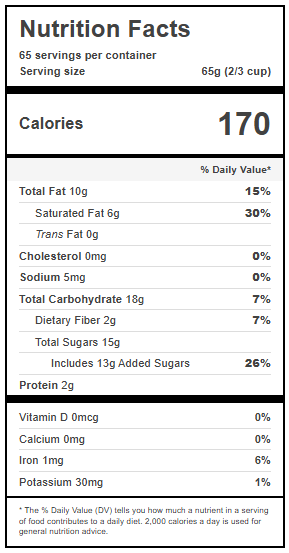
Used in: United States, Canada (similar), and some other countries
Characteristics:
- Shown per serving (you must convert to per 100g)
- Energy in calories only
- Total Carbohydrates includes fiber
- Dietary Fiber as subcategory
- Total Sugars and Added Sugars shown
- Shows “Sodium” in mg (not salt)
- Includes cholesterol
- Sometimes shows trans fat
Which Format Should You Use?
Simple rule: Use whichever format is on your product packaging.
The calculator handles the differences automatically:
- EU format: Everything is already per 100g – just copy the values
- US format: Enter the serving size, and values will be automatically converted to per 100g basis
💡 Pro Tip: The page picks the starting tab from your browser language: US English (en-US) opens the US tab with a 30 g serving size, every other language opens the EU tab. You can always switch manually if needed: the EU tab always works per 100 g, and when you switch back to the US tab, the serving size you entered there is restored.
Step 2: Enter Nutrition Values (EU Format)
If using the EU format, entering data is straightforward – everything is already per 100g.
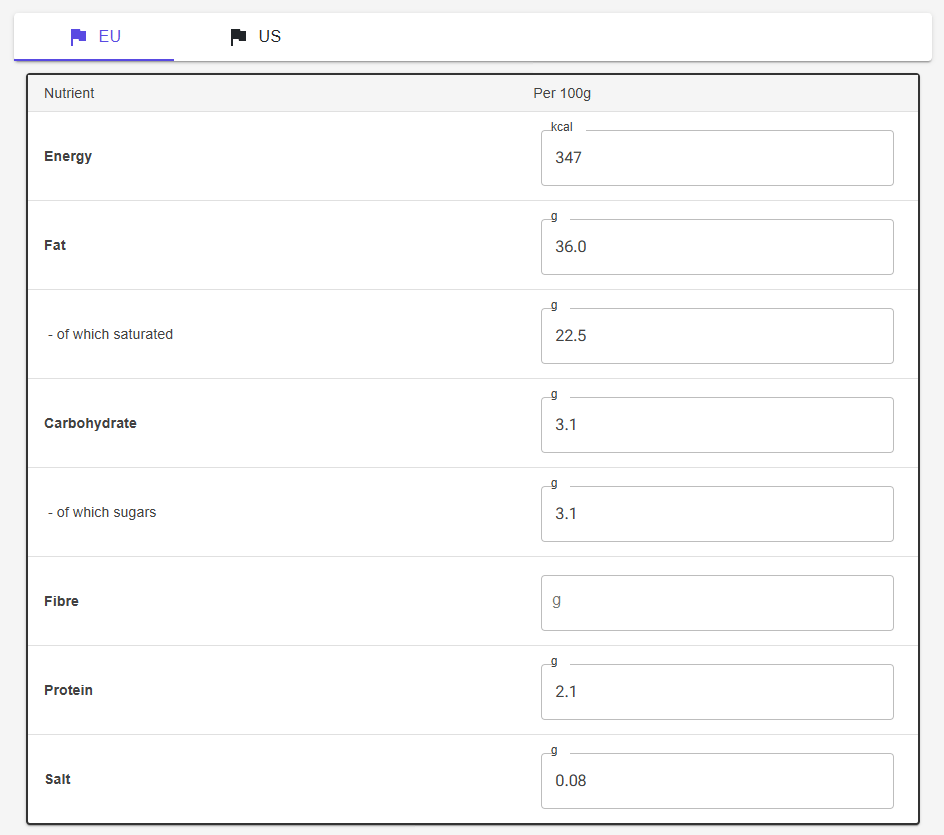
EU Input Fields
| Field | What to Enter | Example |
|---|---|---|
| Energy | Calories in kcal (per 100g) Ignore the kJ value |
347 kcal |
| Fat | Total fat in grams (per 100g) | 36.0 g |
| – of which saturated | Saturated fat in grams (per 100g) | 22.5 g |
| Carbohydrate | Total carbohydrates EXCLUDING fiber (per 100g) This is different from US! |
3.1 g |
| – of which sugars | Total sugars in grams (per 100g) | 3.1 g |
| Fibre | Dietary fiber in grams (per 100g) Listed separately in EU format |
0.0 g |
| Protein | Protein in grams (per 100g) | 2.1 g |
| Salt | Salt in grams (per 100g) EU uses salt, not sodium |
0.08 g |
EU Format Tips
- Always per 100g: No conversion needed – just copy exactly what you see
- Ignore kJ: The calculator only needs kcal (kilocalories)
- Carbs exclude fiber: EU format lists fiber separately
- Use salt, not sodium: EU labels show salt directly
- Decimal separators: The calculator accepts both comma (,) and period (.) as decimal separators
💡 Example – Heavy Cream (EU Label):
If your heavy cream label shows:
• Energy: 1452 kJ / 347 kcal
• Fat: 36.0g (of which saturated: 22.5g)
• Carbohydrate: 3.1g (of which sugars: 3.1g)
• Protein: 2.1g
• Salt: 0.08g
Just enter those exact numbers (in bold) into the calculator!
Step 2: Enter Nutrition Values (US Format)
If using the US format, you’ll need to enter the serving size first, then the calculator will convert everything to per 100g basis automatically.
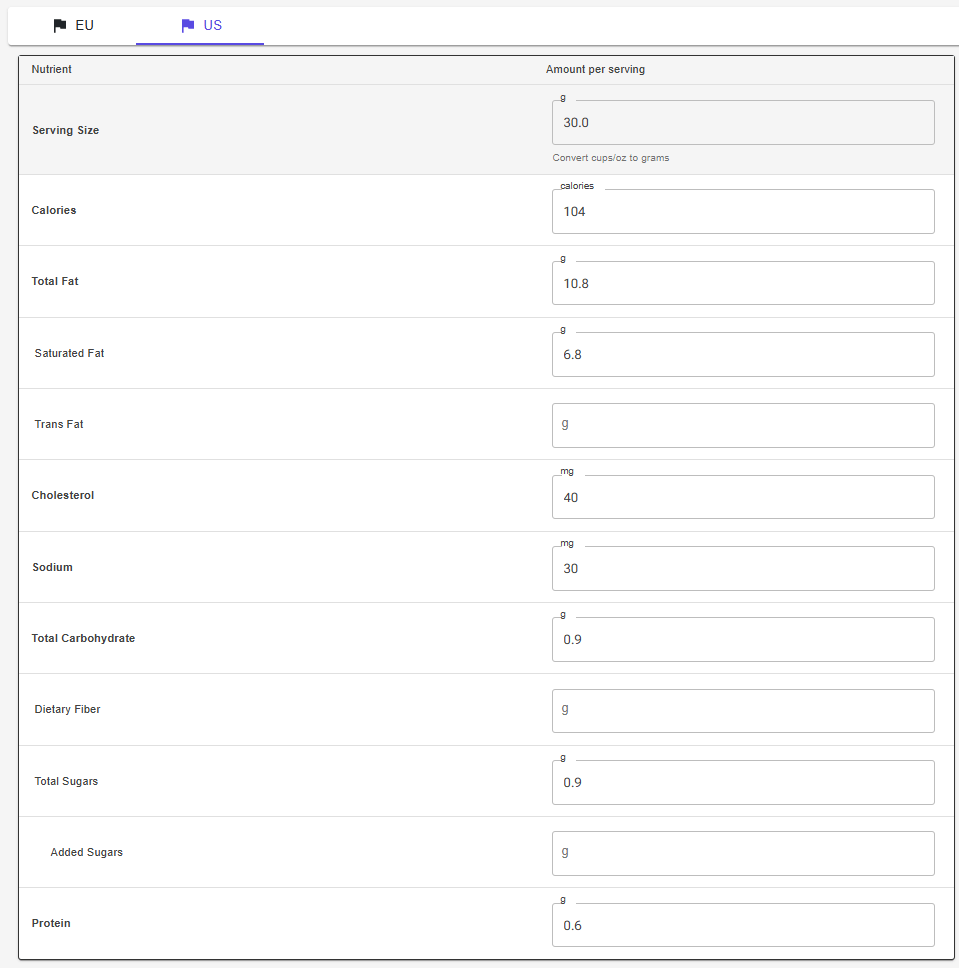
US Input Fields
| Field | What to Enter | Example |
|---|---|---|
| Serving Size | ⭐ MOST IMPORTANT: Serving size in grams Convert cups/oz to grams if needed |
30 g (or 1 fl oz = 30g for liquids) |
| Calories | Calories per serving | 104 calories |
| Total Fat | Total fat in grams per serving | 10.8 g |
| Saturated Fat | Saturated fat in grams per serving | 6.8 g |
| Trans Fat | Trans fat in grams per serving Often 0g or not listed |
0 g |
| Cholesterol | Cholesterol in milligrams per serving | 40 mg |
| Sodium | Sodium in milligrams per serving US uses sodium, not salt |
30 mg |
| Total Carbohydrate | Total carbs INCLUDING fiber (per serving) This is different from EU! |
0.9 g |
| Dietary Fiber | Fiber in grams per serving Subcategory of total carbs |
0.0 g |
| Total Sugars | All sugars in grams per serving | 0.9 g |
| Added Sugars | Added sugars in grams per serving Subcategory of total sugars |
0 g |
| Protein | Protein in grams per serving | 0.6 g |
US Format Critical: Serving Size Conversion
The serving size field is THE MOST IMPORTANT entry for US labels. All other values will be mathematically converted based on this.
Common US serving conversions:
| Label Says | Enter as Grams | Conversion |
|---|---|---|
| 1 cup | ~240g (liquids) ~120-150g (solids) |
Varies by density – check label |
| 1 tablespoon (Tbsp) | ~15g | 1 Tbsp ≈ 15ml ≈ 15g for liquids |
| 1 teaspoon (tsp) | ~5g | 1 tsp ≈ 5ml ≈ 5g for liquids |
| 1 fluid ounce (fl oz) | ~30g | 1 fl oz ≈ 30ml ≈ 30g for liquids |
| 1 ounce (oz) – weight | ~28g | 1 oz = 28.35g exactly |
Good news! Most US nutrition labels now include the gram weight in parentheses. For example:
- “Serving Size: 1 cup (240g)” → Enter 240
- “Serving Size: 2 Tbsp (30g)” → Enter 30
- “Serving Size: 1/2 cup (113g)” → Enter 113
⚠️ Critical: If you enter the wrong serving size, ALL your calculations will be wrong! Double-check this number. The calculator uses it to convert everything to per 100g basis.
US Format Tips
- Always find the gram weight: Look for “(##g)” in parentheses after the serving description
- Carbs include fiber: US format has fiber as a subcategory of total carbohydrates
- Sodium vs Salt: US uses sodium in mg – calculator converts to salt automatically
- mg fields: Cholesterol and sodium are in milligrams, not grams
- Decimal separators: Use period (.) for decimals in US format
💡 Example – Heavy Cream (US Label):
Label shows “Serving Size: 1 Tbsp (15g)”
• Calories: 52
• Total Fat: 5.4g
• Saturated Fat: 3.4g
• Cholesterol: 20mg
• Sodium: 5mg
• Total Carbs: 0.5g
• Sugars: 0.5g
• Protein: 0.3g
The calculator will automatically convert to per 100g basis!
Understanding Calculated Values
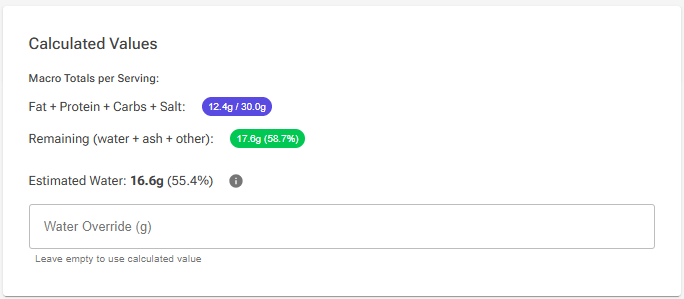
As you enter nutrition values, the calculator shows real-time feedback in the “Calculated Values” panel on the right side (below the label fields on a phone).
Macro Totals Check
The calculator continuously validates that your entries make sense:
What it checks:
- Total macros vs serving size: Fat + Protein + Carbs + Salt should not exceed serving size
- Color-coded feedback:
- 🔵 Blue chip = Good (totals are within the serving size)
- 🔴 Red chip = Totals exceed serving size
- Remaining weight: Shows water + ash + other unmeasured components (green chip; red when it goes below zero)
Example calculation:
Serving size: 100g
Fat: 36.0g
Protein: 2.1g
Carbs: 3.1g
Fiber: 0.0g
Salt: 0.08g
------------------------
Total macros: 41.28g / 100g ✅
Remaining: 58.72g (58.7%) ✅
Estimated Water Content
One of the most important calculations is water content, which is almost never on nutrition labels.
How water is estimated:
Water = Serving Size - (Protein + Fat + Carbs + Fiber + Salt + 1g ash estimate)

For heavy cream example:
Water = 100g - (2.1g + 36.0g + 3.1g + 0.0g + 0.08g + 1.0g)
Water = 100g - 42.28g
Water = 57.72g (57.7%)
Water Override (Advanced)
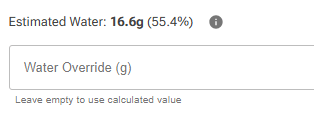
If you know the exact water content (from a technical data sheet or manufacturer specification), you can override the estimate:
- Enter the known water content in grams per serving
- The calculator will use your value instead of the estimate
- Clear the field to return to automatic estimation
When to use water override:
- You have manufacturer technical specifications
- The ingredient is measured by Karl Fischer titration
- You’re working with ingredients where water content is critical
- The estimated value seems unreasonable
⚠️ Note: The automatic water estimation includes a 1g “ash estimate” for minerals and other unmeasured components. This is a standard approximation used in nutritional analysis.
Validation Errors and Warnings
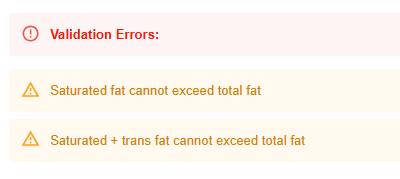
Before you can apply the data, the calculator validates that all entries are logical and mathematically correct. Any errors are listed in a Validation Errors box at the top of the page, and Apply stays disabled until they are fixed.
Common Validation Errors
| Error Message | What It Means | How to Fix |
|---|---|---|
| “Total macros (…g) exceed serving size (…g)” | Fat + Protein + Carbs + Salt adds up to more than the serving size plus a 5% allowance for label rounding | Double-check your entries. One or more values is likely too high. |
| “Saturated fat cannot exceed total fat” | You entered saturated fat higher than total fat | Saturated fat is part of total fat, so it must be less than or equal to total fat. |
| “Trans fat cannot exceed total fat” | You entered trans fat higher than total fat (US tab) | Trans fat is part of total fat. Check both values. |
| “Saturated + trans fat cannot exceed total fat” | Saturated and trans fat together are more than 10% above total fat | Both are subcategories of total fat. Check all three values. |
| “Total sugars cannot exceed total carbohydrates” | Sugars are higher than carbs | Sugars are part of carbohydrates. Check if you entered grams vs percentage incorrectly. |
| “Sugars + fiber cannot exceed total carbohydrates (EU format)” | On the EU tab, sugars are higher than the Carbohydrate figure (which excludes fibre) | On an EU label, sugars are part of Carbohydrate. Check both values. |
| “Fiber cannot exceed total carbohydrates” | Fiber is higher than total carbs | Fiber is part of carbohydrates (US format) or separate (EU format). Check your values. |
| “Added sugars cannot exceed total sugars” | Added sugars field is higher than total sugars | Added sugars are a subcategory of total sugars. One must be wrong. |
Tolerances: the macro total may exceed the serving size by up to 5%, and saturated + trans fat may exceed total fat by up to 10%, before an error appears. Labels round their values, so small overshoots are normal. The macro totals chip in Calculated Values turns red as soon as the totals exceed the serving size, even within the 5% allowance.
Why Validation Matters
These validations prevent common data entry mistakes:
- Typos: Catching “36.0” entered as “360”
- Unit confusion: Grams vs milligrams vs percentages
- Wrong serving size: Using per serving values where per 100g was needed
- Mathematical impossibilities: Parts cannot exceed the whole
💡 Pro Tip: If you see validation errors, don’t panic! Read the error message carefully – it tells you exactly what’s wrong. Usually it’s just a simple typo or wrong decimal place.
Step 3: Food Type Selection (CRITICAL!)
This is the most important decision in the nutrition label import process. The food type you select determines how the Ice Cream Calculator transforms basic nutritional data into ice cream-specific properties.
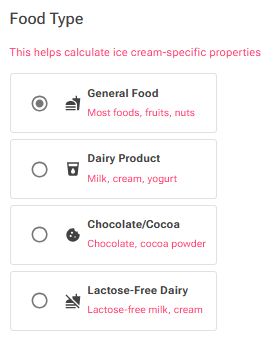
A label shows only total fat and total sugars. The food type tells the calculator what kind of fat and which sugars they are, and that decides the milk fat, cocoa fat, MSNF, PAC and POD of the ingredient. General Food is selected by default. Hover over a type to see what it calculates.
Quick Food Type Reference
| Choose This Type | For These Ingredients | Key Transformation |
|---|---|---|
| General Food | Fruits, nuts, eggs, honey, syrups, stabilizers, grains, vegetables | Treats all sugars as sucrose No special fat classification |
| Dairy Product | Milk, cream, yogurt, cheese, butter, sour cream, crème fraîche | Fat → Milk Fat Natural sugars → Lactose (added sugars on the US tab count as sucrose) Calculates MSNF |
| Chocolate/Cocoa | Chocolate bars, cocoa powder, chocolate chips, cacao nibs | Fat → Cocoa Fat Solids → Cocoa Solids Treats all sugars as sucrose Calculates Hardening Factor |
| Lactose-Free Dairy | Lactose-free milk, lactose-free cream, lactose-free yogurt | Fat → Milk Fat Natural sugars → half Glucose, half Galactose (for PAC/POD) Calculates MSNF |
EU labels and dairy: an EU label has no “added sugars” line, so with Dairy Product selected on the EU tab, all sugars become lactose. That is right for milk and cream. For a sweetened dairy product, such as sweetened condensed milk, it makes the ingredient far less sweet (lower POD) than it is, so check Lactose and POD in the editor after applying.
⚠️ Remember: Choosing the wrong food type will give you completely incorrect PAC/POD calculations! A dairy product marked as “General Food” will show a POD about six times higher than it should be, making your ice cream recipes fail.
Step 4: Apply and Import
Once you’ve entered all the nutrition values, selected the correct food type, and verified there are no validation errors, you’re ready to import the data.
The Apply Button
The Apply button is located in the top-right corner of the page header (on a phone, it is a full-width button under the page title).
When you can click Apply:
- ✅ At least one of energy, fat, protein or carbohydrate entered (not all fields required)
- ✅ No validation errors showing
- ✅ Food type selected (General Food is the default)
- ✅ Macro totals make sense
When Apply is disabled (button grayed out):
- ❌ No nutrition values entered at all
- ❌ Validation errors present
- ❌ Macro totals exceed serving size by more than 5%
What Happens When You Click Apply
The calculator performs several important operations:
- Converts to per 100g basis: If using US format, all values are mathematically converted
- Calculates ice cream properties: PAC, POD, and food-type-specific properties
- Estimates water content: Calculates the moisture level (or uses your override)
- Updates your ingredient: All calculated values replace the ingredient’s nutrition values. Its name, category, description/notes and allergens are kept (the food type does not change the category; set that in the editor).
- Returns to Edit Ingredient: You’re back in the main ingredient editor
After Applying: What You’ll See
After clicking Apply:
- Return to Edit Ingredient: Automatically navigated back to the main ingredient editor
- All fields populated: Your ingredient now has complete nutritional data
- Ice cream properties calculated: PAC, POD, MSNF, etc. are all computed
- Nothing saved yet: The values are in the editor only until you click Save
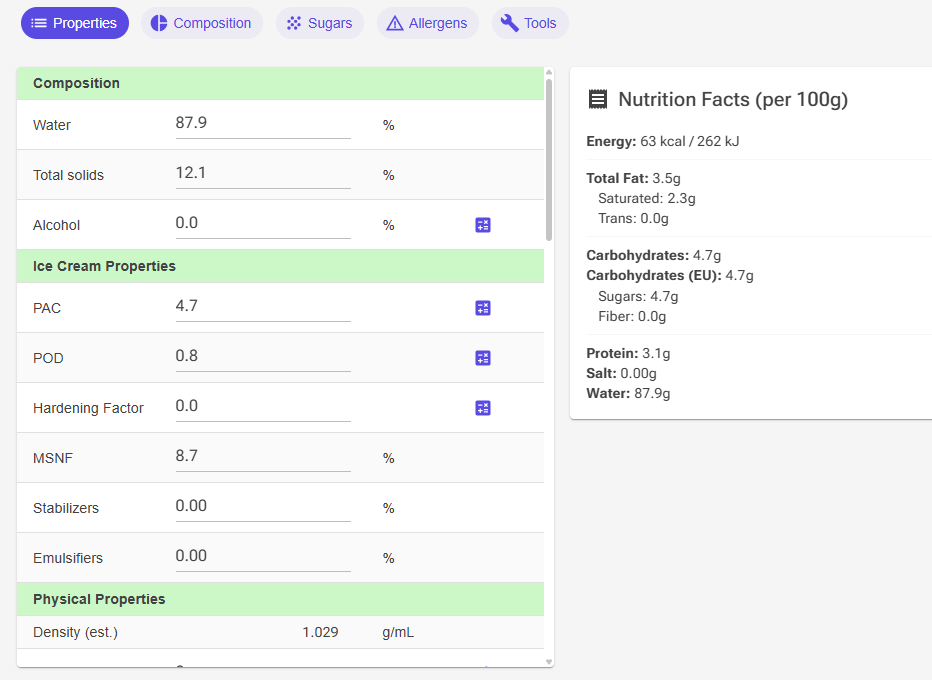
✅ Success! Your ingredient now has all the ice cream-specific properties calculated from the nutrition label. You can review them in the Edit Ingredient page, make any manual adjustments if needed, and save to your ingredient library.
The Sugars Tab Stays Empty
A label gives only total sugars, so the import does not fill in the individual sugars on the ingredient’s Sugars tab; only Lactose is set, for the Dairy Product type. This is by design: the food type’s assumption about which sugars these are is used for PAC and POD, but it is not stored as a sugar composition. If the ingredient already had a sugar split, applying a label clears it.
To record the split, fill it in on the Sugars tab or click Propose with AI there. See Sugar Composition.
Common Scenarios and Examples
Scenario 1: Heavy Cream (EU Label)
Product: Heavy Cream 36% fat
Label Format: EU (per 100g)
Food Type: Dairy Product
| Nutrition Label Shows | Enter This |
|---|---|
| Energy: 1452 kJ / 347 kcal | Calories: 347 |
| Fat: 36.0g (of which saturated: 22.5g) | Fat: 36.0, Saturated: 22.5 |
| Carbohydrate: 3.1g (of which sugars: 3.1g) | Carbs: 3.1, Sugars: 3.1 |
| Fibre: 0.0g | Fiber: 0 |
| Protein: 2.1g | Protein: 2.1 |
| Salt: 0.08g | Salt: 0.08 |
Calculated Ice Cream Properties:
- Water: ~58%
- Milk Fat: 36%
- MSNF: ~6%
- PAC: 3.1
- POD: 0.5
Scenario 2: Dark Chocolate (US Label)
Product: 70% Dark Chocolate
Label Format: US (per 3 squares = 30g)
Food Type: Chocolate/Cocoa Product
| Nutrition Label Shows | Enter This |
|---|---|
| Serving Size: 3 squares (30g) | Serving: 30 |
| Calories: 170 | Calories: 170 |
| Total Fat: 13g (Saturated: 8g) | Fat: 13, Saturated: 8 |
| Total Carbohydrate: 13g | Carbs: 13 |
| Dietary Fiber: 3g | Fiber: 3 |
| Total Sugars: 7g | Sugars: 7 |
| Protein: 2g | Protein: 2 |
| Sodium: 5mg | Sodium: 5 |
Calculated Ice Cream Properties (converted to per 100g):
- Cocoa Fat: ~43%
- Cocoa Solids: ~21%
- Hardening Factor: ~77
- PAC: 23
- POD: 23
Scenario 3: Strawberries (Fresh Produce)
Product: Fresh Strawberries
Label Format: EU (per 100g)
Food Type: General Food
| Nutrition Label Shows | Enter This |
|---|---|
| Energy: 136 kJ / 32 kcal | Calories: 32 |
| Fat: 0.3g | Fat: 0.3 |
| Carbohydrate: 5.5g (of which sugars: 4.9g) | Carbs: 5.5, Sugars: 4.9 |
| Fibre: 2.0g | Fiber: 2.0 |
| Protein: 0.7g | Protein: 0.7 |
| Salt: 0.00g | Salt: 0 |
Calculated Ice Cream Properties:
- Water: ~91%
- PAC: 4.9 (treats sugars as sucrose)
- POD: 4.9
Scenario 4: Lactose-Free Milk (US Label)
Product: Lactose-Free Whole Milk
Label Format: US (per 1 cup = 240ml = 244g)
Food Type: Lactose-Free Dairy
| Nutrition Label Shows | Enter This |
|---|---|
| Serving Size: 1 cup (244g) | Serving: 244 |
| Calories: 150 | Calories: 150 |
| Total Fat: 8g (Saturated: 5g) | Fat: 8, Saturated: 5 |
| Total Carbohydrate: 12g | Carbs: 12 |
| Total Sugars: 12g | Sugars: 12 |
| Protein: 8g | Protein: 8 |
| Sodium: 120mg | Sodium: 120 |
Calculated Ice Cream Properties (per 100g basis):
- Milk Fat: ~3.3%
- MSNF: ~9.1%
- PAC: 9.3 (much higher than regular milk!)
- POD: 2.6 (higher than regular milk!)
⚠️ Notice: Lactose-free milk has nearly DOUBLE the PAC and TRIPLE the POD of regular milk, even though the nutrition label looks almost identical! This is why selecting “Lactose-Free Dairy” instead of “Dairy Product” is critical.
Tips for Successful Nutrition Label Import
Double-check the serving size on US labels and the carbohydrate convention (EU excludes fibre, US includes it); both are covered in Step 2 above.
1. Food Type Selection Checklist
Before clicking Apply, verify:
- ❓ Is it dairy? → Choose Dairy or Lactose-Free Dairy
- ❓ Is it chocolate/cocoa? → Choose Chocolate
- ❓ Is it anything else? → Choose General Food
2. Validate Before Applying
Look for these warning signs:
- 🚨 Remaining weight is negative or zero
- 🚨 Remaining weight is >70% (probably missing data)
- 🚨 Saturated fat equals or exceeds total fat
- 🚨 Sugars exceed carbohydrates
3. Use Clear All for Fresh Start
If you make mistakes or want to start over:
- Click the “Clear All” button at bottom of nutrition table
- All fields are cleared, including the water override
- Serving size resets to 100g (EU tab) or 30g (US tab)
- Food type resets to General Food
Troubleshooting Common Issues
Problem: “Total macros (…g) exceed serving size (…g)”
Likely causes:
- Typo: “36.0” entered as “360”
- Wrong decimal separator
- Entered percentages instead of grams
- Wrong serving size (US format)
Solution: Review all entries, especially check for decimal point errors.
Problem: Water estimate is negative or near zero
Likely causes:
- Total of all macros exceeds 100g
- You’re importing a very dry ingredient (powder, sugar, etc.)
- Data entry errors
Solution:
- For dry ingredients: This is normal (e.g., cocoa powder has <5% water)
- For wet ingredients: Check your entries for errors
- Use water override if you know the actual water content
Problem: PAC/POD values seem wrong
Check these things:
- Food type correct? Dairy marked as “General” will have about six times the POD
- Serving size correct? US format conversions affect everything
- Values per 100g? EU format should be per 100g, not per serving
Expected ranges for reference:
- Sugar: PAC ~100, POD ~100
- Milk: PAC ~5, POD ~0.8
- Heavy cream: PAC ~3, POD ~0.5
- Chocolate: PAC ~20-30, POD ~20-40
- Fruit: PAC ~5-10, POD ~5-10
Problem: Apply button is grayed out
Possible reasons:
- None of energy, fat, protein or carbohydrate entered yet (sugars or salt alone are not enough)
- Validation errors present (check top of page)
Solution: Enter at least some nutrition values and fix any validation errors shown at the top of the page.
Summary: Nutrition Label Import Process
You’ve now learned the complete nutrition label import system:
- Choose format – EU (per 100g) or US (per serving)
- Enter nutrition values – Type exactly what the label shows
- Verify calculations – Check macro totals and water estimate
- Select food type – Critical for correct PAC/POD calculations
- Fix validation errors – Resolve any warnings before applying
- Apply data – Import calculated properties to your ingredient
✅ You’re now ready to create ingredients from nutrition labels! This method works for any product with a nutrition label – from store-bought cream to artisanal chocolate to fresh fruits.