Install Ice Cream Calculator as an App
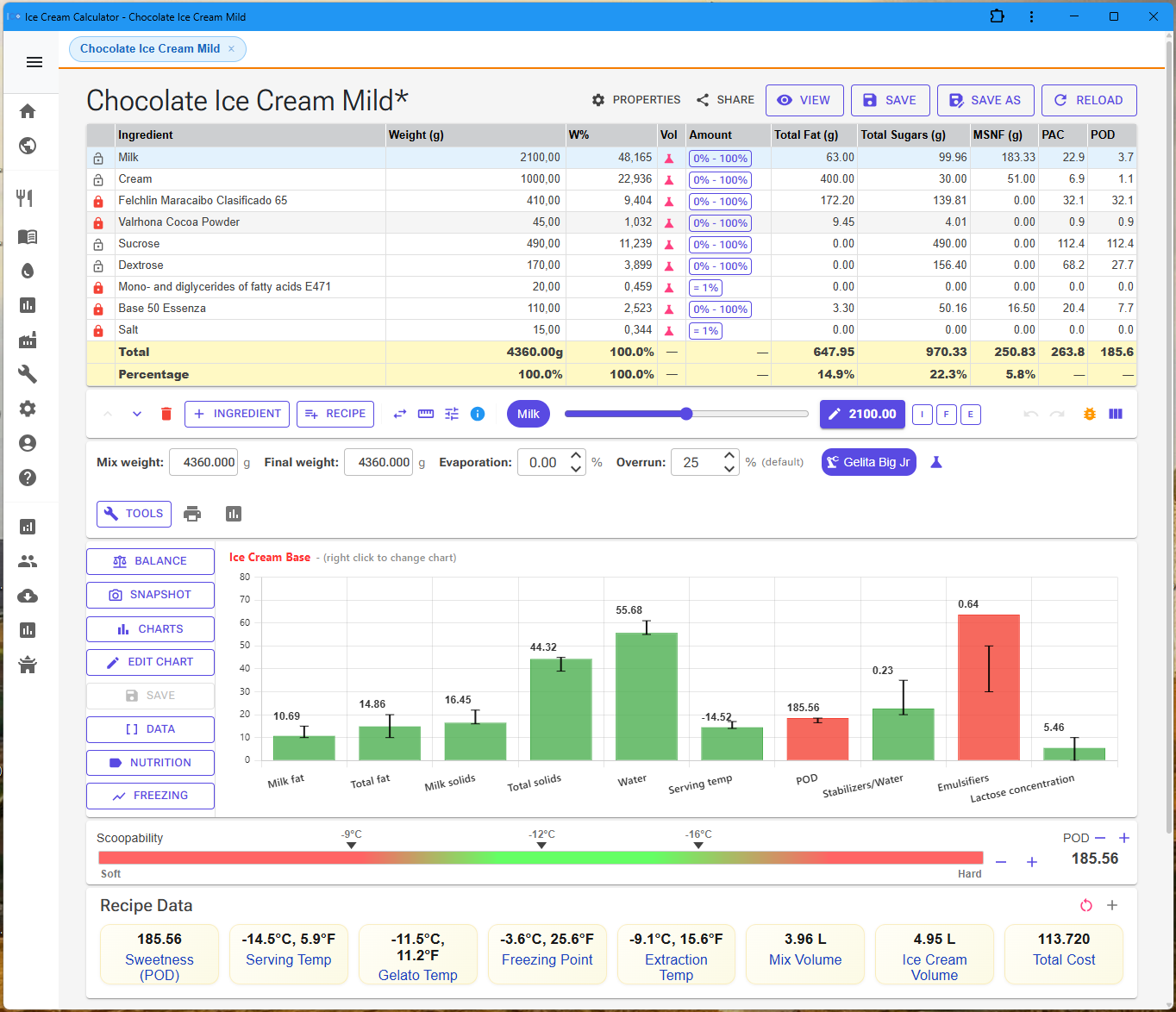
Ice Cream Calculator can be installed on your computer or mobile device to work like a native app. Once installed, you can launch it directly from your Start menu, Dock, Applications folder, or Home screen without opening your browser first.
Note: Not all browsers and devices support this feature. If installation is unavailable on your device, you can still use Ice Cream Calculator in your browser or bookmark it for quick access.
Benefits of Installing the App
- Faster access — launch directly from your desktop, taskbar, or home screen.
- Its own window — runs in a separate window without browser toolbars, giving you more screen space and fewer distractions.
- App-like experience — feels like a native app with a dedicated window, icon, and entry in your system's app list.
Installation Instructions by Platform
Windows — Chrome
- Open Ice Cream Calculator in Chrome.
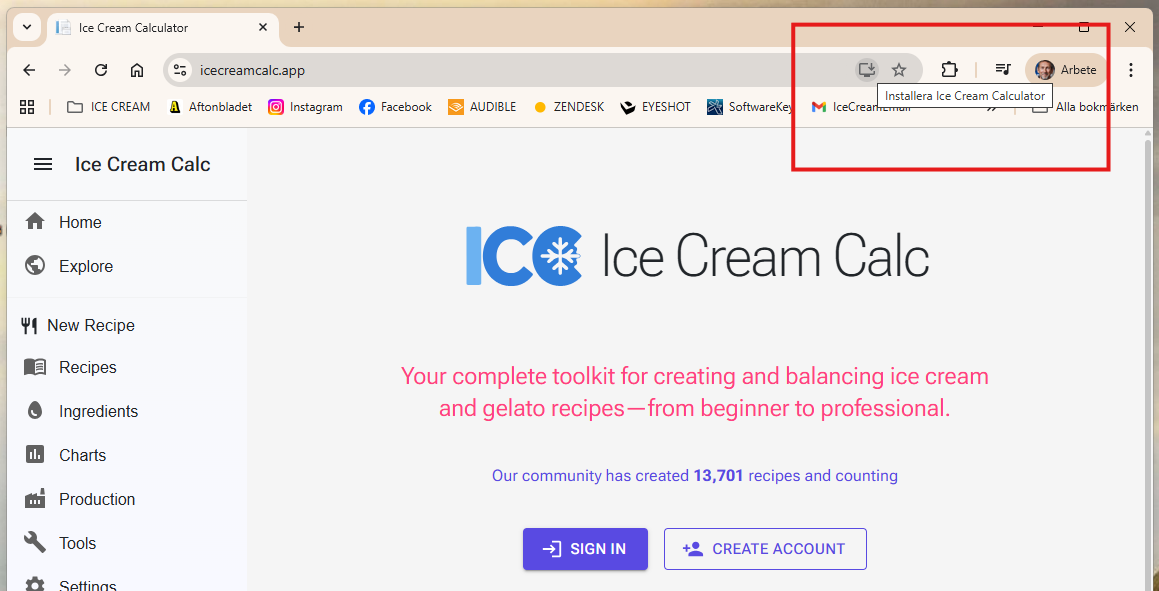
- Look for the install icon on the right side of the address bar (a small computer/monitor icon, sometimes shown with a plus sign). If you see it, click it and confirm.
- If the install icon is not visible, click the three-dot menu in the top-right corner and choose Cast, save, and share → Install page as app (exact wording varies by Chrome version — it may appear under Save and share or More tools).
- Confirm the installation. The app will appear in your Start menu and can be pinned to the taskbar.
Windows — Edge
- Open Ice Cream Calculator in Edge.
- If the site is installable, an App available icon appears in the address bar — click it and confirm.
- If the icon is not visible, click the three-dot menu (Settings and more) in the top-right corner and choose Apps → Install this site as an app.
- Give the app a name and click Install. The app will appear in your Start menu.
macOS — Safari
Requires macOS Sonoma (14) or later. On earlier versions of macOS, Safari does not support installing web apps — use Chrome or Edge instead.
- Open Ice Cream Calculator in Safari.
- Click the Share button (square with an upward arrow) in the toolbar.
- Choose Add to Dock.
- The app will appear in your Dock and Launchpad.
macOS — Chrome
- Open Ice Cream Calculator in Chrome.
- Look for the install icon on the right side of the address bar and click it.
- If the icon is not visible, click the three-dot menu in the top-right corner and choose Install page as app (may appear under Cast, save, and share).
- Confirm. The app will appear in Launchpad and your Applications folder.
Android — Chrome
- Open Ice Cream Calculator in Chrome.
- Chrome may automatically show an install banner — if it does, tap Install.
- Otherwise, tap the three-dot menu in the top-right corner and tap Install app or Add to Home screen.
- Confirm. The app icon will appear on your Home screen and in your app drawer.
Android — Firefox
Note: Firefox on Android creates a home-screen shortcut rather than a full app install. It will still launch in its own window, but without some of the integration that Chrome's install provides.
- Open Ice Cream Calculator in Firefox.
- Tap the three-dot menu.
- Tap Add to Home screen.
iOS / iPadOS — Safari
- Open Ice Cream Calculator in Safari.
- Tap the Share button (square with an upward arrow) at the bottom of the screen (or top, on iPad).
- Scroll down and tap Add to Home Screen.
- Confirm the name and tap Add.
iOS / iPadOS — Chrome, Edge, Firefox
On iOS 16.4 and later, you can install Ice Cream Calculator as an app from Chrome, Edge, or Firefox as well:
- Open Ice Cream Calculator in your browser of choice.
- Tap the Share button.
- Tap Add to Home Screen.
On iOS 16.3 and earlier, only Safari supports installing web apps — use the Safari instructions above.
If Installation Is Not Available
If you don't see an install option, your browser or device may not support Progressive Web App (PWA) installation. Notable limitations:
- Firefox on desktop does not support PWA installation at all.
- Safari on macOS before Sonoma (14) does not support installing web apps — use Chrome or Edge.
- iOS before 16.4 — installation is only supported in Safari.
You can still use Ice Cream Calculator in your browser. For quick access:
- Bookmark the app — add it to your bookmarks bar for one-click access.
- Pin the tab — most browsers let you right-click a tab and choose Pin so it stays open and easy to find.
Frequently Asked Questions
Why don't I see the install option?
Your browser or device may not support PWAs, or the option may be hidden in a submenu such as More tools, Apps, or Save and share. Make sure you're using a supported browser and have the latest version installed. Also check that you're viewing Ice Cream Calculator over HTTPS — installation is only available on secure sites.
Does it work offline?
No. Ice Cream Calculator does not work offline at all, installed or not. Everything you do — opening recipes, calculations, saving, charts and AI features — runs on the server, and the app keeps a live connection to it while you work. The installed app is the website running in its own window; it keeps no offline copy on your device.
What happens if my connection drops?
You see a Connection Lost message while the app tries to reconnect to the server. When your connection is back, it reconnects by itself. If it cannot, click Reload Page.
How do I uninstall the app?
Desktop: Right-click the app icon in your Start menu, taskbar, Dock, or Applications folder and select Uninstall or Move to Trash. Alternatively, open the app, click the three-dot menu in the app's title bar, and choose Uninstall.
Mobile: Long-press the icon on your Home screen and remove it the same way you'd uninstall any other app.
Will installing the app use extra storage?
Hardly any. The browser keeps the app's name and icon. Ice Cream Calculator does not save a copy of itself for offline use, so installing adds almost nothing to what your browser already stores when you visit the site. The app is not a separate download; it reuses the browser's engine on your device.
Why is the app icon labelled ICC?
ICC is the app's short name. Some devices use it under the icon when there is not room for “Ice Cream Calculator”. On iPhone and iPad you can type the name you want when you add the app to your Home Screen.