Concepts & Properties
Table of Contents
- The Ingredient Library
- Creating & Editing Ingredients
- Basic Nutritional Properties
- Ice Cream Science: PAC, POD & HF
- Dairy-Specific Properties
- Chocolate-Specific Properties
- Validation & Quality Checks
1. The Ingredient Library
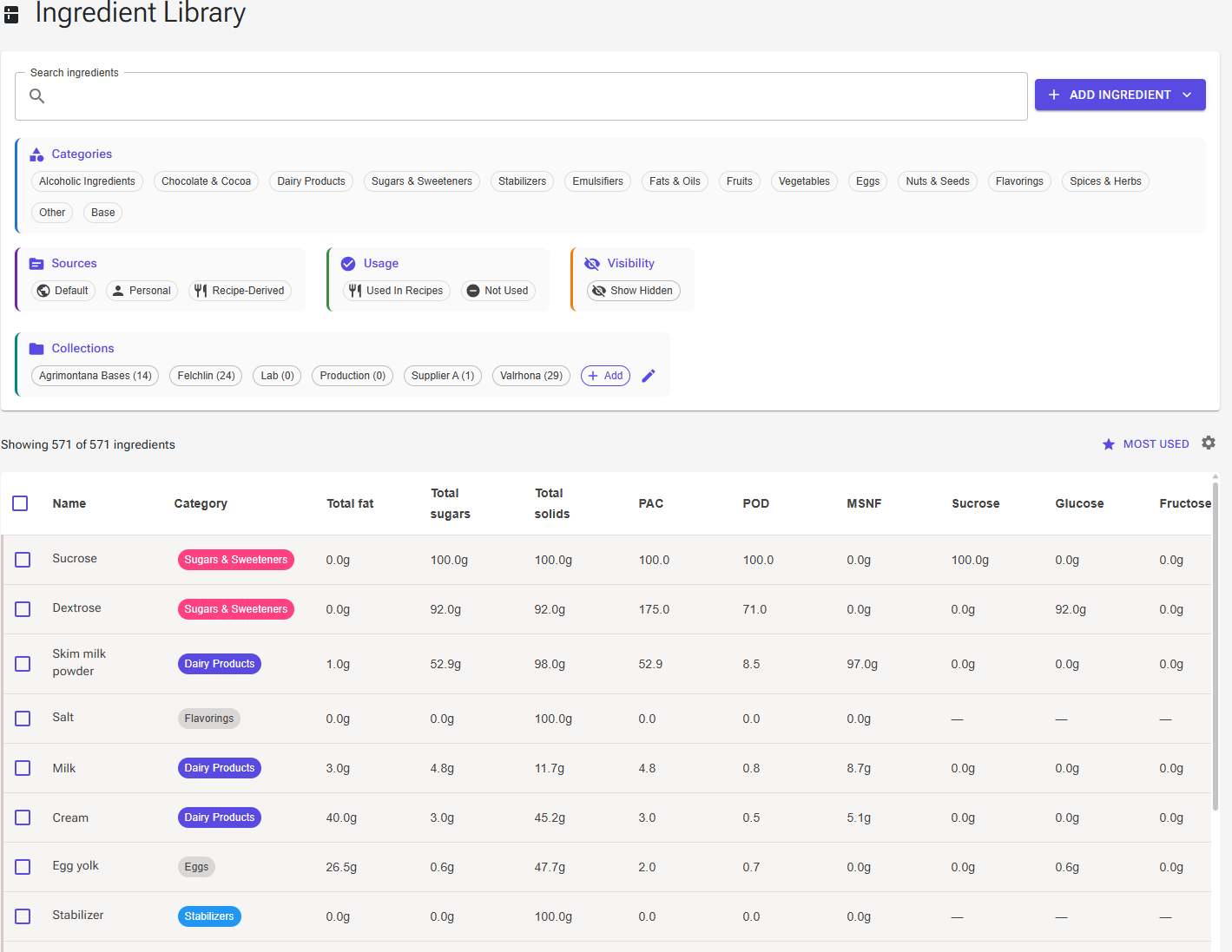
The Ingredient Library is your central hub for browsing, searching, and managing all ingredients available for your ice cream recipes. The library contains both shared/public ingredients (available to all users) and your personal ingredients (ingredients you've created or customized).
Two more ways to fill your library: Ingredient Packs (in the navigation menu) are curated packs of branded and specialty ingredients that you import as your own editable copies, grouped in a collection named after the pack. See Ingredient Packs. With Premium you can also import ingredients from a file and export them, from the Tools page. See Import and Export.
1.1 Understanding the Ingredient Table
The ingredient table displays comprehensive information about each ingredient:
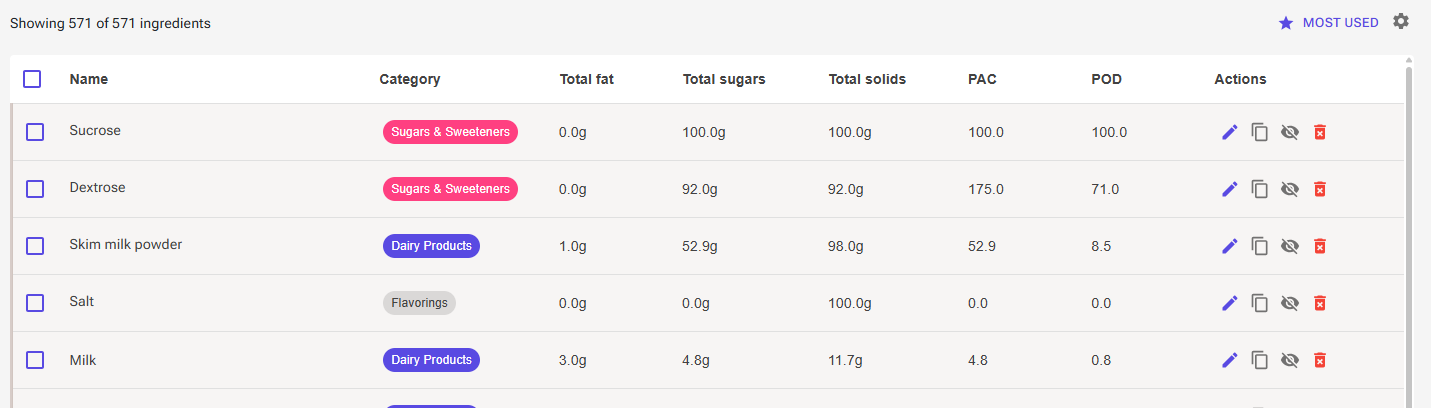
Always Visible Columns:
- Checkbox — Select ingredients for bulk operations
- Name — The ingredient name. Hover over it for a quick summary: the description, fat, total sugars, total solids, MSNF, PAC, POD and, once you have used the ingredient, how many times you have added it to a recipe ("Used 12 times"). Double-click the name to open the ingredient in the editor.
- Category — Color-coded category chip
- Actions — Edit, copy, hide/unhide and delete buttons
Customizable Columns:
You can show/hide additional data columns by clicking the Settings (gear) icon next to the results count (desktop only; on small screens the table shows the name, category and actions). The column chooser lists more than 40 columns in alphabetical order, so a column is easy to find; the table itself keeps a fixed column order. The columns include:
Basic Nutritional Data: Energy (kcal), Energy (kJ), Total fat, Protein, Total sugars, Water, Total solids, Carbohydrates (US), Carbohydrates (EU), Fiber, Alcohol
Ice Cream Properties: PAC (freezing point depression), POD (relative sweetness), Hardening Factor, MSNF (milk solids not fat), Lactose, Stabilizers, Emulsifiers, Min Amount %, Max Amount %
Detailed Nutrition: Saturated fat, Unsaturated fat, Trans fat, Cocoa Fat, Milk fat, Other fat, Sugar (excl. Lactose), Added sugars, Polyols, Other carbs, Salt, Sodium, Cholesterol, Calcium, Iron, Potassium, Vitamin D
Solids: TSNF, TSNFS, Other solids, Cocoa solids, Milk solids
Other: Source, Created, Changed, and any custom properties you have named in Settings
Sugar composition (Premium): Sucrose, Glucose, Fructose, Maltose, Galactose, Trehalose, Other sugars, Maltotriose, Higher order sugars. A dash means the value is unknown, not zero. See Sugar Composition.
Click any column name chip to toggle it on/off (selected columns are filled). Your choice is saved to your account. Use the Reset to Default button to restore the standard columns (Total fat, Total sugars, Total solids, PAC, POD).
Sorting:
By default the list is sorted by use: the ingredients you add to recipes most often come first, and the rest follow alphabetically. Click a column header to sort by that column instead (click again to reverse the order); the sort is remembered when you come back to the page. Click Most Used (star icon, next to the results count) to return to the default order.
1.2 Search & Filtering
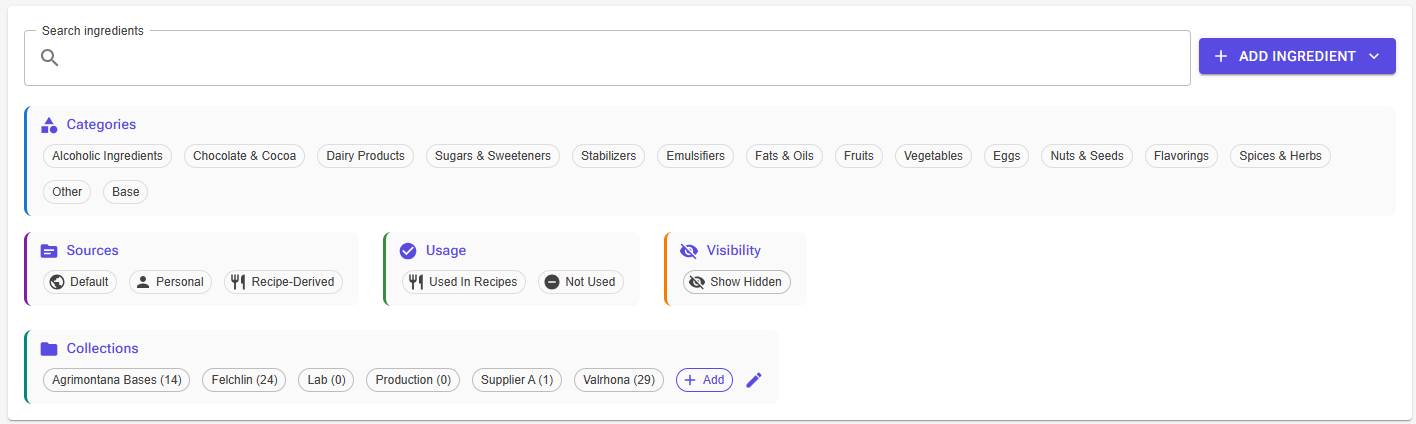
The search and filter system helps you quickly find the right ingredients. All filters are presented as clickable chips, and you can combine multiple filters at once.
Search Bar and the Add Ingredient Menu
At the top of the filter card you'll find the search field and the Add ingredient menu. The menu offers four ways to add an ingredient: Create manually, Search Food DB, From nutrition label and Estimate with AI (see 2.1 Creating a New Ingredient). Whatever you have typed in the search field is carried over as the starting name or search term.
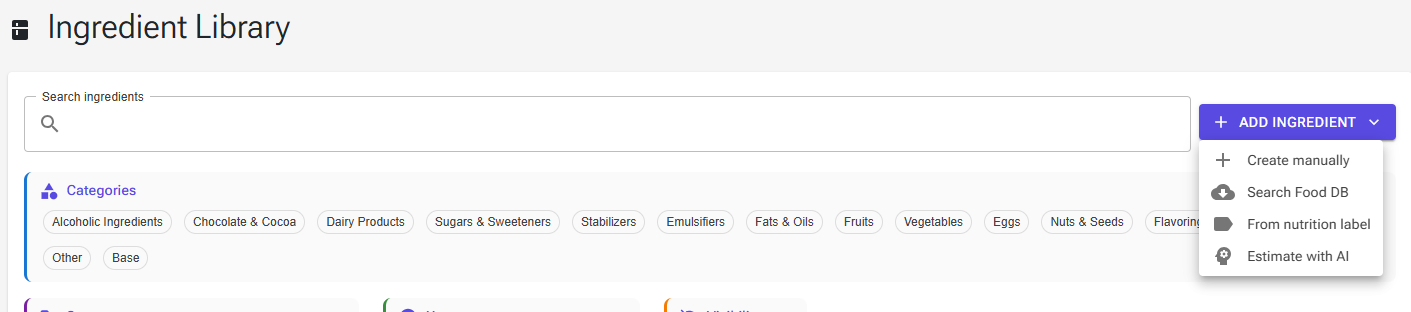
Type in the search field to filter by ingredient name. Search is real-time with a short delay for performance, it is case-insensitive, and it matches the name only, not the description.
Filter by Category
Use the Categories chips to show only ingredients from specific categories. Click any chip to toggle it — you can select multiple categories at once. Selected chips are highlighted in blue.
Available categories (15): Alcoholic Ingredients, Chocolate & Cocoa, Dairy Products, Sugars & Sweeteners, Stabilizers, Emulsifiers, Fats & Oils, Fruits, Vegetables, Eggs, Nuts & Seeds, Flavorings, Spices & Herbs, Other, and Base.
Filter by Source
The Sources filter (signed-in users only) helps you distinguish between different types of ingredients. Three source chips are available:
- Default — Shared/public ingredients available to everyone (shown with a public icon)
- Personal — Ingredients you created from scratch or customized from shared ingredients (shown with a person icon)
- Recipe-Derived — Ingredients created from your recipes (shown with a restaurant icon)
If you switched on Default to personal ingredients only in Settings, the list starts with the Personal chip selected.
Filter by Usage
The Usage filter lets you find ingredients based on whether they appear in any of your recipes:
- Used In Recipes — Show only ingredients that appear in at least one recipe
- Not Used — Show only ingredients not used in any recipe
This is helpful for cleaning up your ingredient library — find unused ingredients you may want to hide or delete.
Visibility Toggle
The Visibility section has a single Show Hidden chip. Click it to reveal ingredients you have previously hidden. Hidden ingredients are not deleted — they are simply removed from your default view. This keeps your ingredient library clean without losing any data.
Collections Filter
Collections let you organize ingredients into custom groups (e.g., "Base Ingredients", "Summer Flavors", "Supplier A").

- Click a collection chip to filter the list to only ingredients in that collection
- Each chip shows the number of ingredients it contains
- Click the Edit (pencil) icon to enter management mode where you can rename or delete collections
- Click Add to create a new collection
- You can add ingredients to collections using the bulk action bar (see below)
Understanding Source Types
Default (Shared) Ingredients:
- Available to all users
- Read-only — you cannot directly modify them
- Shown with a brown/grey background and public icon
- When you edit a shared ingredient, you create a personal copy
Personal Ingredients:
- Created by you from scratch, or created as copies of shared ingredients
- Shown with a blue background and person icon
- Only visible to you (not shared with other users)
- Full control — you can edit or delete these
Recipe-Derived Ingredients:
- Created from your recipes (turning a recipe into an ingredient)
- Shows a restaurant icon before the name
- Can be updated from the source recipe when it changes
- Useful for creating components (bases, variegates, inclusions). See Using a Recipe as an Ingredient.
Results Count & Clearing Filters
Below the filter card, you'll see a results summary like "Showing 45 of 237 ingredients". When a search, category or source filter is active, a Clear Filters button appears; it clears the search and every filter. Your search, filters and sort are remembered when you come back to the page, for example after editing an ingredient.
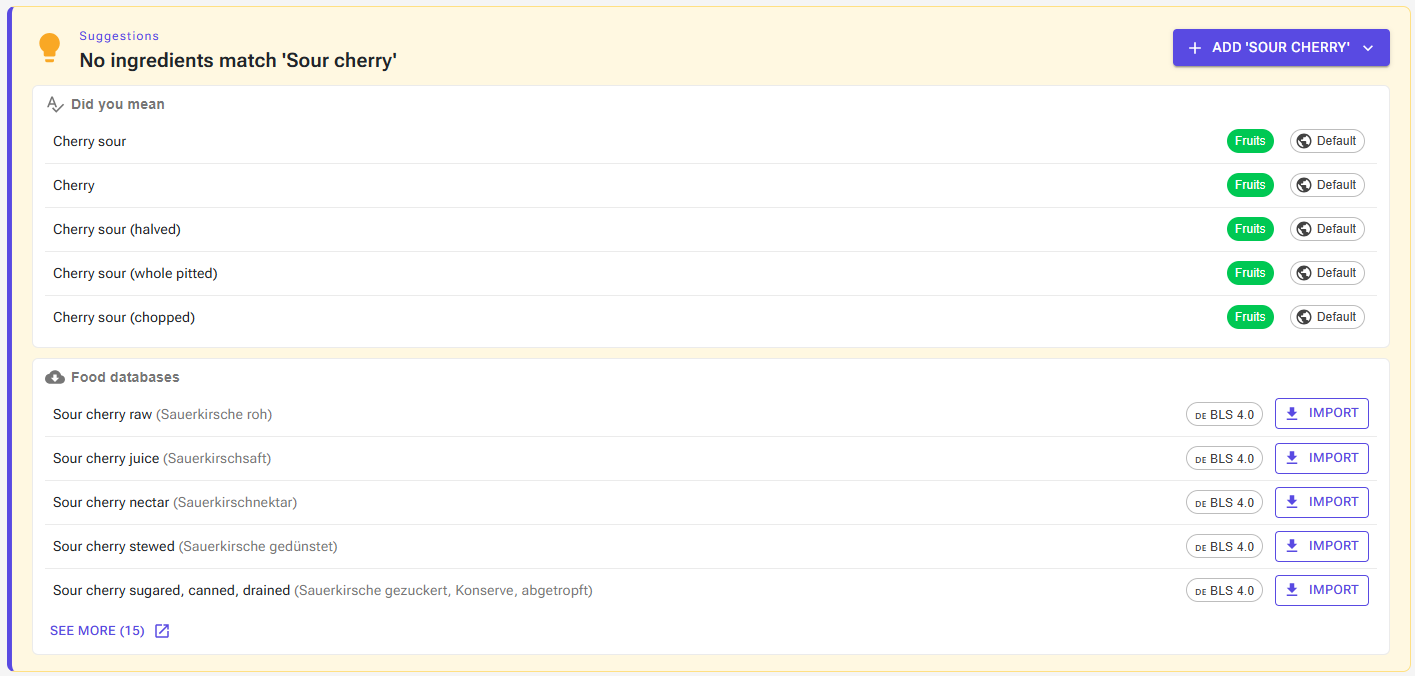
When Nothing Matches: the Suggestions Card
When your search finds nothing, a Suggestions card appears instead of an empty table (signed-in users):
- "No ingredients match '…'" with an Add '…' button — the same four choices as the Add ingredient menu, with your search term carried over.
- "… matches outside your current filters" — ingredients that match the search but are hidden by your active filters. Click one to open it.
- Did you mean — up to five ingredients with a similar name, for example when the search has a typo.
- Food databases — when nothing in your library matches and the term has at least three letters, up to five matches from the food databases. Import shows the food's details; confirm to add it to your library. See more opens the full Food DB Search with your term. See Food Databases.
Guests see a short "No ingredients match your search." message instead.
1.3 Ingredient Actions

Each ingredient row has action buttons on the right side. The available actions depend on the ingredient type.
For All Signed-In Users:
Edit (pencil icon)
- Opens the ingredient editor (double-clicking the name does the same)
- For shared ingredients: when you save, your changes become a new personal ingredient; the shared ingredient is never changed (see 2.3)
- For personal ingredients: edits your existing ingredient directly
Copy (copy icon)
- Opens the editor with a personal copy of the selected ingredient, including its sub-ingredients and allergens
- Automatically generates a unique name (e.g., "Whole Milk (Copy)", "Whole Milk (Copy 2)")
- The copy is created when you click Create Ingredient; click Back to discard it
- Useful for creating variations of existing ingredients
Hide (eye-off icon) — for shared ingredients
- Hides the ingredient from your default library view
- The ingredient is not deleted — use the Show Hidden visibility filter to see it again
- Useful for decluttering your library without losing data
Unhide (eye icon) — only visible on hidden ingredients
- Restores a hidden ingredient to your default view
- Only appears when viewing hidden ingredients via the Visibility filter
For Personal Ingredients Only:
Delete (trash icon)
- Permanently deletes your personal ingredient
- If the ingredient is used in recipes or has stock or production records, the dialog lists them. Delete Anyway removes the ingredient from those recipes and deletes its stock and production records.
- Requires confirmation before deletion
Bulk Operations
You can select multiple ingredients and perform actions on them all at once:

- Use the checkbox next to each ingredient to select it, or use the checkbox in the table header to select every ingredient that matches the current filters (on all pages of the table). Unticking the header checkbox deselects only the ingredients you can see.
- Your selection is kept when you search or filter. You can tick ingredients from one search, search for something else and tick more. The bulk action bar at the top shows how many ingredients are selected and, when some of them are hidden by the current search or filters, how many (for example “5 ingredients selected (3 hidden by filters)”).
- Click Show Selected Only to list exactly the ingredients you ticked, whatever the search and filters, for example to compare ingredients picked from several searches. Click Show All to go back. Changing the search or a filter, or clearing the selection, also ends it.
- Available bulk actions, which apply to every selected ingredient, including those hidden by filters:
- Collections — Add or remove selected ingredients from collections
- Report — Generate a report for the selected ingredients
- Hide — Hide all selected shared ingredients from your default view
- Unhide — Restore all selected hidden ingredients
- Delete — Delete all selected personal ingredients (with confirmation)
- Clear Selection — Deselect everything
1.4 Visual Indicators
The ingredient table uses color coding and icons to help you quickly identify different types of ingredients:
Row Colors:
- Brown/Grey background with left border — Default (shared) ingredients
- Blue background with left border — Personal ingredients
- Green background with left border — The ingredient you just created. It stays visible even if your filters would hide it, until you change a filter or the search.
Icons:
- Restaurant icon — Recipe-derived ingredient (appears before the name)
- Public icon — Shared/default ingredient (in the Source column and filter)
- Person icon — Personal ingredient (in the Source column and filter)
- Eye-off / eye icons — Hide and Unhide actions on shared ingredients
Chips & Badges:
- Category chip — Color-coded for Dairy, Sugar, Fat, Fruit, Chocolate and Stabilizer categories; other categories are grey
- "Hidden" chip — Orange outline, shown on ingredients you have hidden from your default view
- Collection chips — Small blue chips below the name showing which collections an ingredient belongs to (up to 3 shown, with "+X" if more)
1.5 Guest Users vs Signed-In Users
As a Guest (Not Logged In):
- Can browse all shared/public ingredients
- Can search and filter by category
- Can hover over a name to see its summary
- Cannot open ingredient details: double-clicking a name, or any entry in the Add ingredient menu, takes you to the login page
- Cannot edit, create, or delete ingredients
- Cannot filter by source, usage, visibility, or collections
- See a notice encouraging you to sign up to add custom ingredients
As a Signed-In User:
- Everything guests can do, plus:
- Open any ingredient in the editor
- Create new ingredients from the Add ingredient menu or the Suggestions card
- Edit any ingredient (creates a personal copy for shared ones)
- Delete your personal ingredients
- Copy ingredients
- Hide/unhide shared ingredients
- Use all filter types (source, usage, visibility, collections)
- Organize ingredients into collections
- Perform bulk operations on selected ingredients
2. Creating & Editing Ingredients
2.1 Creating a New Ingredient
Click Add ingredient next to the search field and choose how to start. Whatever you typed in the search field becomes the starting name. For help choosing a method, see How to add ingredients.
- Create manually — Opens the editor with a blank ingredient. Best when you have a technical data sheet or know the values.
- Search Food DB — Search the national food databases and add a match straight to your library. See Food Databases.
- From nutrition label — Type in the values from a product's nutrition label. See Nutrition Label Import.
- Estimate with AI (Premium) — Let AI estimate every property, including PAC and POD. See AI Ingredient.
- From a recipe — Use a base, variegate or sauce you have made as an ingredient. See Using a Recipe as an Ingredient.
- Copy — Click the copy icon on a similar ingredient and change what differs. Best for variations (e.g., different fat % milk).
To add many ingredients at once, import an Ingredient Pack or, with Premium, an ingredient file (see Import and Export).
2.2 The Edit Ingredient Page
The Edit Ingredient page has two main areas: the header cards with basic info and import actions, and the Properties Editor below them with a tabbed interface for all ingredient data.
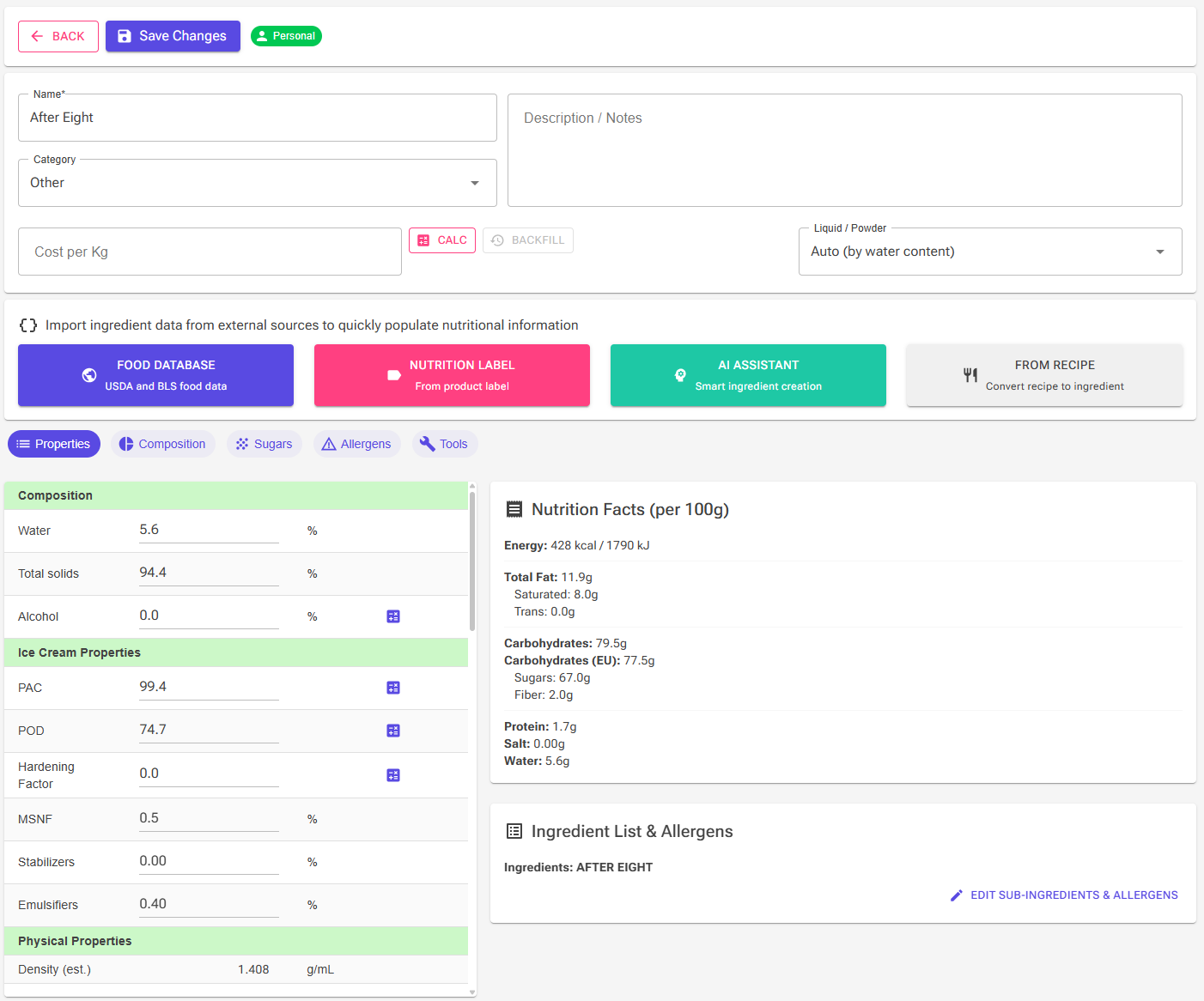
Header Section
- Back button — Returns to the page you came from; unsaved changes are discarded
- Save button — Saves your changes. Its label shows what will happen (see 2.4)
- Source chip — Shows whether the ingredient is Default (shared) or Personal, plus a Recipe-Derived chip for ingredients made from a recipe
Basic Information Card:
- Name — Required field for ingredient name (auto-focused and selected for new ingredients). On a shared ingredient the name is read-only; you can rename your personal copy after saving it. For recipe-derived ingredients, the name is synced from the source recipe and cannot be changed.
- Category — Dropdown with the 15 categories (see 1.2)
- Description / Notes — Multi-line text field for additional info. It is shown in the hover summary in the library.
- Cost per Kg — Your price for the ingredient, in your own currency. It is personal: other users never see it, and you can set it on a shared ingredient without making a copy. It is the same cost the Stock Management page uses.
- Calc opens the Purchase Cost Calculator: enter the weight you bought, its unit and the total you paid, then click Apply Cost.
- Backfill applies the cost to past production batches that were recorded without a cost, so your cost analysis covers them. It is available once the ingredient is saved and a cost is entered.
- Recipe-derived ingredients take their cost from the source recipe, so these fields are disabled for them.
- Liquid / Powder — Decides whether the ingredient is listed with the liquids or the powders on the Produce page and on recipe cards that group ingredients by type. Auto (by water content) treats an ingredient with at least 10% water as a liquid; choose Liquid or Powder to override it. Like the cost, this setting is personal.
Import Actions Card:
Large buttons for importing ingredient data (not shown for recipe-derived ingredients):
- Food Database — Search the national food databases and click Use these values. On an existing ingredient only the nutrition values are replaced; the name, category and notes stay. On a new ingredient the name and category are taken as well.
- Nutrition Label — Enter values from a product's nutrition label
- AI Assistant (Premium) — Smart ingredient creation using AI
- From Recipe — Convert one of your saved recipes to an ingredient (personal ingredients only). The recipe cannot itself contain recipe-derived ingredients.
Recipe Source Card (Recipe-Derived Ingredients Only):

This card appears only for recipe-derived ingredients and shows:
- Which recipe this ingredient is linked to
- Edit Recipe button — Opens the source recipe for editing
- Unlink button — Removes the recipe connection (the ingredient becomes a regular personal ingredient you can edit manually, keeping its current values). Save the ingredient to keep the change.
- A warning alert if the source recipe has been deleted or cannot be found
The Properties Editor (Tabbed Interface)
Below the header cards, the Properties Editor uses a tabbed interface with five tabs, selectable via chip buttons: Properties, Composition, Sugars, Allergens and Tools.
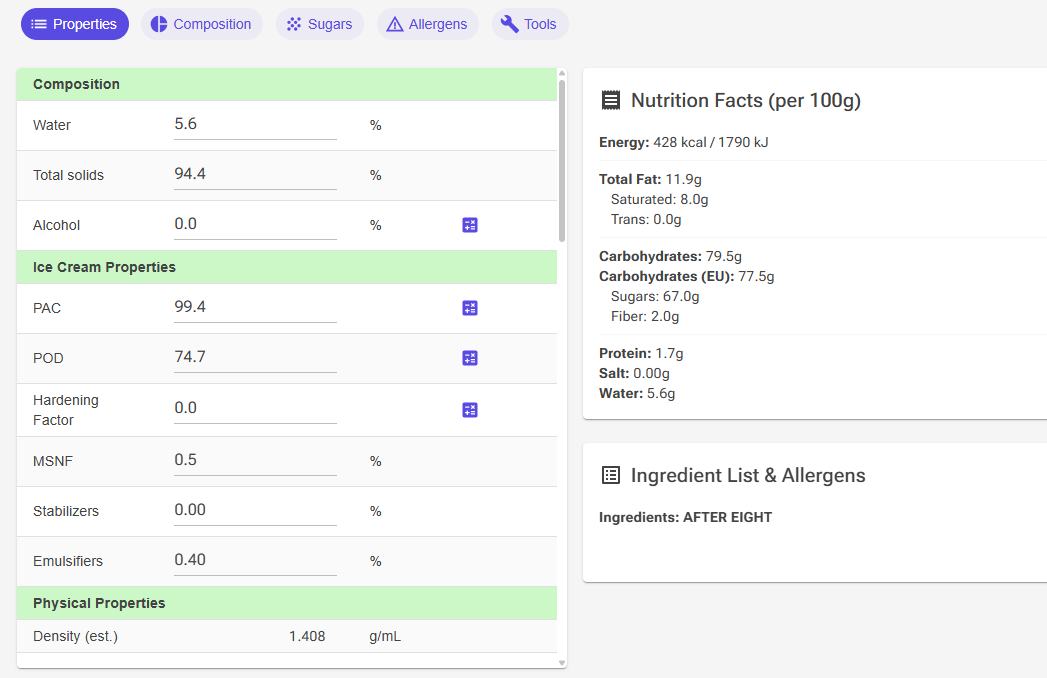
Tab 1: Properties
The Properties tab shows a compact, scrollable table with all ingredient values side by side with a Nutrition Facts summary card. The table is organized into clearly labeled sections with green header rows:
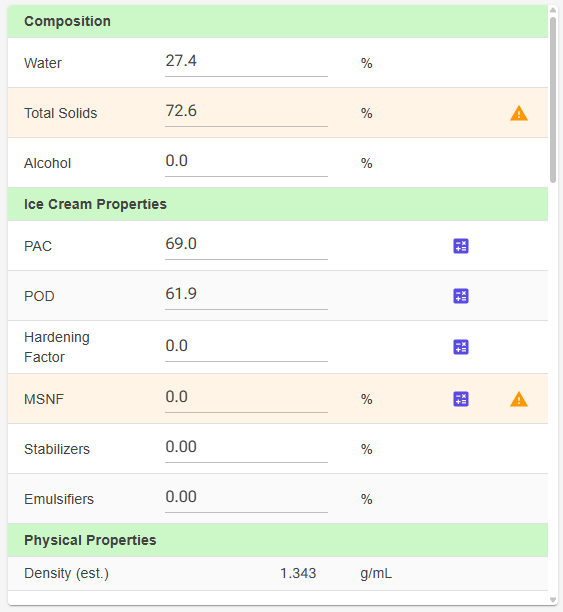
- Composition — Water, Total solids, Alcohol (these three always sum to 100%). The calculator icon next to Alcohol opens the Alcohol Calculator (see 4.1).
- Ice Cream Properties — PAC and POD (the calculator icon opens the PAC/POD Calculator), Hardening Factor (with its own calculator icon), MSNF, Stabilizers, Emulsifiers
- Physical Properties — Density (est.) (read-only), Displacement (mL per 100g, with a bulkiness slider dialog for inclusions) and Default Scale: the waste factor filled in when you add this ingredient to a recipe (1.0 = no waste, 1.1 = 10% extra). Its scale icon opens a calculator with a yield/waste helper and a praline/bon-bon helper.
- Fats — Total fat, Milk fat, Cocoa Fat, Saturated fat, Trans fat
- Sugars — Total sugars, Lactose, Added sugars, Polyols
- Solids — Protein, Carbohydrates, Fiber, Other solids, Cocoa solids
- Nutrition — Salt, Sodium, Cholesterol, Vitamin D, Calcium, Iron, Potassium
- Amount Limits — Min Amount and Max Amount (percentage constraints for balancing)
- Custom Properties — Up to 10 user-defined numeric fields (only shown if you have named custom properties in Settings). Use them for any extra value you want to track per ingredient.
Inline Validation: Fields with data issues show a small error, warning, or info icon on the right side of the row. Click the icon to open a popover with the specific issue and, where applicable, quick-fix buttons (e.g., "Set to Total Fat", "Calc Sodium", "Swap values"). Row backgrounds also change color to highlight issues: red-tinted for errors, orange-tinted for the rest. Validation never stops you saving (see section 7).
Nutrition Facts Card: Displayed alongside the properties table, this read-only card shows calculated nutrition label values per 100g — Energy (kcal/kJ), Total Fat, Saturated/Trans, Carbohydrates (US and EU), Sugars, Fiber, Protein, Salt, and Water.
Ingredient List & Allergens Preview: If you have set up sub-ingredients or detailed allergens for this ingredient (in the Sub-Ingredients & Allergens dialog), a second card appears below the Nutrition Facts card showing a formatted preview of the ingredient list (with highlighted sub-ingredients in BOLD UPPERCASE), grouped sub-ingredients, and allergen warnings — matching how they'll appear on reports and labels. The Edit Sub-Ingredients & Allergens button opens the Sub-Ingredients & Allergens dialog. For recipe-derived ingredients the list is inherited from the source recipe and the button reads View Sub-Ingredients & Allergens.
Tab 2: Composition
The Composition tab provides a visual overview of how the ingredient is composed:
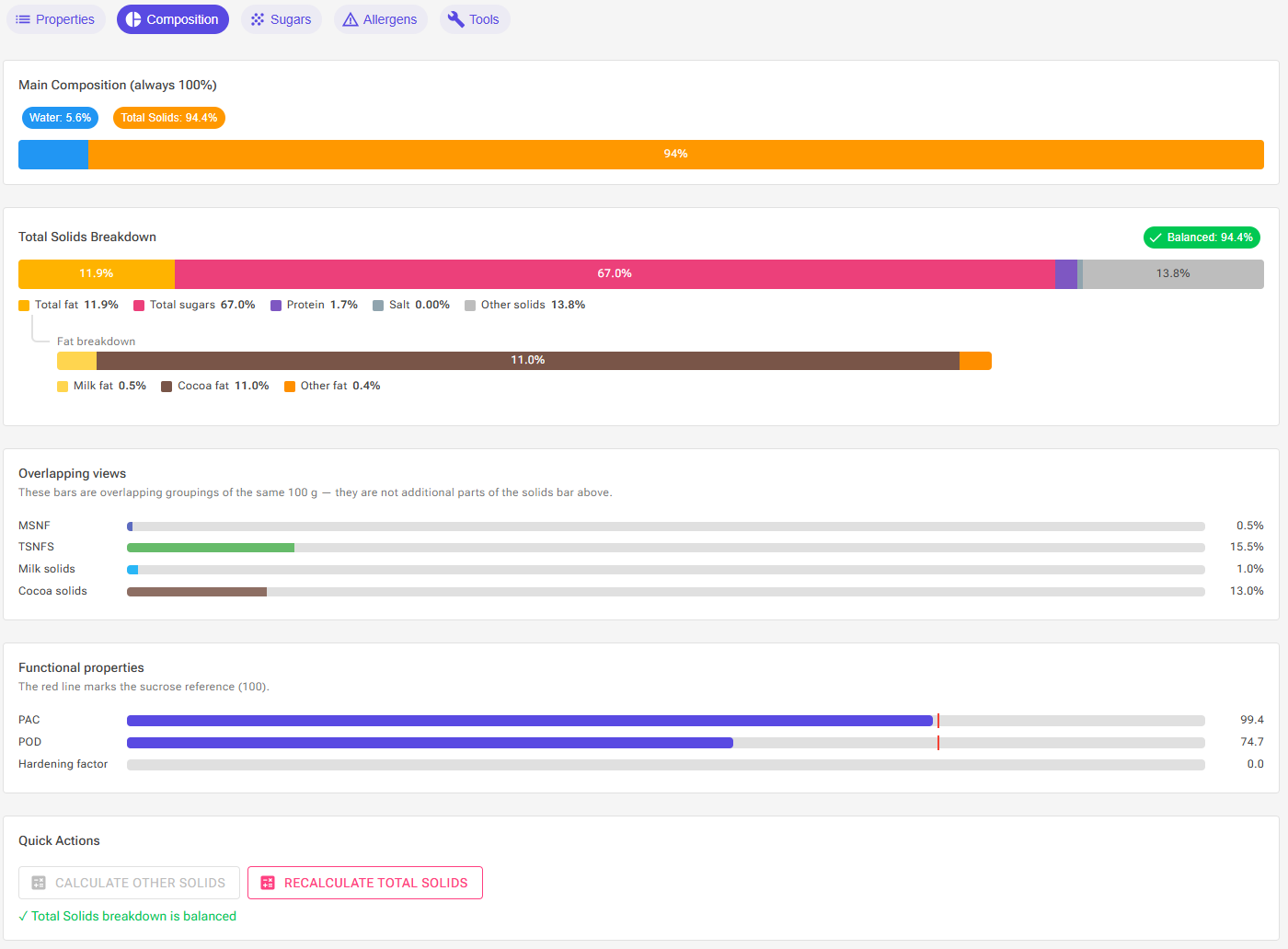
- Main Composition — A stacked horizontal bar showing Water (blue), Total Solids (amber), and Alcohol (purple) as proportional segments that sum to 100%. If imported values do not add up, a red chip shows the actual sum, with a button to fix it (see 3.1).
- Total Solids Breakdown — A stacked bar showing how Total Solids is made up of Total fat, Total sugars, Protein, Salt and Other solids. A hatched segment shows a part of Total Solids that no component accounts for; a marker shows where Total Solids ends when the components add up to more. A chip at the top shows Balanced or the two sums side by side. When the ingredient has milk fat or cocoa fat, a Fat breakdown bar below splits Total fat into Milk fat, Cocoa fat and Other fat.
- Overlapping views — Separate bars for MSNF, TSNFS, Milk solids and Cocoa solids (only those above zero). These are other groupings of the same 100 g, not extra parts of the solids bar.
- Functional properties — Bars for PAC, POD and Hardening factor. A red line marks the sucrose reference (100).
- Quick Actions — "Calculate Other Solids" (puts the difference between Total Solids and the other components into Other Solids) and "Recalculate Total Solids" (sets Total Solids to the sum of the components; Water follows)
Tab 3: Sugars (Premium)
The Sugars tab records the individual sugars of the ingredient: glucose, fructose, galactose, sucrose, lactose, maltose, trehalose and other sugars inside Total Sugars, plus maltotriose and higher order sugars outside it. It shows whether they add up to Total Sugars, offers Propose with AI, and compares the PAC and POD calculated from the sugars with the stored values (Adopt calculated PAC and POD). An empty field means unknown; 0 means verified absent. Free accounts see an upgrade panel. See Sugar Composition for the full guide.
Tab 4: Allergens
The Allergens tab shows two side-by-side sections for managing allergen information:
- Contains (Definite) — Click allergen chips to toggle them. Selected chips turn red with a checkmark. Includes: Milk & Dairy, Eggs, Tree Nuts, Peanuts, Gluten (Wheat), Soy, Fish, Shellfish, Sesame, Mustard, Celery, Lupin, Molluscs, Sulphites, Coconut.
- May contain (cross-contamination) — Same chips but highlighted in amber/orange when selected.
- Clear All button — Resets all allergen selections
- Summary — An info alert at the bottom shows a text summary of all selected allergens
⚠️ Important: An allergen cannot be in both "Contains" and "May Contain" at the same time. Selecting it in one section automatically removes it from the other.
Tab 5: Tools
The Tools tab shows two large clickable cards:
- Used In Recipes — Opens a dialog showing which of your recipes use this ingredient. The ingredient must be saved first.
- Sub-Ingredients & Labeling — Opens the Sub-Ingredients & Allergens dialog, where you manage the sub-ingredient list and the detailed allergen declaration used on nutrition labels and reports. The ingredient must be saved first. See Professional Ingredient Lists.
2.3 Understanding the Workflow
When You Edit a Shared Ingredient:
- Click Edit on any shared/default ingredient
- Make your changes and click Save
- A Create Personal Copy dialog explains that default ingredients cannot be modified directly and that a personal copy will be created with your changes
- Hide the original default ingredient is ticked by default (recommended, so you don't see duplicates); you can unhide it later from the Ingredients page
- Click Create Personal Copy. The new personal ingredient keeps the original's sub-ingredients and allergens.
- Recipes that already use the shared ingredient keep using it. Add your copy to the recipes where you want your values, or swap them with Convert to Personal Ingredients.
- Other users still see the original shared ingredient unchanged
Changed the cost or Liquid / Powder? These are personal settings, so you don't need a copy for them. When your edit includes a new cost or a new Liquid / Powder choice, a Save changes dialog offers three choices:
- Update my settings only — Saves the cost and/or Liquid / Powder against the shared ingredient. The shared ingredient itself is not changed, and any other edits you made on the page are discarded.
- Create personal copy — Creates a personal copy with all your edits, then saves the cost and/or Liquid / Powder on the copy. The Hide the original default ingredient option applies here.
- Cancel — Returns to the editor without saving.
When You Edit Your Personal Ingredient:
- Click Edit on your personal ingredient
- Make changes directly
- Click Save Changes
- Changes are saved to the same ingredient; no new ingredient is created
- Recipe-derived ingredients made from recipes that use this ingredient are recalculated automatically ("Also updated 2 recipe-derived ingredient(s)")
- If you changed Default Scale, a dialog offers to update the recipes whose Scale for this ingredient still equals the old default (Update Recipes). Recipes where you set a different Scale are left alone.
When You Edit a Recipe-Derived Ingredient:
- Click Edit on a recipe-derived ingredient
- You can change the category, the description / notes and Liquid / Powder; the name follows the source recipe
- Nutritional values and cost are controlled by the source recipe
- Click Save — a Save Metadata Only dialog explains that only the description/notes and category will be saved
- To edit nutritional values, first Unlink the ingredient from its recipe, then save
💡 Tip: If you want to revert a personal ingredient that was originally copied from a shared one, simply delete your personal copy. The original shared ingredient will still be available in the library (unhide it if needed).
2.4 Save Button Behavior
The Save button's label tells you what saving will do:
- "Create Ingredient" — A new ingredient (from the Add ingredient menu or a copy)
- "Save" — A shared ingredient: saving creates a personal copy (see 2.3)
- "Save Changes" — Your personal or recipe-derived ingredient
- "Saving..." — Save in progress (disabled with spinner)
What happens when you save:
- Validation messages never block saving; they are advice. The only things that stop a save are an empty name and a cost that is not a valid, non-negative number.
- A success message appears after the save
- You return to the page you came from: the Ingredients library, Select Ingredient, or the Recipe Editor (which refreshes with the new values)
- A new ingredient is highlighted in green in the library (see 1.4)
- What is saved depends on the ingredient type: shared, personal or recipe-derived (see 2.3)
3. Basic Nutritional Properties
Understanding how ingredient properties work is essential for creating accurate recipes and nutrition labels.
3.1 The Water-Solids-Alcohol Relationship
Every ingredient must satisfy this fundamental equation:
Water + Total Solids + Alcohol = 100%
These three values are automatically balanced when you type them:
- Change Water → Total Solids adjusts
- Change Total Solids → Water adjusts
- Change Alcohol → Water adjusts
Examples:
Whole Milk: Water 87.5% + Total Solids 12.5% + Alcohol 0% = 100% ✓
Vodka (40% ABV): about 33% alcohol by weight, so Water 67% + Total Solids 0% + Alcohol 33% = 100% ✓ (the Alcohol Calculator converts ABV to weight for you, see 4.1)
Chocolate (70%): Water 1% + Total Solids 99% + Alcohol 0% = 100% ✓
💡 Pro Tip: Values from an import or an AI estimate can arrive unbalanced, for example Total Solids 105%. The editor flags an error when the sum is more than 0.1% away from 100%. Retype Water or Total Solids to rebalance, or click Scale water and solids to 100% and balance Other solids: it scales Water and Total Solids by the same factor so that, with Alcohol, they add up to 100%, keeping the ratio between them, and then recalculates Other Solids. For example, Water 80% and Total Solids 12% become 86.96% and 13.04%; Water 30% and Total Solids 75% become 28.6% and 71.4%. If one of the two values is the one you trust, retype it instead and the other follows.
3.2 Total Solids Composition
Total Solids is the sum of all non-water, non-alcohol components:
Total Solids = Total Fat + Total Sugars + Protein + Other Solids + Salt
Changing a component (fat, sugars, protein and so on) does not change Total Solids by itself. Instead the editor compares the sum of the components with Total Solids:
- Within 0.1 percentage points, the breakdown counts as balanced
- Otherwise the Total solids row is flagged, and the Composition tab shows the difference
- Calculate Other Solids puts the difference into Other Solids. It cannot help when fat, sugars, protein and salt alone already exceed Total Solids; reduce one of them or raise Total Solids.
- Recalculate Total Solids sets Total Solids to the sum of the components; Water adjusts to keep the 100% total
Stabilizers and Emulsifiers are not added to the sum: they are functional properties whose mass is already inside the other components.
Other Solids Explained:
Other Solids is a "catch-all" category for everything not specifically tracked: fiber, starch and other non-sugar carbohydrates, hydrocolloids, ash (minerals other than salt), minor components, and rounding differences.
Example — Whole Milk: Total Solids 12.5% = Total Fat 3.25% + Total Sugars (Lactose) 4.8% + Protein 3.2% + Other Solids 1.25% (minerals, ash) ✓
3.3 Fats
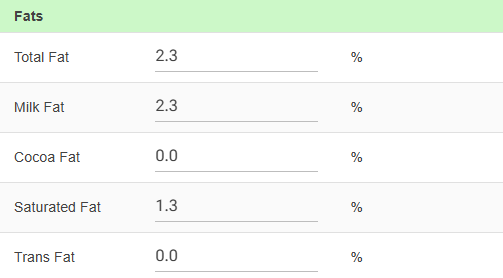
Total Fat
The total amount of all fats in the ingredient (per 100g). This is what appears on nutrition labels.
Fat Subtypes:
Saturated Fat: The portion of total fat that is saturated. Required for nutrition labels. Must be ≤ Total Fat. Examples: Butter is high in saturated fat (~50%), olive oil is low (~14%).
Unsaturated Fat (calculated): Automatically calculated as Total Fat – Saturated Fat – Trans Fat. Includes both monounsaturated and polyunsaturated fats.
Trans Fat: Industrially produced or naturally occurring trans fats. Required for nutrition labels (especially in the US). Usually very small or zero.
Ice Cream Specific Fats:
Milk Fat: Fat from dairy sources. Important for ice cream texture and mouthfeel. Typical range: 0–16% in ice cream recipes. Used in ice cream balancing.
Cocoa Fat (Cocoa Butter): Fat from chocolate/cocoa. Used to calculate the Hardening Factor (HF). Makes ice cream firmer at serving temperature.
Other Fat (calculated): Total Fat – Milk Fat – Cocoa Fat. Includes vegetable oils, nut fats, egg fat, etc. Also used in Hardening Factor calculation.
⚠️ Note: Milk Fat + Cocoa Fat should not exceed Total Fat. The validation system will warn you if this relationship is incorrect.
3.4 Carbohydrates
Regional Differences:
Total Carbohydrates (US definition): Includes fiber. This is what you enter in the system. Appears on US nutrition labels. Formula: Total Sugars + Fiber + Starch + Other Carbs.
Carbohydrates EU (calculated): Excludes fiber. Automatically calculated as Total Carbohydrates – Fiber. Appears on EU nutrition labels.
Carbohydrate Components:
Total Sugars: All sugars (natural and added), including sucrose, glucose, fructose, lactose, maltose, etc. Important: Total Sugars should only include mono- and disaccharides. Most important for ice cream balancing (affects freezing and texture). Used to calculate PAC and POD.
Added Sugars (US nutrition labels only): Sugars added during processing, not including natural sugars (like lactose in milk). Required on US nutrition labels since 2020. Must be ≤ Total Sugars.
Dietary Fiber: Non-digestible carbohydrates (inulin, gums, resistant starch, etc.). Has significant impact on ice cream texture. Affects water binding and scoopability.
Polyols (Sugar Alcohols): Maltitol, sorbitol, xylitol, erythritol, isomalt. Used in sugar-free/reduced sugar products. Has different PAC values than regular sugars. May need to be declared separately on labels.
3.5 Protein
Protein content per 100g of ingredient. Important for ice cream structure and texture. Dairy proteins (casein, whey) behave differently than egg or plant proteins. Used in balancing instead of (or in addition to) MSNF. Typical ice cream: 3–4% protein from dairy.
Why Protein Matters in Ice Cream:
- Stabilizes air bubbles (overrun)
- Provides body and mouthfeel
- Affects melting resistance
- Too much can cause sandy texture
3.6 Nutrition
These values are primarily needed for nutrition label creation:
Salt and Sodium:
Salt: Total salt content (per 100g). Has very high PAC value (freezing point depression). Affects ice cream texture significantly. Formula: Salt (g) = Sodium (mg) × 2.54 / 1000.
Sodium: Elemental sodium content (in mg per 100g). Required for US nutrition labels. Formula: Sodium (mg) = Salt (g) × 1000 / 2.54.
💡 Note: The system checks that salt and sodium are consistent, allowing 20 mg of difference. If you enter one, click Calc Sodium or Calc Salt in the Salt row's popover to calculate the other.
Other Minerals (for nutrition labels):
- Cholesterol — In mg per 100g (mainly from dairy and eggs)
- Calcium — In mg per 100g (important in dairy products)
- Iron — In mg per 100g
- Potassium — In mg per 100g
- Vitamin D — In μg (micrograms) per 100g
3.7 Energy (Calories)
Energy is calculated automatically based on macronutrients:
Energy (kcal) = (Carbs – Fiber – Polyols) × 4 + Protein × 4 + Fat × 9 + Alcohol × 7 + Fiber × 2 + Polyols × 2.4
Energy formats:
- kcal — Kilocalories (also called "Calories" with capital C)
- kJ — Kilojoules (kcal × 4.184)
- Both are displayed in the Nutrition Facts section
3.8 Allergen Information
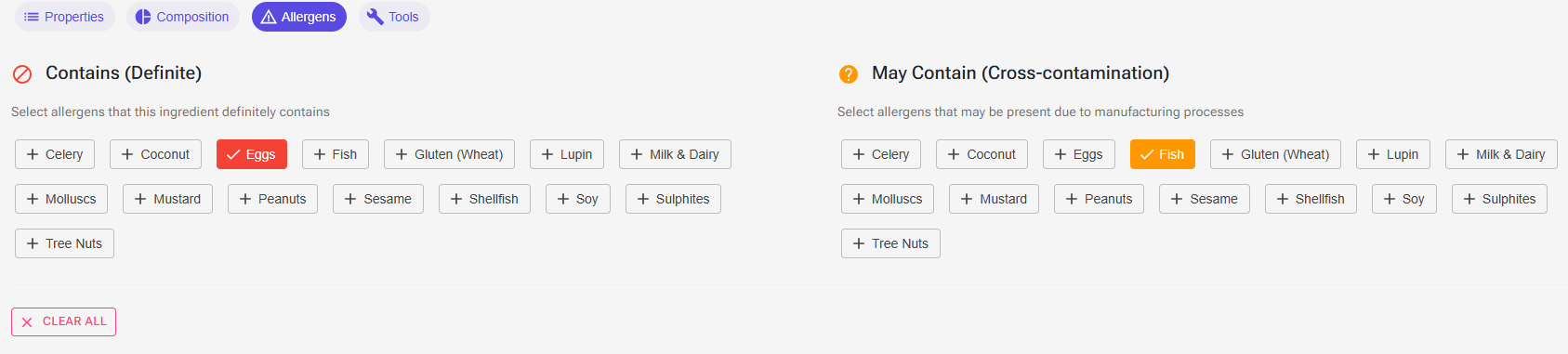
The system tracks two levels of allergen information:
Contains (Definite):
Allergens that are definitely present as ingredients: Milk & Dairy, Eggs, Tree Nuts, Peanuts, Gluten (Wheat), Soy, Fish, Shellfish, Sesame, Mustard, Celery, Lupin, Molluscs, Sulphites, Coconut.
May Contain (Cross-contamination):
Allergens that may be present due to manufacturing processes or shared equipment.
Managing Allergens:
- Switch to the Allergens tab in the Properties Editor
- Click allergen chips to toggle them on/off
- Red (filled) chips = contained, amber/orange (filled) chips = may contain, grey (outlined) = not selected
- Use Clear All to reset allergen information
- A summary alert at the bottom shows all selected allergens at a glance
⚠️ Important: An allergen cannot be in both "Contains" and "May Contain" at the same time. If you select it in one section, it's automatically removed from the other.
For the detailed allergen declaration and sub-ingredient list used on labels, use the Sub-Ingredients & Allergens dialog (Tools tab). See Professional Ingredient Lists.
4. Ice Cream Science: PAC, POD & HF
These are the most important properties for ice cream formulation that you won't find on standard nutrition labels.
4.1 PAC (Freezing Point Depression)
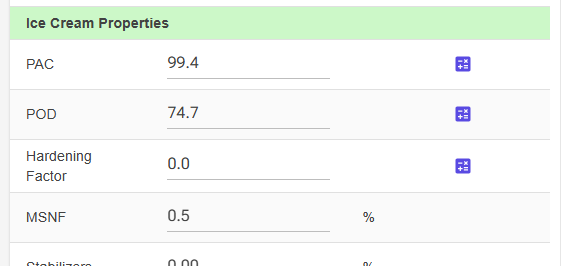
What is PAC?
PAC stands for Potere Anti-Congelante, an Italian term that translates to "anti-freezing power" or freezing point depression factor. It measures how much an ingredient lowers the freezing point of water.
Why it matters:
- Controls ice cream hardness at serving temperature
- Affects scoopability
- Determines how much ice forms vs liquid water
- Critical for texture and mouthfeel
PAC Values (per 100g of the pure substance, as used by the app):
| Ingredient | PAC Value | Effect |
|---|---|---|
| Sucrose (table sugar) | 100 | Reference standard |
| Glucose/Dextrose | 190 | Nearly 2x stronger than sucrose |
| Fructose | 190 | Nearly 2x stronger than sucrose |
| Galactose | 190 | Nearly 2x stronger than sucrose |
| Lactose | 100 | Same as sucrose |
| Maltose | 100 | Same as sucrose |
| Trehalose | 100 | Same as sucrose |
| Maltotriose | 67 | Weaker effect |
| Higher order sugars | 30 | Much weaker effect |
| Polyols (sugar alcohols) | 150 | Average value used by the calculators; real polyols vary by type |
| Salt | 585 | Very strong (6x sucrose) |
| Alcohol (ethanol) | 740 | Extremely strong (7x sucrose) |
How PAC is Calculated:
PAC is based on molecular weight and sugar composition. For pure sugars: PAC = (342.3 / molecular weight) × 100, where 342.3 is the molecular weight of sucrose. For mixed ingredients: PAC is the weighted sum of the values above, based on sugar composition.
💡 Example: If an ingredient is 10% sucrose and 5% glucose: PAC = (0.10 × 100) + (0.05 × 190) = 10 + 9.5 = 19.5
Glucose syrups, maltodextrins and other starch hydrolysates are the exception: their PAC and POD come from their Dextrose Equivalent (DE) rather than from the per-sugar values. See Sugar Composition.
Special Cases:
Salt PAC: There is no separate salt PAC field. Enter the salt in the Salt field; the recipe calculation adds its effect (585 per 100 g of salt) from there. Do NOT add salt PAC to the regular PAC field, or it counts twice.
Alcohol PAC: Unlike salt, alcohol is not added separately, so the ingredient's PAC must include it. Click the calculator icon next to Alcohol on the Properties tab to open the Alcohol Calculator:
- Enter the Strength as ABV %, US proof or UK proof
- Optionally enter the sugar content (g/100 g or g/L; for g/L you can add a measured density)
- The calculator converts the strength to alcohol by weight
- With Also set PAC and POD ticked (the default), it also sets PAC and POD: 740 per 100 g of alcohol, plus the sugar counted as sucrose
- Click Apply. If you entered a sugar content, Total sugars and Total solids are updated too, and Water follows.
4.2 Using the PAC/POD Calculator
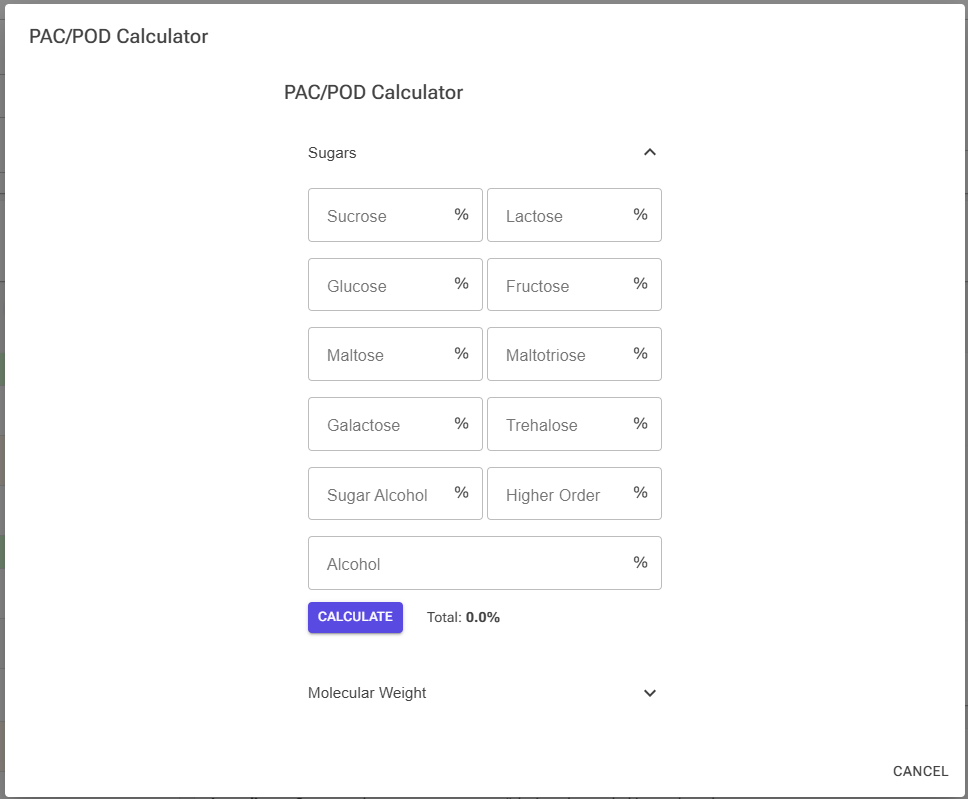
The calculator tool helps you estimate PAC and POD from sugar composition or molecular weight.
Premium: If the ingredient's sugars are recorded on its Sugars tab, you no longer need this dialog. That tab calculates PAC and POD from the stored split, compares them with the stored values, and applies them with one click. It also stores the split with the ingredient, which this calculator does not. See Sugar Composition. The calculator below remains the tool for a quick what-if or for free accounts.
Method 1: Sugar Composition
- Click the calculator icon next to PAC or POD on the Properties tab
- Enter the percentages for each sugar type in your ingredient
- Fill in: Sucrose, Lactose, Glucose, Fructose, Maltose, Maltotriose, Galactose, Trehalose
- Add Sugar Alcohols (polyols) if present
- Add Higher Order Sugars (maltodextrins, etc.)
- Add Alcohol % if present
- Click Calculate
- The tool shows calculated PAC and POD values
- Click OK to apply to your ingredient
Example — Honey: Fructose 40%, Glucose 35%, Sucrose 2%, Maltose 1% → PAC ≈ 145, POD ≈ 97
Method 2: Molecular Weight
If you know the molecular weight (molar mass) of your ingredient:
- Open PAC/POD calculator
- Open the Molecular Weight section
- Enter molar mass in g/mol
- Click Calculate PAC
Formula: PAC = (342.3 / molar mass) × 100
⚠️ Note: POD cannot be calculated from molecular weight alone. It requires relative sweetness data which depends on sugar composition.
4.3 POD (Relative Sweetness)
What is POD?
POD stands for Potere Dolcificante, which translates to sweetening power or relative sweetness. It measures how sweet an ingredient is compared to sucrose.
Why it matters:
- Balance sweetness across different sugar types
- Substitute sugars while maintaining sweetness
- Create consistent sweetness in recipes
- Important for sugar reduction strategies
POD Values (per 100g of the pure substance, as used by the app):
| Sugar Type | POD Value | Relative Sweetness |
|---|---|---|
| Sucrose | 100 | Reference (100%) |
| Fructose | 170 | 1.7x sweeter |
| Glucose | 77 | 0.77x as sweet |
| Trehalose | 45 | 0.45x as sweet |
| Maltose | 40 | 0.4x as sweet |
| Galactose | 35 | 0.35x as sweet |
| Maltotriose | 25 | 0.25x as sweet |
| Lactose | 16 | 0.16x as sweet (barely sweet) |
| Higher order sugars | 10 | 0.1x as sweet |
| Polyols (sugar alcohols) | 25 | Average value used by the calculators; real polyols vary by type |
| Alcohol (ethanol) | 0 | Not counted as sweet |
How POD is Calculated:
Similar to PAC, POD is calculated from sugar composition: POD = (% sugar₁ × POD₁) + (% sugar₂ × POD₂) + …
💡 Example: Invert sugar (50% glucose, 50% fructose): POD = (0.50 × 77) + (0.50 × 170) = 38.5 + 85 = 123.5 — meaning 1.23x sweeter than sucrose.
Using POD in Practice — Sweetness Equivalents:
- 100g sucrose (POD 100) = 59g fructose (POD 170)
- 100g sucrose (POD 100) = 130g glucose (POD 77)
- 100g sucrose (POD 100) = 625g lactose (POD 16)
This means you can substitute sugars while maintaining the same sweetness level by adjusting the amounts based on POD values.
4.4 HF (Hardening Factor)
What is HF?
HF or Hardening Factor measures how much an ingredient makes ice cream firmer/harder at serving temperature. It's essentially a "negative PAC" — while PAC softens ice cream, HF hardens it.
Why it matters:
- Chocolate makes ice cream harder (more frozen water)
- Nuts and nut pastes increase firmness
- Must compensate with more PAC (sugars) or higher fat
- Critical for chocolate and nut-based ice creams
How HF is Calculated:
The system uses this formula based on Corvitto's research:
HF = (Cocoa Fat × 0.9) + (Cocoa Solids × 1.8) + (Other Fat × 1.4)
Components:
- Cocoa Fat — Cocoa butter from chocolate (coefficient: 0.9)
- Cocoa Solids — Dry cocoa particles (coefficient: 1.8 — strongest effect)
- Other Fat — Non-dairy, non-cocoa fats like nut oils (coefficient: 1.4)
Example — 70% Dark Chocolate: Cocoa Fat 39%, Cocoa Solids 31% → HF = (0.39 × 0.9) + (0.31 × 1.8) = 0.351 + 0.558 = 0.909 → Displayed as: 90.9
Using the HF Calculator:
- Click the calculator icon next to Hardening Factor on the Properties tab
- The Calculate Hardening Factor dialog shows the formula, the calculation from your Cocoa Fat, Cocoa Solids and Other Fat, and the current and new values
- Click Apply
💡 Pro Tip: When adding chocolate to ice cream, you need to increase PAC (add more sugars) to compensate for the hardening effect. A common rule: for every 10% chocolate, add 1–2% extra sugar.
5. Dairy-Specific Properties
For dairy ingredients, the system tracks additional properties important for ice cream making.
5.1 MSNF (Milk Solids Not Fat)
What is MSNF?
MSNF stands for "Milk Solids Not Fat" (also called "serum solids" or "milk solids non-fat").
MSNF includes: Lactose (milk sugar) ~54.5%, Milk proteins (casein + whey) ~36%, Minerals and ash ~9.5%.
Formula: For a dairy ingredient, MSNF = Total Solids – Milk Fat (all of its fat is milk fat, so this is the same as Total Solids – Total Fat). In more detail: MSNF = Lactose + Protein + Other Solids.
The editor checks two limits: MSNF cannot be more than the non-fat solids (Total Solids – Total Fat), and cannot be less than the Lactose it contains.
Why MSNF Matters:
- Traditional ice cream balancing parameter
- Provides body and texture
- Typical ice cream: 9–12% MSNF
- Too high: sandy texture from lactose crystallization
- Too low: weak body, icy texture
5.2 Milk Fat vs Total Fat
Milk Fat: Fat specifically from dairy sources (butter, cream, whole milk, etc.). Typical ice cream: 10–16% milk fat. Creates characteristic dairy flavor and mouthfeel.
Relationship: Milk Fat ≤ Total Fat. Total Fat = Milk Fat + Cocoa Fat + Other Fat.
5.3 Lactose
What is Lactose?
Lactose is the natural sugar found in milk and dairy products.
Why track it separately:
- Can crystallize if too high (causes sandy texture)
- Maximum recommended: about 9–10% of the water content in the finished mix (the recipe editor's Sugars card warns above 10%)
- Has specific PAC value (100, same as sucrose)
- Low sweetness (POD = 16)
- Important for lactose-intolerant customers
Lactose in Common Dairy:
| Ingredient | Lactose % |
|---|---|
| Skim milk | ~5.0% |
| Whole milk | ~4.8% |
| Heavy cream | ~3.1% |
| Skim milk powder | ~52% |
| Whey powder | ~70% |
| Butter | ~0.1% |
6. Chocolate-Specific Properties
Chocolate ingredients require special attention due to their unique impact on ice cream texture.
6.1 Understanding Chocolate Composition
Chocolate Components:
- Cocoa Mass — Ground roasted cocoa beans (contains both fat and solids)
- Cocoa Butter — Fat extracted from cocoa beans (Cocoa Fat)
- Cocoa Solids — Dry particles after removing cocoa butter
- Sugar — Added sweetener
- Milk Solids — In milk chocolate only
Chocolate Percentage:
The "%" on chocolate labels (e.g., 70% dark chocolate) refers to: Chocolate % = Cocoa Solids + Cocoa Fat. The remaining percentage is sugar (and milk solids for milk chocolate).
6.2 Cocoa Solids
Cocoa Solids are the dry, non-fat particles from cocoa beans. They provide chocolate flavor, strongly increase Hardening Factor (coefficient: 1.8), absorb water, and make ice cream firmer at serving temperature.
Estimating Cocoa Solids:
If you have a technical data sheet, use the provided cocoa solids value directly. If you only know chocolate % and fat %: Cocoa Solids = Chocolate % – Cocoa Fat %. If you only know chocolate % (no fat data): for dark chocolate, assume Cocoa Solids ≈ Cocoa Fat ≈ Chocolate % / 2.
6.3 Cocoa Fat (Cocoa Butter)
Cocoa Fat is the natural fat extracted from cocoa beans. It has a unique melting profile (melts cleanly at body temperature), contributes to chocolate snap and mouthfeel, and increases Hardening Factor (coefficient: 0.9).
Cocoa Fat in Different Products:
| Product | Typical Cocoa Fat % |
|---|---|
| Cocoa powder (10–12% fat) | 10–12% |
| Cocoa powder (20–24% fat) | 20–24% |
| 70% dark chocolate | 35–42% |
| Milk chocolate (35%) | 15–20% |
| Cocoa butter (pure) | 100% |
6.4 Working with Chocolate in Ice Cream
The Hardening Problem:
Chocolate makes ice cream firmer because cocoa solids absorb water, cocoa fat has a different crystallization behavior, and more water freezes at serving temperature — resulting in rock-hard ice cream.
Solutions:
- Increase PAC — Add more sugars (especially glucose/dextrose). Rule of thumb: +1–2% sugar per 10% chocolate.
- Increase fat — Add cream or milk fat. Fat doesn't freeze and keeps texture softer.
- Use cocoa powder instead — Less fat = less hardening. 10–12% fat cocoa powder has less impact than chocolate.
💡 Pro Tip: When formulating chocolate ice cream, always use the HF calculator and compensate with extra PAC. The validation system will show you if your chocolate content is causing balance issues.
7. Validation & Quality Checks
The validation system helps ensure your ingredient data is accurate and consistent. Validation happens inline within the Properties table — each field with an issue shows a small icon you can click for details — and on the Composition and Sugars tabs. Validation is advice: it never stops you saving, whatever its level.
7.1 Understanding Validation Levels
- Error (Red — Should Fix): Data that is logically impossible or would distort calculations. Red icon, red-tinted row.
- Warning (Orange — Should Review): Data that is probably inconsistent. Orange icon, orange-tinted row.
- Info (Blue — Suggestions): Advice to improve data quality. Blue icon, orange-tinted row.
All Current Checks:
| Check | Level | Where | Quick fix |
|---|---|---|---|
| Saturated fat exceeds Total fat | Error | Saturated fat row | Set to Total Fat |
| Min Amount exceeds Max Amount | Error | Min Amount row | Swap values |
| Water + Total Solids + Alcohol is not 100% (more than 0.1% off) | Error | Total solids row, Composition tab | Scale water and solids to 100% and balance Other solids |
| Components exceed Total Solids (by more than 0.1%) | Error | Total solids row, Composition tab | Calculate Other Solids or Recalculate Total Solids (Composition tab) |
| Components are less than Total Solids (by more than 0.1%) | Warning | Total solids row, Composition tab | Calculate Other Solids or Recalculate Total Solids (Composition tab) |
| MSNF exceeds the non-fat solids (Total Solids – Total Fat) | Warning | MSNF row | — |
| MSNF is less than Lactose | Warning | MSNF row | — |
| Milk Fat + Cocoa Fat exceeds Total Fat | Info | Total fat row, fat bar on the Composition tab | — |
| Lactose exceeds Total Sugars | Info | Lactose row | — |
| Added Sugars exceeds Total Sugars | Info | Added sugars row | — |
| Carbohydrates is less than Sugars + Fiber | Info | Carbohydrates row | — |
| Salt and Sodium differ by more than 20 mg from the conversion | Info | Salt row | Calc Sodium / Calc Salt |
| Individual sugars exceed Total Sugars (Premium) | Error | Sugars tab | Scale to Total Sugars |
| Individual sugars fall short of Total Sugars, or some are still unknown (Premium) | Warning | Sugars tab | Put remainder in Other sugars / Scale to Total Sugars |
7.2 How Inline Validation Works
When a field has a validation issue:
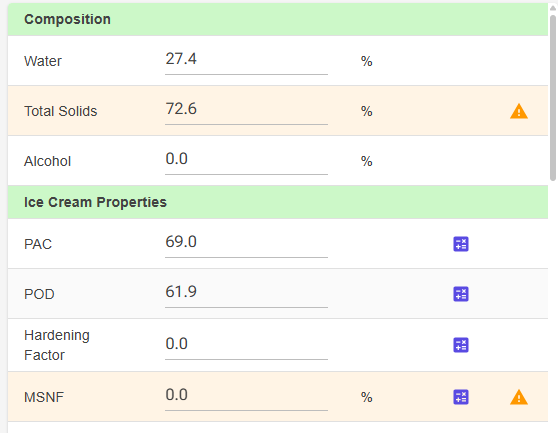
- The table row background changes color to highlight the problem: red-tinted for errors, orange-tinted for warnings and info
- A small icon button appears in the rightmost column — red for errors, orange for warnings, blue for info
- Click the icon to open a popover with the specific issue message
- Where applicable, the popover includes quick-fix buttons that correct the issue with one click
Available Quick-Fix Actions:
- "Set to Total Fat" — When saturated fat exceeds total fat
- "Calc Sodium" / "Calc Salt" — When salt and sodium values are inconsistent, calculate one from the other
- "Swap values" — When min amount exceeds max amount
- "Scale water and solids to 100% and balance Other solids" — When Water + Total Solids + Alcohol is not 100%. It scales Water and Total Solids by one factor so that the three add up to 100% (Alcohol is kept), and recalculates Other Solids. It is offered only when fat, sugars, protein and salt fit in the scaled Total Solids; otherwise the message asks you to reduce them first.
- "Scale to Total Sugars" (Sugars tab) — Scales every sugar inside Total Sugars, lactose included, by the same factor so they add up to Total Sugars. Unknown sugars become 0.
- "Put remainder in Other sugars" (Sugars tab) — Sets unknown sugars to 0 and puts the shortfall to Total Sugars into Other sugars.
The Composition tab provides additional balancing tools: "Calculate Other Solids" adjusts Other Solids so that all solid components sum correctly, and "Recalculate Total Solids" rebuilds Total Solids from all components.
7.3 Common Validation Issues
1. Water/Solids Balance
Issue: "Water + Total Solids + Alcohol = 104.0% but must be 100%"
Cause: Values from an import or an AI estimate don't sum correctly. (Values you type are kept at 100% automatically.) A negative value counts as unbalanced too.
Quick Fix: Click Scale water and solids to 100% and balance Other solids, or retype Water or Total Solids so the other one follows. If fat, sugars, protein and salt alone are more than the scaled Total Solids, the message says so: reduce them first.
2. Total Solids Composition
Issue: "Components (42.0%) exceed Total Solids (35.0%) by 7.0%" or "Components (30.0%) are 5.0% less than Total Solids (35.0%)"
Cause: Fat + Sugars + Protein + Other Solids + Salt ≠ Total Solids.
Solutions: On the Composition tab, click Calculate Other Solids to adjust Other Solids, or Recalculate Total Solids to rebuild Total Solids from the components. If the named components alone exceed Total Solids, the tab says it cannot auto-fix: check for data entry errors and reduce a component or raise Total Solids.
3. Fat Relationships
Issue: "Saturated Fat (45.0%) exceeds Total Fat (36.0%)"
Cause: Component fat exceeds total.
Quick Fix: Click "Set to Total Fat" button, or reduce saturated fat, or increase total fat if the saturated value is correct.
4. Salt/Sodium Relationship
Issue: "Salt (1.10%) ≈ 433mg sodium (entered: 95mg)"
Cause: Salt and sodium values are inconsistent.
Information: This is INFO level, not an error. Formula: Sodium (mg) = Salt (g) × 1000 / 2.54 (about × 394), or Salt (g) = Sodium (mg) × 2.54 / 1000. Decide which value is correct and click Calc Sodium or Calc Salt to adjust the other to match.
5. MSNF Out of Range
Issue: "MSNF (12.0%) exceeds non-fat solids (9.0%) = Total Solids - Total Fat" or "MSNF (3.0%) is less than Lactose (4.8%)"
Cause: MSNF cannot be more than the solids that are not fat, and it always contains at least the lactose.
Solution: Check MSNF, Total Solids, Total Fat and Lactose against your data sheet and correct the wrong one. For a dairy ingredient, MSNF is usually Total Solids – Milk Fat (see 5.1).
6. Sugar Composition (Premium)
Issue: "Sugars (12.0%) exceed Total Sugars (10.0%) by 2.0%" or "Some sugars are still unknown; the composition is not complete"
Cause: The individual sugars on the Sugars tab must add up to Total Sugars, which is set on the Properties tab.
Quick Fix: Scale to Total Sugars or Put remainder in Other sugars. See Sugar Composition.
7. Lactose Crystallization Risk
The ingredient editor does not check this, because the risk depends on the whole recipe. In the Recipe Editor, the Sugars card (Premium) shows lactose as a share of the water and warns: "Above 10 % of the water, lactose can crystallise and feel sandy."
Explanation: Maximum lactose solubility in water is roughly 9–10%. Above this, lactose may crystallize during storage, resulting in sandy texture.
Solutions: Use skim milk powder instead of whey powder, reduce dairy ingredients, use lactose-free milk, or accept the risk if storage time will be short.
Summary
You've now learned the complete ingredient system:
- Ingredient Library — Browse, search, sort, filter by category/source/usage/collections, hide/show, organize with collections, and bulk-manage ingredients
- Creating & Editing — The Add ingredient menu, the personal copy workflow, your personal cost and Liquid / Powder settings, and tools for sub-ingredients and recipe usage
- Basic Properties — Water, solids, fats, carbohydrates, proteins, and their relationships
- Ice Cream Science — PAC (freezing), POD (sweetness), HF (hardening)
- Dairy Properties — MSNF, milk fat, lactose tracking
- Chocolate Properties — Cocoa solids, cocoa fat, and managing hardening effects
- Validation — Errors, warnings and info messages, and how to fix common issues (validation never blocks saving)