Overview
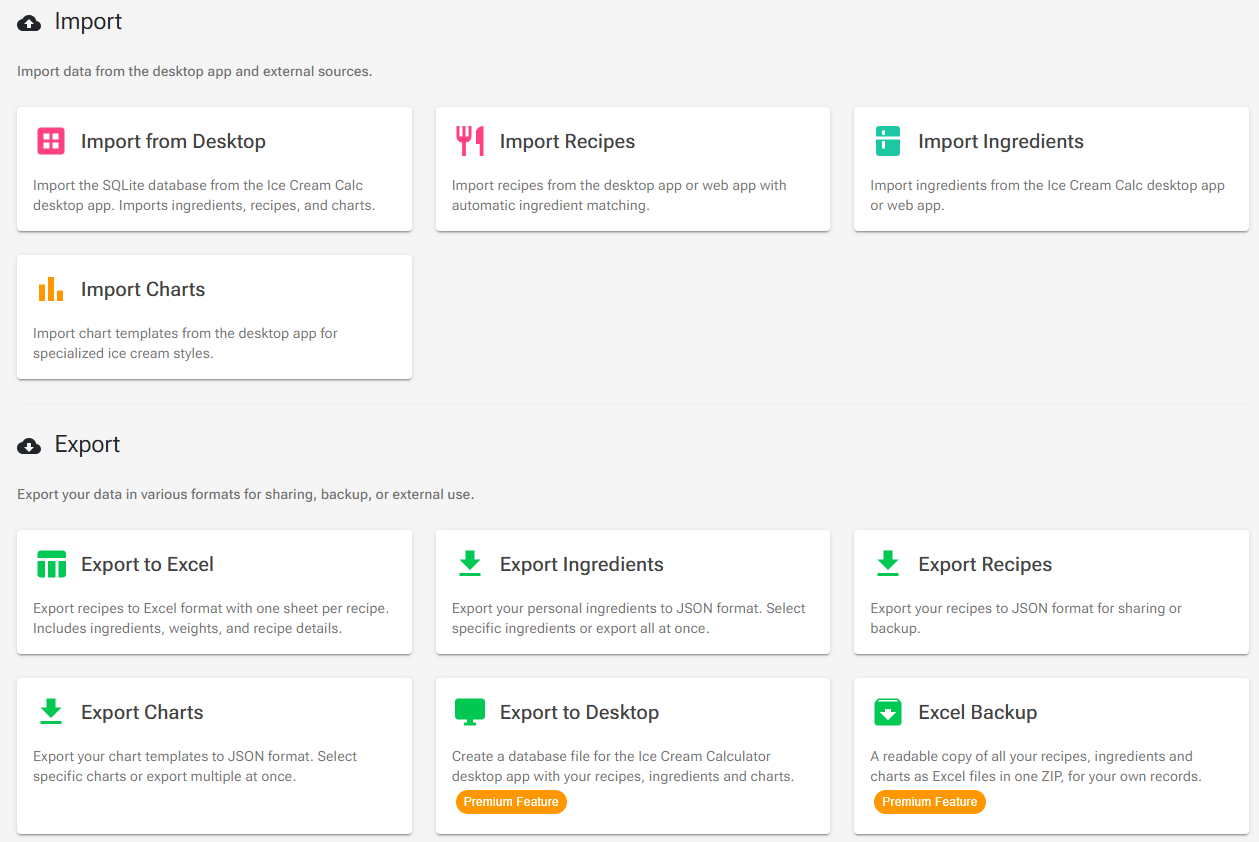
The Tools page has two sections for moving data in and out of Ice Cream Calc: Import and Export. Open Tools from the main menu and scroll down past the calculation tools to find them.
| Tool | What it does | Access |
|---|---|---|
| Import from Desktop | Imports the database of the Windows desktop app | Signed in; the ingredient step is Premium (Quick Migrate is not) |
| Import Recipes | Imports recipes from a JSON file and matches their ingredients | Free and Premium; a free account holds 15 recipes |
| Import Ingredients | Imports ingredients from a JSON file | Premium |
| Import Charts | Imports charts from a JSON file | Signed in |
| Export to Excel | Recipes as an Excel workbook, one sheet per recipe | Signed in |
| Export Ingredients | Ingredients as a JSON file | Premium |
| Export Recipes | Recipes as a JSON file | Signed in |
| Export Charts | Charts as a JSON file | Signed in |
| Export to Desktop | A database file for the Windows desktop app | Premium |
| Excel Backup | All your recipes, ingredients and charts as Excel files in one ZIP | Premium |
The JSON files from Export Recipes and Export Charts can be imported again with the matching import tool, in your own account or someone else's. Excel files are for reading and cannot be imported.
Which Tool Should I Use?
| I want to… | Use |
|---|---|
| Move my data from the desktop app | Quick Migrate; see Desktop Migration Guide |
| Use my web data in the desktop app | Export to Desktop |
| Give recipes to another account | Export Recipes, then Import Recipes in the other account. The ingredients the recipes use must exist in that account |
| Copy charts to another account | Export Charts, then Import Charts |
| Keep a readable copy of everything | Excel Backup |
| Print or share a recipe as a spreadsheet | Export to Excel |
| Bring in a recipe from a book, a website or an AI chat tool | Recreate in the AI Recipe Generator: paste the recipe text |
| Download a copy of all my account data | Download My Data on the Account page; see Account, Premium and Your Data |
Import
Import from Desktop
Imports ingredients, charts, recipes and production plans from the desktop app's SQLite database (.sqlite, .db or .sqlite3, up to 100 MB). The card opens the advanced import, which links to Quick Migrate at the top; Quick Migrate moves ingredients, charts and recipes in one click. Both are explained step by step in the Desktop Migration Guide.
Import Recipes
Imports recipes from a JSON file that contains a recipes list, up to 5 MB. Use it for files made with Export Recipes, by you or by someone else. The desktop import also hands its recipes to this page.
- Go to Tools → Import → Import Recipes and click Select JSON File.
- On Recipe Selection, tick the recipes you want. Each recipe has a status chip:
- Ready: you don't have a recipe with this name yet.
- Exists: you already have a recipe with this name. Importing it creates a second recipe with the same name; your existing recipe is not overwritten.
- Base: the recipe is used as an ingredient in other recipes (desktop files).
- Click Import {n} Recipes to go to Ingredient Matching. Every ingredient name in the selected recipes is matched against the ingredients you can see: your own and the standard library.
- Green rows are matched, by exact name or by a name that is at least 75% similar. Check close matches, and change them in the dropdown if needed.
- Red rows have no match. Choose one from the dropdown, click Select to search, or click Delete to remove that ingredient from the selected recipes.
- Click Import {n} Recipes. Only recipes whose ingredients are all matched are imported; the count shows how many are ready.
Good to know:
- The file holds ingredient names, not ingredients. A recipe can only use ingredients that already exist in the importing account, so recipes that use your own ingredients need those ingredients in the other account first.
- Charts are linked by name. If the recipe's chart name matches one of your charts or a standard chart, the imported recipe uses it.
- Dates and ratings are kept. The created and changed dates from the file are kept, and a personal rating in the file is stored on the new recipe.
- Free plan: a free account holds 15 recipes in total. If the file has more recipes than you have room for, only the first ones are imported. If you already have 15, the page shows the upgrade dialog.
The Desktop Migration Guide shows the selection and matching pages with screenshots, including how base recipes become recipe-derived ingredients.
Import Ingredients (Premium)
Imports ingredients from an Ice Cream Calc ingredient file: JSON with an ingredients list, up to 2 MB. The current format is version 2.0; older files and files without a version are accepted too.
- Go to Tools → Import → Import Ingredients and click Select JSON File.
- The Review Ingredient Import page shows the Total Ingredients, how many Already Exist and how many are Selected. Each row has a New or Already Exists badge.
- Choose what to import with Select All, Deselect All and the checkboxes. Hide existing (on by default) hides ingredients you already have. User ingredients only shows only the ingredients someone created themselves, not standard ones. It is on when the file has such ingredients, and off when it has none, so a file of standard ingredients shows its rows straight away. If the list is empty, the page tells you which switch hides the rows.
- Click Import Selected. You are taken to your Ingredients page.
- Every imported ingredient becomes one of your own personal ingredients; nothing is added to the shared library.
- Existing names are never overwritten. An ingredient whose name you already have is unticked. If you tick it anyway, you get a second ingredient with the same name.
Import Charts
Imports charts from a JSON file with a charts list, up to 10 MB: files made with Export Charts, or chart files from the desktop app.
- Go to Tools → Import → Import Charts and click Select JSON File.
- The page shows the file information and a table of the charts, all ticked. Untick the ones you don't want, or type a different name in the Import Name column.
- Click Import {n} Chart(s), then View My Charts.
- Charts are imported as your personal charts, which only you can see and edit.
- Charts with a name you already have are not detected: they are imported as a second chart with the same name. Untick them or give them a new Import Name.
- Chart files carry ranges, priorities and display settings, but not targets. Set targets again in the Chart Editor; see Charts.
Export
Export to Excel, Export Recipes, Export Ingredients and Export Charts open a selection dialog first, where you tick what to export. The file then downloads to your device. Excel Backup and Export to Desktop always take everything.
Export to Excel
Creates an Excel workbook with one sheet per recipe. Choose the recipes in the dialog and click Export to Excel. Each sheet shows:
- the recipe's name, category, tags, description, note and rating;
- mix weight, final weight, evaporation, overrun, and the created and modified dates;
- the ingredients with weight in grams, weight %, category and type (Mix, Add-in or Infusion), with totals.
The file is named my-recipes-date.xlsx, or after the recipe when you export one. It is for reading, printing and sharing; it cannot be imported.
Export Recipes
Exports the selected recipes as a JSON file (my-recipes-date.json) that Import Recipes can read. The file holds, for each recipe:
- name and description;
- the ingredient lines: ingredient name, weight, add-in or infusion, and exclude from evaporation;
- evaporation, overrun, created and changed dates, and your personal rating.
It also holds the name of the recipe's chart, so the import can link the same chart again when the importing account has a chart with that name (see Import Recipes above).
It does not hold the ingredients' compositions (the import matches ingredients by name), the chart itself, notes, instructions, category and tags, best-before days, moulds and cavities, line settings such as waste factor and locked lines, or the product image.
Export Ingredients (Premium)
Exports ingredients as a JSON file in the ingredient format, version 2.0 (my-ingredients-date.json). In the selection dialog you can filter by Default, Personal and Recipe-Derived and tick any ingredients you can see.
The file holds each ingredient's name (in English), category, description, composition and nutrition values, sugar composition, PAC, POD and HF, cost per kg, balancer minimum and maximum, displacement, default waste factor, custom columns 1–10, and the standard allergens (contains and may contain).
It does not hold sub-ingredients, your own user-defined allergens, or stock. Custom columns are numbers only: in the importing account they land in that user's own columns 1–10, with that user's column names.
Export Charts
Exports the selected charts, your own and standard ones, as a JSON file (my-charts-date.json) that Import Charts can read. The file holds each chart's name, description, category and balance order, and for every line its range, priority, scale, decimals, temperature and balancing settings. Targets are not included.
Export to Desktop (Premium)
Creates a database file for the Windows desktop app with your recipes, the ingredient library and your charts. See Desktop Migration Guide for how to open it in the desktop app and what is not included.
Excel Backup (Premium)
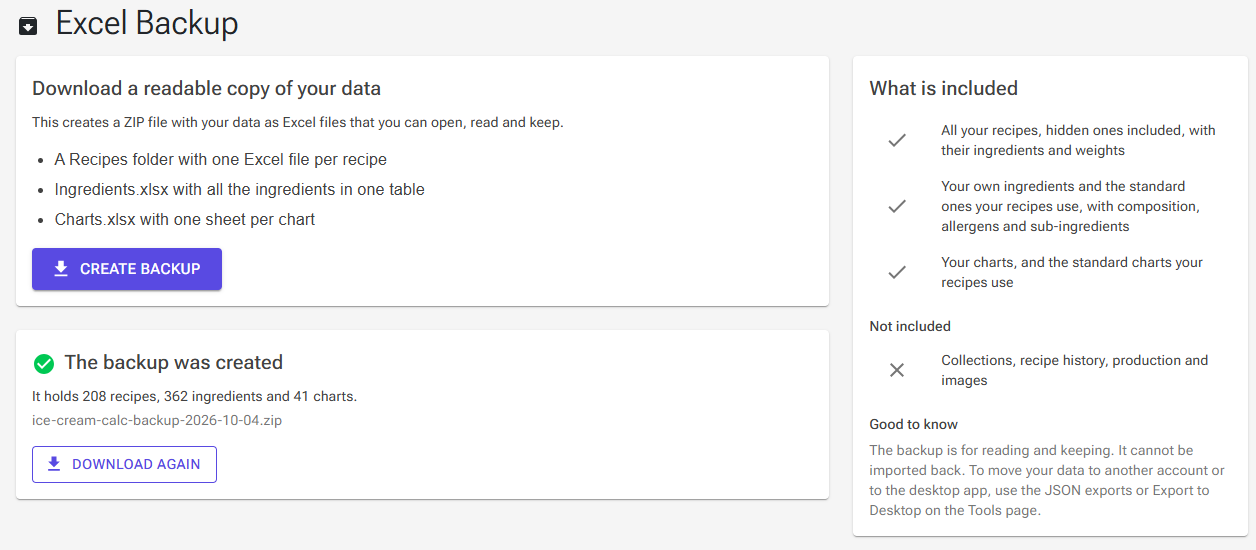
Creates a readable copy of all your data for your own records.
- Go to Tools → Export → Excel Backup.
- Click Create backup. A progress bar shows the recipes being written; then the ZIP file downloads (
ice-cream-calc-backup-date.zip). - Click Download again if you need another copy.
The ZIP contains:
- a Recipes folder with one Excel file per recipe, in the same layout as Export to Excel. All your recipes are included, hidden ones too;
- Ingredients.xlsx: your own ingredients and the standard ones your recipes use, in one table, with composition, allergens and sub-ingredients;
- Charts.xlsx: one sheet per chart, your own and the standard or public charts your recipes use;
- About this backup.txt: what the files contain and the units used.
Collections, recipe history, production data and images are not included.
Important: the Excel Backup cannot be imported back. To move your data to another account or to the desktop app, use the JSON exports or Export to Desktop.
Troubleshooting
Problem: Import Ingredients or Export Ingredients opens an upgrade dialog.
Solution: Importing and exporting ingredient files is a Premium feature, like Export to Desktop and Excel Backup. See Account, Premium and Your Data.
Problem: An export says "Please log in".
Solution: Exports need an account. Sign in and try again.
Problem: The file is rejected when you select it.
Solution: Check that you are using the matching import: a recipe file needs a recipes list, an ingredient file an ingredients list, and a chart file a charts list. Also check the size limit: 5 MB for recipes, 2 MB for ingredients, and 10 MB for charts.
Problem: Some recipes in the file cannot be imported.
Solution: A recipe is imported only when all its ingredients are matched. Match the red rows, or import the missing ingredients first and start the recipe import again.
Problem: An imported recipe has no chart.
Solution: Recipes find their chart by name. Import the chart first, or choose the chart for the recipe in the Recipe Editor.
Problem: I imported a chart or recipe twice.
Solution: Imports never overwrite or merge, so importing the same file twice gives duplicates. Delete the copies you don't need.