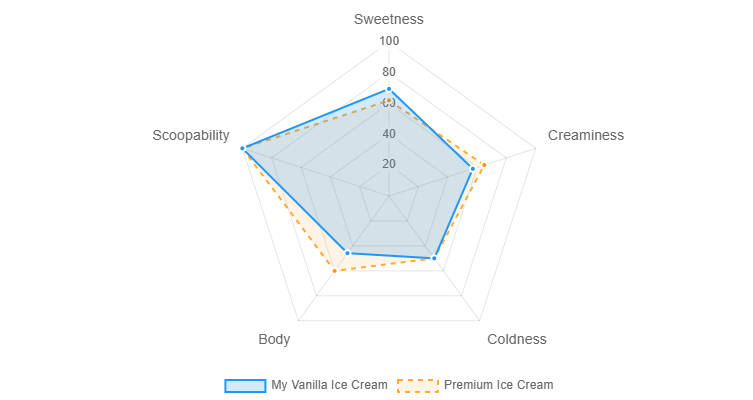
The Flavor Profile tool gives you a visual breakdown of how your ice cream will taste and feel based on its composition. Instead of reading raw numbers for fat, sugar, and solids, you see five intuitive scores plotted on a radar chart: Sweetness, Creaminess, Coldness, Body, and Scoopability.
Use it to understand your recipe at a glance, compare it against industry reference styles, or see how two of your recipes differ side by side.
How to Open the Flavor Profile
There are three ways to reach the Flavor Profile page:
- From the Tools page: Click Tools in the main menu and click the Flavor Profile card.
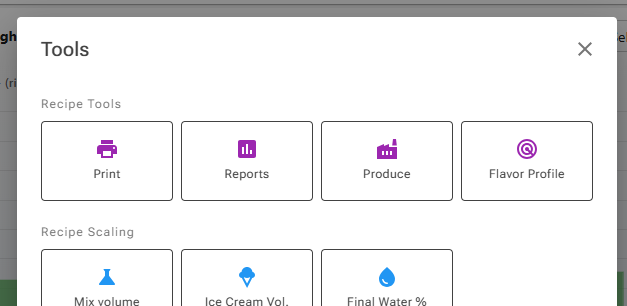
- From the Recipe Editor: Click the Tools button and choose Flavor Profile (radar icon) under Recipe Tools. If your editor layout includes the Tools card, its Flavor Profile button – one of the card’s default buttons – does the same (see Editor Cards and Layout). Either way, the page opens with your current recipe pre-selected and a Back to Recipe button so you can return easily.
- From the Home page: Add Flavor Profile to your Shortcuts with the edit (pencil) button next to the Shortcuts heading.
Selecting a Recipe
When you open the Flavor Profile page, it automatically selects your current session recipe if one is active. Otherwise, it selects the first recipe in your collection.
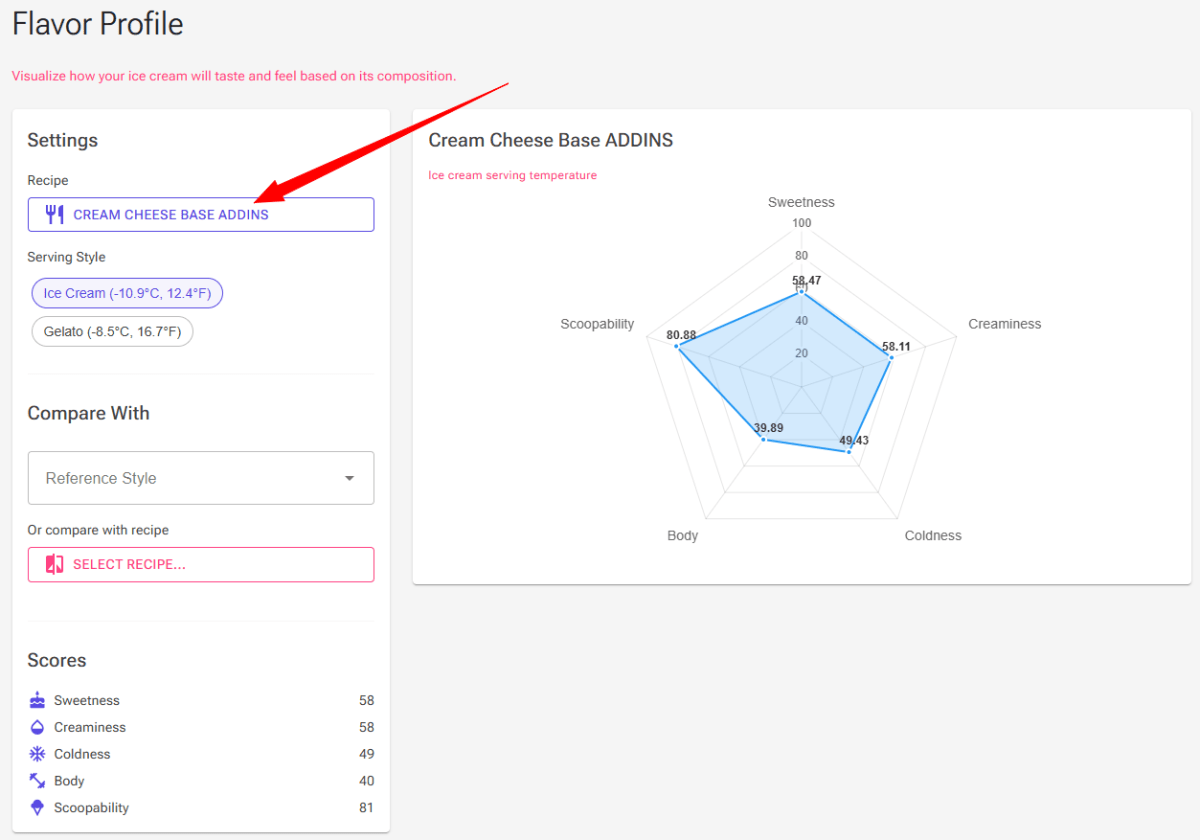
To choose a different recipe, click the Select Recipe… button in the Settings panel on the left. This opens a recipe picker dialog where you can browse and select any of your saved recipes.
Understanding the Radar Chart
The radar chart plots five scores on a scale from 0 to 100. Each score is calculated from your recipe’s composition data. Here is what each dimension means:
Sweetness
How sweet your ice cream will taste. This is derived from POD (sweetening power), which accounts for the type and amount of sugars in your recipe, not just total sugar weight. A moderate score is around 40-60. Scores above 70 are quite sweet, which is typical for sorbets.
The score uses POD alone. Premium users also see a Perceived sweetness value in the recipe data, which models how sweet the mix actually tastes from its sugar composition – so the two sweetness figures do not always agree.
Creaminess
The rich, smooth mouthfeel your ice cream delivers. Milk fat is the biggest contributor (weighted more heavily than other fats), followed by emulsifiers and milk solids-not-fat (MSNF). A score of 50-70 is typical for standard ice cream, while 80+ indicates a super-premium texture.
Coldness
How intensely cold a spoonful feels when eaten. This depends on your recipe’s composition and its serving temperature – the temperature shown on the Serving Style chip (see below). A score of 50 is typical. Above 60 feels noticeably cold, while below 40 feels mild and gentle on the palate. This score changes when you switch between Ice Cream and Gelato serving styles.
Scoopability
How easy your ice cream is to scoop. This is calculated from the frozen water percentage at the Scoopability Markers temperatures in Settings › Temperature Settings: the Ice Cream marker for the Ice Cream style and the Gelato marker for the Gelato style (by default −16 °C and −12 °C). Between about 65% and 78% frozen water the score is 100, which means ideal scooping ease. The score drops if the ice cream is too hard (too much frozen water) or too soft (too little).
The markers are fixed temperatures that you choose; they are not the serving temperatures shown on the Serving Style chips.
For a deeper dive into how scoopability and serving temperatures work, see Understanding Scoopability and Serving Temperatures.
Serving Style: Ice Cream vs Gelato
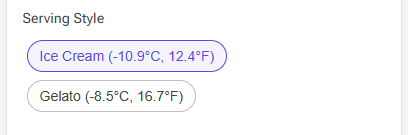
Below the recipe selector, you will find two chips for choosing the Serving Style: Ice Cream or Gelato. Each chip also displays your recipe’s serving temperature for that style: the temperature at which the recipe reaches the frozen water percentage set under Serving Targets in Settings › Temperature Settings (by default 75% for ice cream and 69% for gelato). If you change those targets, the chip temperatures and the Coldness score change with them. See Settings.
Switching between styles recalculates the Coldness and Scoopability scores: Coldness uses the style’s serving temperature, and Scoopability uses the style’s Scoopability Marker. Gelato is typically served at a warmer temperature than ice cream, so it will generally show a lower Coldness score and a different Scoopability score compared to the same recipe served as ice cream.
Use this toggle to see how the same recipe would perform under different serving conditions.
Comparing Profiles
The Flavor Profile becomes especially powerful when you compare your recipe against a benchmark. There are two ways to compare:
Compare with a Reference Style
Use the Reference Style dropdown in the Settings panel to overlay a predefined benchmark on your chart. The available reference styles are:
- Super Premium Ice Cream – High fat (around 16%), rich and creamy, moderate sweetness
- Premium Ice Cream – Around 13% fat, a step up from standard
- Standard Ice Cream – Around 10% fat, the typical commercial profile
- Italian Gelato – Lower fat (around 6%), warmer serving temperature, sweeter
- Fruit Sorbet – No fat, high sweetness, lighter body
- Soft Serve – Low fat, served very warm, softer body
The reference profile appears as a dashed orange line on the radar chart, making it easy to spot where your recipe differs from the target style.
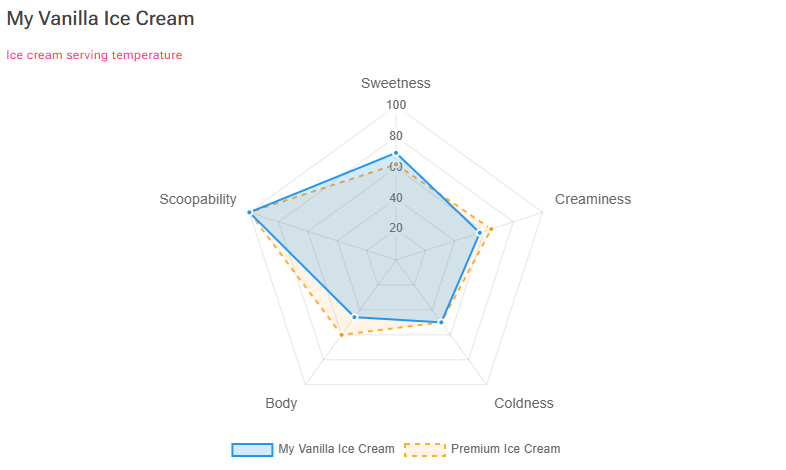
Compare with Another Recipe
Click the Select Recipe… button under “Or compare with recipe” to pick a second recipe from your collection. Its profile appears as a dashed orange overlay on the chart, just like a reference style. Click Clear comparison to remove it.
Selecting a reference style clears any recipe comparison, and vice versa, so you always see exactly one comparison at a time.
Scores Panel
On the left side of the page, below the settings, a Scores section displays the numeric value for each of the five dimensions. Each score is shown with an icon for quick identification:
- Cake icon – Sweetness
- Droplet icon – Creaminess
- Snowflake icon – Coldness
- Dumbbell icon – Body
- Ice cream icon – Scoopability
These numbers match the values plotted on the radar chart and give you a precise reading when you need exact figures rather than a visual impression.
What Do These Scores Mean?
Below the radar chart, expand the “What do these scores mean?” panel for a quick reference guide. This explains the typical ranges for each dimension so you can interpret your scores without leaving the page.
Tips
- Use the reference styles to check if your recipe matches the profile you are aiming for. If you are making gelato but your chart looks more like premium ice cream, you may need to adjust your fat content or serving temperature.
- Compare two of your own recipes to understand exactly what makes them taste different. The overlay makes it easy to see which dimensions changed.
- Toggle between Ice Cream and Gelato serving styles to see how the same recipe behaves at different serving temperatures without changing any ingredients.
- The scores are most useful as relative comparisons rather than absolute targets. Every recipe is different, and personal taste matters.