What the Display Case Is For
A gelato or ice cream cabinet holds every flavor at the same temperature, but flavors do not all behave the same at that temperature. A sorbet with a lot of sugar can be soft and sticky while a rich chocolate flavor next to it is hard to scoop.
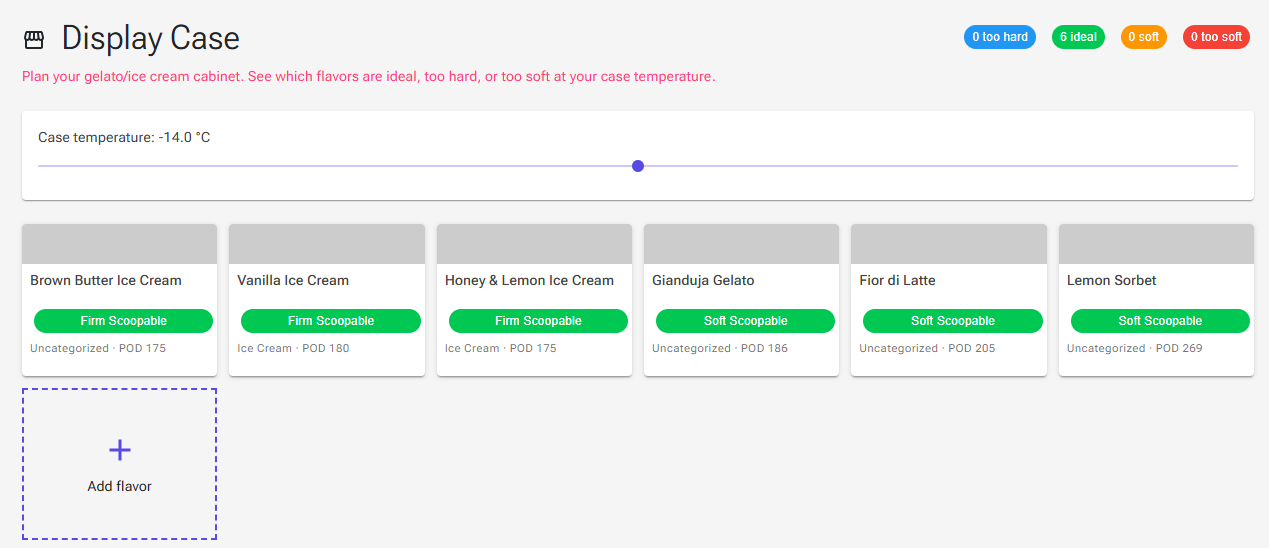
The Display Case lets you plan your cabinet before you fill it. You add your flavors as tubs, set the cabinet temperature, and see for each flavor whether it will be too hard, ideal or too soft at that temperature. Each tub also shows its sweetness, and a tap opens its allergens and nutrition values.
Open it from Tools › Display Case. You need to be signed in; it is not a Premium feature. You have one display case, and every change is saved automatically, so it is still there the next time you open the page, on any device.
Setting the Case Temperature
Drag the Case temperature slider to your cabinet's temperature. It runs from −20 °C to −8 °C in half-degree steps and starts at −14 °C. If your Unit System in Settings is Imperial, the slider shows °F instead (about −4 °F to 18 °F).
Every tub and the summary chips update as you move the slider. Try a degree or two either way to find the temperature where most of your flavors are ideal.
Adding and Arranging Flavors
- Click the Add flavor tile at the end of the tubs.
- Pick a recipe in the list and click Add.
You can add the same recipe more than once, for example for two tubs of a best-seller. Drag the tubs to put them in the order of your cabinet. To take a tub out, tap it and click Remove from case.
The Display Case uses your recipes as they are saved. After changing a recipe in the Recipe Editor, save it and reopen the Display Case to see the effect. A recipe you delete disappears from the case automatically.
Reading the Tubs
Each tub shows:
- a colored strip at the top (gray until you choose a color);
- the recipe name;
- a firmness chip, such as "Soft Scoopable" or "Hard", colored by group;
- a small line with the recipe's category, if it has one, and its POD (sweetness), the same POD value as in the Recipe Editor.
The chips at the top right count your tubs per group: too hard (blue), ideal (green), soft (orange) and too soft (red).
How Firmness Is Worked Out
Firmness comes from the share of the recipe's water that is frozen at the case temperature, the frozen water percentage. The app reads it from the recipe's freezing curve and hardness curve, taking the average of the two. The more water is frozen, the firmer the ice cream.
| Frozen water | Firmness chip | Group |
|---|---|---|
| 95–100 % | Rock Solid | too hard |
| 85–95 % | Very Hard | too hard |
| 78–85 % | Hard | too hard |
| 72–78 % | Firm Scoopable | ideal |
| 65–72 % | Soft Scoopable | ideal |
| 55–65 % | Soft Serve | soft |
| 40–55 % | Very Soft | too soft |
| 20–40 % | Melting | too soft |
| 0–20 % | Liquid | too soft |
These bands are fixed. They do not change with the serving targets in your Temperature Settings. For the science behind frozen water and PAC, see Understanding Scoopability and Serving Temperatures.
Tub Details
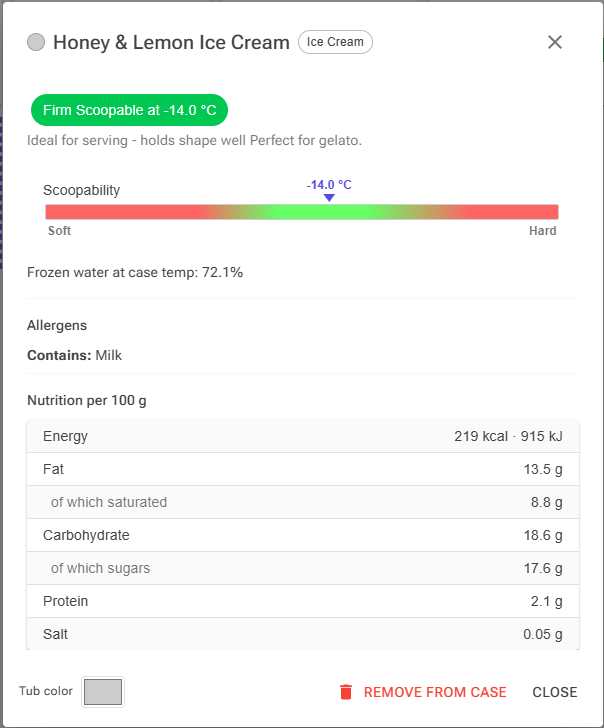
Tap a tub to open its details:
- Firmness at the case temperature, for example "Soft Scoopable at -14.0 °C", with a short description such as "Ideal for serving - easy to scoop."
- The recipe's description, if it has one.
- The Scoopability bar, with the case temperature marked on it.
- Frozen water at case temp, as a percentage.
- Allergens: what the recipe contains, and what it may contain. "Not specified." means no allergens are recorded for its ingredients.
- Nutrition per 100 g: energy, fat, saturated fat, carbohydrate, sugars, protein and salt.
At the bottom of the dialog, Tub color lets you pick a color for the tub, for example the color of the flavor itself, so the page looks like your real cabinet. Remove from case takes the tub out.
Tips
- One flavor is out of line. If a single flavor is too hard or too soft while the rest are ideal, adjust that recipe rather than the cabinet. Raising PAC softens it and lowering PAC firms it up; see Understanding Scoopability and Serving Temperatures and Balancing.
- Many flavors are in the same wrong group. Move the slider: the cabinet temperature is probably the better thing to change.
- Allergens for staff. Tap a tub to answer an allergen question at the counter.
- Showing the menu to customers. The Display Case is a planning tool for you. To show your flavors, prices and allergens to customers, use a Showcase.
Related Articles
- Understanding Scoopability and Serving Temperatures – frozen water, PAC and serving temperatures
- Showcase – a customer menu with prices, images and allergens
- Balancing – adjusting a recipe toward its targets
- Settings – unit system and temperature settings