Overview
This guide helps you move your recipes, ingredients and charts from the Ice Cream Calculator Desktop App (Version 4) to the Web App, and explains how to create a desktop database from your web data if you need to go the other way.
There are two ways to migrate:
- Quick Migrate (recommended): select your database file and click one button. Your ingredients, charts and recipes are imported in one run.
- Advanced import: import each type separately, choose the items yourself, review how every ingredient is matched, and import production plans.
| Quick Migrate | Advanced import | |
|---|---|---|
| Where | Migrate from Desktop on the Home page (when signed out), or Use Quick Migrate on the Import from Desktop page | Tools → Import → Import from Desktop |
| What you do | Select the file, click Migrate everything | Import ingredients, charts, recipes and plans one type at a time |
| Ingredients | Matched by name; ingredients with no match are imported as your own | Reviewed in a list before import (Premium) |
| Charts | Imported unless you already have a chart with the same name | You tick the charts to import |
| Recipes | Imported unless you already have a recipe with the same name | You tick the recipes and review the ingredient matches |
| Production plans | Not included | Import Plans |
| Free plan | Every recipe is imported; the 15 newest stay editable | Stops when you reach 15 recipes in total |
| Your existing web data | Never changed | Never changed |
⚠️ Important Requirements:
- You must have Desktop App Version 4 or higher. The desktop app is only available for Windows.
- You need a web account. Sign in, or create a free account, before you import.
Step 1: Locate Your Desktop Database File
Before you can migrate your data, you need to find the SQLite database file used by the desktop application. The database contains all your recipes, ingredients, charts and production plans.
Default Database Location
By default, the database is stored at:
C:\ProgramData\Ice Cream Calculator4\icc4.sqlite
💡 Tip: The
ProgramDatafolder is hidden by default in Windows, so browsing to it by clicking may not work. Pasting the path always does.
The Quickest Way: Paste the Folder into the File Dialog
When the web app asks you to select the database file:
- Paste the folder path
C:\ProgramData\Ice Cream Calculator4into the File name box of the file dialog. - Press Enter. The dialog jumps to that folder.
- Click
icc4.sqlite, then click Open.
Quick Migrate shows this folder path with a Copy button, so you do not have to type it.
Method 1: Using File Explorer
- Open File Explorer (Windows key + E)
- Click in the address bar at the top (where it shows the current folder path)
- Paste this path:
C:\ProgramData\Ice Cream Calculator4\ - Press Enter
- You should see the
icc4.sqlitefile

Method 2: Using the Run Dialog
- Press Windows key + R to open the Run dialog
- Type:
C:\ProgramData\Ice Cream Calculator4\ - Click OK
- File Explorer will open showing your database file
Method 3: Check the Desktop App
If you've changed the database location or can't find it, the Desktop App shows you exactly where it is:
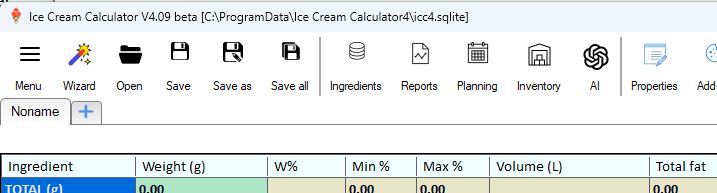
Option A: Header Display (Always Visible)
The full path to your database is always displayed in the header/title bar of the Desktop App window. Look at the top of the application window to see the complete file path.
Option B: Settings Dialog
- Open the Desktop App
- Go to Menu → Settings
- In the Settings dialog, you'll see the database location displayed
- There's also a button to open the folder directly in File Explorer
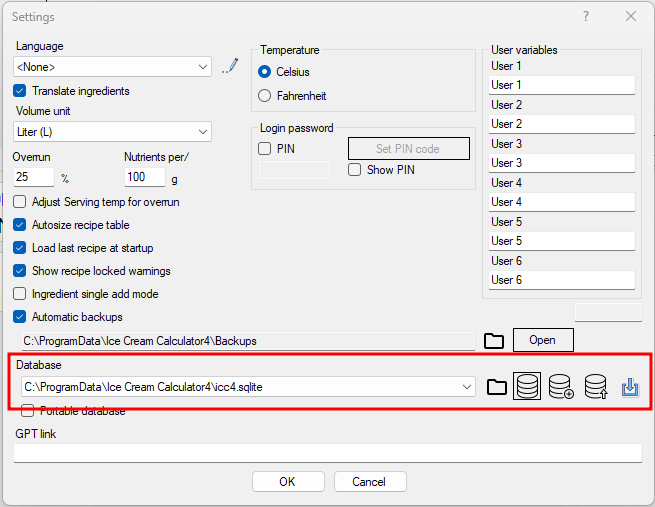
Note: If you've customized your database location in the Desktop App settings, the file may be in a different location than the default. Always check the Desktop App header or Settings to confirm the exact location.
Quick Migrate (Recommended)
Quick Migrate moves your ingredients, charts and recipes in one step, with no review pages. Nothing you already have in your web account is changed, so it is safe to run again.
How to Run Quick Migrate
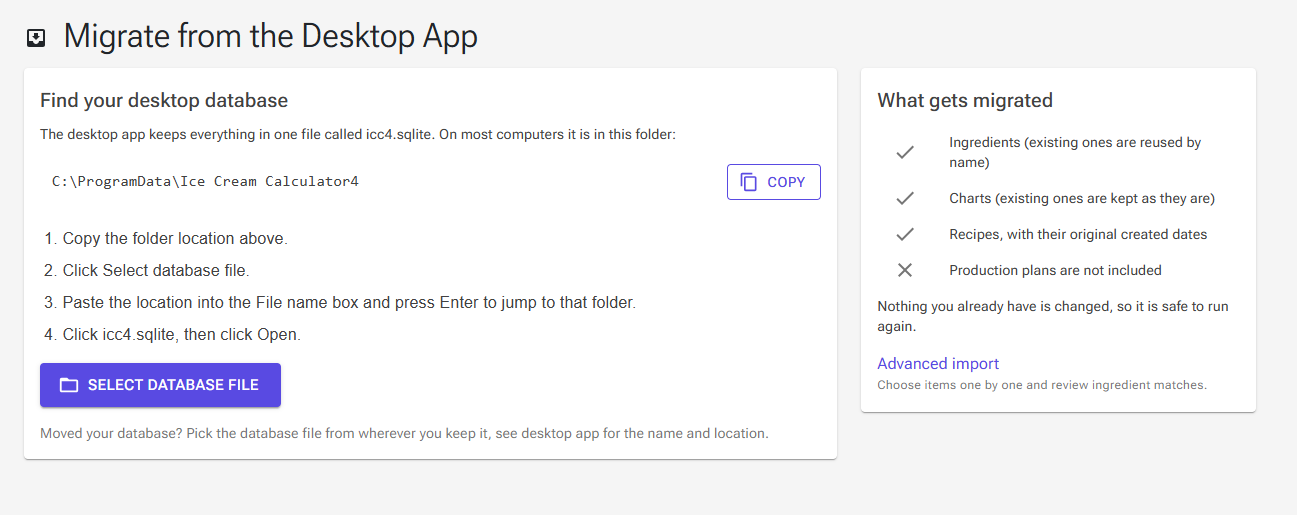
- Open Quick Migrate. You can reach it from the Migrate from Desktop button on the Home page (shown when you are not signed in), or from the Use Quick Migrate link at the top of Tools → Import → Import from Desktop.
- If you are not signed in, click Create account or Sign in. You are brought back to the migration page afterwards. A new account verifies its e-mail address first; the link in the e-mail brings you back after you sign in.
- Click Copy next to the folder location, then click Select database file. Paste the location into the File name box, press Enter, click
icc4.sqliteand click Open. - The page shows Ready to migrate with the number of ingredients, charts and recipes in the file. Click Migrate everything.
- The three stages run in order: ingredients, then charts, then recipes. Keep the page open until it finishes.
- Review the summary, then click Go to my recipes.
What Quick Migrate Does With Each Type
- Ingredients: each desktop ingredient is matched by name (not case-sensitive) against the ingredients you can already see in the web app, your own first, then the standard library. A match is reused, and nothing is imported for it. An ingredient with no match is imported as one of your own personal ingredients, with its desktop values, sub-ingredients and allergens.
- Charts: imported as your personal charts, unless you already have a chart with the same name. That chart is kept as it is.
- Recipes: imported unless you already have a recipe with the same name. Each ingredient line is linked by name as described above, the recipe's chart is linked by name, and the created date from the desktop app is kept.
- Recipes used inside other recipes (base recipes): imported first. A linked recipe-derived ingredient is created from each one, so the recipes that use it import correctly. See Using a Recipe as an Ingredient.
Tip: Because ingredients are matched by name, a desktop ingredient with the same name as an ingredient in the web library is not imported: your recipes use the web ingredient instead. If you want your own desktop values, rename that ingredient in the desktop app before you migrate.
The Migration Summary
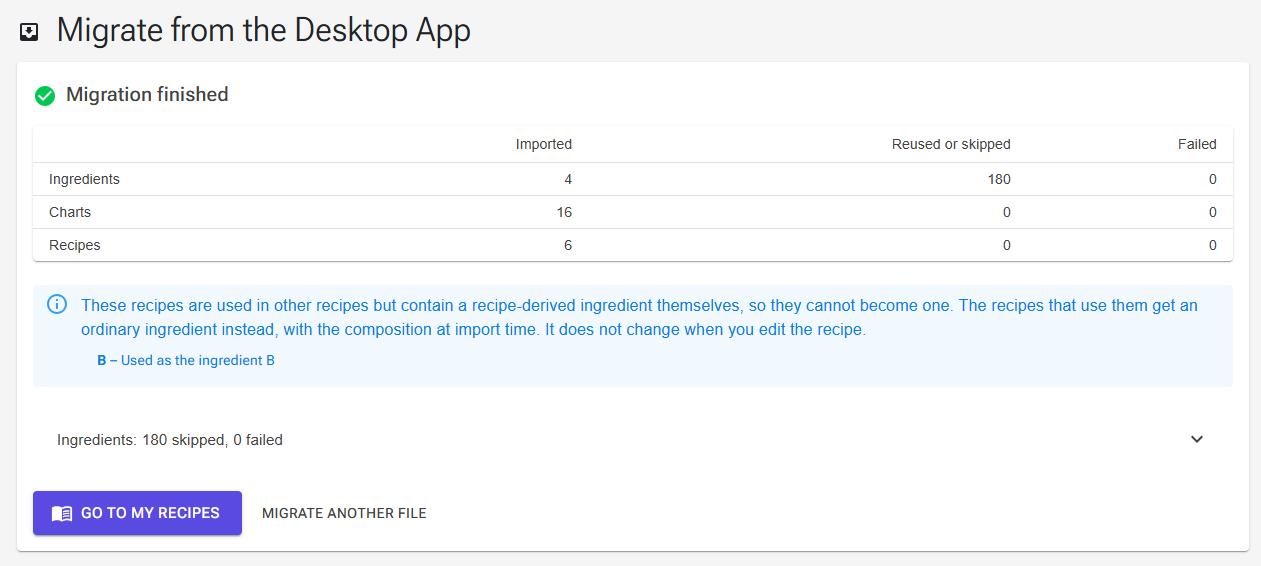
When the run finishes, Migration finished shows a table with the number of Imported, Reused or skipped and Failed items for ingredients, charts and recipes. Expand a panel below the table to see each skipped or failed item with its reason:
| Reason | What it means |
|---|---|
| Existing ingredient reused | You already had an ingredient with this name; recipes use it. |
| Already exists, kept as it is | You already had a chart or recipe with this name. It was not changed, and the desktop version was not imported. |
| Duplicate name in the desktop database | The file has two items with this name; only the first was imported. |
| No ingredients | The desktop recipe has no ingredient lines. |
| Ingredient not found: name | An ingredient line could not be linked, usually because that ingredient failed to import. Check the ingredient panel for the reason. |
| Uses a recipe that was not migrated: name | The recipe uses another recipe that could not be imported. |
| Could not be imported | An error occurred for this item; any detail is shown after the reason. |
If some of your base recipes themselves use another recipe, the summary also lists them in a blue note. See the FAQ below.
Free Plan
Quick Migrate imports every recipe, even on a free account, and it does not need Premium for ingredients. A free account can open and edit its 15 newest recipes (by created date). The rest stay in your recipe list, locked until you upgrade to Premium. When this applies, the summary shows a card with an upgrade button. See Account, Premium and Your Data.
Advanced Import
Use the advanced import when you want to import only some items, review each ingredient match yourself, or import production plans.
Step 2: Open the Advanced Import
- Sign in to the Ice Cream Calculator Web App
- Go to Tools from the main menu
- Scroll down to the Import section
- Click Import from Desktop
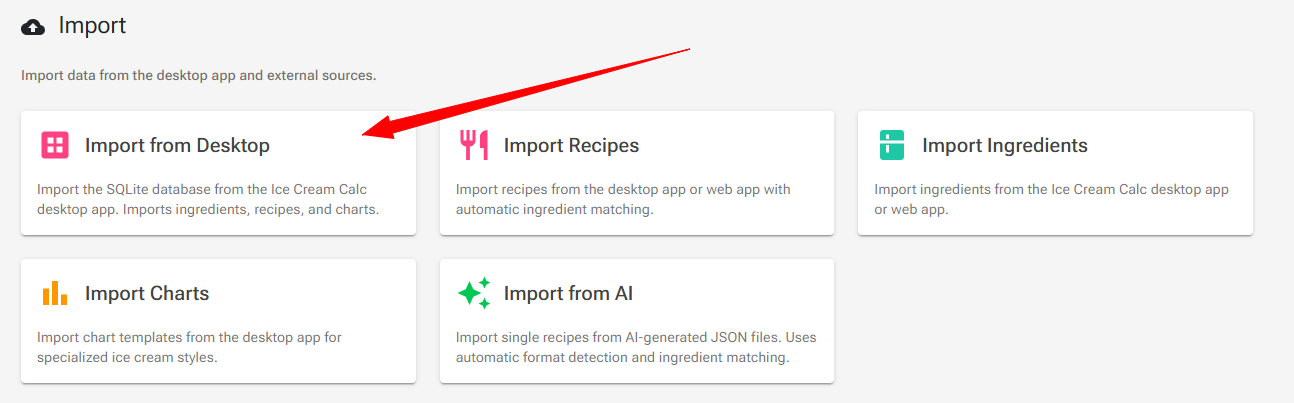
Step 3: Upload Your Database File
On the Import from Desktop page:
- Click the Select SQLite Database File button
- Navigate to your database location (from Step 1)
- Select the
icc4.sqlitefile (or your custom database file) - Click Open
The Web App analyzes your database and shows how many Recipes, Ingredients, Charts and Plans it contains. Click a section to preview what will be imported. Below the preview there is one button per type: Import Ingredients, Import Recipes, Import Charts and Import Plans, each with its count.
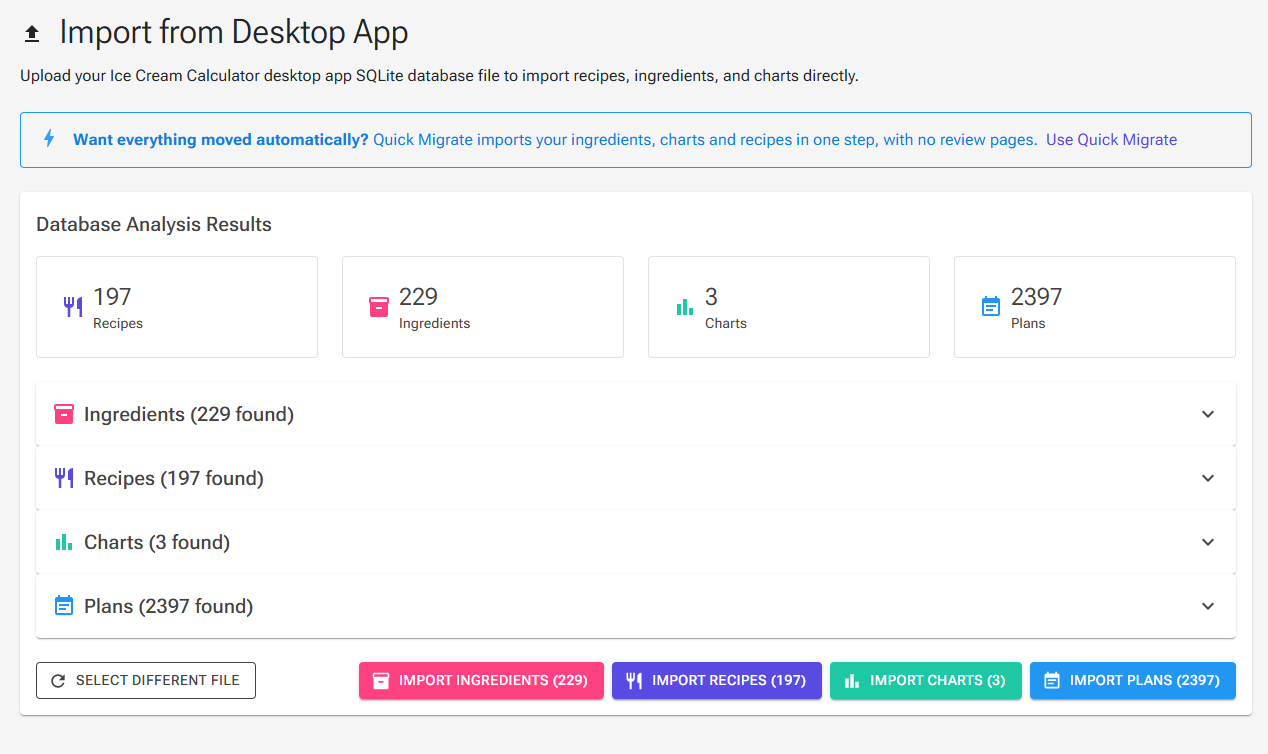
Note: Each import opens its own page. To continue with the next type, go back to Tools → Import → Import from Desktop and select the file again.
Recommended Import Order
- Ingredients, so your recipes can match them.
- Charts. A recipe is linked to its chart by name at the moment the recipe is imported, so a chart imported afterwards is not linked automatically.
- Recipes.
- Plans, if you use them. Plans are matched to your web recipes by recipe name.
This is also the order Quick Migrate uses.
Step 4: Import Ingredients First ⭐
Premium: the ingredient review is a Premium feature. On a free account, use Quick Migrate, which imports your ingredients without Premium.
When you import recipes, the Web App matches the ingredient names in your recipes to ingredients in your web account. Custom desktop ingredients do not exist on the web yet, so import them first:
- On the analysis page, click Import Ingredients.
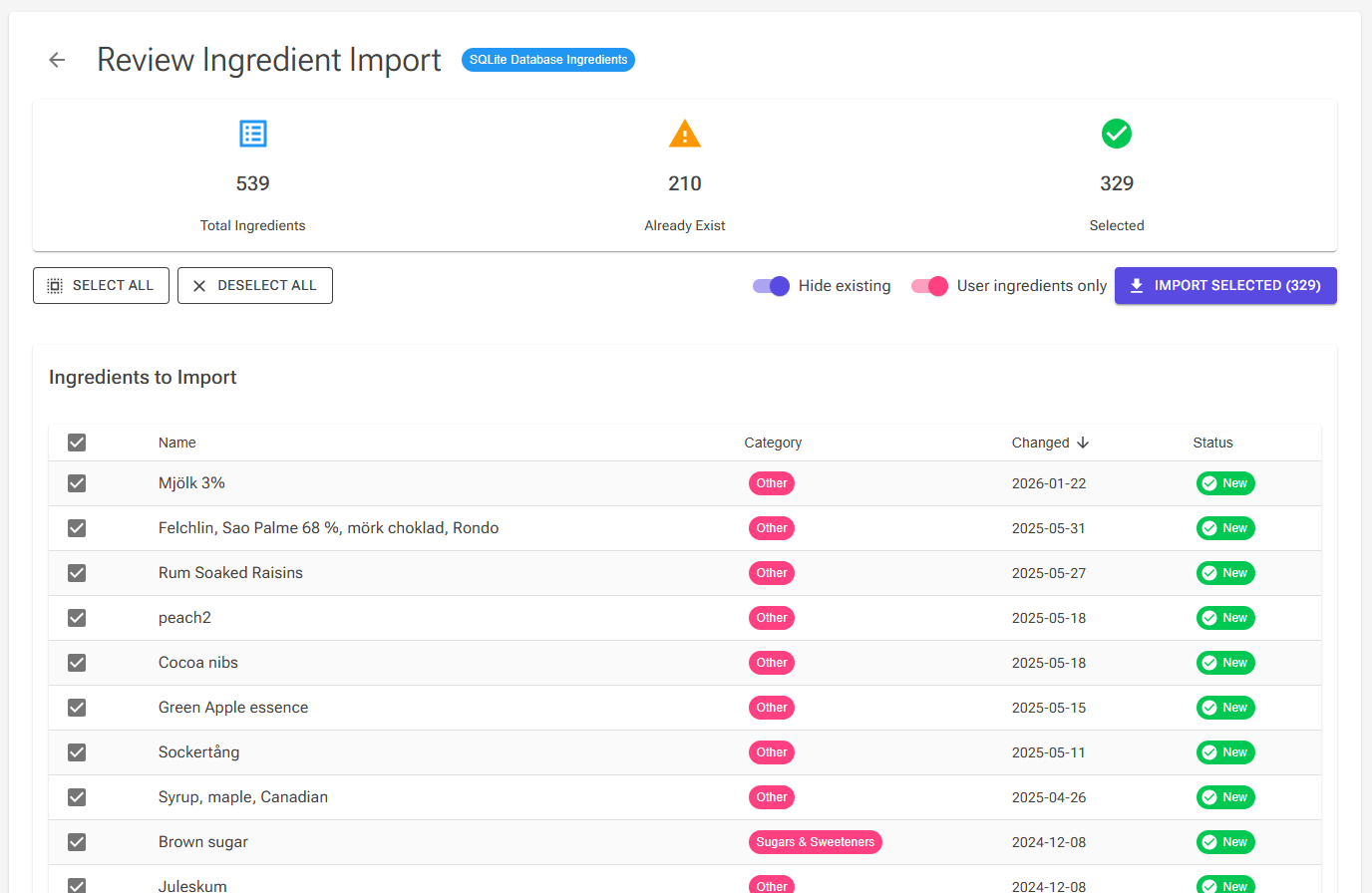
- The Review Ingredient Import page shows the total, how many already exist, and how many are selected. Each row has a status badge:
- Green "New": the ingredient doesn't exist in your account yet.
- Yellow "Already Exists": you already have an ingredient with this name. These rows are not ticked, and your existing ingredient is never overwritten. If you tick one anyway, you get a second ingredient with the same name.
- Use the controls at the top:
- Select All / Deselect All: tick or untick the rows shown.
- Hide existing (on by default): hides the ingredients you already have.
- User ingredients only (on by default): shows only the ingredients you created yourself in the desktop app, not the desktop's standard ingredients.
- Individual checkboxes: choose specific ingredients.
- Click Import Selected. The button shows how many ingredients are selected.
- When the import succeeds, you are taken to your Ingredients page. Imported ingredients are your own personal ingredients.
Step 5: Import Charts
Charts control the target ranges for your recipes. Import them before your recipes so each recipe is linked to its chart.
- Select the file again on the Import from Desktop page and click Import Charts.
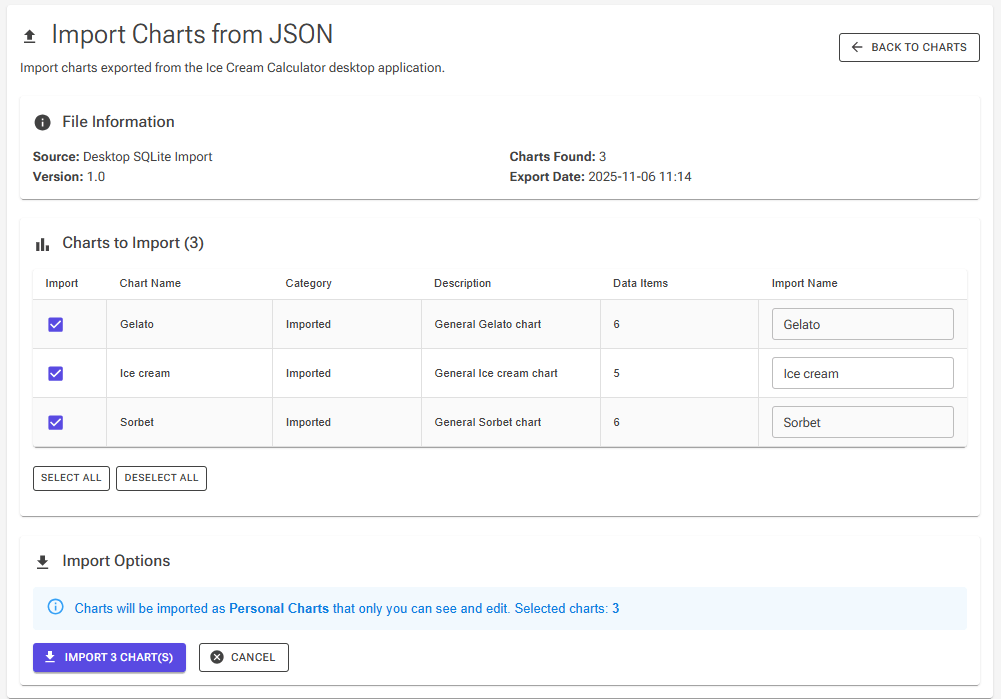
- The Import Charts from JSON page lists every chart in the file, all ticked.
- Untick the charts you already have: a chart with the same name is imported as a second copy. You can also type a different name in the Import Name column.
- Click Import {n} Chart(s). The charts are added to your personal charts, in the category "Imported".
Step 6: Import Recipes
The recipe import has two steps: recipe selection and ingredient matching.
6.1 Select Which Recipes to Import
- Select the file again on the Import from Desktop page and click Import Recipes.
- The Recipe Selection page lists every recipe in the file with status chips:
- Ready: you don't have a recipe with this name yet.
- Exists: you already have a recipe with this name. Importing it creates a second recipe with the same name; nothing is overwritten.
- Base: this recipe is used as an ingredient in other recipes.
- Use the selection tools:
- Select All and Deselect All (for the recipes shown)
- Select All New: selects every recipe without the Exists chip
- Select All Base: adds every base recipe to the selection
- Search box: filter recipes by name
- Hide existing recipes and Show only base recipes: shorten the list
- Click Import {n} Recipes to continue to ingredient matching.
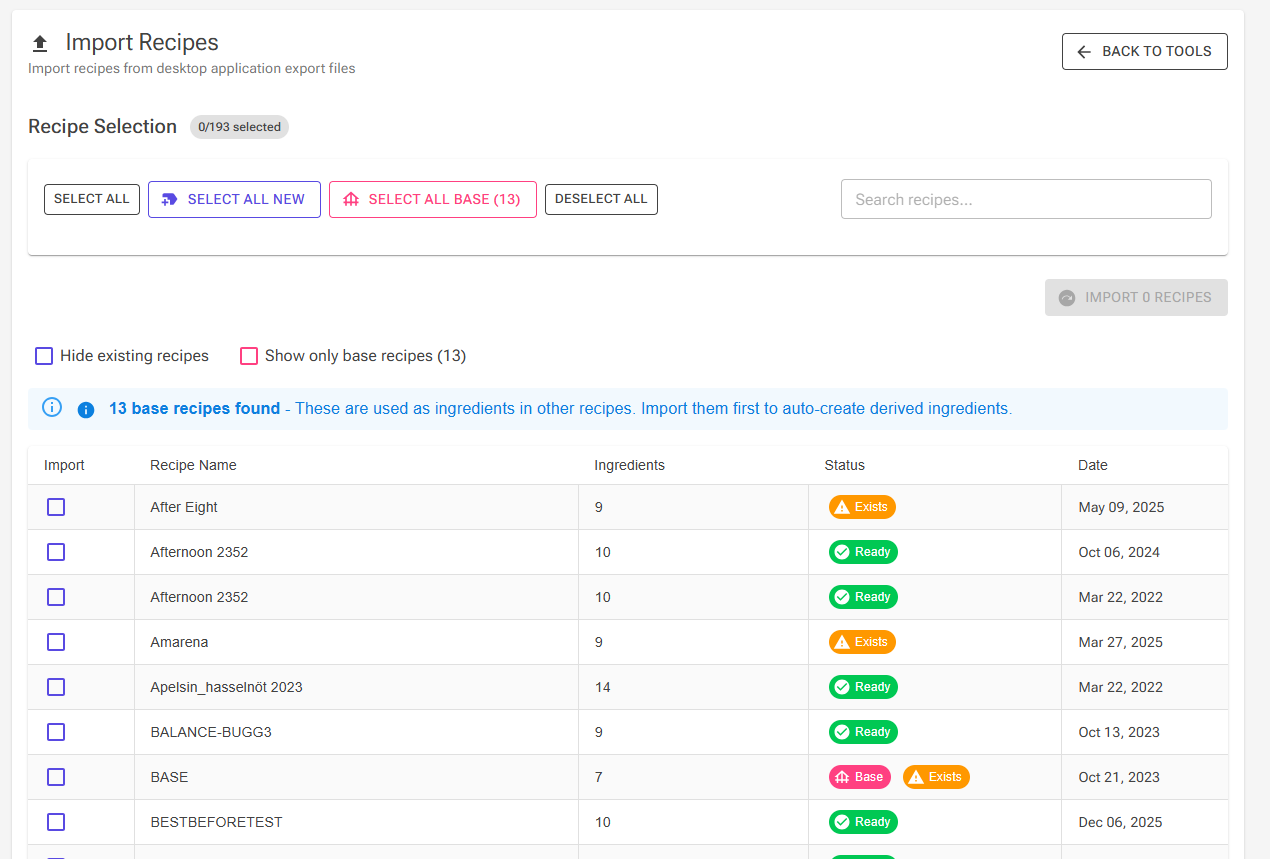
Base recipes: when the file has recipes that are used inside other recipes, the page says how many base recipes it found. Import them first, in a run of their own (Select All Base, then import). Each base recipe becomes a linked recipe-derived ingredient with the recipe's name, and the recipes that use it then match that ingredient when you import them.
Free Plan Limitation: a free account holds 15 recipes in total. If the file has more recipes than you have room for, the page warns that only the first ones will be imported, and recipes beyond the limit are listed as skipped. If you already have 15 recipes, the page shows the upgrade dialog instead. Quick Migrate does not have this limit; see Free Plan above.
6.2 Match Ingredients
After selecting your recipes, you'll see the Ingredient Matching page. It shows every unique ingredient used by your selected recipes, with these statistics:
- Selected Recipes: how many recipes you're importing
- Unique Ingredients: total different ingredients needed
- Matched Ingredients: ingredients that are linked to an ingredient in your account
- Ready to Import: how many recipes can be imported now
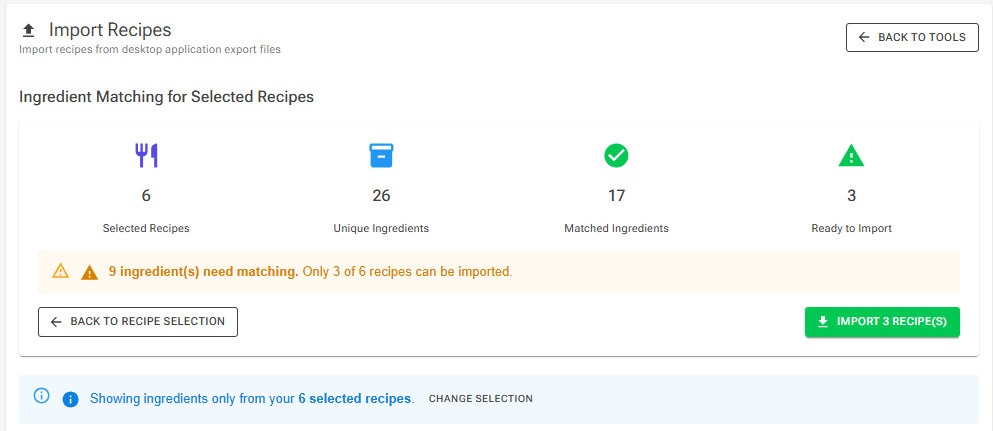
Understanding Ingredient Matching Status
- ✅ Green rows: matched, either by exact name or by a close name match.
- ❌ Red rows: no match found; the ingredient needs your attention.
For Green (Matched) Ingredients:
A close match is picked automatically when the names are at least 75% similar, so check the green rows for a wrong pick. You can:
- Keep the match: do nothing, the selected ingredient is correct
- Change the match: open the dropdown to see similar ingredients and choose a different one
- Select manually: click Select to search for a different ingredient
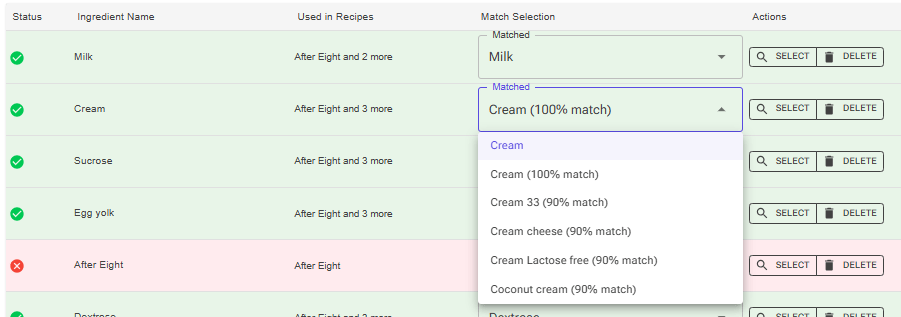
For Red (Unmatched) Ingredients:
These ingredients couldn't be matched automatically. You have three options:
- Select from dropdown: if the dropdown shows similar ingredients, choose the closest match
- Click "Select": opens a search page where you can search by name, browse by category and choose the correct ingredient
- Click "Delete": removes this ingredient from every selected recipe that uses it, after you confirm. Those recipes are still imported, without that ingredient.

💡 About Fuzzy Matching: The Web App uses fuzzy matching to find similar ingredients. For example, if your recipe uses "Cane Sugar" and the Web App has "White Cane Sugar", it might show as an 85% match in the dropdown. The match percentage helps you decide if it's the right ingredient.
Important: Which Recipes Can Be Imported?
A recipe is ready to import only if all its ingredients are matched. The page shows how many recipes are "Ready to Import".
Example: If you selected 10 recipes, but 3 of them use an ingredient that isn't matched, only 7 recipes show as ready. You can import those 7 now, or match the remaining ingredients to import all 10.
Completing the Import
- Match all ingredients (or as many as you want)
- Check the Ready to Import count
- Click Import {n} Recipes
- The results show how many recipes were imported, how many were skipped, and a list of the imported recipes with an Open recipe link for each
Click View All Recipes to see your newly imported recipes.
Step 7: Import Production Plans (Optional)
If your desktop database has production plans, you can bring them across after your recipes:
- Select the file again on the Import from Desktop page and click Import Plans.
- The Import Production Plans page matches each plan to one of your web recipes by recipe name. It shows Total Plans, Recipe Matched and Unmatched (will skip), and lists the desktop recipes it could not find. Import those recipes first, then run the plan import again.
- Use Select all matched or the checkboxes, then click Import {n} Plan(s). The pan size defaults to 4 kg; you can change it on each plan afterwards.
- Click Open Planning to see the plans. Production Planning is a Premium feature; see Production Planning.
What Transfers
| Type | What is transferred |
|---|---|
| Ingredients | Composition and nutrition values, category, description, cost per kg, PAC, POD and HF, balancer minimum and maximum, custom columns 1–6, sub-ingredients and allergens |
| Charts | Name, description, balance order, and every chart line with its range, priority, scale and temperature setting |
| Recipes | Ingredient lines with weights, add-ins and infusions, waste factor, locked lines and balancer limits, overrun, evaporation, best-before days, moulds and cavities, description, notes (as plain text, up to 2,000 characters), created and changed dates, the chart (linked by name) and your personal ratings (overall, texture, body, taste and colour) |
| Production plans (advanced import only) | Date, recipe, quantity, notes, and whether the plan was produced |
Ratings are transferred since 1 October 2026; recipes migrated before then came across without them. Some advanced desktop features have no direct equivalent in the Web App.
Running the Import Again: Nothing Is Overwritten
Both routes can be used as often as you like; it's not a one-time migration. Items already in your web account are never changed or overwritten:
- Quick Migrate skips every name you already have. Existing ingredients are reused; existing charts and recipes are kept as they are.
- Advanced import: an ingredient with an existing name is unticked; a recipe with an existing name shows the Exists chip and, if you import it, becomes a second recipe with the same name; a chart with an existing name is imported as a second copy.
To bring across a recipe you changed in the desktop app, rename (or delete) the web copy first, then import again.
Note: There is no automatic synchronization between the Desktop App and the Web App. Changes made in one do not appear in the other.
Export to Desktop (Premium)
Export to Desktop works in the other direction: it creates a database file for the Windows desktop app from your web data.
How to Export
- Go to Tools, scroll to the Export section and click Export to Desktop.
- Click Create file. The file (named like
icc4-web-2026-10-03.sqlite) downloads when it is ready. - Save the file on the computer where the desktop app is installed.
- In the desktop app, open Settings and select the file as the database. The desktop app then works with this file.
- To go back to your own desktop database, select it in Settings the same way.
Important: the file is a complete database of its own. It is not merged into your existing desktop database, so keep your original
icc4.sqlite.
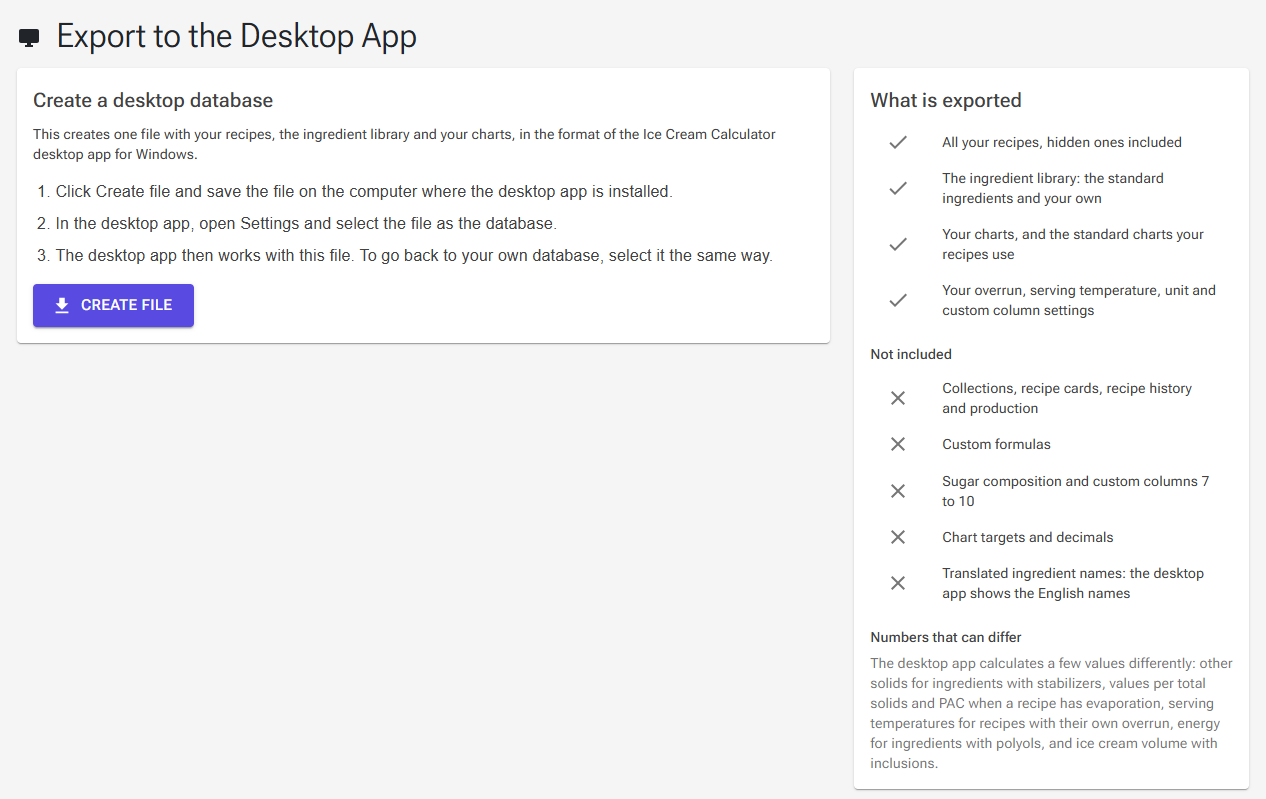
What Is Exported
- All your recipes, hidden ones included, with their notes and personal ratings
- The ingredient library: the standard ingredients and your own
- Your charts, and the standard charts your recipes use
- Your overrun, serving temperature, unit and custom column settings
Not Included
- Collections, recipe cards, recipe history and production
- Custom formulas
- Sugar composition and custom columns 7 to 10
- Chart targets and decimals
- Translated ingredient names: the desktop app shows the English names
- Recipe instructions
After the Export
The page confirms how many recipes, ingredients and charts the file holds. If something had to be adjusted for the desktop app, it says "Some items were changed to fit the desktop app" and lists each item by area (Settings, Ingredients, Charts, Recipes). Typical changes:
- Two items with the same name: one is renamed in the desktop file.
- An overrun above 150% is written as 150%.
- A chart line that shows a custom formula is left out.
- A recipe line whose ingredient is no longer available to you is left out.
Click Download again if you need another copy of the same file.
Numbers That Can Differ
The desktop app calculates a few values differently from the web app: other solids for ingredients with stabilizers, values per total solids and PAC when a recipe has evaporation, serving temperatures for recipes with their own overrun, energy for ingredients with polyols, and ice cream volume with inclusions. Small differences between the two apps are expected for these.
Tips for a Successful Migration
- ✅ Large databases: Quick Migrate handles the whole file in one run. In the advanced import, use the search box and the Hide existing filters, and import in batches.
- ✅ Partial imports: you don't have to import everything. Import only the recipes you actively use, and come back later for more.
- ✅ Take your time with ingredient matching: getting it right saves time later.
- ✅ Using both apps: run the import again to bring new desktop items to the web, and use Export to Desktop to take web data to the desktop app.
Troubleshooting Common Issues
Can't Find the Database File
Problem: The default location doesn't contain the database file.
Solution:
- Check the Desktop App header bar: it shows the exact file path
- Open Desktop App Settings and look for the database location
- Use the "Open folder" button in Settings to navigate directly to the file
Pasting the Path Doesn't Open the File
Problem: You pasted the path into the file dialog, but nothing was selected.
Solution: Paste the folder path, press Enter, then click icc4.sqlite and click Open. Pasting a path only takes the dialog to the folder.
Import Ingredients Shows an Upgrade Dialog
Problem: Clicking Import Ingredients in the advanced import opens the upgrade dialog.
Solution: The ingredient review is a Premium feature. On a free account, use Quick Migrate, which imports your ingredients, charts and recipes without Premium.
Many Ingredients Won't Match
Problem: Most ingredients show as red (unmatched) in the advanced recipe import.
Solution:
- You likely skipped importing ingredients first
- Go back and import your ingredients from the Desktop App, or use Quick Migrate
- Then try importing recipes again: matching should work much better
Recipe with Existing Name
Problem: A recipe shows a yellow Exists chip, or Quick Migrate reports "Already exists, kept as it is".
Solution:
- You already have a recipe with that exact name in the Web App
- Your existing recipe is never overwritten
- In the advanced import, importing it anyway creates a second recipe with the same name; untick it if you don't want that
- To import the desktop version as well, rename the existing web recipe first, then run the import again
A Recipe Failed in Quick Migrate
Problem: The summary lists a recipe as failed.
Solution: Read the reason next to it. "Ingredient not found" means an ingredient failed to import; check the ingredient panel of the summary for why. "No ingredients" means the desktop recipe is empty.
A Recipe Has No Chart After Import
Problem: An imported recipe is not linked to the chart it used in the desktop app.
Solution: Recipes are linked to charts by name when they are imported. If the chart was imported after the recipe, or under a different name, choose the chart for the recipe in the Recipe Editor. See Charts.
Recipes Are Locked After Migration
Problem: Some migrated recipes can't be opened.
Solution: On a free account, only the 15 newest recipes (by created date) can be opened and edited. Upgrade to Premium to unlock the rest.
Only Some Recipes Imported (Advanced Import, Free Plan)
Problem: The advanced import stopped before all selected recipes were imported.
Solution: A free account holds 15 recipes in total, and the advanced import stops at that limit. Use Quick Migrate to bring all recipes across (the 15 newest stay editable), or upgrade to Premium.
Database File Won't Upload
Problem: Error when selecting the database file.
Solution:
- Make sure you're using Desktop App Version 4 or higher
- Verify the file has a .sqlite, .db, or .sqlite3 extension
- Check that the file isn't corrupted (can you open it in the Desktop App?)
- The file size limit is 100 MB
Frequently Asked Questions
Do I need to keep the Desktop App after migrating?
No, you can use the Web App exclusively after migration. Many users keep both for a transition period. If you want to go back, Export to Desktop creates a desktop database from your web data.
Can I import the same data multiple times?
Yes, and nothing already in your web account is changed. See Running the Import Again above.
Do I need Premium to migrate?
No. Quick Migrate works on a free account and imports all your recipes; a free account can edit the 15 newest. The advanced ingredient import, Production Planning and Export to Desktop are Premium features.
What happens to recipes that use other recipes as ingredients?
The used recipe is imported as a recipe, and a recipe-derived ingredient linked to it is created, so the recipes that use it keep working. Quick Migrate does this in the right order automatically; in the advanced import, import the base recipes first. How a linked ingredient is kept up to date is explained in Using a Recipe as an Ingredient.
The Web App allows recipes inside recipes up to three levels deep. A recipe that other recipes use becomes a recipe-derived ingredient, also when it uses other recipes itself. Only if that would put it more than three levels deep do the recipes that use it get an ordinary ingredient instead, with the composition at import time; it does not change when you edit the recipe. Both import routes list these recipes after the import.
Will my recipe notes, ratings and settings transfer?
Yes: notes, ratings, best-before days, evaporation, overrun and line settings such as add-ins and locked lines are transferred. See What Transfers above for the full list.
Are production plans migrated?
Only through the advanced import (Import Plans). Quick Migrate leaves them out.
Is there a file size limit for the database?
Yes, the maximum database file size is 100 MB.
Need More Help?
If you encounter any issues during migration that aren't covered in this guide:
- See Import and Export for the other file import and export tools
- E-mail support at support@icecreamcalc.com (the address is also in the footer of every page)
✅ You're All Set!
Congratulations on migrating to the Ice Cream Calculator Web App! You now have access to your recipes from any device. Enjoy!