Introduction
The ingredients in the standard library are shared by every user of Ice Cream Calculator, so they cannot carry your labeling data. Sub-ingredients, allergen assignments, and everything else the Professional Ingredient Lists system builds on belongs to your own personal ingredients. If your recipes were built from standard ingredients — which is the natural way to start — you hit a wall the moment you want a real ingredient declaration.
The Convert to Personal Ingredients tool removes that wall in one pass. You pick the recipes you want to label, the tool finds every standard ingredient they use, and converts each one — either by creating a personal copy or by swapping in a personal ingredient you already have. Your recipes are updated to point at the personal ingredients automatically.
Find it under Tools → Convert to Personal Ingredients, or navigate directly to /tools/convert-personal-ingredients. You can also add the Convert to Personal Ingredients shortcut to your Home page with the pencil icon next to Shortcuts. You need to be logged in to use it.
When to Use It
- You want to set up sub-ingredients and allergens for labeling, but your recipes use standard ingredients.
- You want to use the AI Labeling tool, which works on your own ingredients only and skips standard ones.
- You have built up personal ingredients over time and want your recipes to use them instead of their standard near-duplicates.
If you only need to swap one specific ingredient for another across recipes, the simpler Replace Ingredient tool does that. Convert to Personal Ingredients is for the bigger job: making every ingredient in a set of recipes labelable at once.
Step 1: Select Recipes
The conversion is scoped to recipes, not to your whole library — only the recipes you select are changed. Everything else keeps using the standard ingredients.
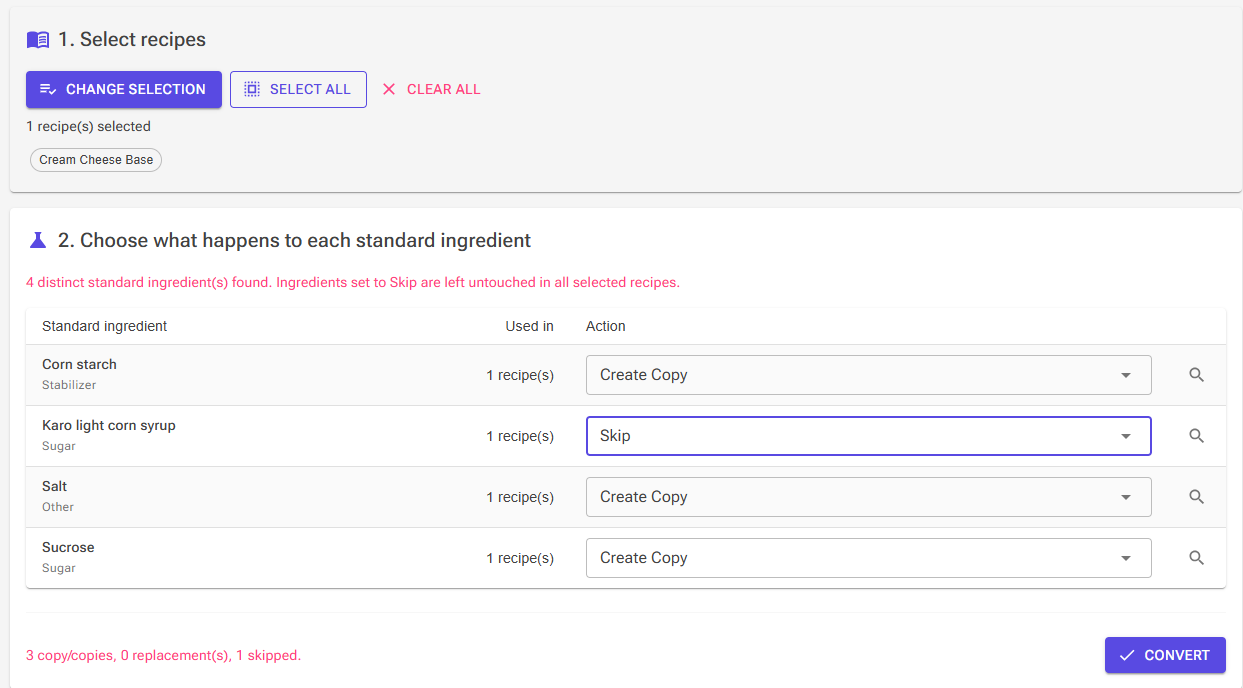
- Select recipes opens the recipe picker, where you can search, filter, and tick the recipes you want. The button changes to Change selection once you have picked some, and reopening it keeps your current selection so you can adjust it.
- Select all selects every recipe the picker would offer: your own recipes, excluding hidden ones, that actually contain ingredients.
- Clear all starts over.
The selected recipes are shown as chips below the buttons. With a large selection, the first 20 are listed and the rest are collapsed into an "and N more" chip.
Tip: Start with the recipes you actually sell. You can run the tool as many times as you like, so there is no need to convert your whole library in one go — a converted ingredient simply no longer appears the next time, because it is no longer standard in those recipes.
Step 2: Choose What Happens to Each Ingredient
As soon as recipes are selected, the tool lists every distinct standard ingredient they use — each one once, with its category and a count of how many of the selected recipes use it, sorted so the most widely used ingredients come first. Personal ingredients in the recipes are not listed; they need no conversion.
Each row has an Action dropdown deciding what happens to that ingredient:
| Action | What it does |
|---|---|
| Create Copy | Creates a new personal ingredient as an exact copy of the standard one, and points the selected recipes at the copy. |
| Replace with … | Points the selected recipes at a personal ingredient you already have. No copy is created. |
| Skip | Leaves this ingredient untouched in every selected recipe. |
How the Default Action Is Chosen
The tool compares each standard ingredient's name against your personal ingredients and proposes a sensible default:
- A personal ingredient with the exact same name (ignoring capitalization) is always the proposed replacement, shown as a 100% match.
- Otherwise, similarly named personal ingredients scoring 75% or better are offered as replacement options — up to five per row — and the best one is pre-selected. This is the same matching cutoff the recipe import and AI recipe features use.
- With no match at or above 75%, the default is Create Copy.
Review the proposals before converting — a fuzzy match is a suggestion, not a guarantee that the two ingredients have the same nutritional data. Ingredients you created from recipes (recipe-derived ingredients) are never proposed automatically, though you can still pick one yourself.
Picking a Different Replacement
The search button at the end of each row opens the ingredient picker, pre-filtered to your personal ingredients and pre-filled with the standard ingredient's name, so you can choose any personal ingredient as the replacement — not just the suggested matches. Standard ingredients cannot be chosen as a replacement; picking one shows a warning and leaves the row unchanged.
Step 3: Convert
The summary line above the Convert button totals your choices — how many copies, replacements, and skips. Clicking Convert opens a confirmation dialog that repeats the plan and offers one option:
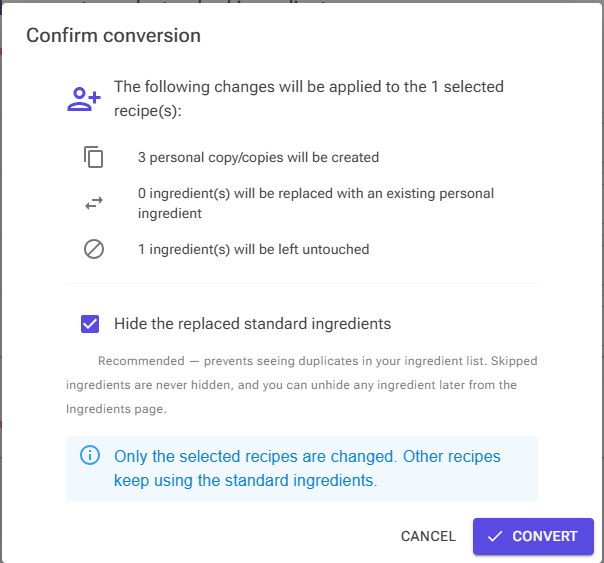
Hide the replaced standard ingredients — ticked by default. After the conversion, the standard ingredients that were copied or replaced are hidden from your ingredient list, so you do not see near-identical duplicates side by side. Skipped ingredients are never hidden. Hiding is only about visibility in your lists — you can unhide any ingredient later from the Ingredients page.
When you confirm, the tool:
- Creates the personal copies. A copy keeps the original name; only if you already have a personal ingredient with that name does it get a "(Copy)" suffix. The name is the one shown in the table, so if you see ingredient names translated into your interface language, the copy gets the translated name. The copy carries everything over — nutritional values, ice cream properties, and any sub-ingredients and allergen assignments the standard ingredient already had, so existing label data is not lost.
- Updates the selected recipes so every converted ingredient row points at the personal ingredient instead. This includes unsaved working versions of those recipes — a recipe you currently have open in the Recipe Editor reflects the conversion too.
- Hides the replaced standard ingredients, if you left the checkbox ticked.
A summary panel then reports exactly what happened: copies created, ingredients replaced with existing personal ingredients, recipe rows updated and in how many recipes, ingredients skipped, and ingredients hidden. The ingredient table reloads from the database, so anything successfully converted disappears from it.
Important: A personal copy is independent from that point on. If the standard library ingredient is later corrected or updated, your copy does not change with it — exactly like any other personal ingredient.
After Converting
The converted ingredients are now yours, which unlocks the whole labeling workflow:
- Open one from the Ingredients page and use Sub-Ingredients & Labeling on the Tools tab to set up its breakdown and allergens — see Professional Ingredient Lists for the full walkthrough.
- You can edit them freely: rename, adjust nutrition, change properties.
- The nutritional values are unchanged by the conversion, so your recipes calculate exactly as before.
Troubleshooting
Problem: The table says the selected recipes do not use any standard ingredients.
Solution: Everything in those recipes is already personal — there is nothing to convert. This is also what you see when re-running the tool on recipes you already converted.
Problem: I converted, but other recipes still use the standard ingredient.
Solution: By design, only the selected recipes are changed. Run the tool again with the other recipes selected — and this time choose Replace with … pointing at the personal ingredient created by the first run, rather than creating a second copy.
Problem: I see two ingredients with the same name in my ingredient list.
Solution: The copy keeps the standard ingredient's name, so if you unticked the hide option (or unhid the ingredient later) both are visible — the standard one and your personal copy. Hide the standard one from the Ingredients page, or use the source filter to tell them apart.
Problem: The suggested replacement was wrong and my recipe now uses a different ingredient than intended.
Solution: The recipe rows were repointed, so fix it with the Replace Ingredient tool: replace the wrongly chosen personal ingredient with the right one across the affected recipes. Next time, review each row's dropdown before converting — a percentage match is only a name similarity.
Problem: I want to convert an ingredient the tool does not list.
Solution: The tool only lists standard ingredients used by the selected recipes. Add the recipe that uses it to your selection. Ingredients that are already personal never appear.
Related Articles
- Professional Ingredient Lists — the sub-ingredient and allergen system your converted ingredients can now use.
- Ingredients — managing your ingredient library, hidden ingredients, and shared vs personal ingredients.