What You’ll Learn: This guide explains what charts are, how they work, and how to create and manage them in the Ice Cream Calculator. Charts are essential tools for analyzing and balancing your ice cream recipes to achieve the perfect texture, sweetness, and consistency. Charts are at the heart of the Ice Cream Calc application.
1. What Are Charts?
Charts are customizable templates that define target properties for your ice cream recipes. Think of a chart as a blueprint that tells you what ranges your recipe should fall into for properties like fat content, sugar levels, total solids, and serving temperature.
Why Use Charts?
Different types of frozen desserts have different ideal properties:
- Ice Cream typically has higher fat content (10-16%) and higher total solids (39-45%) for a rich, creamy texture
- Gelato has lower fat (5-9%) and lower total solids (35-40%), but achieves a dense texture through minimal overrun and warmer serving temperature
- Sorbet contains no dairy and relies on sugar content and serving temperature for proper texture
- Soft Serve has specific formulations designed for serving at warmer temperatures directly from the machine
Charts help you create recipes that match these target profiles by providing visual feedback and enabling automatic recipe balancing.
How Charts Work
Each chart contains a set of data items (also called properties or parameters). For each data item, you can define:
- Minimum and Maximum values – The acceptable range for this property
- Target value (optional) – The ideal value within the range
- Priority – Whether this property is critical for balancing
- Display settings – How the property is shown in charts and reports
Example: A basic ice cream chart might include:
- Total Fat: 12-15% (Target: 14%)
- Total Solids: 36-40% (Target: 38%)
- Sweetness (POD): 180-200 (Target: 190)
- Serving Temp (PAC): 220-250 (Target: 235)
- MSNF: 10-11% (Target: 10.5%)
Reading a Chart
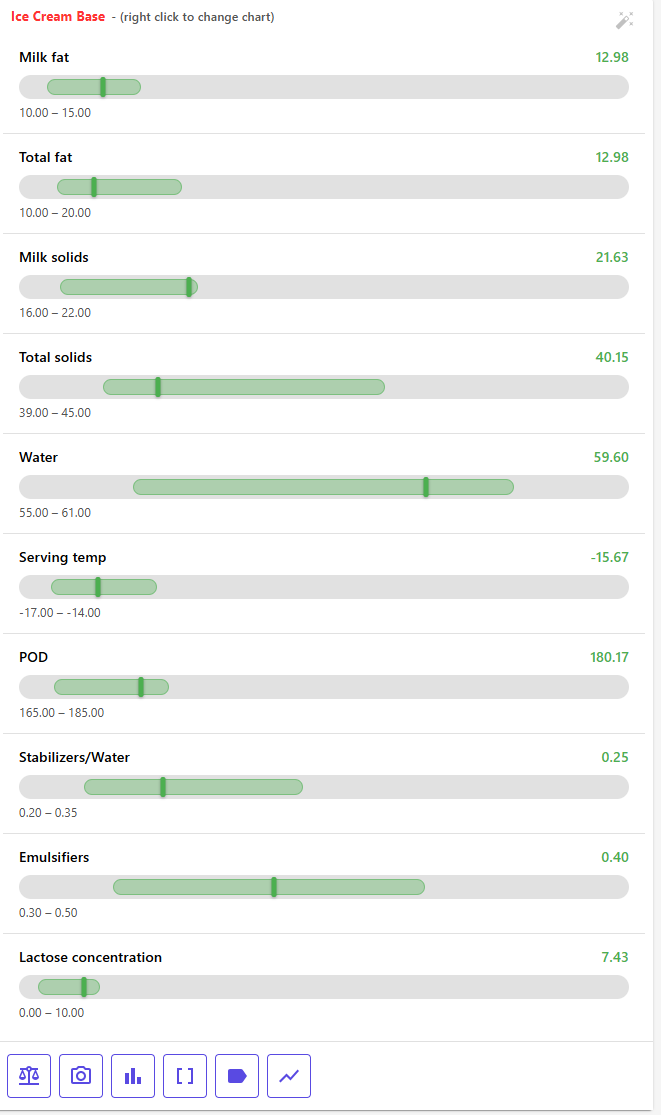
When you select a chart for your recipe, the calculator shows your recipe’s current value for each property as a bar, measured against the chart’s target ranges:
- Green – the value is within the range
- Red – the value is below or above the range
- Yellow – the property has no range; it is shown for information only
- Grey – your recipe has no value for this property
Black whiskers on each bar show the Min–Max range, and a small yellow diamond marks the target value when one is set. When a snapshot is active, orange bars show the snapshot’s values next to your recipe. Hover over a bar to see its value, range, target and scale.
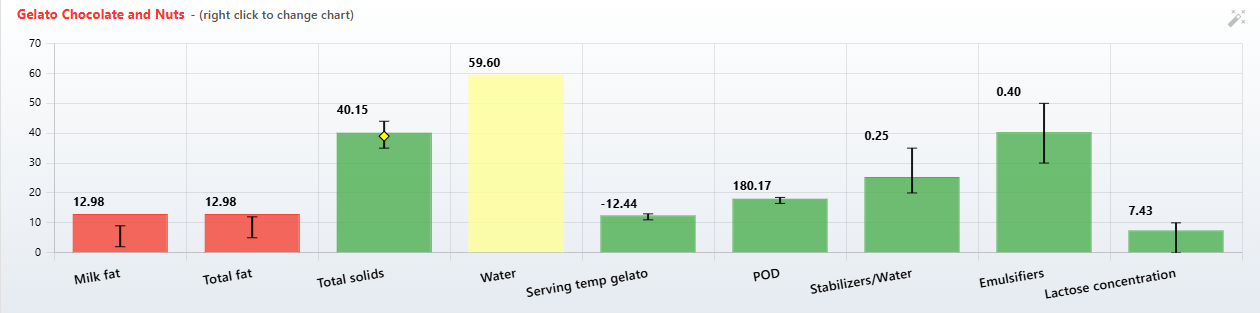
This visual feedback makes it easy to see at a glance whether your recipe is balanced and which properties need adjustment.
Learn More About Balancing: Charts are the foundation of the automatic balancing feature, which can adjust your ingredient quantities to meet your target ranges. For detailed information about how to use charts for balancing, see Balancing.
2. Types of Charts
There are two kinds of charts: your personal charts and the built-in default charts.
Personal Charts
Personal charts are charts you create and customize for your own recipes. These charts:
- Are private to your account
- Can be freely edited, renamed, or deleted
- Are perfect for developing your signature ice cream styles
- Can be created from scratch, copied from a default chart, created from a recipe, imported from a file, or cloned from a chart someone shared
On the Charts page they are listed under My charts, and the filter chip is My Charts. In the Recipe Editor they are marked Personal or Mine.
Default Charts (Standard Charts)
Default charts are professionally developed charts that come pre-installed with the calculator. The app uses two names for them: the filter chips, the chart picker and the right-click menu say Default, while the Charts page section and the Chart Editor say Standard charts. Both mean the same charts. These charts:
- Provide proven target ranges for common ice cream styles
- Are available to all users
- Cannot be edited directly (but can be copied to create personal versions)
- Serve as excellent starting points for your own recipes
Tip: If you like a default chart but want to make small adjustments, use its Copy button to create a personal copy that you can customize freely.
Charts Shared by Other Users
Charts that other users share are not a third chart type. They are community content in Explore. Open a shared chart there and click Clone to My Charts to get a personal copy that you can use and edit like any other personal chart. You can also rate shared charts. Someone can also send you a private link to a chart, which you clone the same way.
Learn More About Sharing: For browsing Explore, cloning charts and sharing your own, see Sharing.
3. The Charts Page
The Charts page (Recipe Charts) is your central hub for managing all your charts. Open it with Charts in the main navigation menu.
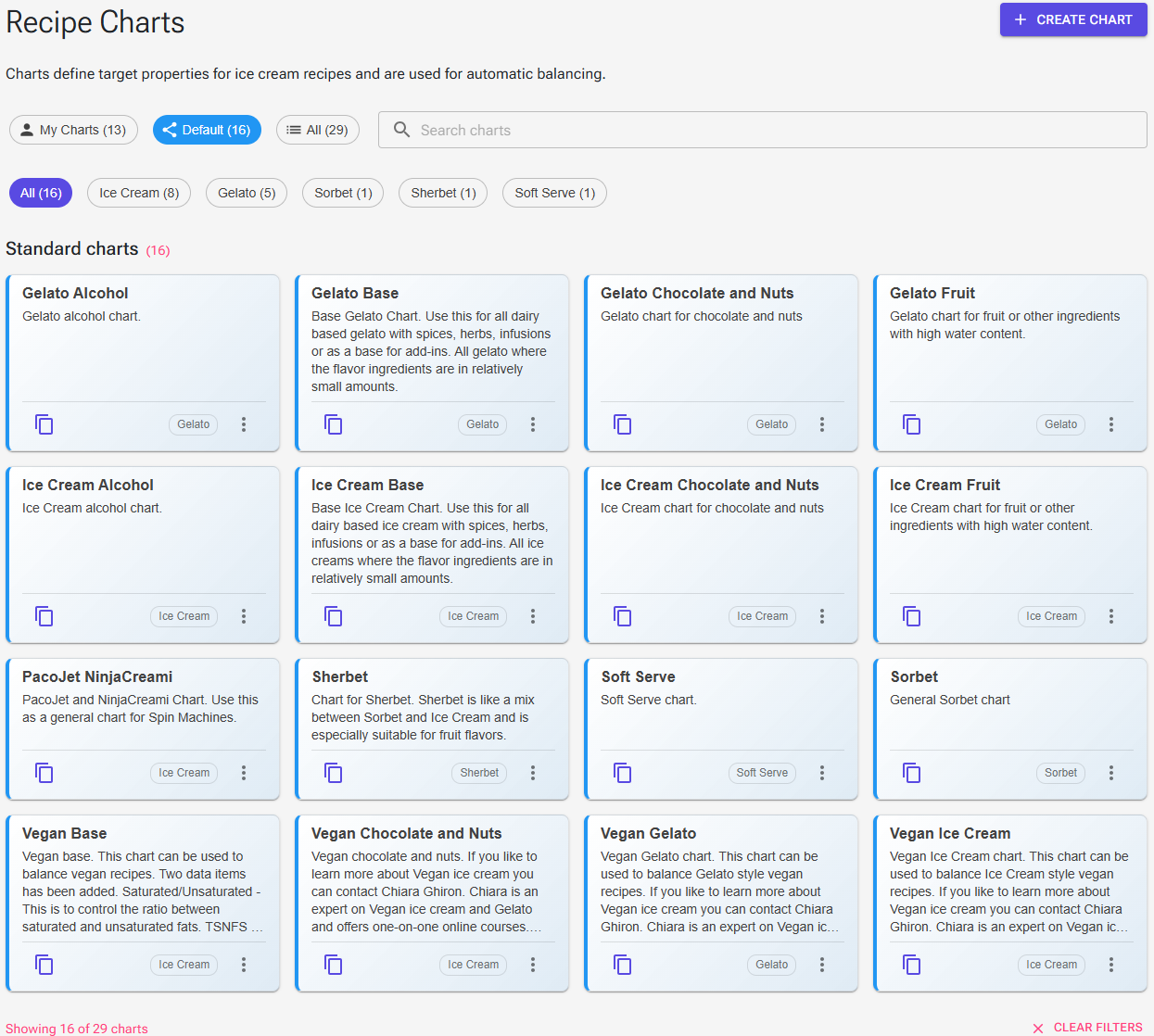
Chart Cards
Charts are shown as cards in two sections: My charts first, then Standard charts, each sorted by name. Each card shows the chart’s name, its description, and its category as a small badge. Click a card to open the chart in the Chart Editor: your own charts open for editing, standard charts open in view mode.
Filtering and Searching
- My Charts, Default and All chips – show only your charts, only the default charts, or both. Each chip shows the number of charts.
- Search charts – type to filter by chart name and description.
- Category chips – one chip per category that has charts (for example Ice Cream, Gelato, Sorbet), plus All, and Uncategorized when some charts have no category. The counts follow the type filter and the search.
- Clear Filters – resets the type, search and category.
On phones the search box sits above the chips, and the category chips scroll sideways.
Chart Actions
The buttons at the bottom of each card:
Personal Charts:
- Edit (pencil) – Open the chart in the Chart Editor
- Copy – Create a duplicate named “(Copy)” in your personal charts
- Delete (trash) – Permanently remove the chart (requires confirmation)
Default Charts:
- View (eye) – Open the chart in view mode
- Copy – Create a personal copy that you can edit
Important: Deleting a chart is permanent and cannot be undone. Export important charts first (see section 11).
You need to be signed in to create, copy or edit charts.
4. Creating a New Chart
Creating a custom chart allows you to define your own target properties for your ice cream recipes. You can start from scratch, copy an existing chart, or build one from a recipe (see Charts in the Recipe Editor).
Creating a Chart from Scratch
- Go to the Charts page
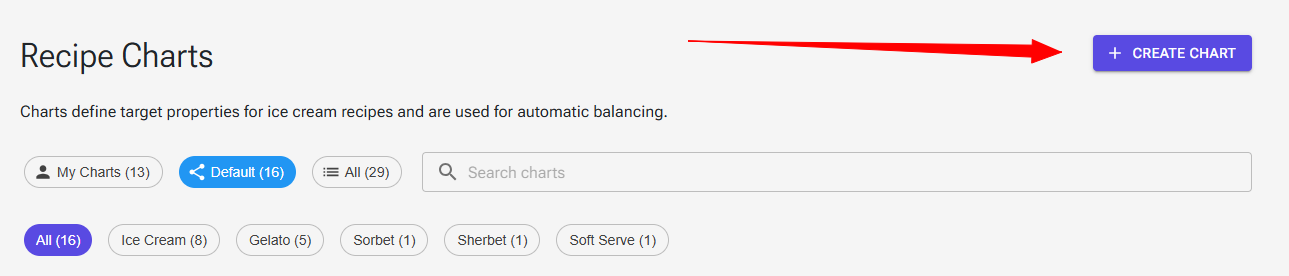
- Click the Create Chart button in the top-right corner
- Enter a Chart Name and, optionally, a category and description
- Click Create Chart. You return to the Charts page with the new chart under My charts.
- Open the new chart and add properties with Add Property (properties can only be added once the chart has been saved)
Copying an Existing Chart
Copying is often the fastest way to create a new chart, especially if you want to make minor adjustments to a default chart.
- Find the chart on the Charts page
- Click its Copy button
- A copy is created with “(Copy)” added to the name and appears under My charts
- Click the copy to customize it
You can also open a default chart, change it in view mode, and click Save as Copy. The app asks Create Personal Copy?; click Create Copy. If you didn’t rename it, the copy gets “(Copy)” added to the name, and the editor opens on the new copy.
Best Practice: Start by copying a default chart that’s close to your needs, then adjust specific properties. This is faster than building from scratch and ensures you don’t miss important properties.
5. The Chart Editor
The Chart Editor is where you define all aspects of your chart, from basic information to detailed property ranges. It works in one of four modes:
- Create Chart – a new chart. The save button is Create Chart.
- Edit Chart – one of your charts. The save button is Save Changes; saving returns you to the Charts page.
- View Chart – a standard chart, with the note “This is a standard chart. Changes are not saved to it. Saving creates a personal copy in your charts.” The save button is Save as Copy.
- Local Edit Mode – opened from the Recipe Editor; changes apply to that recipe only. The save button is Apply Changes (see Charts in the Recipe Editor).
Cancel leaves without saving.
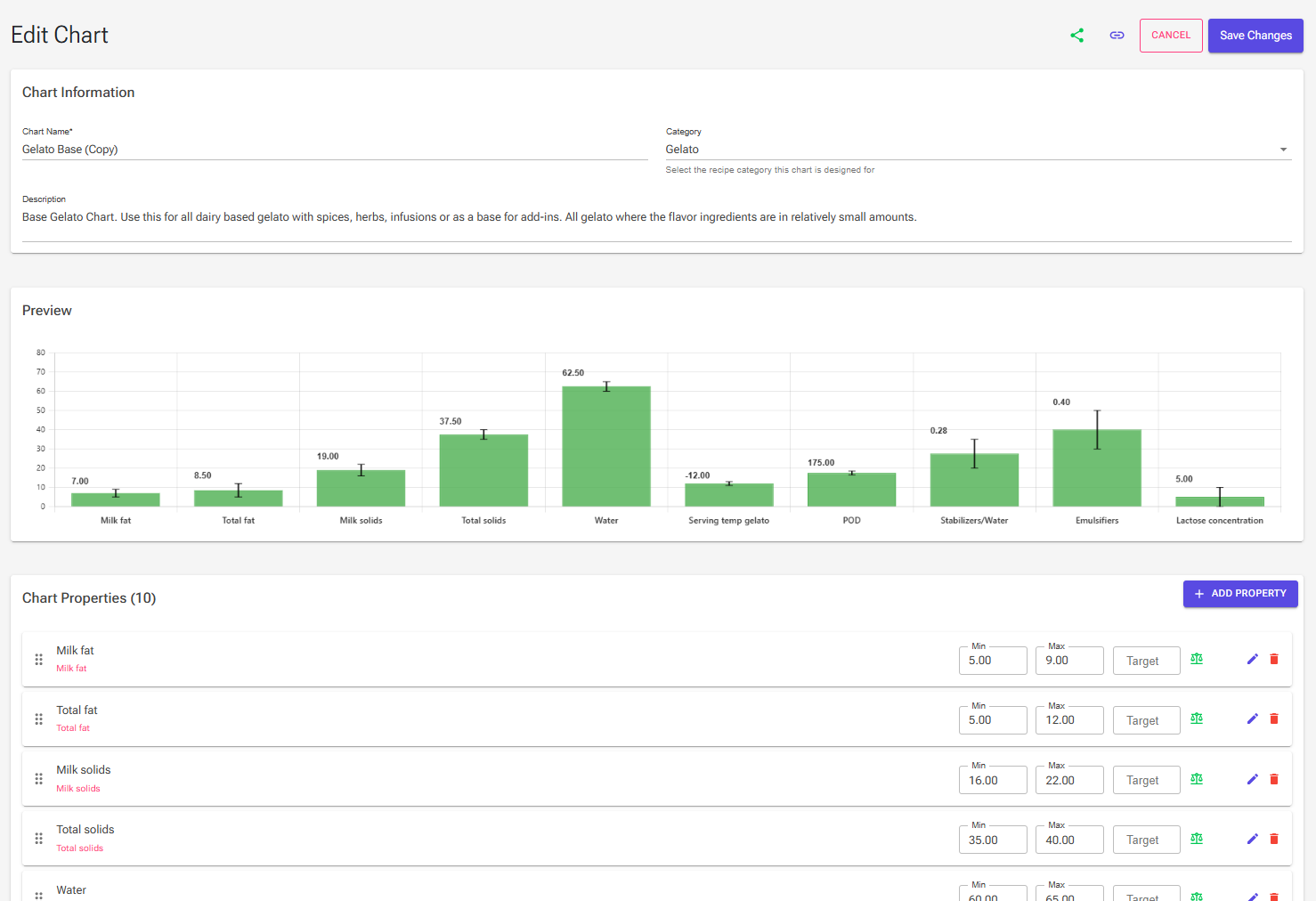
Chart Information
Chart Name
Give your chart a descriptive name that indicates its purpose (required). Good examples:
- “Premium Vanilla Ice Cream”
- “Low-Fat Gelato Base”
- “Fruit Sorbet – High Sugar”
- “My Signature Chocolate”
Category
Select the recipe category this chart is designed for. A new chart starts as Ice Cream:
- Ice Cream – Normal ice cream. Can be used for custard recipes and recipes without eggs
- Gelato – Italian-style frozen dessert
- Sorbet – Dairy-free fruit-based frozen dessert
- Sherbet – Fruit ice with dairy
- Frozen Yogurt – Yogurt-based frozen dessert
- Granita – Italian semi-frozen dessert
- Soft Serve – Soft-serve ice cream or frozen yogurt
- Special – Special chart of some kind
- Confectionery – For non-ice cream charts like Ganache
- Other – For experimental or mixed styles
- Ingredient and Topping – For recipes made as an ingredient for other recipes, or as a topping
- Uncategorized – No category
Note: Choosing the correct category helps you (and others, if you share the chart) find the chart more easily when filtering.
Description
Add a brief description explaining what this chart is for and any special considerations. For example:
- “Balanced chart for fruit-flavored ice creams with moderate fat content”
- “High-end gelato with intense flavor and creamy texture”
- “Budget-friendly ice cream using lower-cost stabilizers”
Preview
The Preview card draws the chart as you edit it. When you open a chart from the Charts page there is no recipe, so each bar is drawn in green at its target (or at the middle of its range when there is no target), with the range whiskers and target diamonds; a property with neither range nor target shows a dashed placeholder. In Local Edit Mode the preview shows the recipe’s real values and colors.
- Click a bar to open that property’s settings.
- Hover a bar to highlight its property row, and hover a row to highlight its bar.
Chart Properties
The Chart Properties card lists the chart’s properties, with the count in its title and the Add Property button. See sections 6–9.
Sharing a Chart
When you edit one of your saved charts, two icons appear next to Cancel: Share chart to community (opens the Share Chart page, to publish the chart in Explore) and Share via Private Link (creates a link that only people who have it can open). See Sharing.
Saving Your Chart
Click Save Changes (or Create Chart for a new chart) in the top-right corner. Saving is blocked while any property row shows a range error; fix the highlighted rows first (see section 8).
6. Adding Chart Properties
Chart properties (also called data items) are the individual measurements and calculations that define your target ranges. Properties can include nutritional data (fat, sugar, protein), ice cream-specific values (PAC, POD, MSNF), and calculated values (serving temperature, freezing point).
Adding a Property
- In the Chart Editor, click Add Property in the Chart Properties card
- The Select Recipe Data dialog opens. Search for a property or browse the categories, and click the one you want
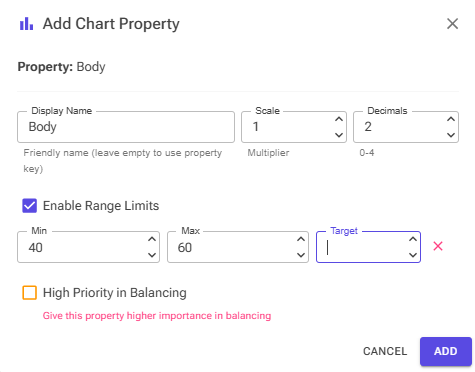
- The Add Chart Property dialog opens right away, with the range turned on from 0 to 100
- Set the range, target and other settings (see sections 7–9) and click Add
Add one property at a time; repeat for each property you need.
Common Chart Properties
Here are some essential properties you’ll likely want to include in most charts:
Essential Properties:
- Total Fat – Overall fat content (from cream, milk, egg yolks, etc.)
- Total Solids – Total non-water content
- Total Sugars – Combined sugar content from all sources
- POD (Sweetness) – Relative sweetness measurement
- PAC (Serving Temperature) – Affects texture and scoopability
Dairy-Specific Properties:
- MSNF – Milk solids non-fat (important for structure)
- Milk Fat – Fat specifically from dairy sources
- Lactose – Milk sugar content
Functional Ingredients:
- Stabilizers – Stabilizer content (usually 0.3-0.5%)
- Emulsifiers – Emulsifier content (usually 0.2-0.5%)
Calculated Properties:
- Serving Temperature – Temperature at proper scooping consistency
- Freezing Point – Temperature where mix starts to freeze
Tip: You can add any property to the chart without a target range. Turn off Enable Range Limits and the property is displayed in the chart for information (yellow bar) but not used in balancing.
Property Rows
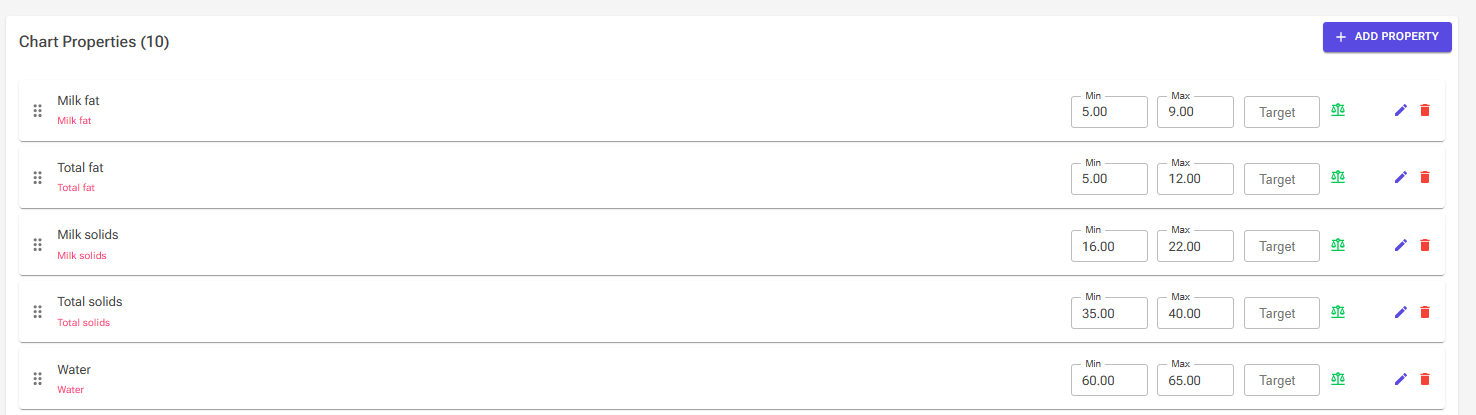
Each property is a row in the Chart Properties card:
- Drag handle (left) – drag the row to change the order
- Name – the display name, with the property key below it
- Min, Max and Target fields – edit the range right in the row. A property without a range shows Display only instead.
- Flag icons – a thermometer for a temperature property, a scales icon when the property is used in balancing, and an exclamation mark for High Priority
- Edit (pencil) and Delete (trash) buttons
Reordering Properties
The order of the rows is the order of the bars in the chart. Drag a row by its handle (the dotted grip on the left) to move it.
Deleting Properties
Click the Delete button (red trash icon) on the row, or Delete in the property’s dialog. The property is removed at once, without confirmation. Remember to save your chart afterwards.
Note: Deleting a property only removes it from the chart, not from the calculator. You can always add it again with Add Property.
7. Editing Chart Properties
After adding properties to your chart, you’ll configure each one with appropriate ranges and settings. This is where you define what “good” looks like for each property in your recipes. Simple range changes can be made in the row itself; everything else is in the Edit Chart Property dialog.
Opening the Property Editor
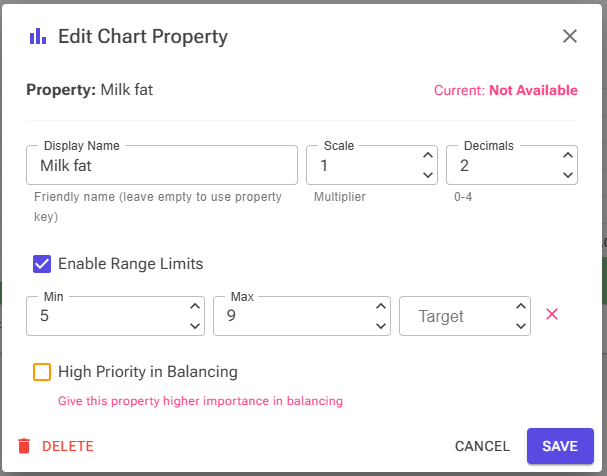
Click the Edit button (pencil) on the property’s row, or click its bar in the Preview. In the Recipe Editor, clicking a bar in the chart opens the same dialog.
Property Information
At the top of the dialog, you’ll see:
- Property – The data key (e.g., “Total fat”, “PACtot”, “MSNF”)
- Temperature chip – Shown for temperature properties. It is set automatically from the property name when you add it.
- Current – The value from your current recipe
Note: The current value is only shown when editing a property from within the Recipe Editor. When editing charts directly from the Charts page, it shows “Not Available”.
Display Settings
Display Name
By default, properties use their technical data key names. You can provide a more user-friendly display name:
- Example: “Milk Solids” instead of “MSNF”
- Leave blank to use the property key
- This name appears in charts and reports
Scale Factor
The scale factor is a multiplier applied when displaying the property value. This factor is used to scale the height of the bar in the chart making the chart more readable when mixing properties with widely different values. Most properties use the default scale of 1.0, but you can adjust this for special cases:
- 1.0 – Standard display (most common)
- -1.0 – For temperature properties
- 100 – For properties with very small values like Stabilizers
- Other values – For specialized unit conversions
Tip: Generally, leave the scale factor at 1.0 unless you have a specific display requirement. The scale only changes the bar height, never the value or the balancing. In the Recipe Editor the auto-scale icon can suggest scale factors for the whole chart (see section 10).
Decimals
The number of decimal places (0–4) used when the value, range and target are shown.
8. Configuring Property Ranges
Ranges are the heart of your chart configuration. They define what values are acceptable for each property and enable automatic recipe balancing.
Enable Range Limits
The Enable Range Limits checkbox controls whether this property is used in recipe evaluation and balancing:
- Unchecked: Property is displayed but not used for balancing or evaluation (display-only, yellow bar)
- Checked: Property has a range, is colored green or red, and is used in balancing
When to disable ranges: Some properties are useful to display but shouldn’t constrain your recipe (e.g., total recipe weight, mix volume, overrun). Leave ranges disabled for these informational properties.
Setting Minimum and Maximum Values
When range limits are enabled, you set the acceptable boundaries:
Minimum Value
The lowest acceptable value for this property. If your recipe falls below this value, it will be highlighted as out of range (shown in red).
Maximum Value
The highest acceptable value for this property. If your recipe exceeds this value, it will be highlighted as out of range (shown in red).
Example – Total Fat Range:
- Minimum: 12.0 (Below this, ice cream may be icy)
- Maximum: 16.0 (Above this, ice cream may be too rich)
- Result: Recipes with 12-16% fat are considered “in range” (green)
Setting Target Values (Optional)
Within your min/max range, you can specify an optional target value – the ideal value you’re aiming for:
- With Target: Balancing algorithm tries to hit this specific value
- Without Target: Balancing aims for the center of your min/max range
Getting into the range always comes first; the target decides where in the range the balancer ends up. The target must lie within the range.
Example – Total Fat with Target:
- Minimum: 12.0
- Maximum: 16.0
- Target: 15.0
- Result: Balancing prioritizes hitting 15% fat, but anywhere from 12-16% is acceptable
Best Practice: Use target values for your most critical properties. This gives the balancing algorithm clear goals while still allowing some flexibility. Sometimes you can accept a large range but prefer a specific target.
Clearing the Target
To remove a target value and return to center-of-range balancing, click the Clear Target button (X icon) next to the Target field in the dialog, or empty the Target field in the property row.
Range Validation
The app checks every range before it is saved:
- In the property rows: a Min above Max shows Min must not exceed Max, and a target outside the range shows Target must be within the range. While any row shows an error, saving the chart is blocked with “Fix the highlighted property ranges before saving”.
- In the Edit Chart Property dialog: if Min is above Max, the two values are swapped when you click Save. A target outside the range shows an error (“Target must be within the range … (or leave it empty to aim for the center of the range)”) and the dialog won’t close until you fix or clear it.
9. Balancing Settings
These settings control how the property is used in the automatic recipe balancing algorithm.
Which Properties Are Balanced
Every property with a range is used in balancing. There is no separate setting: a property with Enable Range Limits on shows the scales icon in its row and takes part in balancing. To show a property without balancing it, turn its range off (Display only).
High Priority in Balancing
The High Priority in Balancing checkbox (“Give this property higher importance in balancing”) marks this property as critically important:
- Enabled: The property counts 2.5 times as much as a normal property. When not every target can be reached, the balancer works hardest on priority properties.
- Disabled: Property has normal importance in balancing
The checkbox is only shown when Enable Range Limits is on; turning the range off also clears the priority. Priority properties show an exclamation-mark icon in their row and a star in the balance result.
Example Priority Properties:
- Total Solids – Critical for ice cream structure (set as priority)
- PAC/POD – Affects texture and sweetness (set as priority)
- Stabilizers – Important but narrow range (normal priority)
Best Practice: Mark no more than three properties as high priority. If everything is a priority, nothing is. Focus on the properties that define the fundamental character of your ice cream style.
Saving Property Changes
Click Save in the dialog (Add for a new property) to return to the Chart Editor with your property updated, then save the chart itself with Save Changes. Cancel closes the dialog without changes.
10. Charts in the Recipe Editor
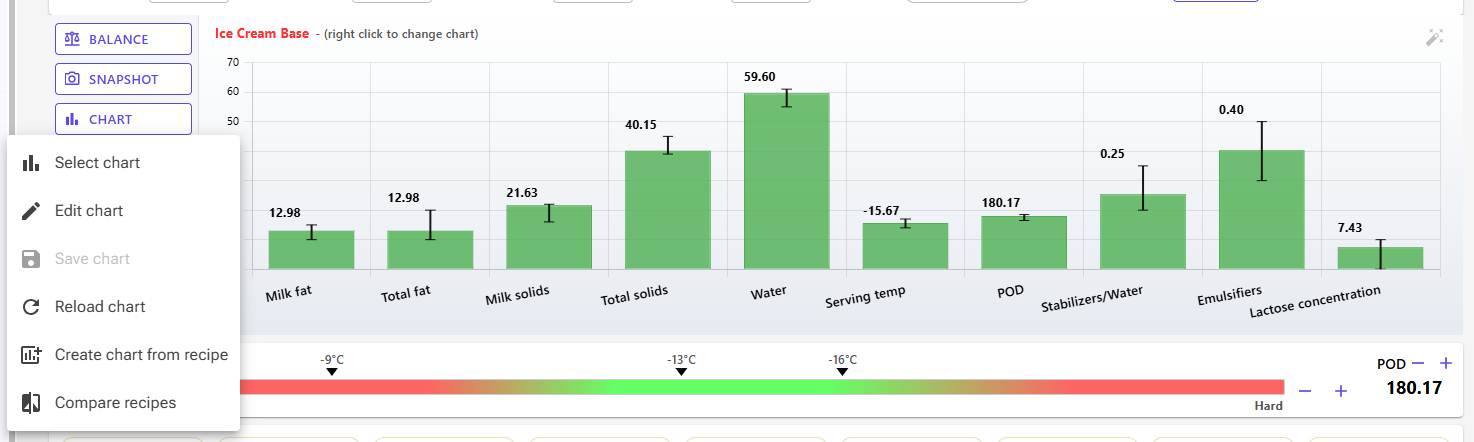
In the Recipe Editor the chart sits in the chart card below the ingredient table, with the chart’s name above it. All chart actions are in the Chart menu: a button in the chart sidebar on desktop, or the chart icon in the row of buttons below the chart on phones.
The Chart Menu
- Select chart – opens the Select Chart dialog with your personal charts and the default charts, the My Charts / Default / All chips, a category filter and a search box. Pick a chart and click Select Chart. The editor remembers the chart for each recipe.
- Edit chart – opens the Chart Editor in Local Edit Mode (“Changes apply to your recipe only”). The Preview shows your recipe’s real values. Click Apply Changes to return to the recipe with the changes, or Cancel to discard them. This works for default charts too.
- Save chart – saves local changes (from Edit chart, a bar click or auto-scale) to the chart. It is available only when there are local changes. For your own chart the changes are saved to it, so every recipe that uses the chart sees them. A default chart can’t be changed, so the app asks Create Personal Copy; click Create Copy to save your changes as “(Copy)” in your personal charts, and the recipe switches to the copy.
- Reload chart – discards local changes and shows the chart as saved.
- Create chart from recipe – builds a new personal chart from the current recipe (below).
- Compare recipes – compares several recipes on the current chart (below).
Local changes are temporary. They belong to this recipe only (other recipes that use the same chart don’t see them) and are not saved with the recipe, so use Save chart for anything you want to keep.
Switching Charts and Editing Bars
- Right-click the chart to open a quick menu: Reload (the same as Reload chart) and a list of all your charts and the default charts, each marked Mine or Default, with a check mark at the current chart. Click a chart to switch to it.
- Click a bar to open the Edit Chart Property dialog for that property, with your recipe’s current value. The change is a local change; use Save chart to keep it.
Auto-Scale
The small wand icon to the right of the chart name (“Auto-suggest scale factors so all bars are readable”) sets a scale factor for each property that has a value in your recipe, so that bars with very different sizes – POD around 180, stabilizers below 1, temperatures below zero – are all readable. The suggested factors are powers of ten (for example 10, 100 or -1) and replace the existing scale factors. It is a local change: the app reports how many scale factors it adjusted, and you use Save chart to keep them, or Reload chart to undo them.
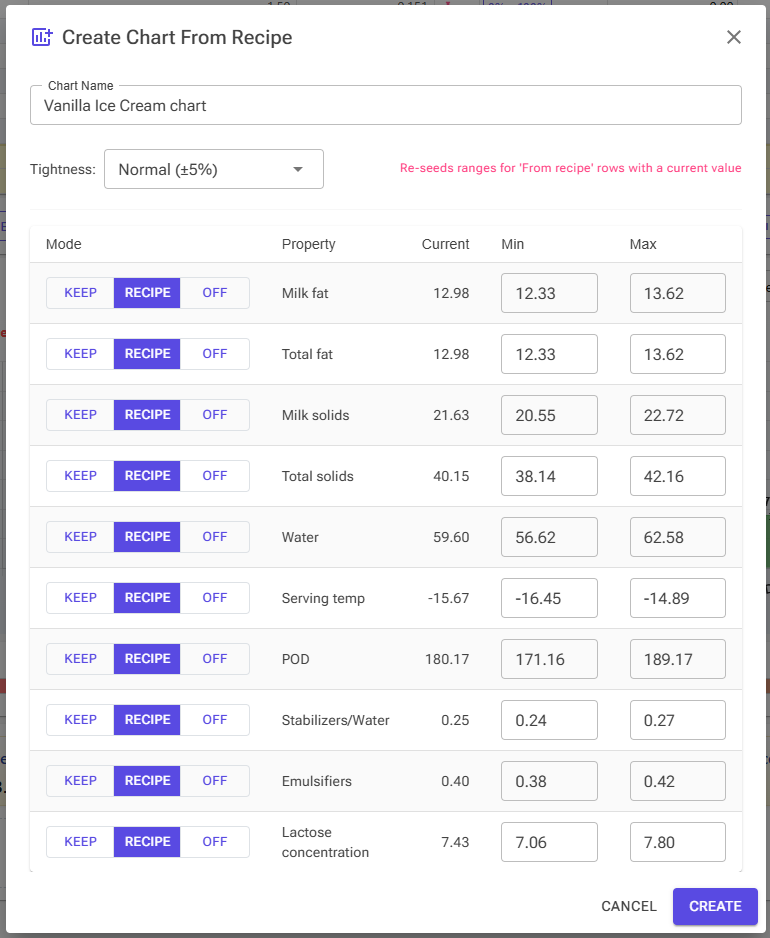
Create Chart from Recipe
Use this when a recipe works well and you want a chart that describes it. The Create Chart From Recipe dialog starts from the properties of the current chart:
- Chart Name – suggested as “[recipe name] chart”.
- Tightness – Tight (±2%), Normal (±5%) or Loose (±10%): how wide the ranges around the recipe’s values are.
- For each property, choose a Mode:
- Keep – keep the current chart’s range, target and priority.
- Recipe – set a range around the recipe’s current value. You can adjust the Min and Max in the row. The target and priority are cleared.
- Off – no range (display only).
Click Create. The new chart is saved in your personal charts and becomes the recipe’s chart. You need to be signed in to use it.
Compare Recipes
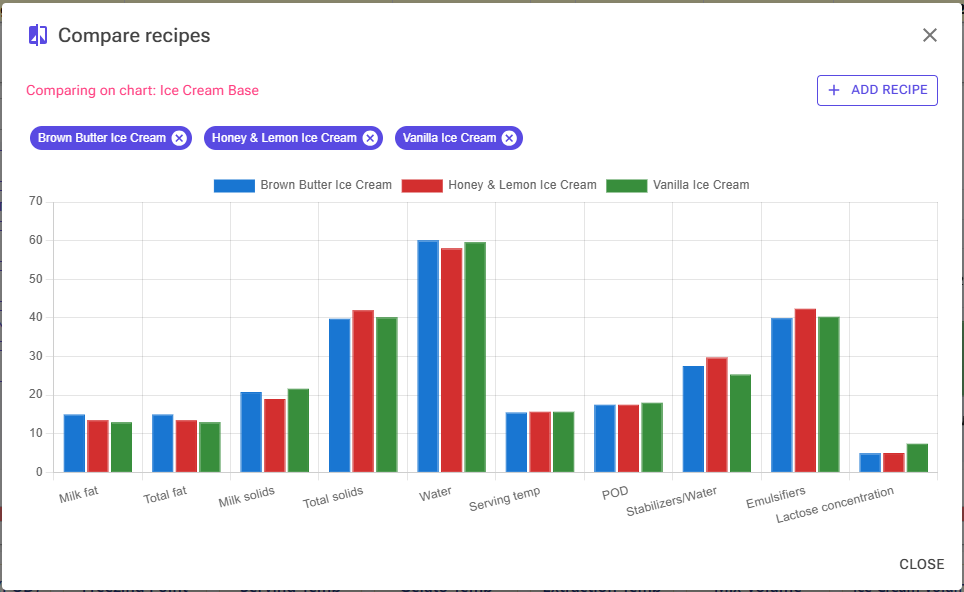
Compare recipes shows several recipes side by side on the current chart, as groups of bars in a different color for each recipe. It starts with the recipes open in your recipe tabs. Click Add recipe to add more, click a recipe’s chip to hide or show it, and click the chip’s x to remove it. Comparing changes nothing in your recipes or the chart. To compare against just one recipe while you edit, use a snapshot instead (see Balancing).
On Phones
On screens 768px wide or narrower, the chart shows horizontal bars: each property is a row with its value, range, target marker and an Above/Below label when out of range. Tap a row to edit that property. The Chart menu is the chart icon in the button row below the chart; there is no right-click, so use Select chart to switch charts.
11. Sharing, Importing and Exporting Charts
- Share – from the Chart Editor of one of your charts: Share chart to community or Share via Private Link. See Sharing.
- Export Charts – on the Tools page. Select one or more of your personal charts and download them as a JSON file.
- Import Charts – on the Tools page. Choose a chart JSON file (exported from the web app or the desktop app), review the charts in it, select which to import and optionally rename them. They are imported as personal charts.
- Desktop app – importing the desktop database also imports its charts; see Desktop Migration Guide.
12. Chart Configuration Examples
To help you understand how to configure charts effectively, here are two fundamental charts that demonstrate the differences between ice cream and gelato formulations.
12.1 Ice Cream Base Chart
This is a versatile chart for traditional American-style ice cream. It’s ideal for vanilla, and other dairy-based flavors where the flavoring ingredients are in relatively small amounts or as a base for inclusions.
Ice Cream Base – All Properties:
| Property | Range | Purpose |
|---|---|---|
| Milk Fat | 10 – 15% | Fat from dairy sources; provides richness and smooth texture |
| Total Fat | 10 – 20% | All fats including milk fat, egg yolks, and other sources |
| Milk Solids | 16 – 22% | Solids from dairy; provides body and helps prevent iciness |
| Total Solids | 39 – 45% | All non-water content; controls overall structure and texture |
| Water | 55 – 61% | Water content; inversely related to total solids |
| Serving Temp | -17 to -14°C | Calculated serving temperature for proper scooping consistency |
| POD (Sweetness) | 165 – 185 | Relative sweetness level; 100 = sucrose reference |
| Stabilizers/Water | 0.2 – 0.35% | Stabilizer concentration relative to water content |
| Emulsifiers | 0.3 – 0.5% | Emulsifier content for improved texture and overrun |
| Lactose Concentration | 0 – 10% | Milk sugar concentration; high levels can cause sandiness |
12.2 Gelato Base Chart
Gelato has a different target profile than ice cream. This chart is designed for Italian-style gelato with dairy flavors, spices, herbs, infusions, or as a base for add-ins where the flavoring ingredients are in relatively small amounts.
Gelato Base – All Properties:
| Property | Range | Purpose |
|---|---|---|
| Milk Fat | 5 – 9% | Lower fat allows more intense flavor expression |
| Total Fat | 5 – 12% | Overall fat content from all sources |
| Milk Solids | 16 – 22% | Non-fat dairy solids for structure |
| Total Solids | 35 – 40% | Lower than ice cream; density comes from minimal overrun |
| Water | 60 – 65% | Higher water content than ice cream |
| Serving Temp Gelato | -13 to -11°C | Gelato is served warmer than ice cream for optimal texture |
| POD (Sweetness) | 165 – 185 | Similar sweetness range to ice cream |
| Stabilizers/Water | 0.2 – 0.35% | Standard stabilizer concentration |
| Emulsifiers | 0.3 – 0.5% | Emulsifier content for texture control |
| Lactose Concentration | 0 – 10% | Maximum lactose to prevent crystallization |
12.3 Ice Cream vs Gelato: Key Differences
Understanding why these charts differ helps you create the right chart for your specific frozen dessert style:
| Property | Ice Cream | Gelato | Why Different? |
|---|---|---|---|
| Milk Fat | 10-15% | 5-9% | Lower fat in gelato allows flavors to be more pronounced |
| Total Solids | 39-45% | 35-40% | Ice cream has higher solids for richer base structure |
| Water | 55-61% | 60-65% | Gelato has more water but feels dense due to low overrun |
| Serving Temp | -17 to -14°C | -13 to -11°C | Gelato served warmer for softer, creamier texture |
Ice Cream vs Gelato: The main differences between artisanal ice cream and Gelato are the fat content and serving temperature. Ice cream typically has higher fat (10-15%) and is served colder (-17 to -14°C), while Gelato has lower fat (5-9%) and is served warmer (-13 to -11°C). The warmer serving temperature and lower fat content allow Gelato’s flavors to be more pronounced on the palate.
Tip: When creating a chart for a new style, start by copying the closest existing chart (ice cream or gelato) and adjust the ranges based on the differences in your target product. For specialty products like chocolate gelato or nut-based ice creams, you may need to further adjust ranges to account for fat and solids from flavoring ingredients.
13. Best Practices for Chart Design
Start with Proven Charts
Rather than building charts from scratch:
- Copy a default chart that’s close to your target style
- Test with existing recipes that you know work well
- Adjust ranges gradually based on actual results
- Document your changes in the description field
Keep Critical Properties Tight
Focus your narrow ranges on the properties that define your style:
- For texture: Tight ranges on total solids and water
- For sweetness: Narrow POD range
- For mouthfeel: Specific fat content targets
- For stability: Precise stabilizer and emulsifier ratios
Tight vs. Relaxed Ranges:
- Tight range example: Total Solids 38-40% (only 2% tolerance)
- Relaxed range example: Total Fat 10-20% (10% tolerance)
Use tight ranges for properties that critically define your ice cream style, and relaxed ranges for secondary properties.
Avoid Conflicting Properties
Some properties are mathematically related and can create impossible balancing scenarios:
- Don’t constrain both: Water AND Total Solids with tight ranges (they must sum to 100%)
- Be careful with: Milk Fat AND Total Fat (milk fat is part of total fat)
- Consider the relationship between: POD and PAC (both influenced by sugar content)
Common mistake: Setting Total Solids to 38-40% and Water to 55-60% creates an impossible scenario (they don’t sum to 100%). Instead, set ranges on one and let the other be calculated.
Use Priority Wisely
Mark no more than three properties as high priority – these should be the properties that truly define your product:
Good Priority Selection for Ice Cream:
- ✓ Total Solids (controls structure and texture)
- ✓ POD (defines sweetness level)
- ✓ PAC (affects serving temperature and texture)
- ✗ Stabilizers (important but narrow range is already constraining)
- ✗ Total Fat (important but with wide acceptable range)
Test and Refine
Creating great charts is an iterative process:
- Create a test chart with your best-guess ranges
- Balance several recipes using the chart
- Make and taste the results
- Adjust ranges based on which recipes worked best
- Document successful ranges in your chart description
- Share your findings with the community once perfected
Pro Tip: Keep notes about which recipes worked with each chart version. This helps you understand why certain ranges work better than others and accelerates the refinement process. When a recipe turns out exactly right, Create chart from recipe captures it as a chart.
Consider Your Ingredients
Your chart should match your actual ingredient inventory:
- Limited sugar options? Relax PAC/POD ranges slightly
- Using specific stabilizers? Adjust stabilizer/water ratios for your blend
- No egg yolks? Ensure emulsifier ranges compensate
- Plant-based? Use TSNFS instead of MSNF
Document Your Charts
Always fill in the description field with helpful information:
Good Description Example:
“Balanced chart for fruit-flavored ice creams using 14% milk fat cream and Cremodan 64 stabilizer. POD range of 170-180 provides noticeable but not overpowering sweetness. Tested successfully with strawberry, peach, and mango recipes.”
Better Than: “Fruit ice cream chart”
14. Summary
Charts are powerful tools that define target properties for your ice cream recipes. By understanding how to create, configure, and use charts effectively, you can:
- ✓ Develop consistent recipes that match your signature style
- ✓ Use automatic balancing to quickly adjust recipes to target ranges
- ✓ Visualize how your recipes compare to proven formulations
- ✓ Experiment with new flavors while maintaining quality standards
- ✓ Share your successful formulations with the community
Next Steps: