What the AI Recipe Generator Does
The AI Recipe Generator creates a complete recipe in your account. It has two modes:
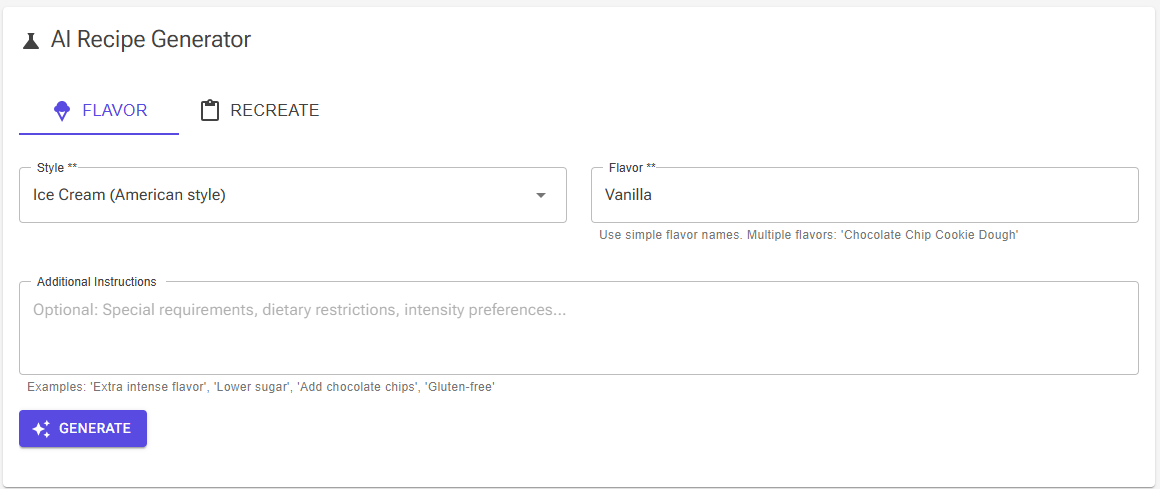
- Flavor – describe a flavour and a style, and the AI designs a new 1000 g recipe.
- Recreate – paste an existing recipe, and the AI converts it to grams and reproduces it as written.
After you click Generate, the app matches the ingredients to your library, picks a chart, balances a Flavor recipe, saves it and opens it in the Recipe Editor. It only stops when an ingredient cannot be matched automatically.
⚠️ Important Disclaimer
AI-generated recipes are starting points, not final formulations. While the AI uses professional ice cream science principles and industry-standard guidelines, the generated recipes may contain errors, inaccuracies, or suboptimal ingredient ratios.
You must always:
- Review all generated recipes carefully in the Recipe Editor
- Validate ingredient amounts against authoritative sources
- Test recipes in small batches before production use
- Balance and adjust formulations to meet your specific requirements
- Verify that all ingredients and amounts are appropriate for your equipment and goals
The AI provides a first draft to accelerate your recipe development process—your expertise and judgment are essential for creating safe, high-quality final formulations.
Opening the Generator
The generator is a Premium feature and needs you to be signed in. Open it from Create Recipe → Generate with AI, or add the AI Recipe Creation shortcut to your Home page. On a free account, Generate with AI shows an upgrade dialog.
Flavor: Design a New Recipe
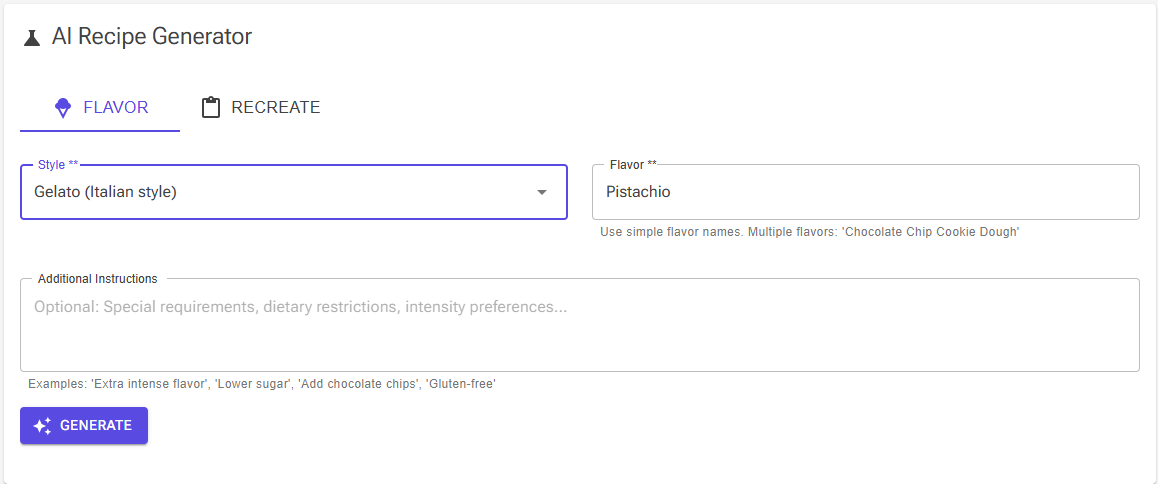
- Style (required) sets the base formulation: Ice Cream (American style), Gelato (Italian style), Gelato Crema (with eggs), Sorbet (dairy-free), Vegan Ice Cream, Custard Ice Cream (with eggs) or Soft Serve. Gelato, for example, uses more milk and less cream than ice cream.
- Flavor (required) – use simple names such as "Pistachio", "Salted Caramel" or "Chocolate Chip Cookie Dough", not long descriptions. The AI doses the flavour from professional guidelines; pistachio paste, for example, goes in at 60–80 g per 1000 g.
- Additional Instructions (optional) – dietary needs ("Lower sugar"), intensity ("Extra intense flavor") or add-ins ("Add chocolate chips"). Pieces such as chips are added only when you ask for them.
Recreate: Convert a Recipe You Paste
Use Recreate to bring a recipe from a book or website into the app. Paste the full text, ingredients and method, into Recipe text and click Generate. Only pasted text works: the generator cannot open a web address or read an image.
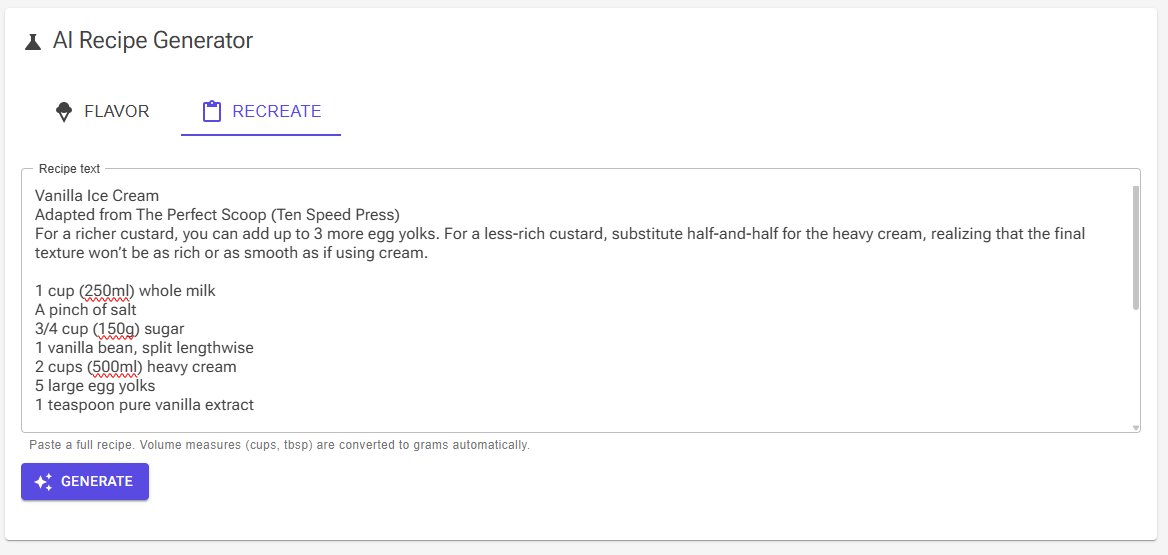
- Nothing is redesigned. The AI keeps the author's ingredients and amounts and does not scale the recipe to 1000 g.
- Units become grams. Cups, tablespoons, teaspoons, fluid ounces, pints, quarts, ounces, pounds and sticks of butter are converted with typical densities. Each assumption is written into the recipe's Description, for example "1 cup heavy cream → 240 g".
- "Divided" ingredients are split. An ingredient used in two places ("divided", "reserved", "set aside") becomes two rows: one in the base mix and one added after churning (or steeped and strained out). With no split given, it is split 50/50 and the Description says so.
If the text holds no usable recipe, you see "No recipe could be found in the pasted text. Please paste a complete recipe."
What Happens After You Click Generate
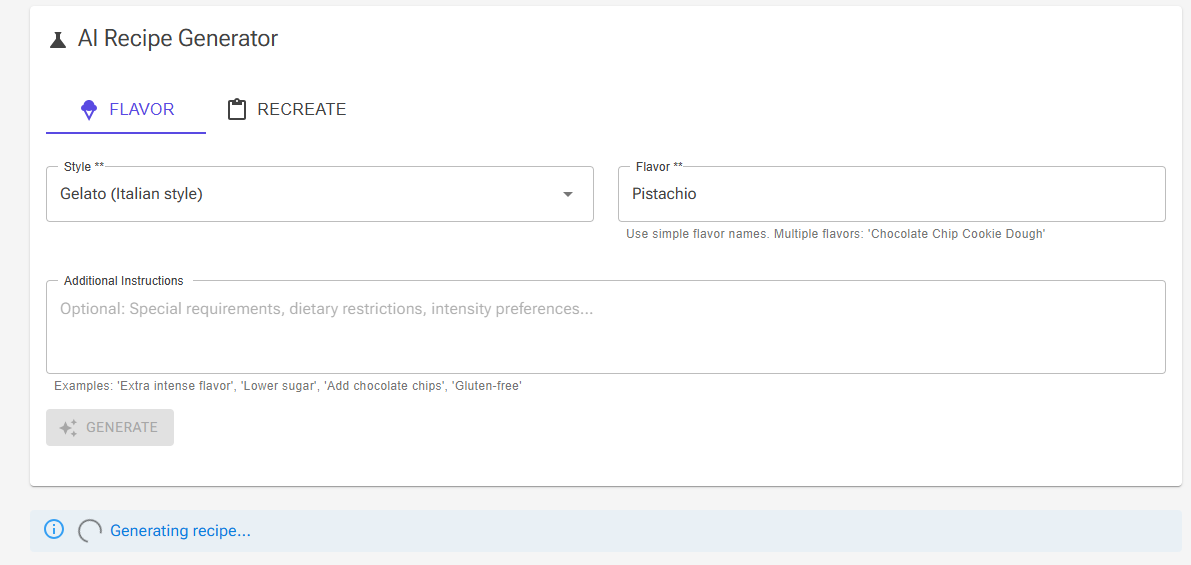
A progress line shows each stage: Generating recipe…, Matching ingredients…, Balancing… and Creating recipe…. Then the new recipe opens in the Recipe Editor.
Ingredient Matching
Each AI ingredient is matched to your library automatically: by exact name first, then by the most similar name when it scores 85% or more. If everything matches, you never see a matching step.
Otherwise the flow pauses and the Ingredient Matching panel lists only the ingredients that need you, with their amount, their type (Base, Inclusion or Infusion) and a counter such as "7/9 ingredients matched". For each row you can:
- Pick a match from the dropdown – up to five similar ingredients, each with a match percentage.
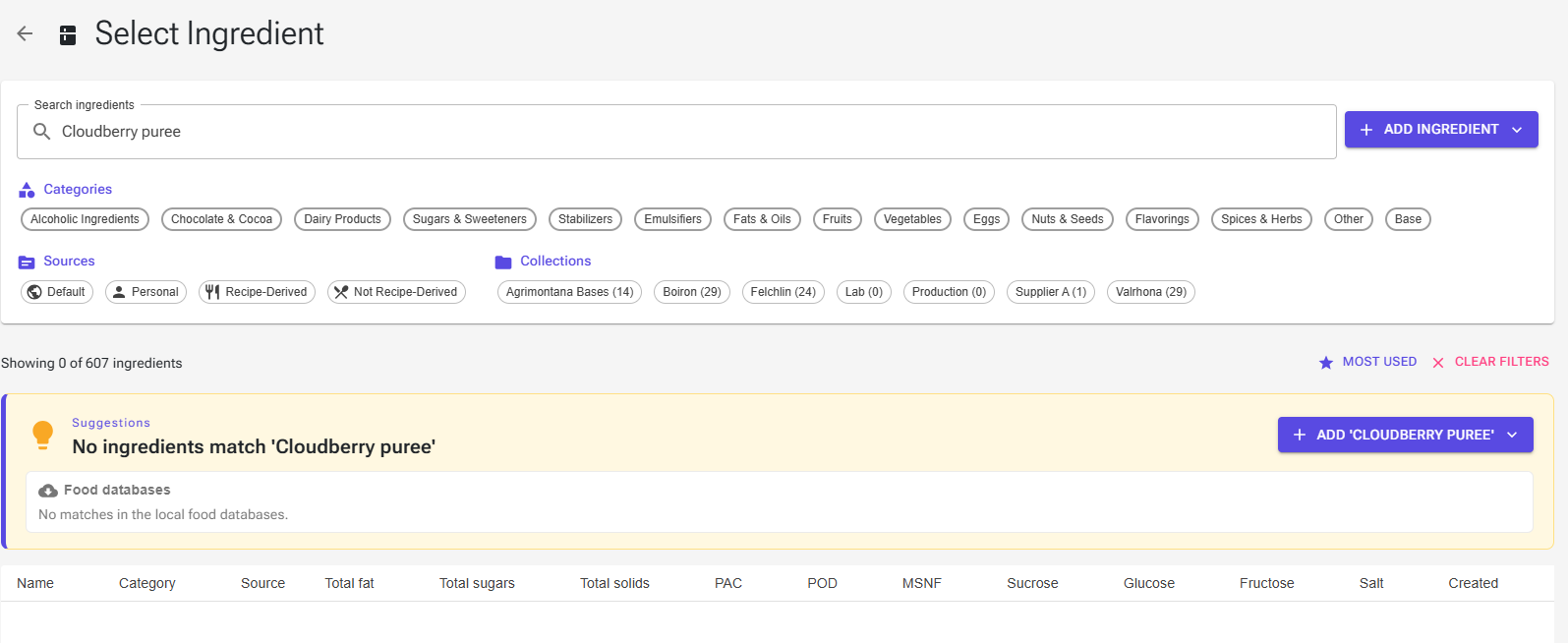
- Select – search your library on the Select Ingredient page, with the AI's name already in the search box.
- Add – open the ingredient editor with the AI's name filled in. Save it, and it is matched.
- Delete – remove the ingredient from the recipe, after a confirmation.
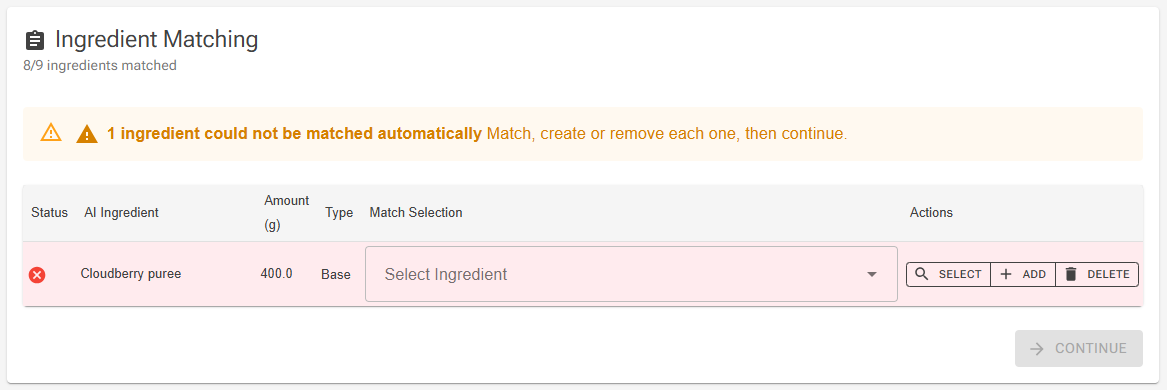
On phones the buttons read Select, Create and Remove. When every row is matched or deleted, click Continue to balance and create the recipe.
Finding or Creating the Ingredient
On Select Ingredient, click Select or double-click a row to use an ingredient; the back arrow returns without a choice. If the ingredient is not in your library yet, use the Add ingredient menu beside the search box (Create manually, Search Food DB, From nutrition label, Estimate with AI), or the Suggestions card that appears when nothing matches. A food database match you import there is selected straight away. See How to add ingredients.
What You Get
- Name – the AI's name. Rename it in Properties.
- Chart – the most suitable of your charts and the default charts, chosen by the AI. If its choice cannot be found, the first available chart is used and a warning says so. See Charts.
- Description – the AI's reasoning, starting "AI Generated:": ingredients, doses, sugars, chart and, for Recreate, the unit conversions. A description longer than 2000 characters is shortened and ends with "…".
- Instructions – the AI's preparation steps, saved as the recipe's instructions: one group of numbered steps, with the group heading hidden. Steps the AI writes as one paragraph are split into separate steps. If the steps cannot be saved, a warning says so and the recipe still opens.
- Inclusions and infusions – pieces folded in after churning are marked as inclusions; items steeped and strained out (mint leaves, coffee beans) as infusions.
Check the steps against your own method and edit them like any other instructions; see Recipe Instructions.
Flavor Recipes Are Auto-Balanced
Before a Flavor recipe is saved, the app balances it against the chart with Smart Balance, using your real ingredient data:
- The flavour ingredients are locked at the AI's amounts during this balance.
- Base ingredients left under 0.5% of the mix are removed when the chart still balances as well without them. Flavours, stabilizers, emulsifiers and high-intensity sweeteners are never removed this way.
- Snackbars report both, for example "Auto-balanced to chart name: 4 ingredients adjusted" and "Removed negligible ingredients: …".
- If the balancer cannot reach a usable result, the recipe keeps the AI's own amounts.
The locks are not saved with the recipe. When you balance again in the editor, Smart Balance classifies the ingredients itself, so check that the flavour ingredients are protected first.
Recreated Recipes Are Created as Reproduced
A recreated recipe is saved exactly as converted: no balancing and no removals. It often falls outside the chart's ranges, because it was written for another method or taste. To bring it into range, click Balance in the Recipe Editor; see Balancing.
Tips for Best Results
- Start simple: classic flavours in the Ice Cream or Gelato style.
- Read the Description for the AI's doses, sugars and conversions.
- Check the matches. Automatic matches are not shown on the panel, so look over the ingredient list in the editor.
- Lock or restrict flavour ingredients before balancing again.
Troubleshooting
"Continue is greyed out"
Every listed ingredient must be matched or deleted first. If you deleted every ingredient, there is nothing left to create: the panel says so, and you generate the recipe again.
"An ingredient was matched to the wrong item"
Replace it in the Recipe Editor.
"No recipe could be found in the pasted text"
Paste the complete recipe, including the ingredient list with amounts.
"My recreated recipe is out of range on the chart"
That is expected: it is saved as written. Use Balance in the editor.
"Generation failed"
An error box shows the reason. Try again, shorten the Additional Instructions or use a simpler flavour name. Contact support if it keeps failing.
Related Articles
- Recipe Editor – refining the new recipe
- Balancing – Smart Balance, classes and locks
- Charts – choosing and changing a chart
- How to add ingredients – creating missing ingredients
- Recipe Instructions – editing the steps