What the AI Labeling Tool Does
Writing labeling data for commercial ingredients is slow: every bought-in product needs its sub-ingredients (the components printed inside the brackets on your label) and its allergen assignments. The AI Labeling tool does this in bulk. You pick a set of your ingredients, the AI searches the web for each product's real declaration, and you review every suggestion before anything is saved.
You'll find it at Tools → AI Labeling. You can also add the AI Labeling shortcut to your Home page with the pencil icon next to Shortcuts. It is a Premium feature.
The tool never writes anything on its own. Results go into a review table where you accept or reject each row, and only accepted rows are saved — using exactly the same storage as the manual Sub-Ingredients & Allergens editor, so you can polish everything by hand afterwards.
Before You Start
- Only your own ingredients can be labeled. Shared standard ingredients are skipped automatically — if you want to label a standard ingredient, first turn it into a personal ingredient with Tools → Convert to Personal Ingredients (see Convert to Personal Ingredients). For the same reason, the ingredient picker opens with the Personal source filter already selected.
- Recipe-derived ingredients are skipped too. An ingredient you made from one of your recipes takes its sub-ingredients and allergens from that source recipe, so labeling it here would be overwritten. If you select one, the tool leaves it out with a notice ending “Their labeling is inherited from the source recipe.” Label the ingredients the source recipe uses instead: when you apply, the recipe-derived ingredient is updated with their labeling (see Step 5). See Using a Recipe as an Ingredient.
- Your allergen list matters. The AI can only assign allergens that already exist in your allergen list — it never invents new allergen names. A sparse list means missed allergens, so set up the statutory allergens for your market first (the tool checks this for you, see below).
- Ingredient groups are used too. If you keep groups like "Emulsifiers" or "Colours" for additives, the AI will assign matching components to them — again, only using group names you already have.
Step 1: Select Ingredients
- Click Select ingredients and pick the ingredients you want to label. You can select many at once, and you can open the dialog again to add more.
- The table shows each ingredient's current sub-ingredient count, allergen count, and a Labeled chip if it already has sub-ingredients.
Already-labeled ingredients are excluded from the AI run by default so you don't accidentally overwrite work you've done. Turn on Include already-labeled ingredients in the AI run if you deliberately want to re-generate them.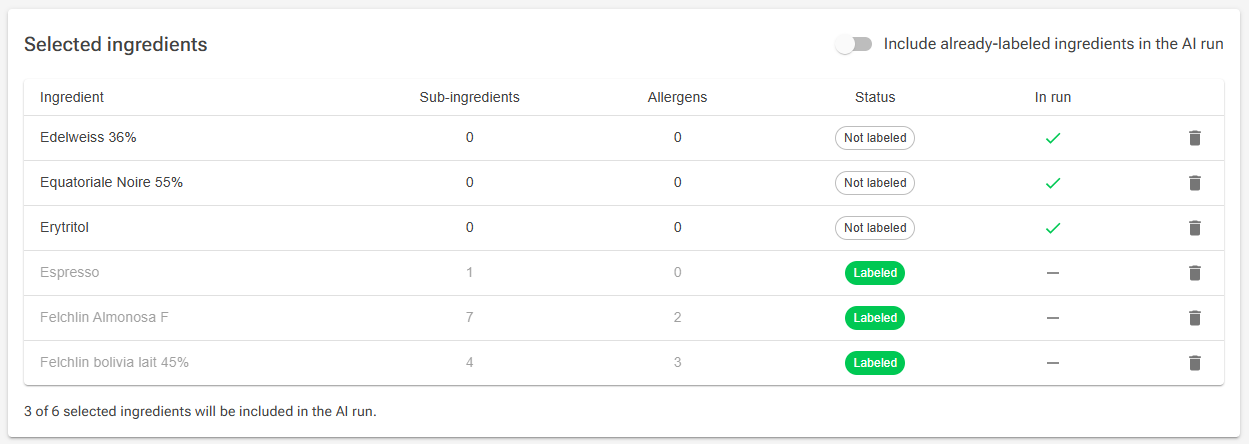
Step 2: Run Settings
Choose the labeling regime (for example EU or US) and the label language. The regime decides which labeling rules the AI applies — allergen emphasis, exemptions such as fully refined oils, and warning statements. The language is the language the sub-ingredient names will be written in. Your choices are remembered for next time.
The optional run context field applies to every ingredient in the run. Use it for facts the AI can't know, for example:
Example: "All products are made in a facility that also handles nuts and peanuts."
The Allergen Coverage Check
The tool compares your allergen list against the statutory allergen template for the selected regime. If your list covers less than half of the template, a warning appears with a Set up standard allergens button. This opens the standard template dialog, which adds the missing statutory allergens (and functional groups) to your lists — it only ever adds, it never changes or removes anything you already have.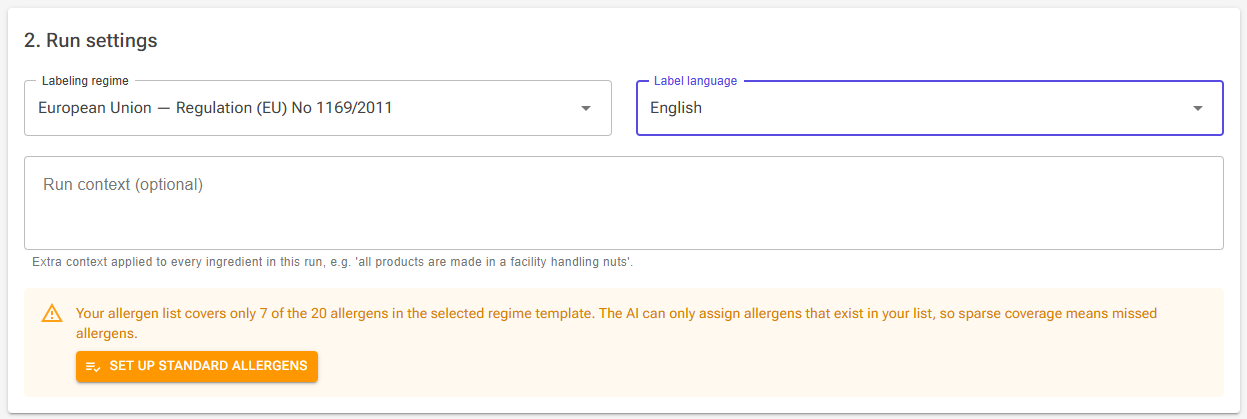
Step 3: Run
Click Start AI run. Ingredients are processed one at a time, with a progress bar showing which ingredient is being worked on. Each ingredient takes a little while because the AI searches the web for the product's actual declaration.
- Cancel stops the run after the current ingredient finishes. Completed results are kept.
- If one ingredient fails, only that row is marked failed — the rest of the run continues, and failed rows get a Retry button in the review table.
Step 4: Review the Results
Every result carries a source status that tells you where the data came from. This is the most important column in the review table — it tells you how much checking each row needs.
| Status | Meaning | What to do |
|---|---|---|
| Found online | The declaration was found for your selected market. A link icon opens the source page. | Open the source and spot-check it against your actual product. |
| Found (other region) | Data was found, but from another market's version of the product (for example a US site for an EU run). Recipes differ between markets. | Treat with care — compare against the package you actually buy. |
| Simple ingredient | A single-component ingredient (sugar, cream, hazelnuts). The name itself, translated to the label language, is the declaration. | Usually safe to accept. |
| No data found | A composite product with no reliable source. The AI is explicitly forbidden from inventing a plausible-looking composition, so you get a fallback: the product name at 100% and only allergens that are obvious from the name. | These rows are rejected by default. Use Provide declaration (below) or label the ingredient manually. |
| User-provided | The result was built from declaration text you pasted from the package. | Verify the transcription and accept. |
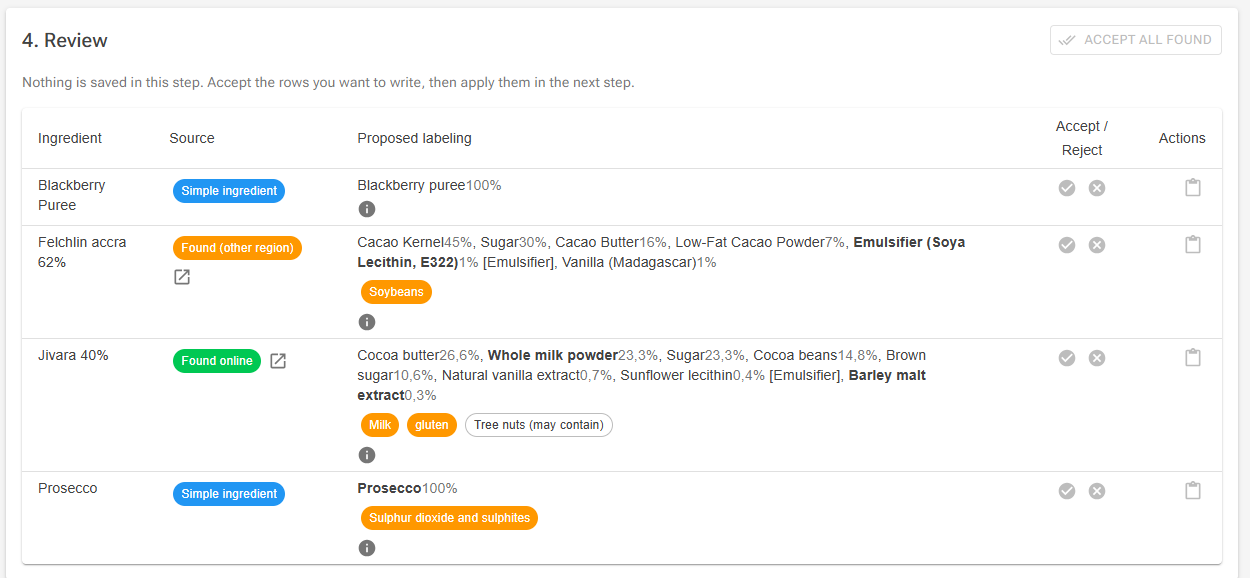
For each row you also see the proposed data: sub-ingredients with percentages (allergenic components in bold, group assignments in brackets), allergen chips ("may contain" assignments are shown outlined), and an info icon with the AI's short reasoning.
What the Results Mean on Your Label
The proposed data maps directly onto your printed ingredient declaration:
- Bold components are marked as allergenic and will be emphasized — displayed in uppercase — inside the ingredient declaration, as allergen labeling rules require.
- Percentages are stored for every component, but only printed on the label for components where the source declaration itself stated one (for example "hazelnuts 13%"). The rest are used for ordering and calculations without appearing in print.
- Allergen chips become your label's allergen sections: solid chips are definite Contains assignments, while outlined "may contain" chips are trace/cross-contamination assignments that appear in the May contain section.
See Professional Ingredient Lists for the full picture of how sub-ingredients, highlighting, and percentage declarations build the final label.
Accepting and Rejecting
- Use the check and cross buttons to accept or reject each row. Nothing is saved in this step.
- Accept all found accepts every row with a reliable in-region source (Found online and Simple ingredient), including User-provided rows built from a declaration you pasted. Out-of-region and no-data rows always need an individual decision.
Provide Declaration — Using the Actual Package
For any row — typically No data found or a wrong match — click the paste icon and type or paste the ingredient declaration exactly as printed on the bag. That single ingredient is re-run with your text as ground truth instead of web search, and the result is labeled User-provided. This is the most reliable path, because it uses the exact product in your storeroom.
Step 5: Apply
Click Apply accepted rows. A confirmation dialog states how many ingredients will be updated. Applying replaces each ingredient's existing sub-ingredients and allergen assignments with the accepted result — the same way saving in the manual editor does.
- Group and allergen names are matched against your own lists (ignoring case). A proposed name with no match is dropped, never guessed, and the row shows a notice listing what was dropped.
- Applied rows get an Applied chip and an Edit button that opens the standard Sub-Ingredients & Allergens editor for manual polish — adjusting percentages, reordering, or adding what the AI missed.
- Recipe-derived ingredients are brought up to date. If you have turned a recipe into an ingredient, and that recipe uses one of the ingredients you just labeled, the recipe-derived ingredient's inherited sub-ingredients and allergens are recalculated straight away. If this update fails, a warning starting “Applied, but recipe-derived ingredients could not be updated” appears; the labeling you applied is still saved.
Important: AI-generated labeling suggestions must be verified against the actual product before use. You are responsible for the compliance of labels you place on the market. Sources change, recipes get reformulated, and even a correct source may not match the batch on your shelf.
Troubleshooting
Problem: An allergen I expected is missing from a result.
Solution: Check that the allergen exists in your allergen list — the AI only assigns from your list. Run the allergen coverage check in step 2, add the missing allergen, and re-run the ingredient. The AI's reasoning tooltip often notes allergens it found but couldn't assign.
Problem: A group assignment was dropped when applying.
Solution: The proposed group name didn't match any of your ingredient groups. Add the group (or use the standard template dialog in step 2, which can add the statutory functional categories), then use the row's Edit button to assign it manually — or re-run and re-apply the ingredient.
Problem: The result is for the wrong product or the wrong market's recipe.
Solution: Use Provide declaration and paste the declaration from your actual package. Pasted text always wins over web search.
Problem: Most of my selected ingredients were skipped when selecting.
Solution: Two kinds of ingredients are filtered out, each with its own notice. Shared standard ingredients cannot be labeled — convert them to personal ingredients first. Recipe-derived ingredients inherit their labeling from the source recipe — label the ingredients that recipe uses instead, and the recipe-derived ingredient is updated when you apply.
Related Articles
- Professional Ingredient Lists — how sub-ingredients, allergen highlighting, and percentage declarations build compliant labels.
- Convert to Personal Ingredients — turn the standard ingredients in your recipes into personal ingredients you can label.
- Using a Recipe as an Ingredient — how recipe-derived ingredients inherit their labeling.
- Recipe Sets & Labels — combined labels and allergen declarations for multi-flavor products.
- How to add ingredients
- AI Ingredient — AI-assisted creation of a single ingredient with nutrition data.
- Nutrition Label Import